CRM Actions & Field Mapping
The CRM Actions tab controls what happens automatically the moment your agent captures a lead — creating records, adding notes, and notifying your team.
Navigating to CRM Actions
Open an agent, then click the CRM Actions tab.
Auto-create Contact
When enabled, a captured lead is upserted into Contacts. Choose how to handle a contact that already matches by email or phone:
| Option | Behavior |
|---|---|
| Update existing contact | Merges the new data into the existing record (most common). |
| Skip if exists | Leaves the existing contact untouched. |
| Create a new contact each time | Useful for high-throughput campaigns — watch for duplicates. |
Click Configure mapping to open CRM Field Mapping, where you pair each bot-captured field with a CRM path (standard or custom contact field), and toggle whether it should auto-create the contact.
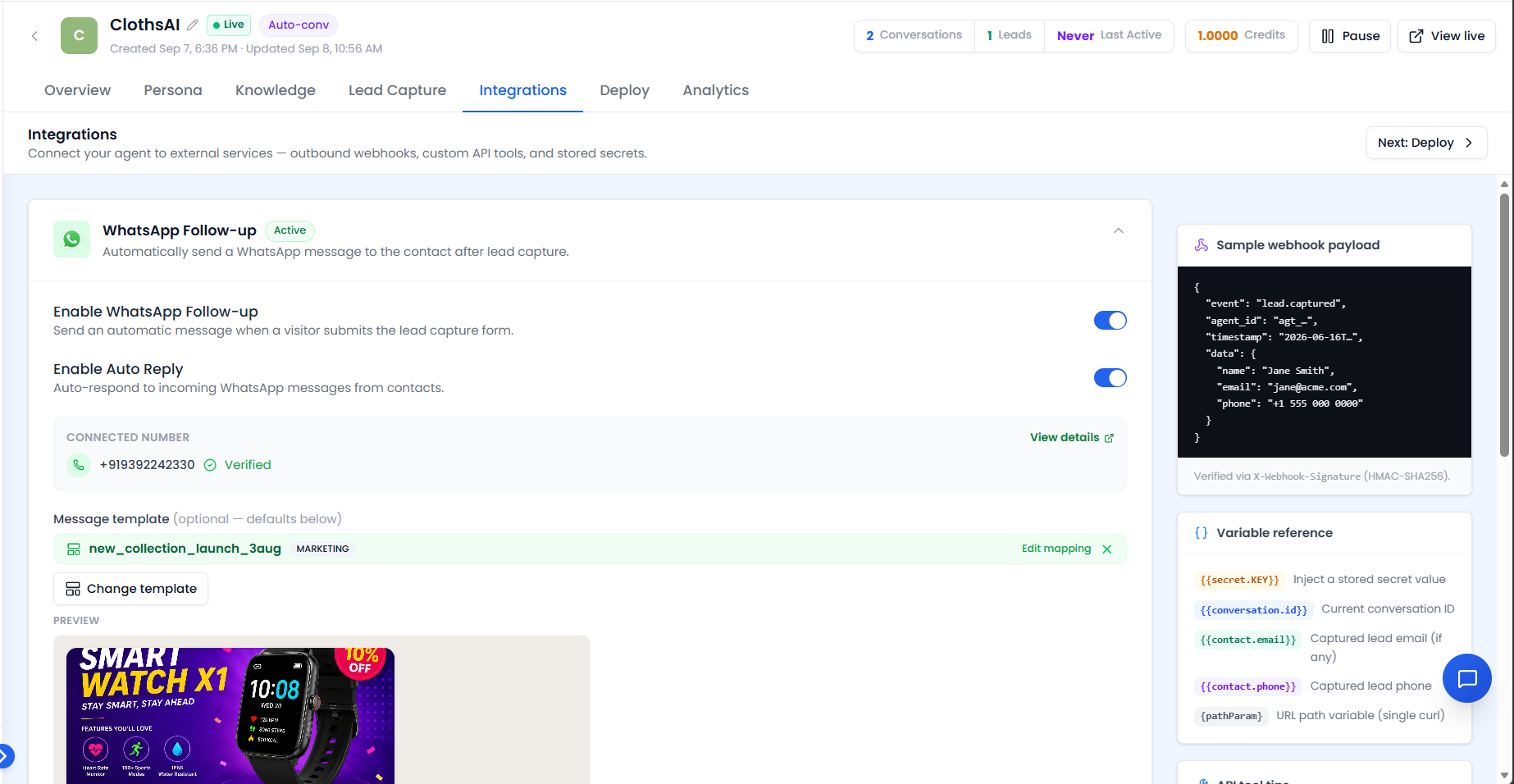 Auto-create Contact, duplicate-handling options, and the Configure mapping button.
CRM Field Mapping also has a Test with sample lead panel — a dry run that shows which fields resolve correctly and which are unmapped, without touching real data.
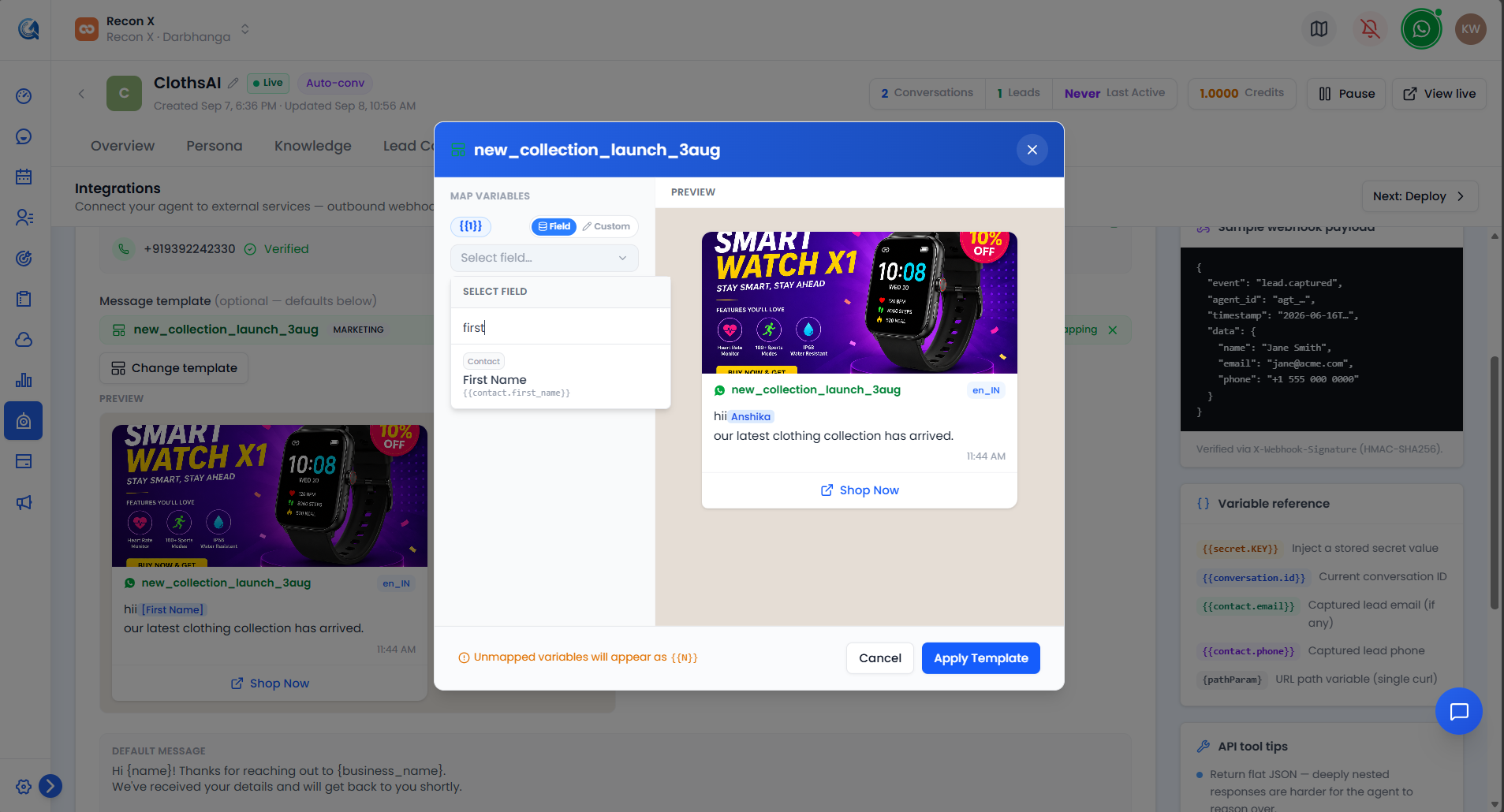 Bot field → CRM path pairs, each with an auto-create toggle, and the Test with sample lead panel below.
Add transcript as Contact Note
When enabled, the full conversation transcript is pushed to the contact's timeline.
Create Opportunity (Lead Gen & Auto-conv agents)
Qualified leads can automatically create an Opportunity. You'll need to paste the Pipeline ID, and stage IDs for the hot and warm score buckets (from Flow Builder's scoring) — there's no picker yet, so these are UUIDs you paste in.
Create Support Ticket (Support agents)
Support agents get this action instead of Opportunity — a ticket opens for the team you specify (also a pasted team UUID) whenever the agent escalates or falls back.
Notify Team
Alert someone when a hot or warm lead comes in. For each bucket, choose an assignment strategy: round-robin across the sales team, always to a specific user (paste their user UUID), or notify the whole team.
Regardless of these settings, every AI-handled conversation is posted to the Conversations module so your team can monitor and take over at any time.
Video Walkthrough
Watch the complete walkthrough below.