Managing Agents
The AI Agents page lists every agent in your account, with the tools to filter, search, duplicate, and delete them.
The Agents List
Each agent card (or list row, if you switch to list view) shows its name, type, channel, status, and quick stats:
- Auto-Conversation agents show Conversations, Campaigns, and Re-engaged counts.
- Lead Generation and Support agents show Leads Captured instead.
- Every agent shows Last Active.
At the top of the page, a KPI strip totals Total Agents, Total Conversations, Leads Captured, and Credits Used across your whole account.
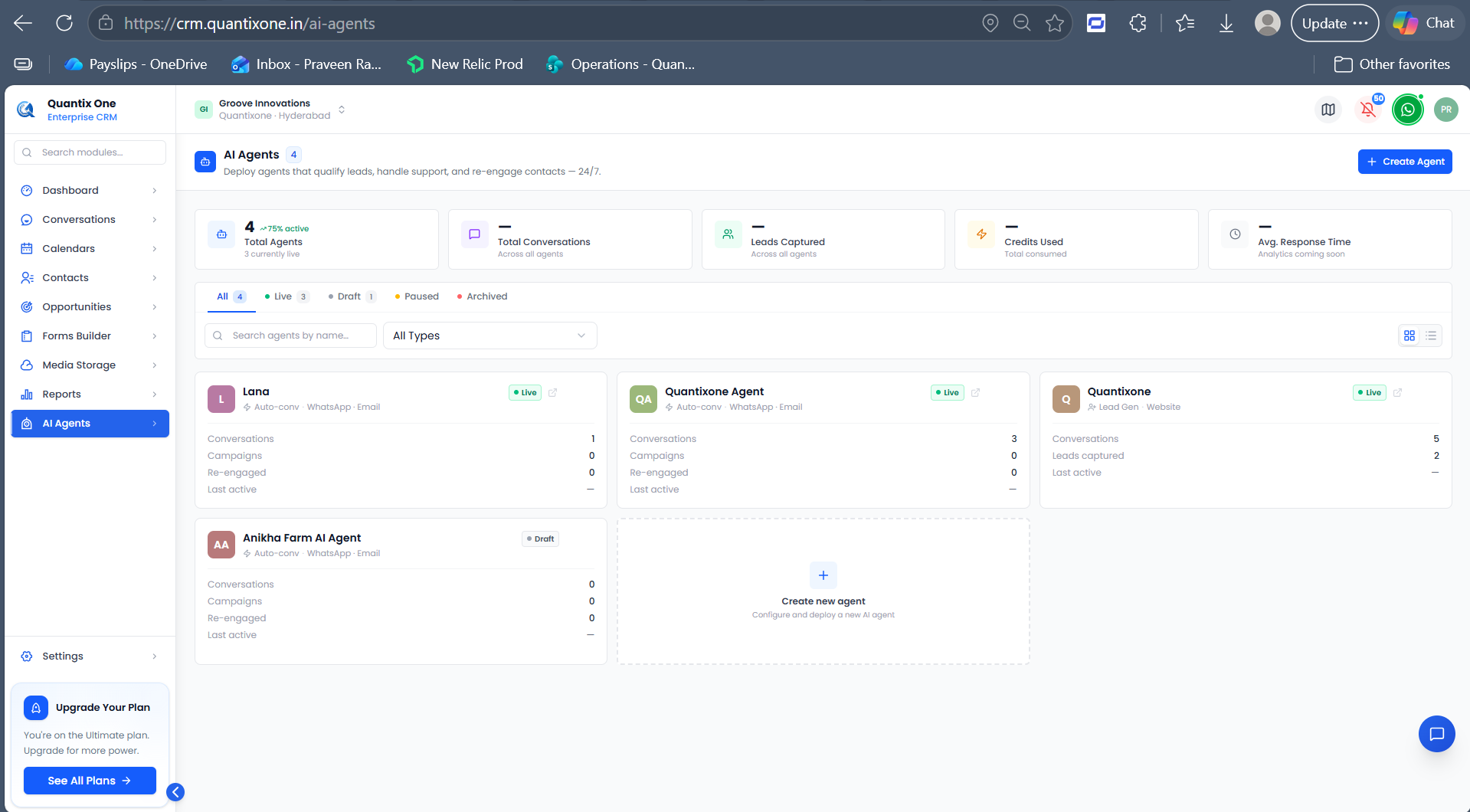 The KPI strip along the top, with an agent card below showing its type, channel, status, and quick stats.
Filtering and Searching
- Status tabs — All, Live, Draft, Paused, Archived — each with a count badge.
- Type filter — All Types, Lead Gen, Support, Auto-conv, Voice.
- Search — filter by agent name.
Switch between grid and list view using the toggle in the top-right of the toolbar.
Agent Status
An agent moves through four states:
| Status | How you get there |
|---|---|
| Draft | The default state right after creation. |
| Live | Click Deploy → Go live on the agent's Deploy tab. |
| Paused | Click Pause in the agent's header (only shown while Live). Messaging stops until resumed. |
| Archived | Click Delete on the agent's card in the Overview list (see below). |
From a Paused agent, click Resume to bring it back to Live.
Duplicating an Agent
Click the Duplicate icon on an agent's card or row. This creates a copy — named "Agent Name (copy)" — in the same organization, sub-account, and location, with all its configuration.
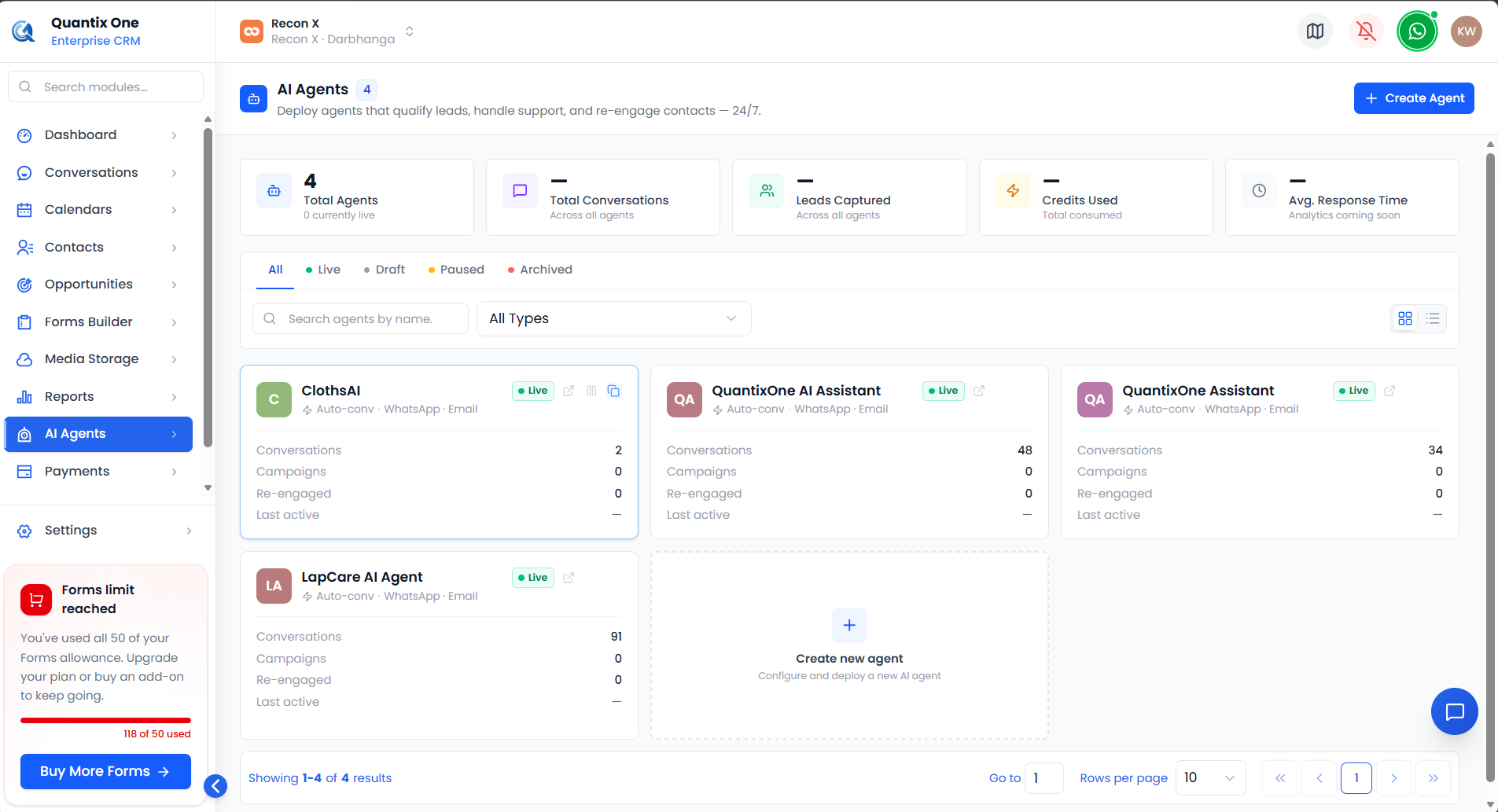 In list view, the Duplicate and Delete icons appear on hover at the end of each agent row.
Deleting an Agent
Click the Delete icon (or open the card's menu) and confirm. The confirmation dialog states this permanently removes the agent's configuration.
Deleting an agent from this list actually archives it rather than erasing it outright — an archived agent still shows up if you filter to the Archived status tab. If you delete an agent and can't find it afterward, check there before assuming it's gone for good.
Video Walkthrough
Watch the complete walkthrough below.