One-Time Booking Links
A One-Time Booking Link is a private, single-use link you send to a specific person. Unlike the regular booking page (which is always public), a one-time link expires as soon as it is used. This is useful when you want to invite a specific contact to book a slot without opening up your full availability publicly.
Accessing One-Time Links
There are two ways to access one-time links:
Option 1 — From the Share dialog: Go to Calendar Settings, find the calendar in the list, click the ⋮ more actions menu, and select Share. In the Share dialog, click the One Time Link tab.
Option 2 — From the Calendar Edit Form: Go to Calendar Settings, click on a calendar to open its edit form, and select One-Time Links in the left section menu.
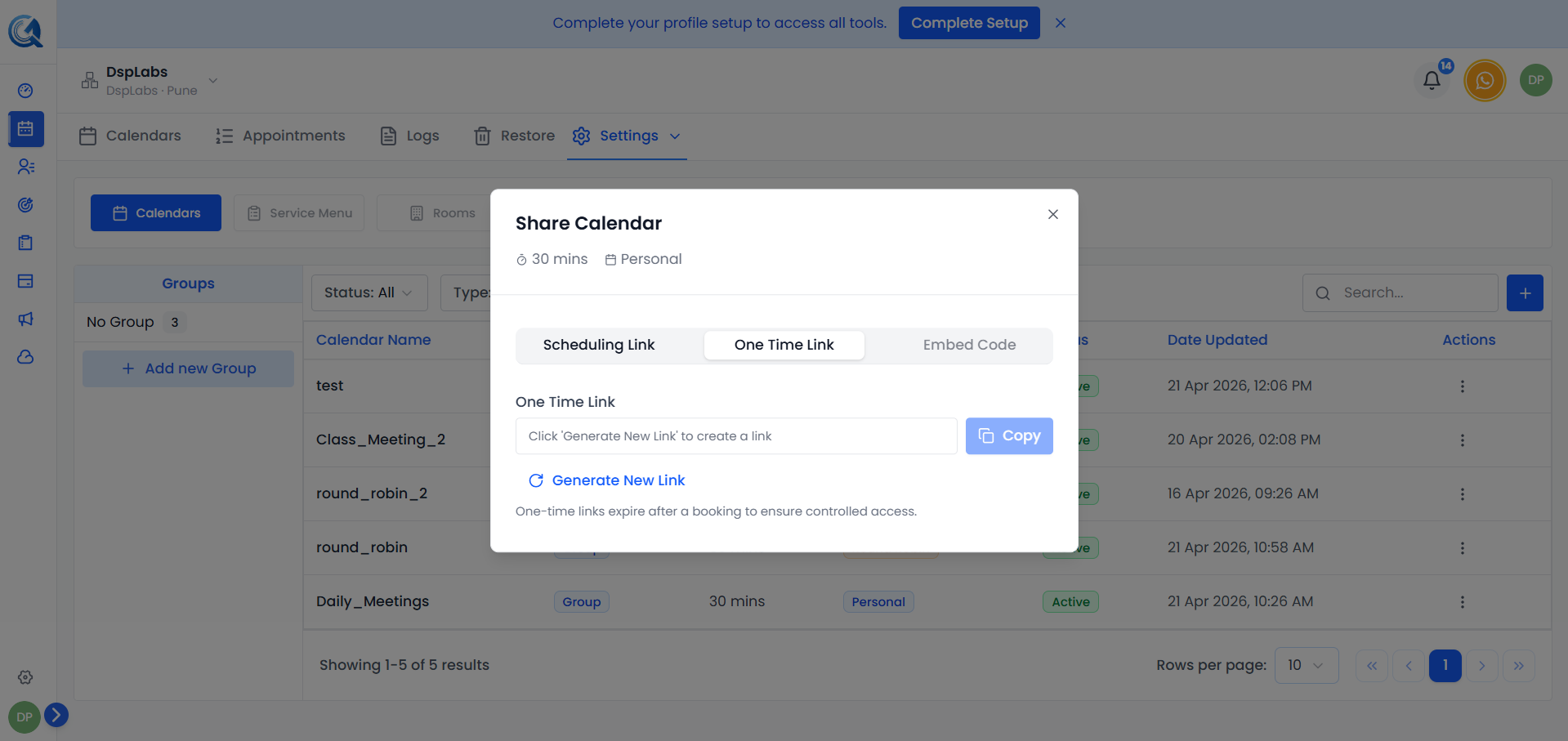 The One-Time Links section in the calendar edit form shows all existing links and lets you generate new ones.
Creating a One-Time Link
Click Generate Link (in the edit form) or Generate New Link (in the Share dialog) to create a new one-time booking link.
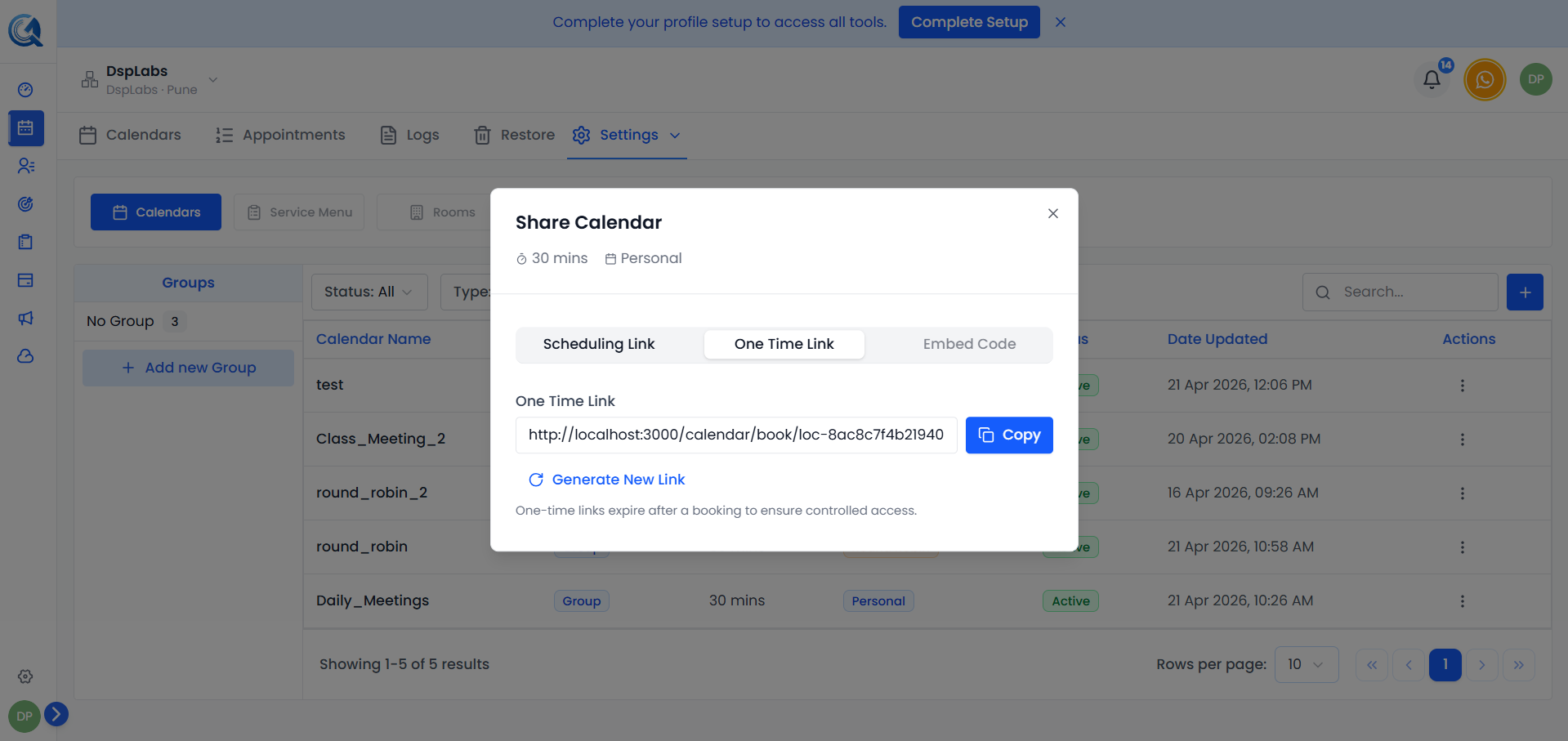 Click Generate Link to open the link creation form.
In the edit form, you can also set optional details before generating:
- Expires At — An optional expiry date and time. If set, the link becomes invalid after this date even if it has not been used.
- Note — An optional internal label to help you remember who the link was sent to.
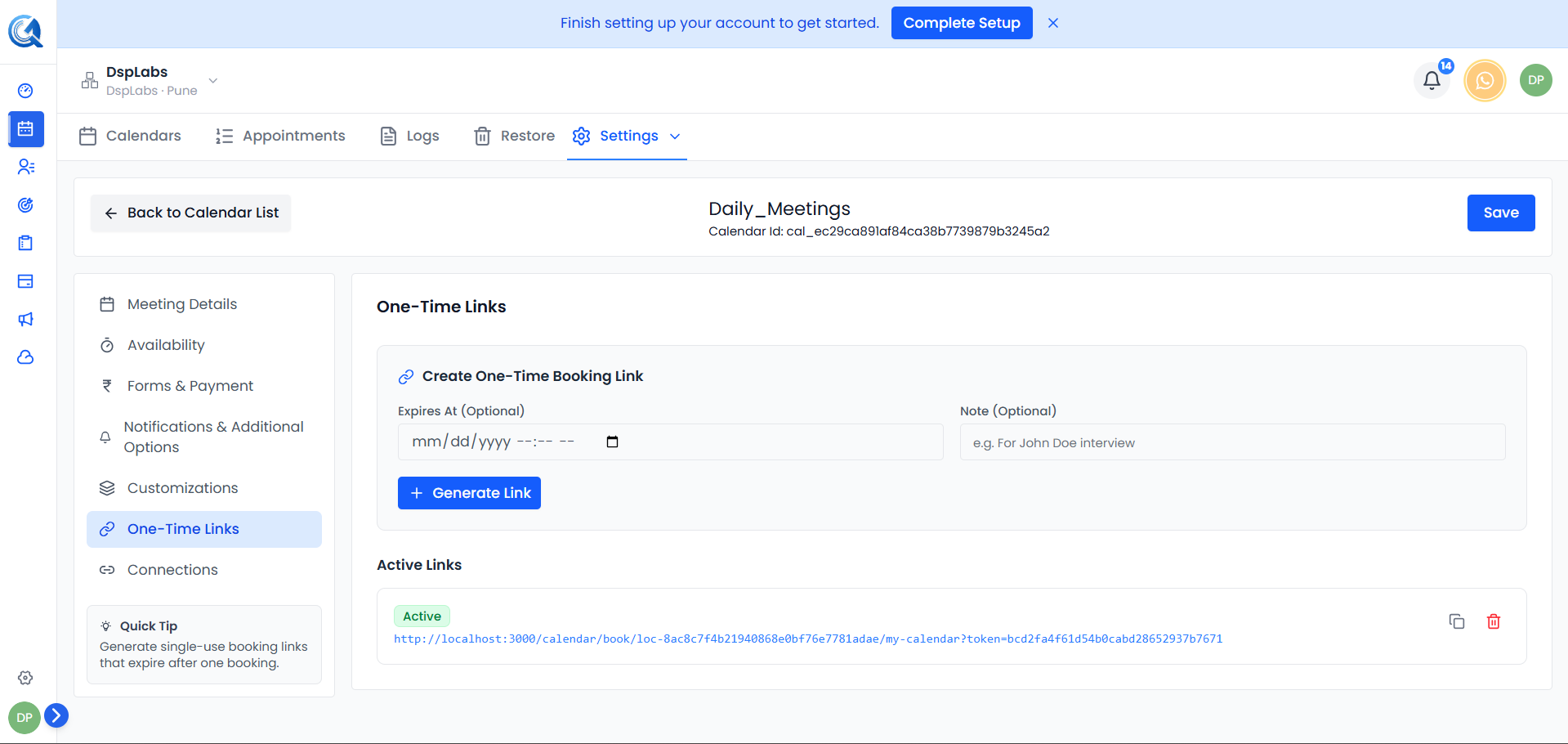 Set an optional expiry date and note, then click Generate Link to create the link.
Expiry Behaviour
- With expiry date — The link becomes invalid after the date you set, even if it has not been used.
- Without expiry date — The link stays valid until the contact uses it once. After it is used, it cannot be used again.
Copying and Sharing the Link
Once created, the link appears in the Active Links list. Click the Copy icon to copy the link to your clipboard.
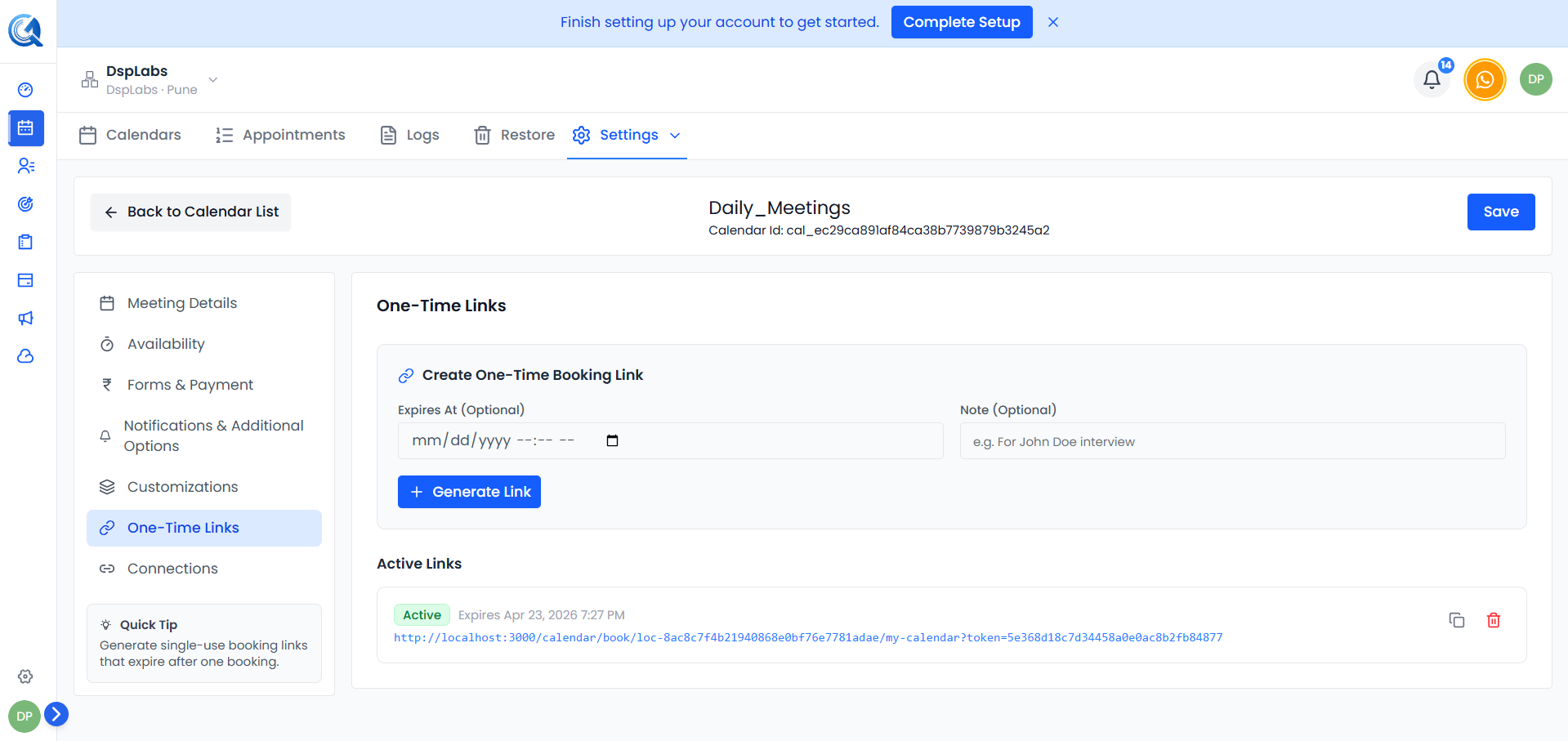 Copy the link and paste it directly into an email, SMS, or chat message to your client.
Note: Do not share the same link with multiple contacts. Each link is intended for one person only. Generate a separate link for each person you want to invite.
What the Client Sees
When the client opens the one-time link, they see the same booking page as the regular public booking page. Once they complete a booking, the link is automatically disabled and cannot be used again.
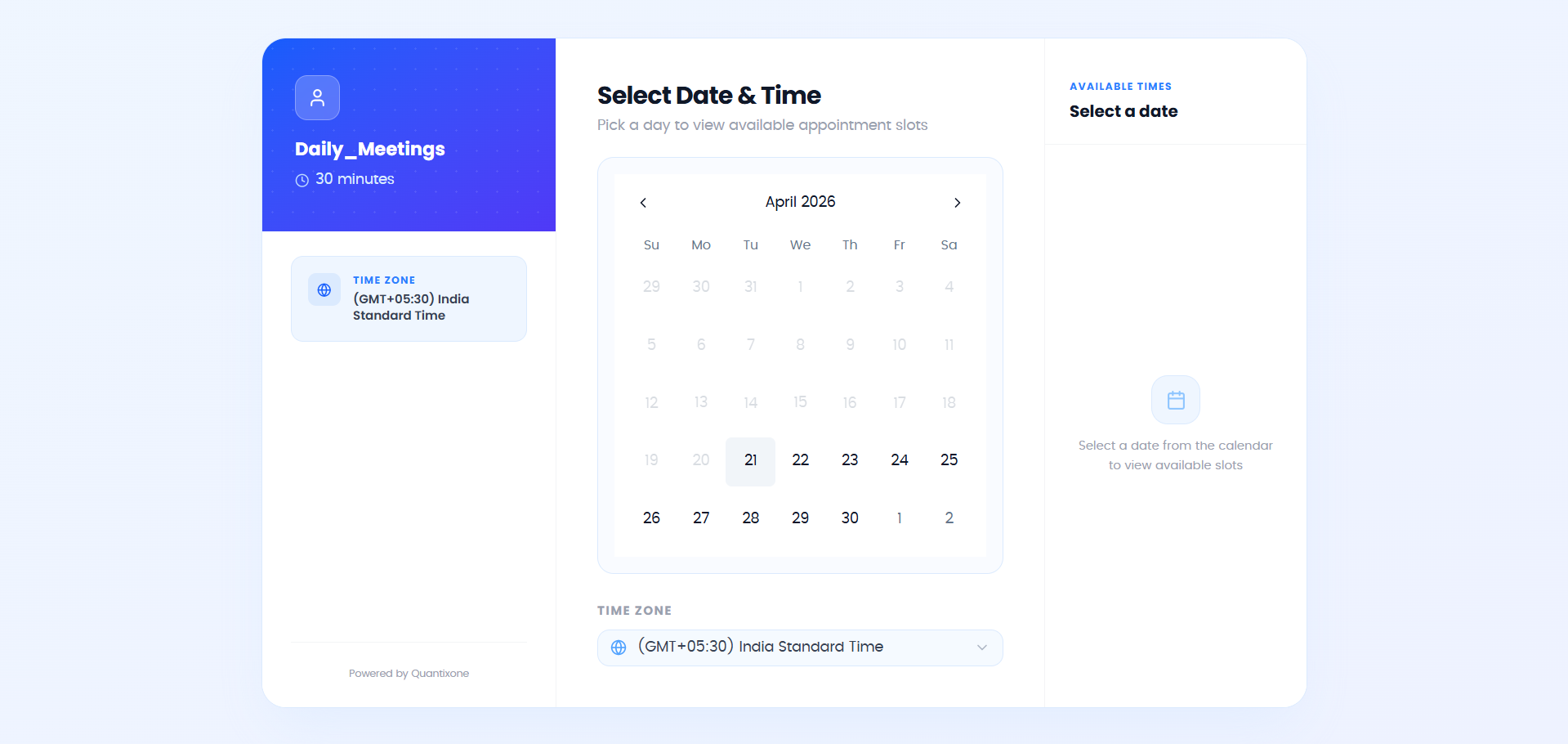 The client sees a standard booking page. Once they book, the link is automatically disabled.
Revoking a Link
If you want to cancel an unused link before it is used or expires, click the Revoke icon next to the link in the Active Links list.
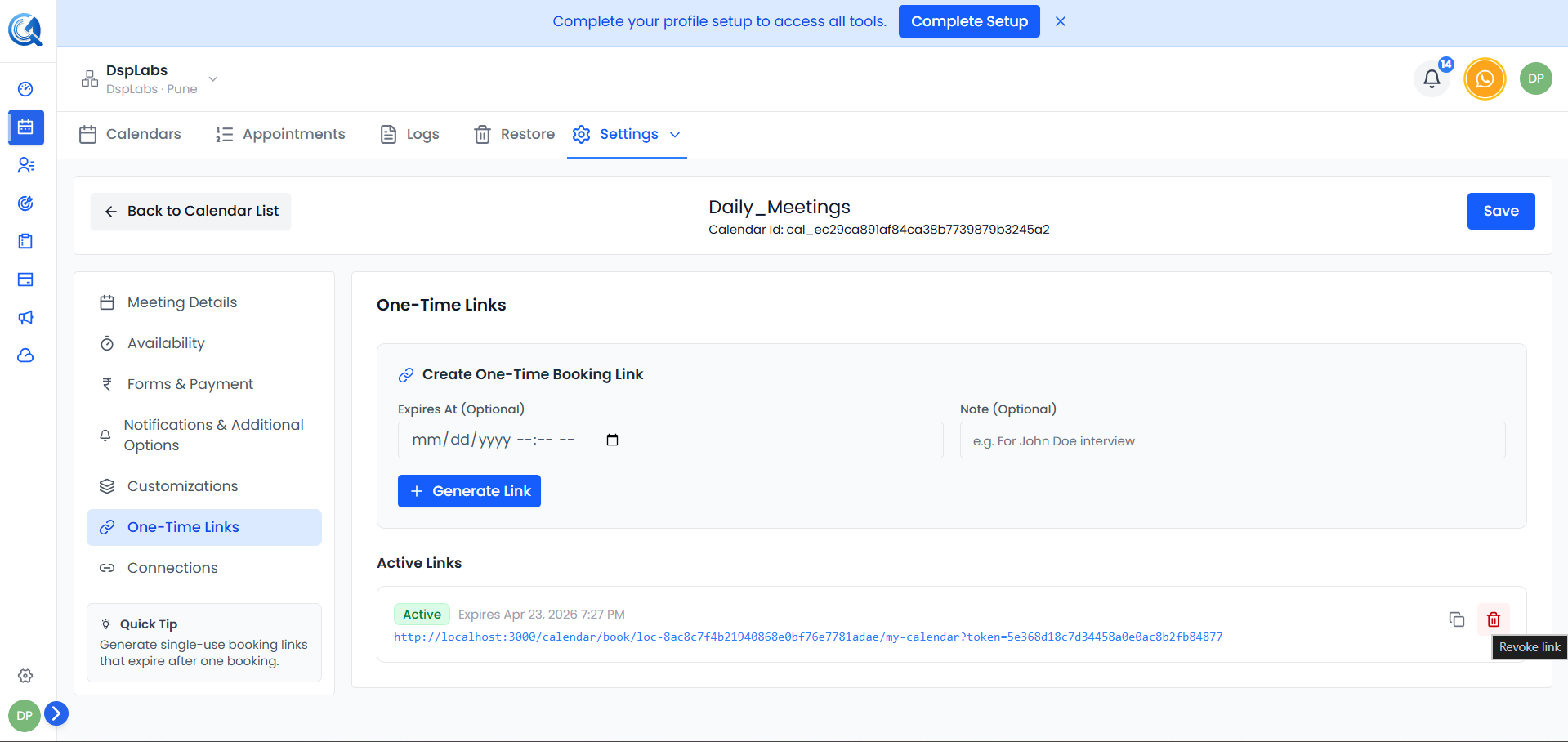 Click Revoke to immediately invalidate the link. The client will not be able to use it afterwards.
Link Status
Each link shows its current status:
- Active — The link has not been used and has not expired.
- Used — The link was successfully used to make a booking.
 The Active Links list shows each link's status, expiry date, and note.
Video Walkthrough
Watch the walkthrough below to see how to create and share one-time booking links in QuantixOne.