Outlook / Microsoft Calendar Integration
Connecting your Microsoft Outlook Calendar to QuantixOne works the same way as Google Calendar — appointments booked through QuantixOne are added to your Outlook calendar automatically, and events you create in Outlook block your availability on the QuantixOne booking page.
Connecting Your Microsoft Account
From the Calendar section, click the Settings dropdown in the top navigation and select Connections.
On the My Connections page, click Connect on the Microsoft Outlook card.
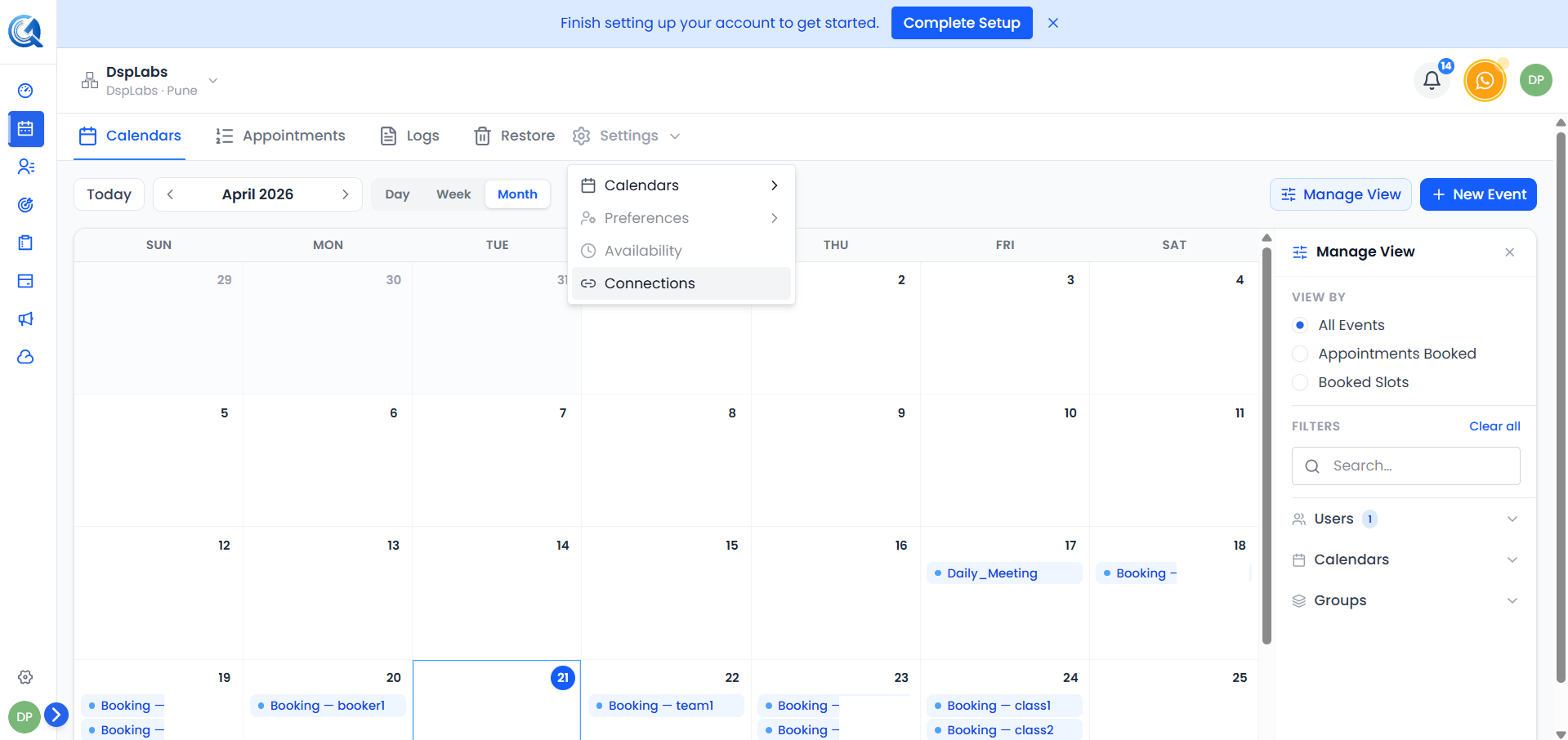 Click Connect on the Microsoft Outlook card to start the authorisation flow.
A Microsoft sign-in window will appear. Log in with your Microsoft or Outlook account, then grant QuantixOne permission to access your calendar.
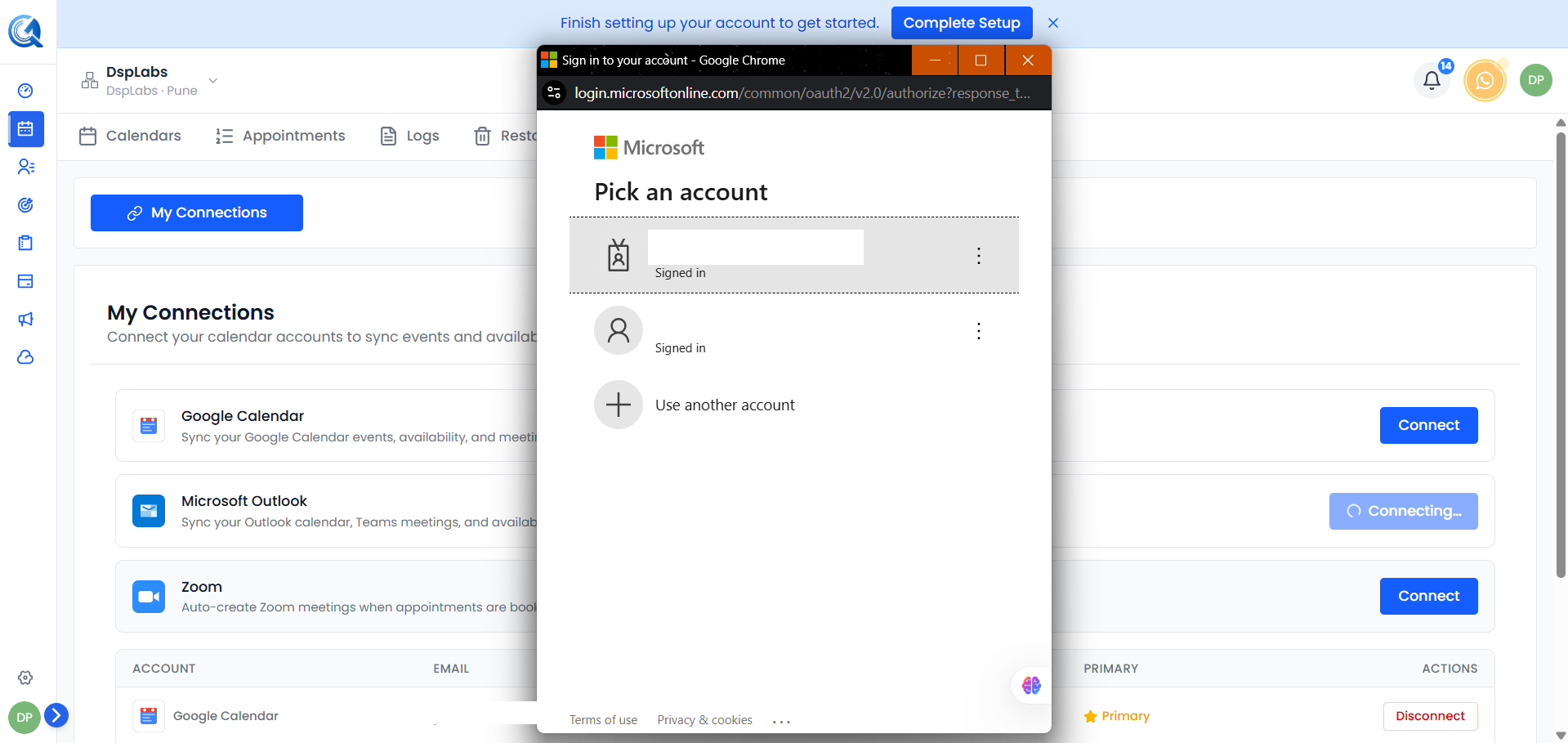 Log in with your Microsoft account and click Accept to grant calendar access.
Once authorised, your Microsoft account appears in the connected accounts table with a Connected status.
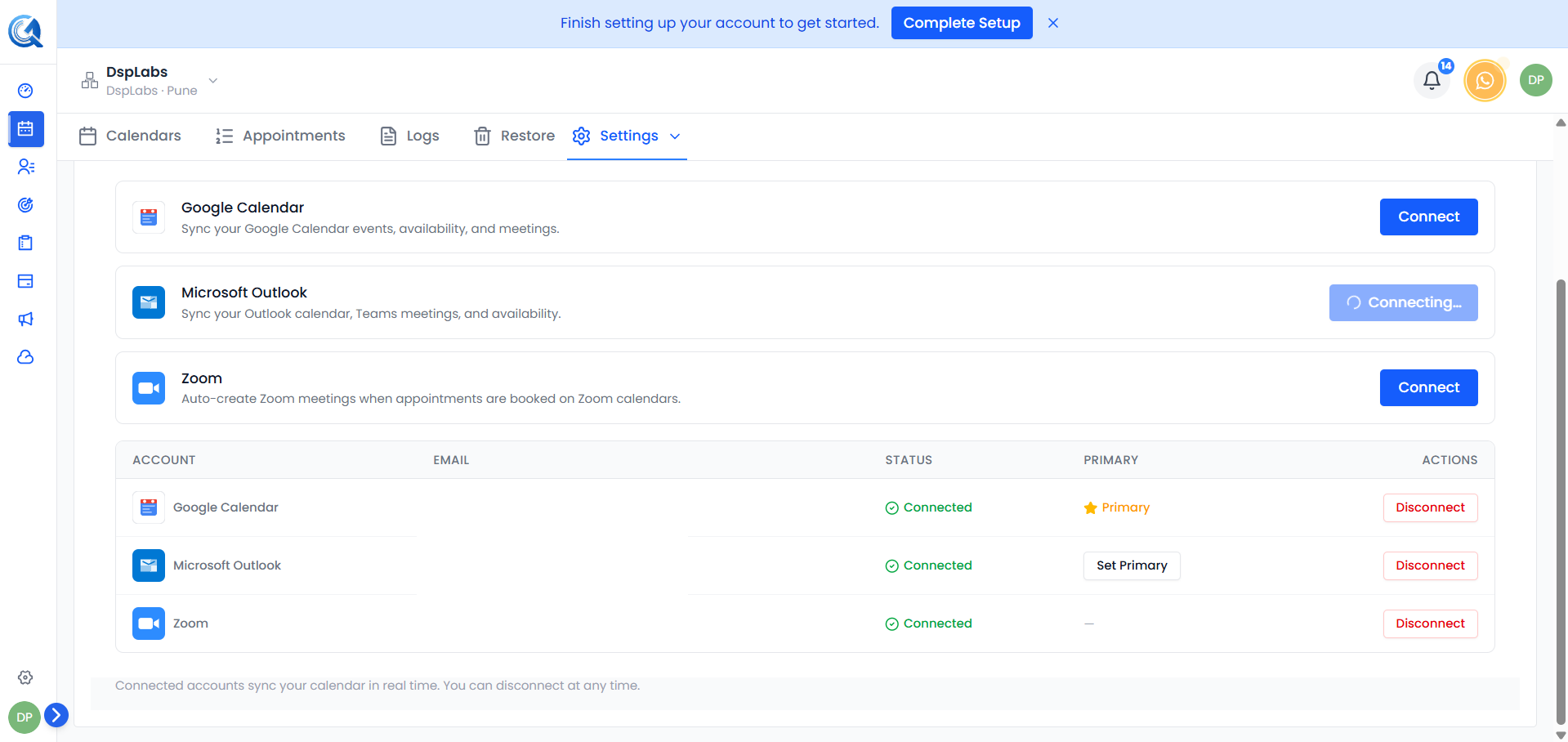 Your Microsoft account is now connected and ready for sync.
Setting a Primary Microsoft Account
If you have connected multiple Microsoft accounts, click Set Primary next to the account you want to use for syncing new appointments.
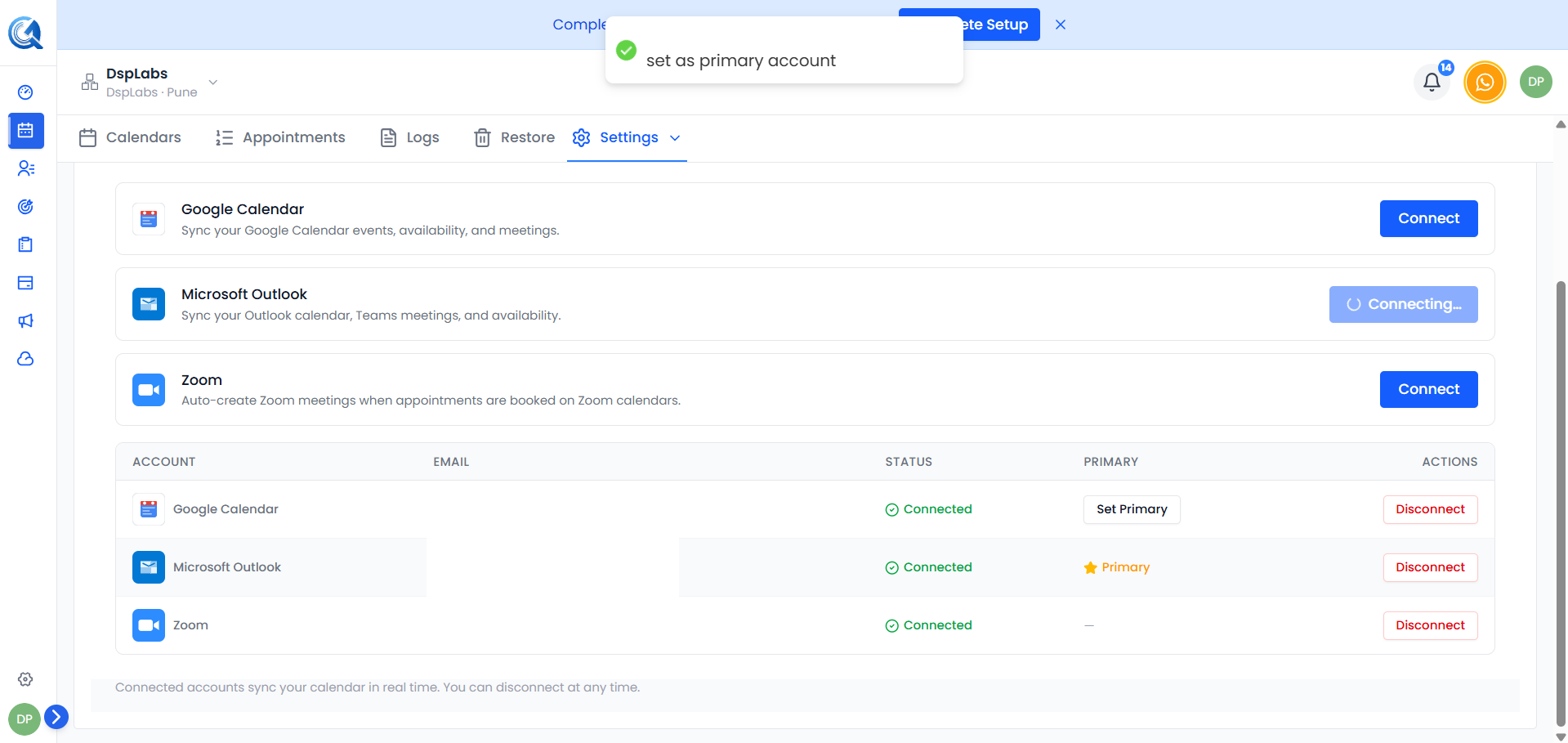 The primary account is where QuantixOne creates Outlook calendar events for new appointments.
Note: Only one Microsoft account can be set as primary at a time.
How Sync Works
- QuantixOne → Outlook — New appointments created in QuantixOne automatically appear as events in your Outlook calendar. Rescheduled or cancelled appointments update or remove the corresponding Outlook event.
- Outlook → QuantixOne — Events you create directly in Outlook are detected and block those time slots on your QuantixOne booking page so clients cannot double-book.
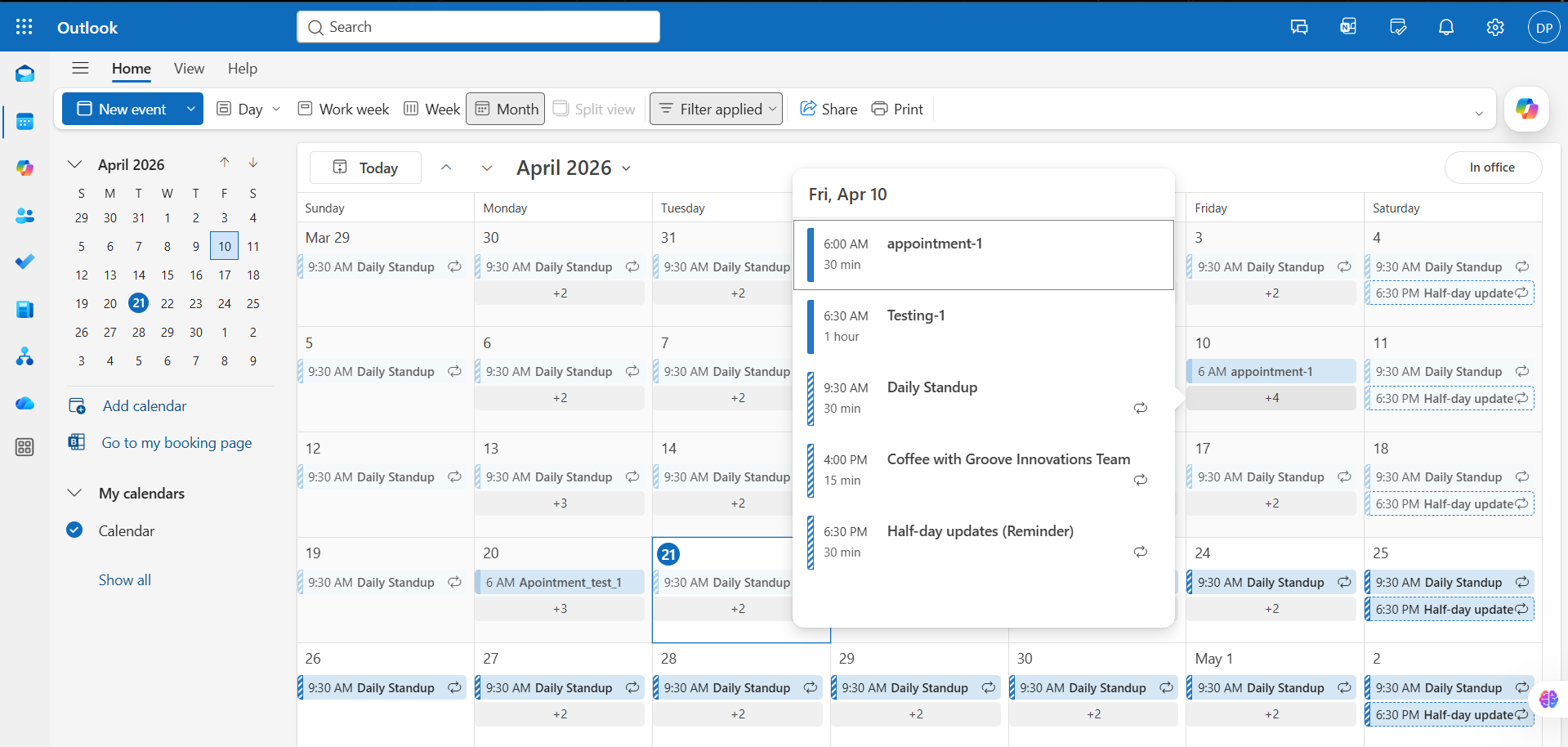 QuantixOne appointments appear in Outlook with the contact name and appointment details.
Syncing a Specific Calendar to a Specific Connection
To sync a specific calendar to a specific Microsoft account, set that account as Primary. QuantixOne will use the primary account when syncing appointments for that calendar.
Note: Only the primary Microsoft account is used for syncing. To change which account a calendar syncs to, update which account is set as primary.
Disconnecting Microsoft Calendar
To remove the integration, go to Settings → Connections, find the account in the connected accounts table, and click Disconnect.
 After disconnecting, existing QuantixOne appointments are unaffected, but new appointments will no longer sync to Outlook.
Note: Once disconnected, your Outlook events will no longer block time on the booking page. Reconnect the account whenever you want sync to resume.
Video Walkthrough
Watch the walkthrough below to see how to connect and configure Outlook Calendar sync in QuantixOne.