Team Assignment
Team Assignment controls how appointments on a calendar are distributed among your team. When creating or editing a calendar, you choose the Calendar Type that determines how many hosts are involved and how appointments are assigned.
Accessing Assignment Settings
Open Calendar Settings from the Settings dropdown, then click a calendar to open its edit form. The Team Members section is in the Meeting Details tab.
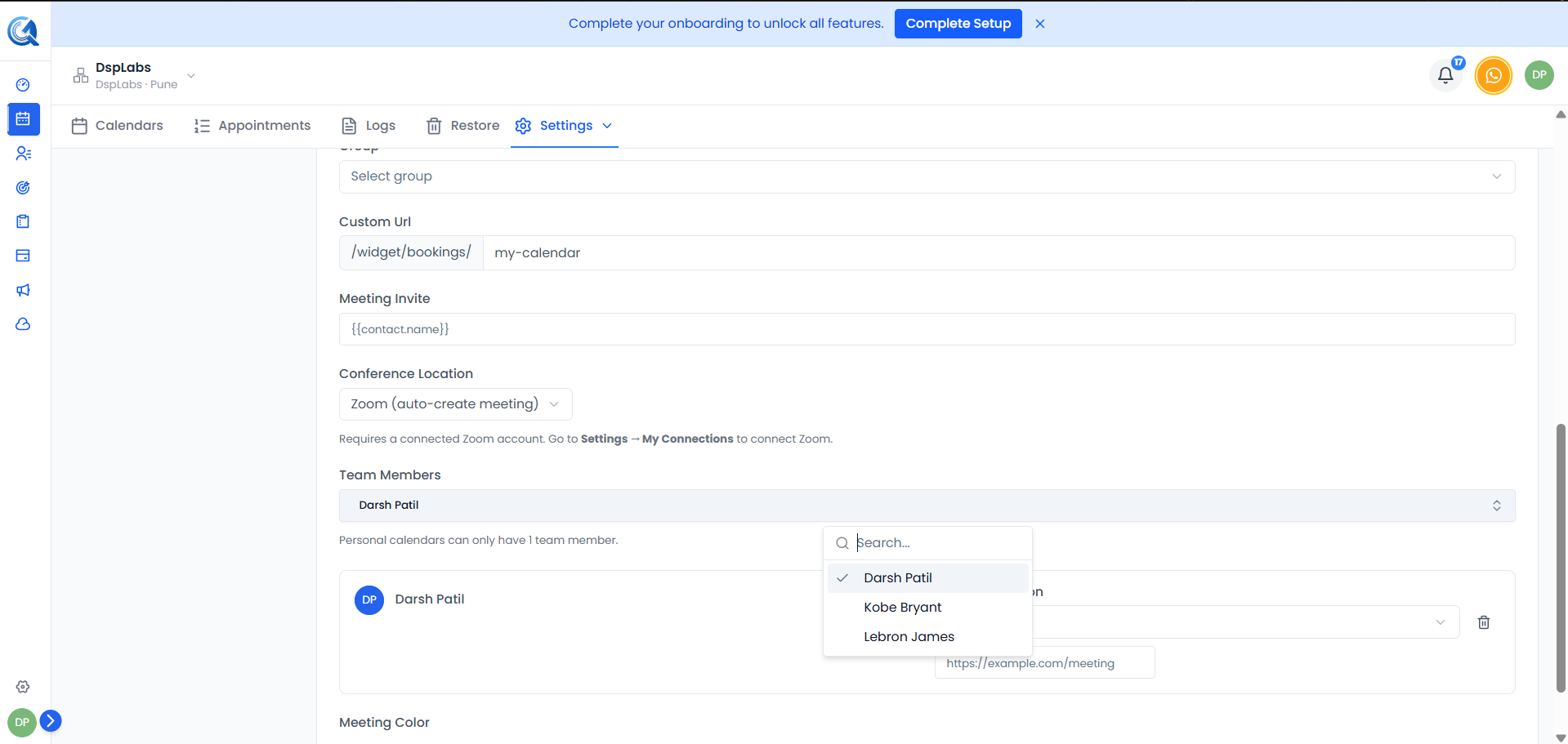 The Team Members section lets you add members and set their priority for assignment.
Calendar Types and Assignment Behaviour
When you create a calendar, you first choose its type. The type determines how team members are assigned to incoming appointments. The available types are:
Personal Booking
A Personal Booking calendar is a one-on-one calendar. It has a single host and schedules appointments directly between that host and the client.
- Only one team member can be set as the owner.
- All bookings go to that one person.
- Use this when each team member manages their own individual calendar.
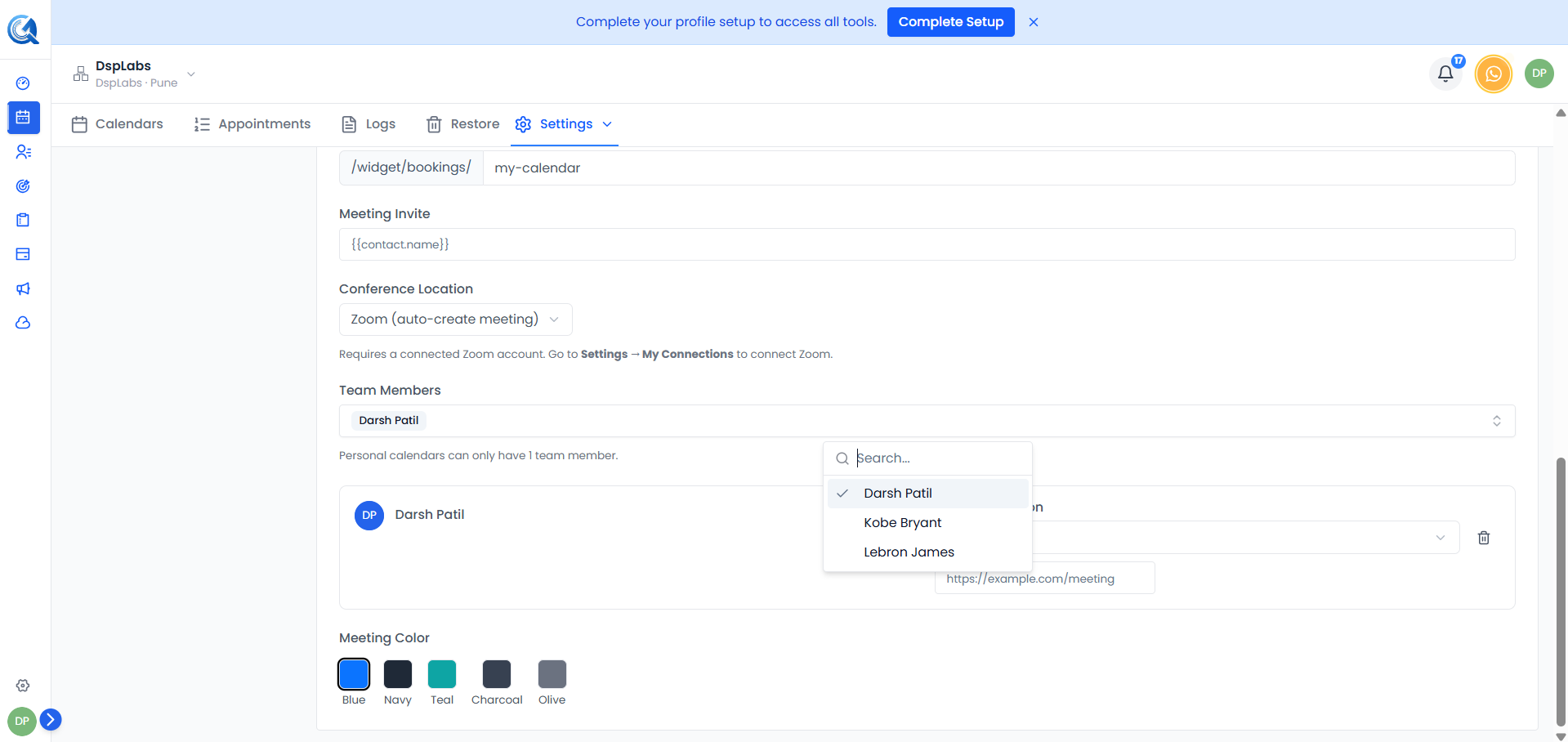 Personal Booking — one host, one client, no distribution needed.
Round Robin
A Round Robin calendar distributes incoming appointments across multiple team members. Each team member is assigned a priority level (High or Low), and the system routes bookings accordingly.
- Multiple team members can be added.
- Team members can be marked as High Priority or Low Priority.
- High-priority members are preferred for assignment; low-priority members are assigned when high-priority members are unavailable.
- Only team members who are available at the requested time are considered.
Use Round Robin when you want to share incoming leads or support requests across your team.
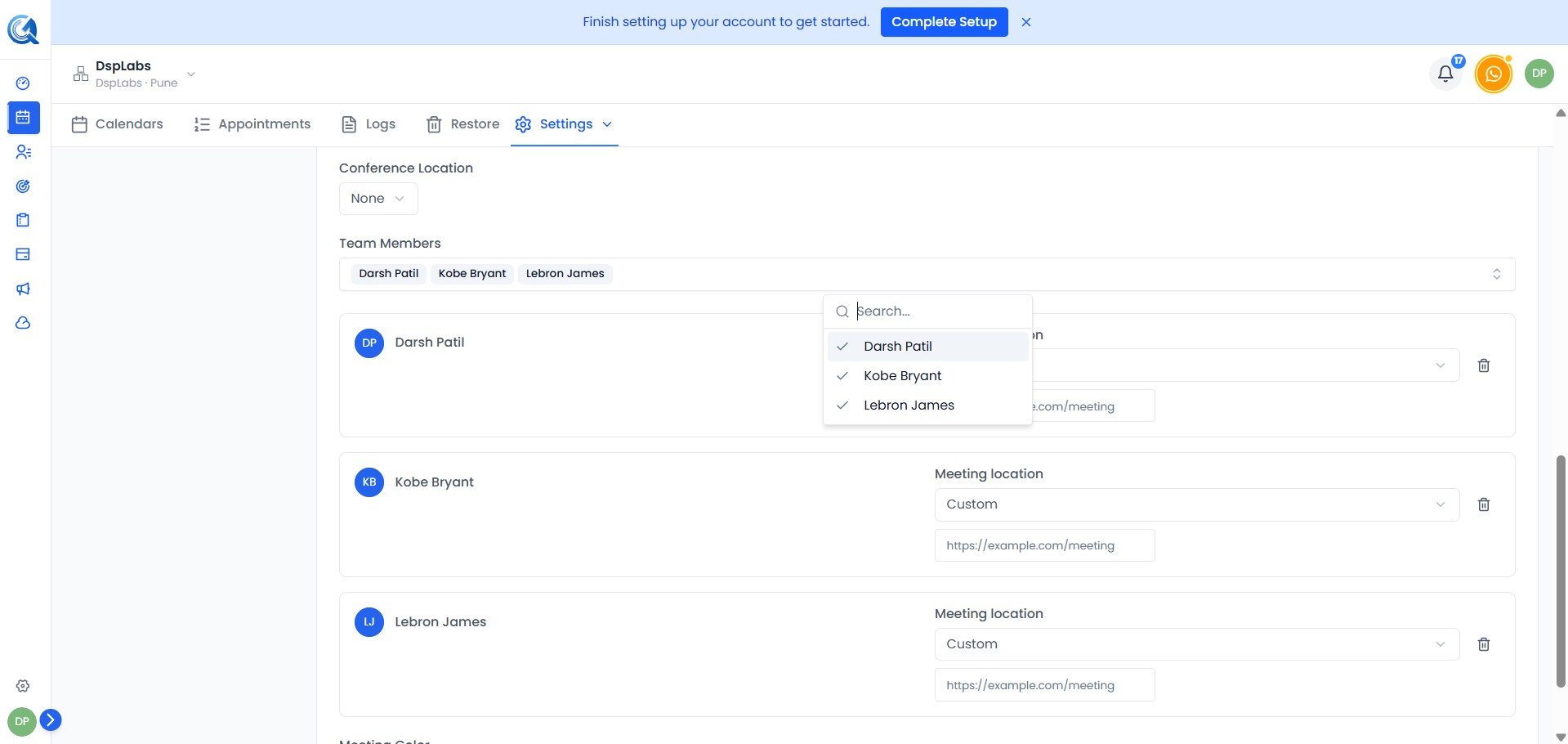 Round Robin — appointments are distributed across available team members based on priority.
Class Booking
A Class Booking calendar has a single host but supports multiple attendees booking into the same slot. It is used for group sessions where one person leads and multiple clients join.
- One team member is set as the host.
- Multiple contacts can book the same time slot up to the configured Max Bookings Per Slot limit.
- Use this for training sessions, webinars, group onboarding, or any session with one presenter and multiple participants.
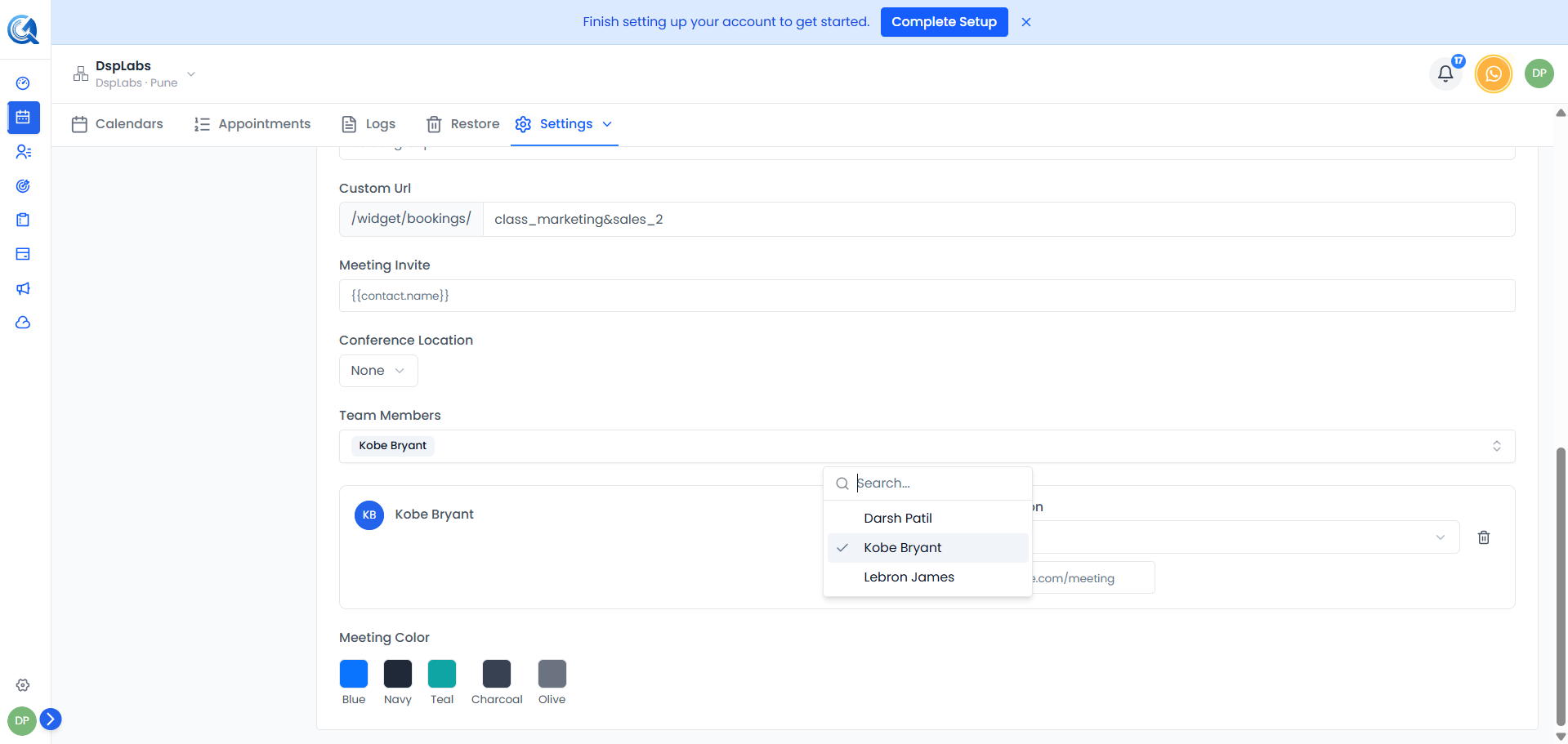 Class Booking — one host, multiple attendees in the same time slot.
Collective Booking
A Collective Booking calendar requires multiple hosts to all be available before a slot is shown to the client. All listed team members must be free for the slot to appear as bookable.
- Multiple team members are added to the calendar.
- A time slot only appears as available if all team members are free during that time.
- Use this for panel interviews, multi-stakeholder demos, or any meeting that requires every team member to attend.
 Collective Booking — all team members must be available for a slot to be offered.
Adding Team Members to a Calendar
You can add team members when creating a calendar or in the edit form.
- In the Team Members field, click to open the member picker.
- Search for and select a team member by name.
- The member appears as a chip in the field.
- For Round Robin calendars, you can toggle each member's priority between High and Low.
- Remove a member by clicking the × on their chip.
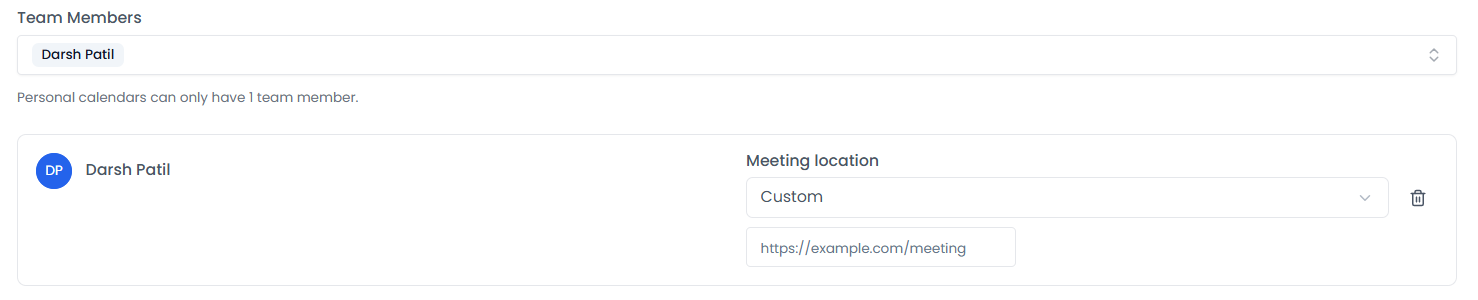 Search and select team members to add to the calendar.
Changing the Calendar Type
To change the calendar type on an existing calendar, open Calendar Settings, select the calendar, and update the Calendar Type field. Click Save.
Note: Changing the calendar type does not affect existing appointments. Only new bookings going forward use the updated assignment logic.
Video Walkthrough
Watch the walkthrough below to see how to set up team assignment in QuantixOne.