Managing Invitations
After sending invitations, you can track and manage them all from the Invited Users tab under My Staff. This includes resending expired invites, cancelling pending ones, and deleting records you no longer need.
The Invited Users Tab
Navigate to Settings → My Staff → Invited Users to see all sent invitations.
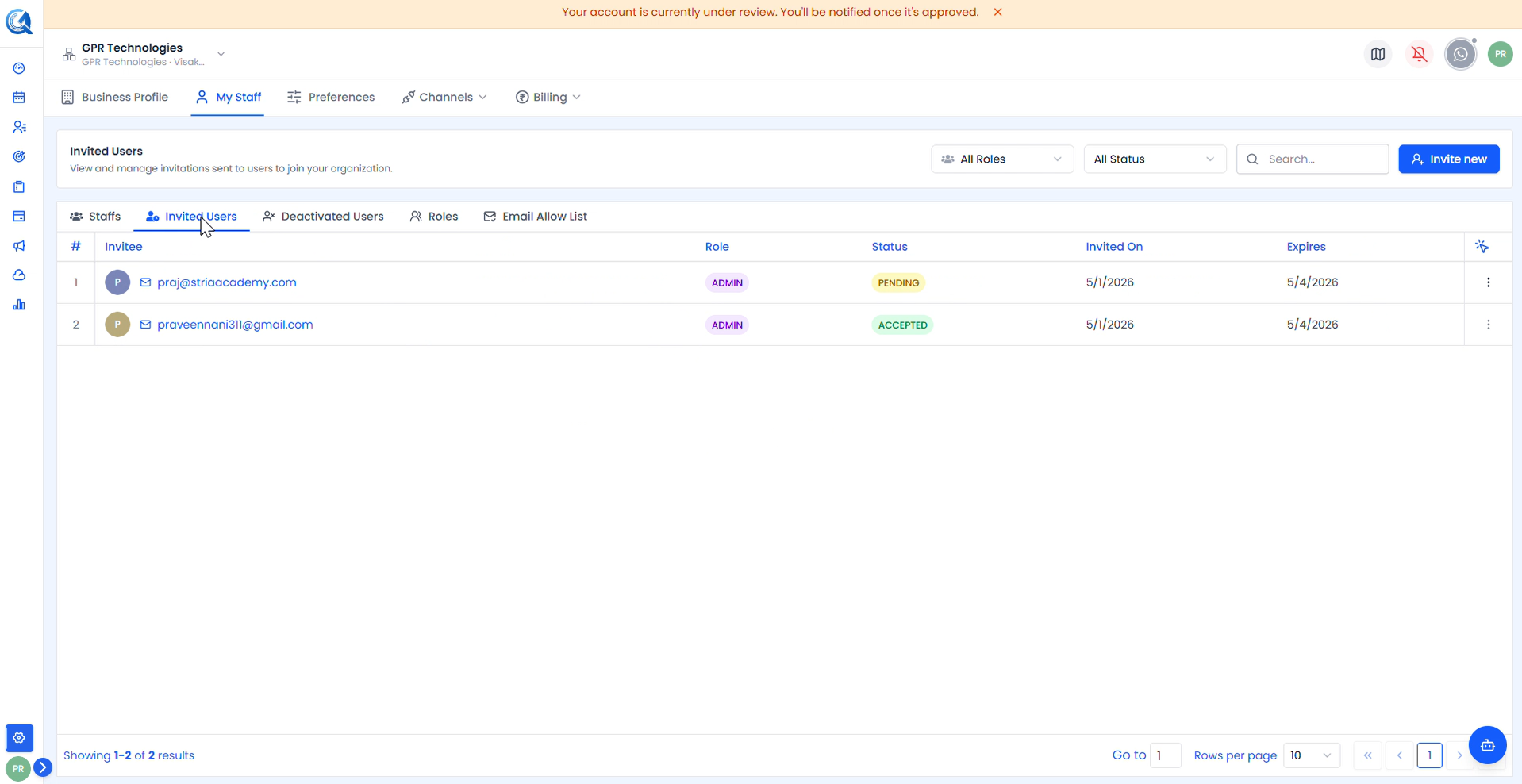 Each row shows the invitee's email, assigned role, current status, invitation date, and expiry date. Use the All Roles and All Status filters or the search bar to find specific records.
| Status | Meaning |
|---|---|
| Pending | Invitation sent but not yet accepted by the user |
| Accepted | User has accepted the invite and joined the organization |
| Cancelled | Invitation was cancelled — the link is no longer valid |
Click the ⋮ action menu on any row to manage that invitation.
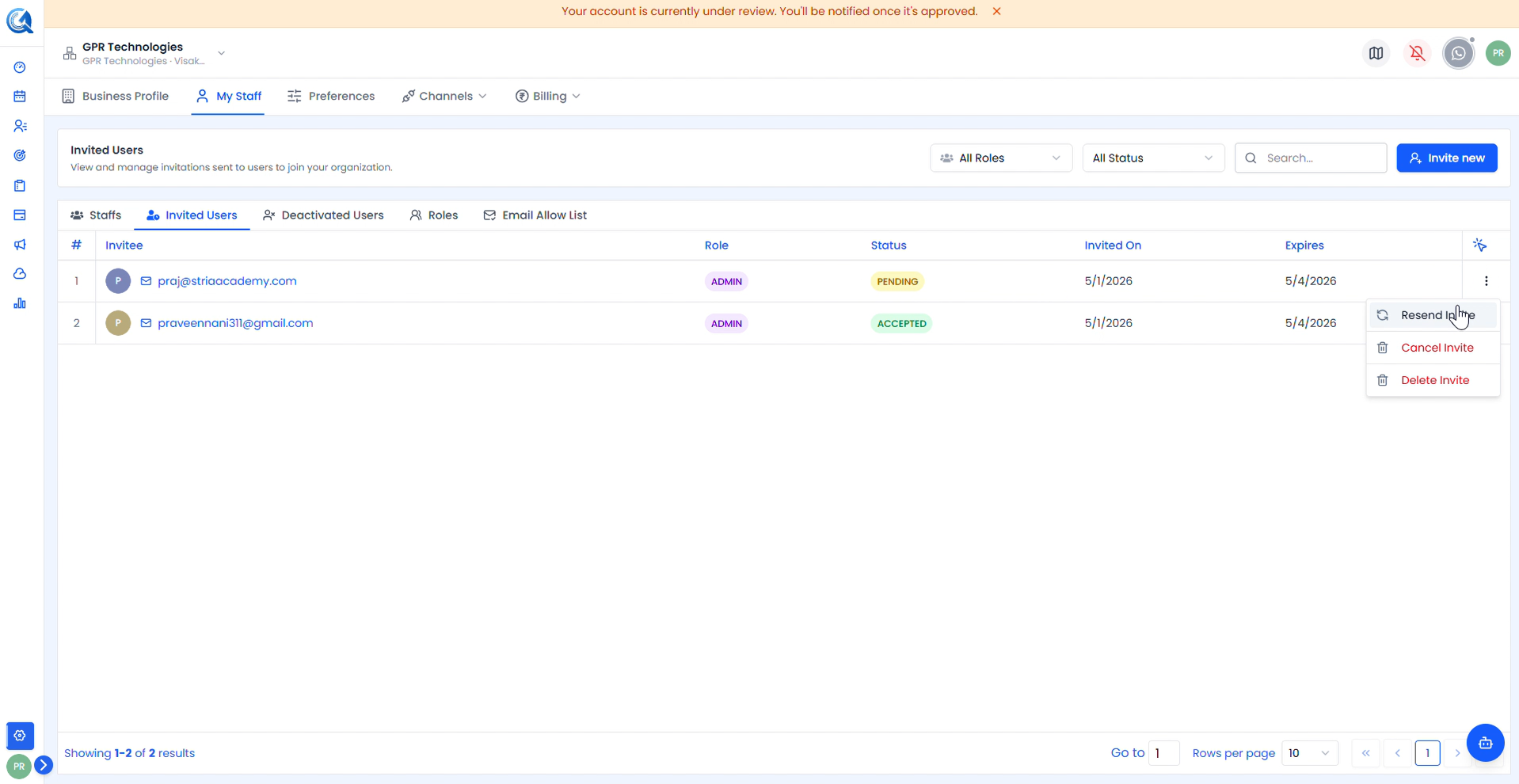 The action menu shows three options — Resend Invite, Cancel Invite, and Delete Invite.
Resend Invite
Click Resend Invite to send a fresh invitation email to the user. This is useful when an invitation has expired or the user didn't receive the original email. The expiry date resets from the time of resend.
Cancel Invite
Click Cancel Invite to revoke a pending invitation before the user accepts it.
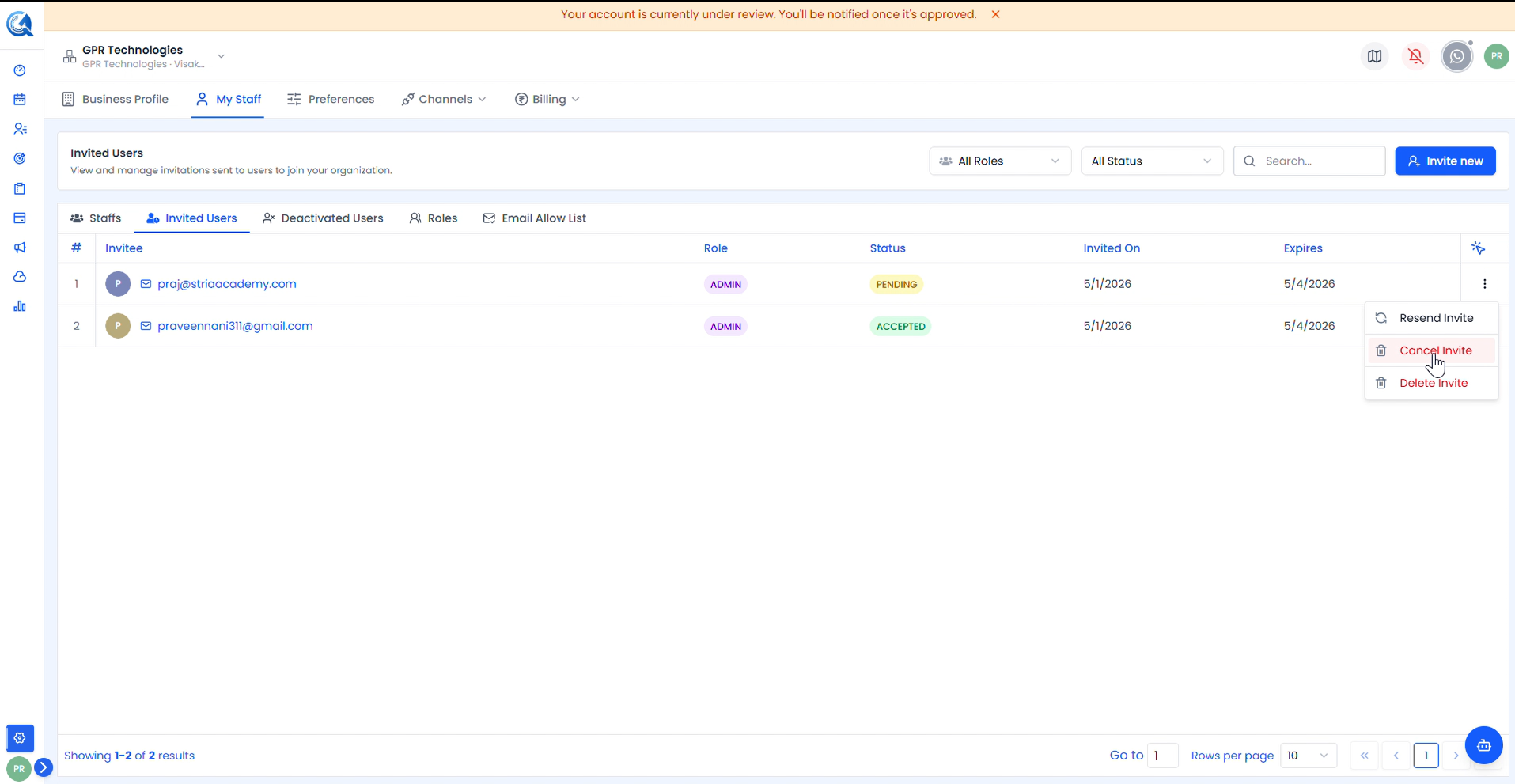 Click Cancel Invite from the action menu to open the cancellation confirmation dialog.
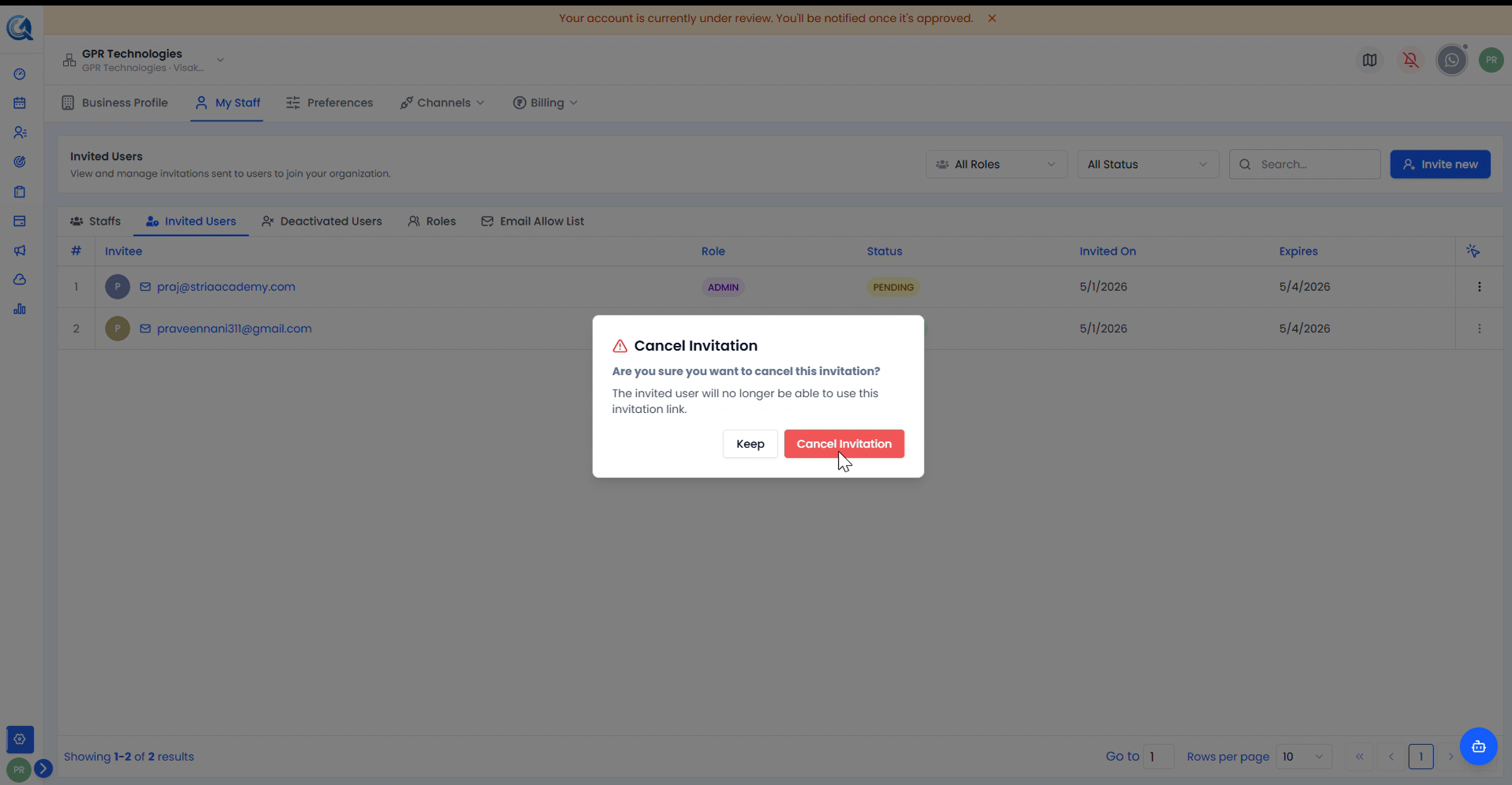 The dialog confirms — "The invited user will no longer be able to use this invitation link." Click Cancel Invitation to confirm or Keep to go back.
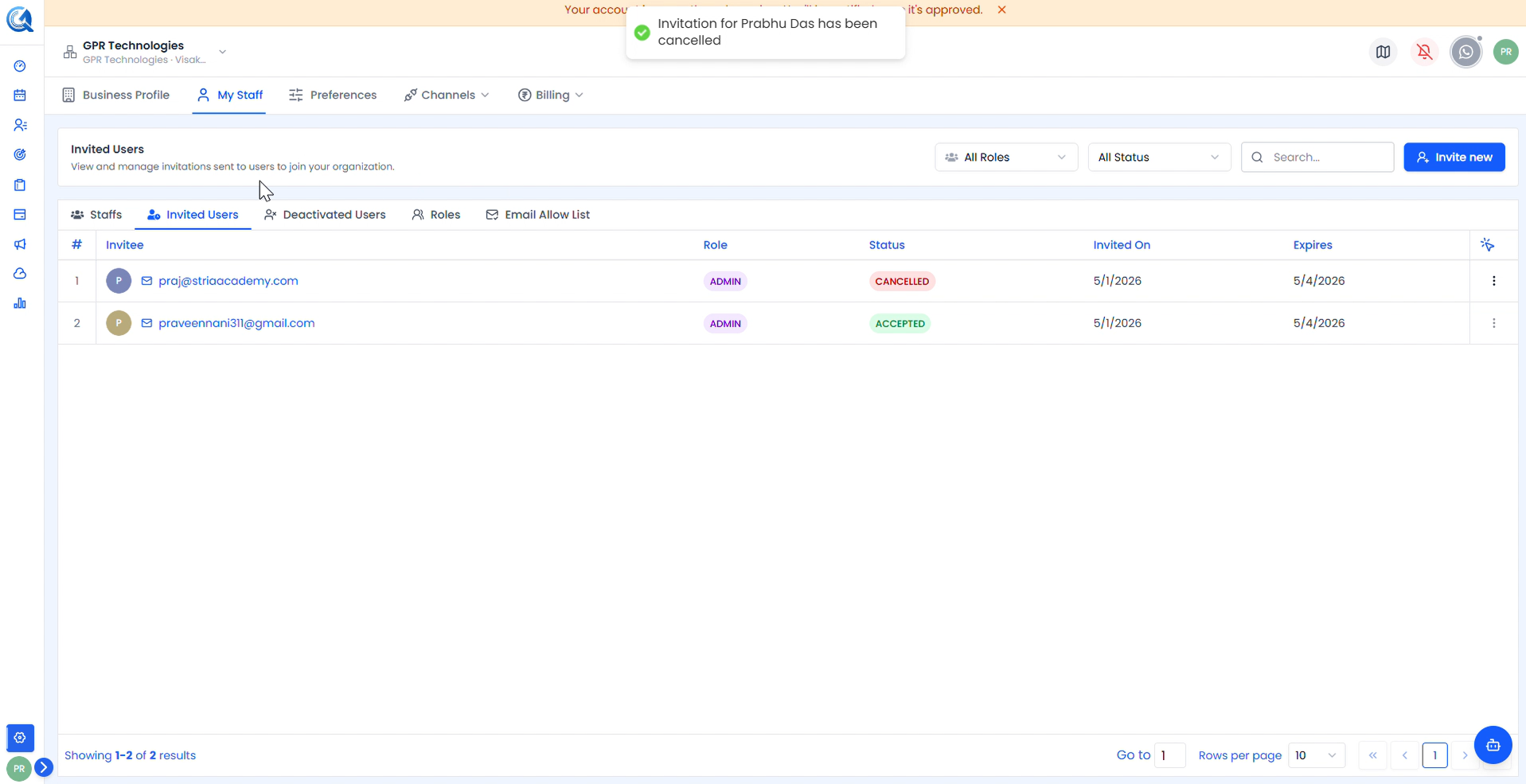 A success toast confirms the invitation has been cancelled. The status updates to Cancelled in the list.
Note: Cancelling does not remove the record — it stays in the list with a Cancelled status. You can delete it afterwards if needed.
Delete Invite
Click Delete Invite to permanently remove an invitation record from the list.
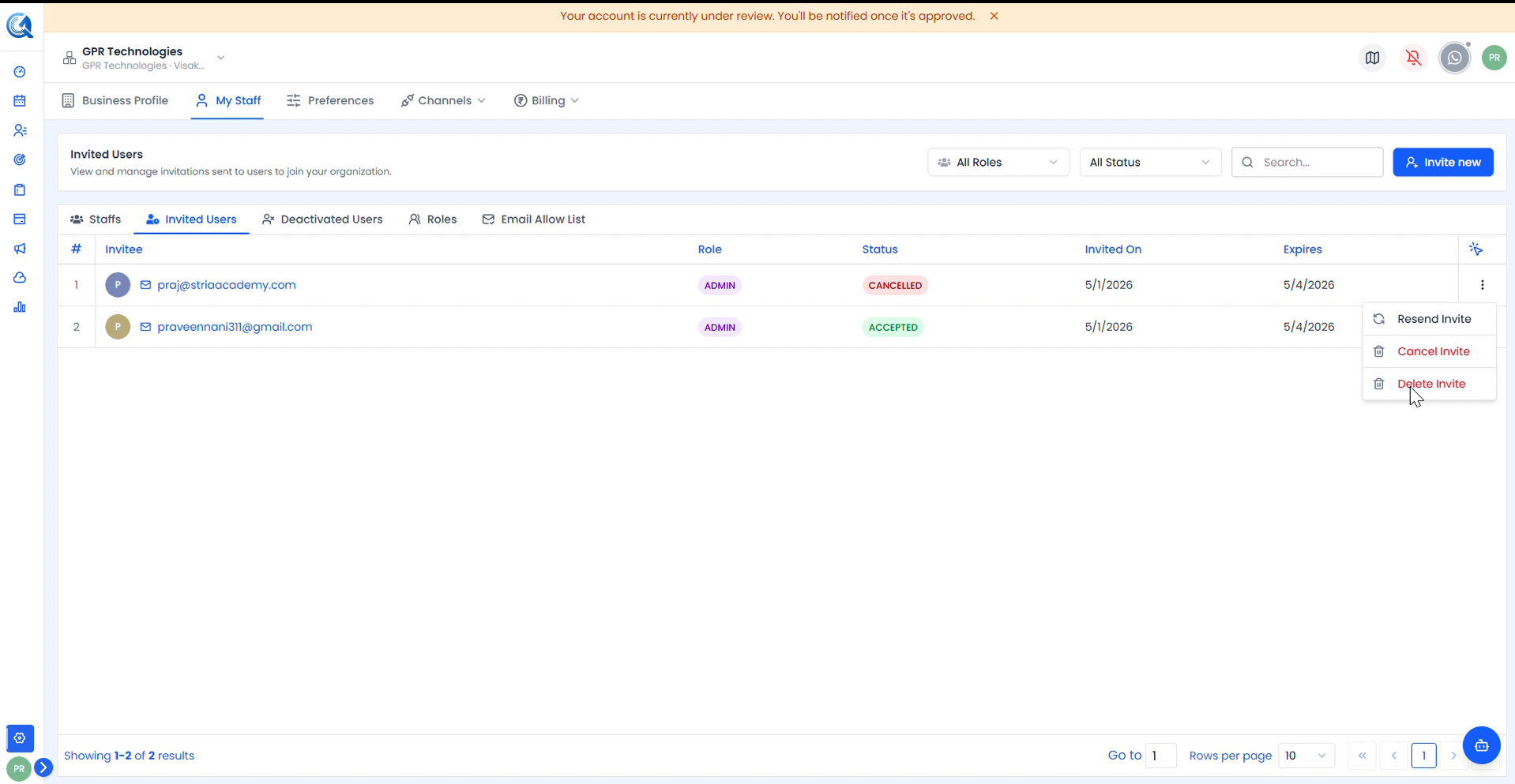 Click Delete Invite from the action menu to open the deletion confirmation dialog.
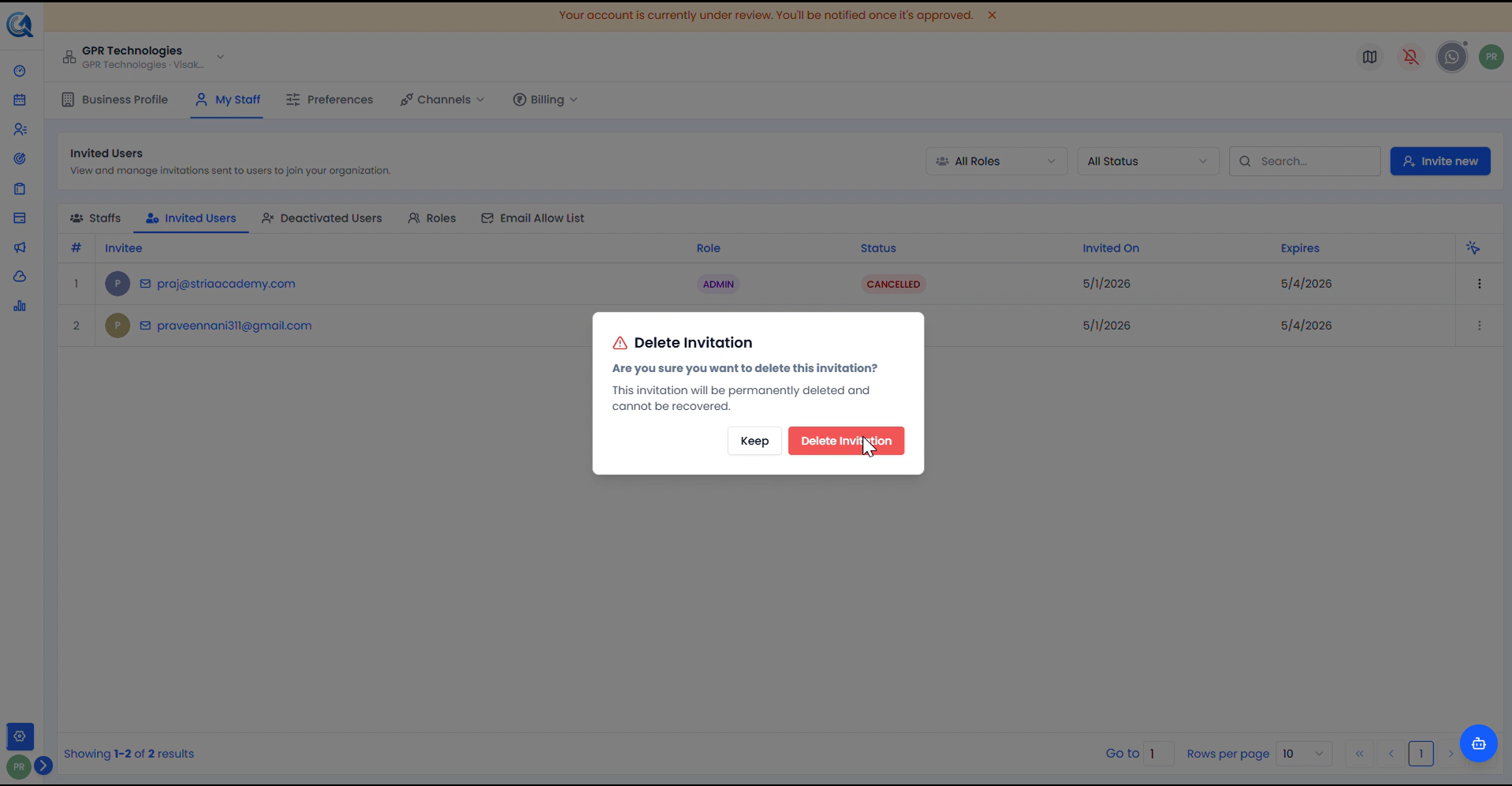 The dialog warns — "This invitation will be permanently deleted and cannot be recovered." Click Delete Invitation to confirm or Keep to go back.
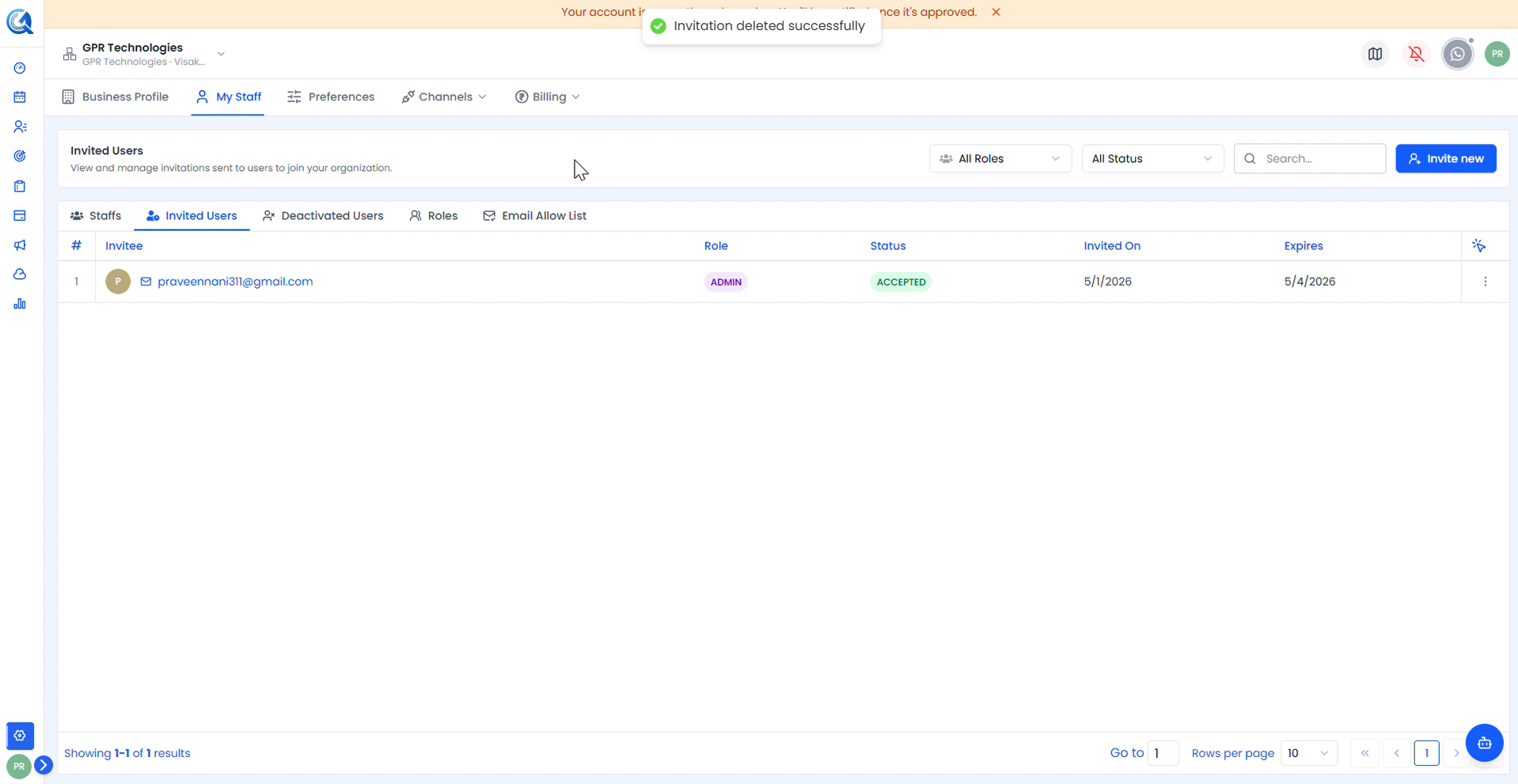 A success toast confirms "Invitation deleted successfully". The record is removed from the list entirely.
Video Walkthrough
Watch the full cancel, resend, and delete invite flow below.