Onboarding Process
Before you can unlock all of QuantixOne CRM's features, you need to complete a one-time onboarding — a quick 3-step setup where you provide your company details, upload verification documents, and submit for approval. The whole process takes under 10 minutes.
Starting Onboarding
Note: You'll only reach the dashboard below once your organization has an active plan — if you haven't chosen one yet, see Choosing or Renewing a Plan first.
Once your plan is active, a banner appears at the top of your dashboard prompting you to finish setup.
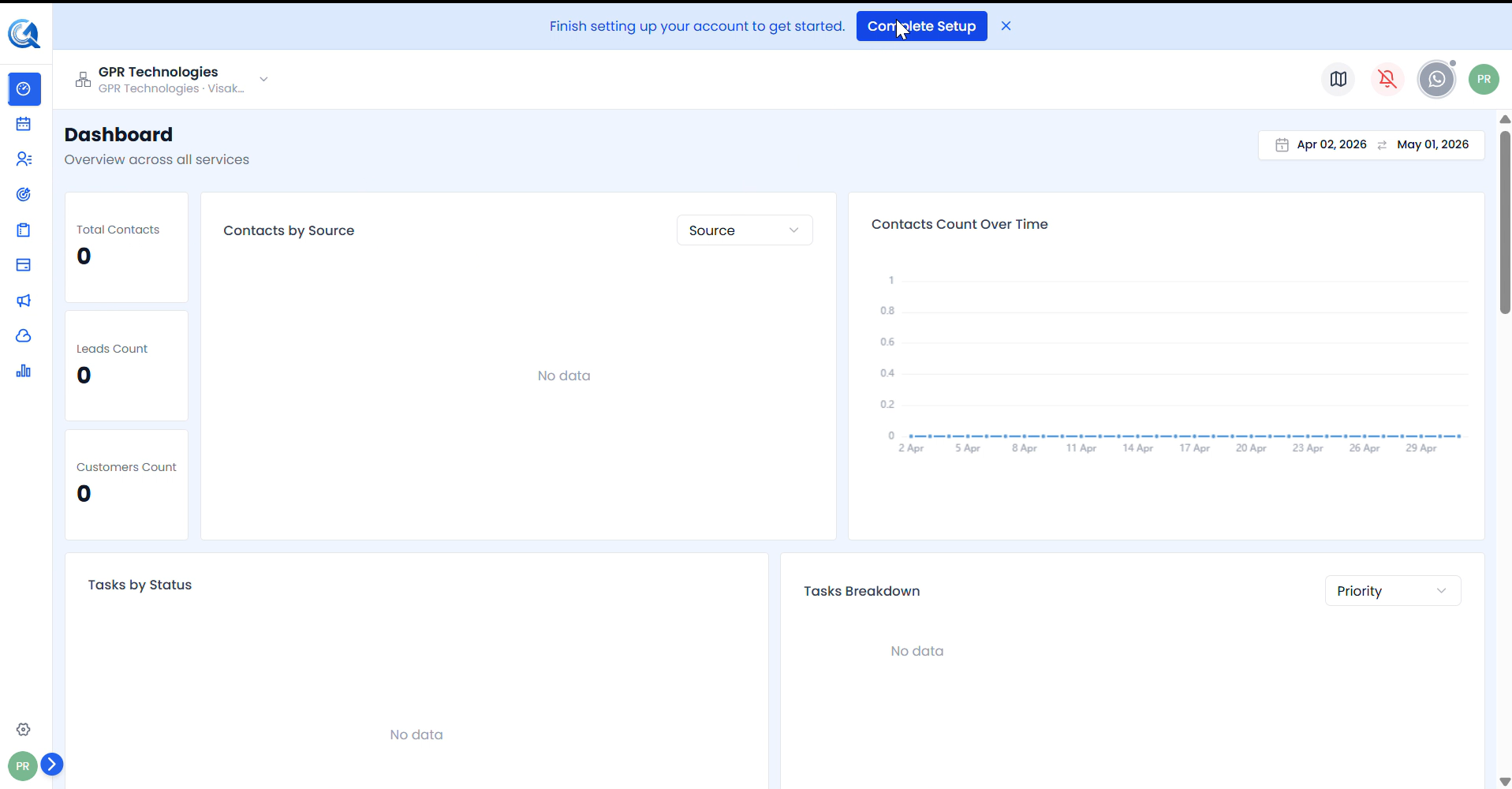 The dashboard shows a "Finish setting up your account to get started" banner. Click Complete Setup to begin.
Clicking Complete Setup opens the onboarding flow — a 3-step wizard with a progress tracker on the left side. Every step is marked Encrypted & Secure, KYC Verified, and Fast Processing.
Step 1 — Company Details
This step collects all information needed to verify your business identity. It is split into three sub-sections.
Company Information
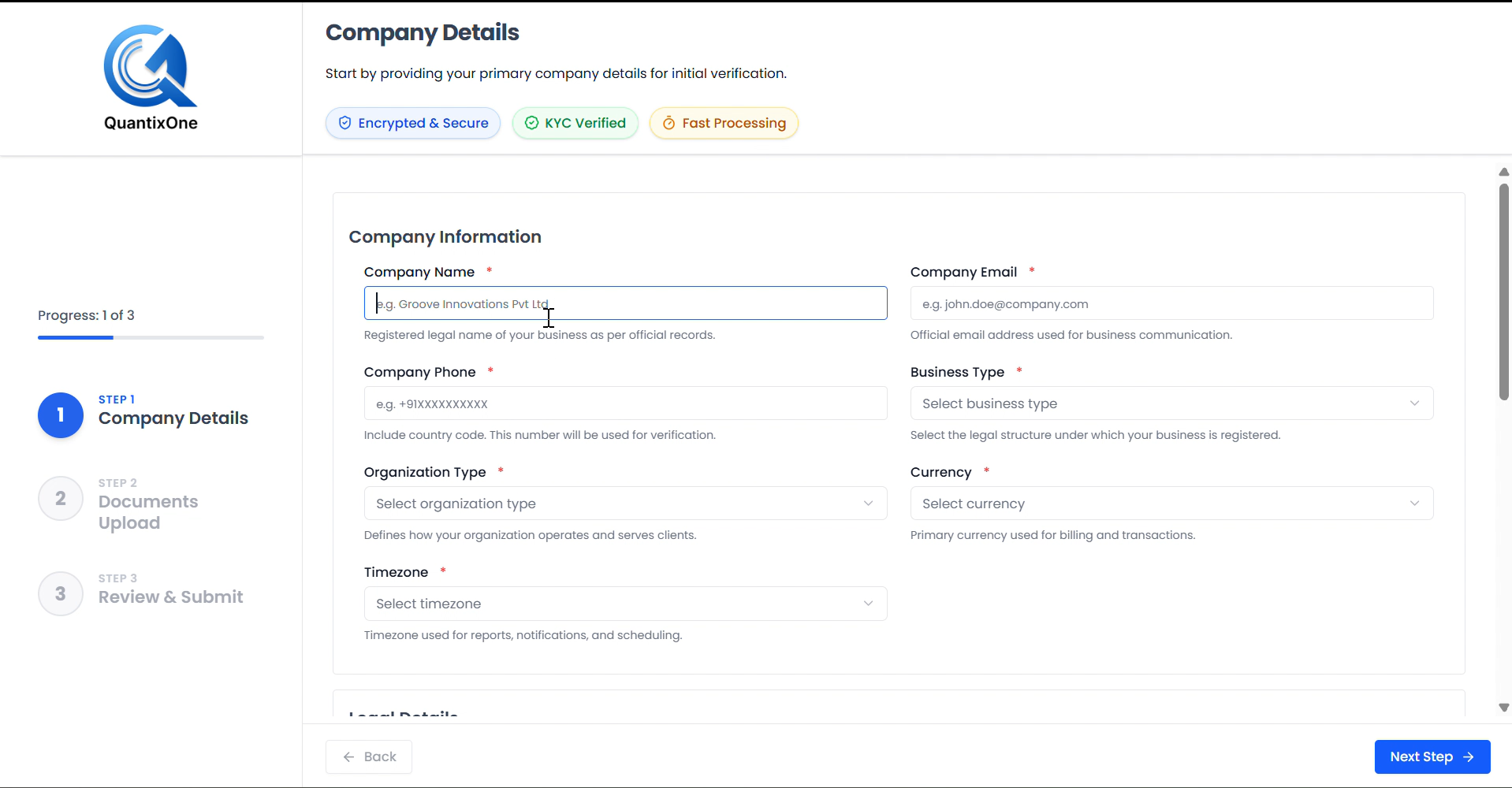 Fill in your core business details. All fields marked with a red asterisk ( * ) are required.
| Field | Description |
|---|---|
| Company Name | Registered legal name of your business as per official records |
| Company Email | Official email address used for business communication |
| Company Phone | Include country code — this number will be used for verification |
| Business Type | The legal structure under which your business is registered |
| Organization Type | Defines how your organization operates and serves clients |
| Currency | Primary currency used for billing and transactions |
| Timezone | Used for reports, notifications, and scheduling |
Legal Details
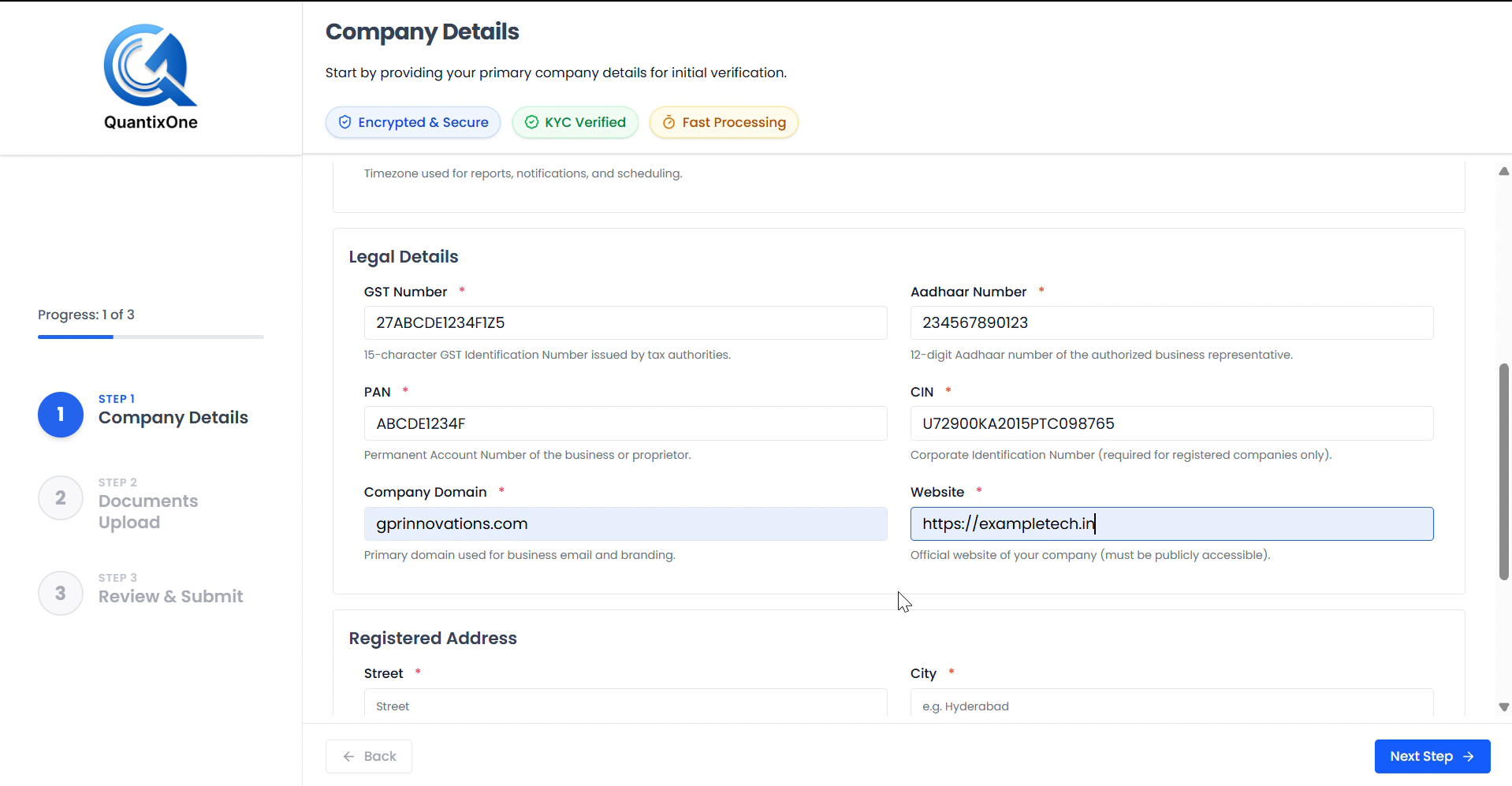 Enter your legal identifiers exactly as they appear on official documents.
| Field | Description |
|---|---|
| GST Number | 15-character GST Identification Number issued by tax authorities |
| Aadhaar Number | 12-digit Aadhaar number of the authorized business representative |
| PAN | Permanent Account Number of the business or proprietor |
| CIN | Corporate Identification Number (required for registered companies only) |
| Company Domain | Primary domain used for business email and branding |
| Website | Official website of your company (must be publicly accessible) |
Registered Address
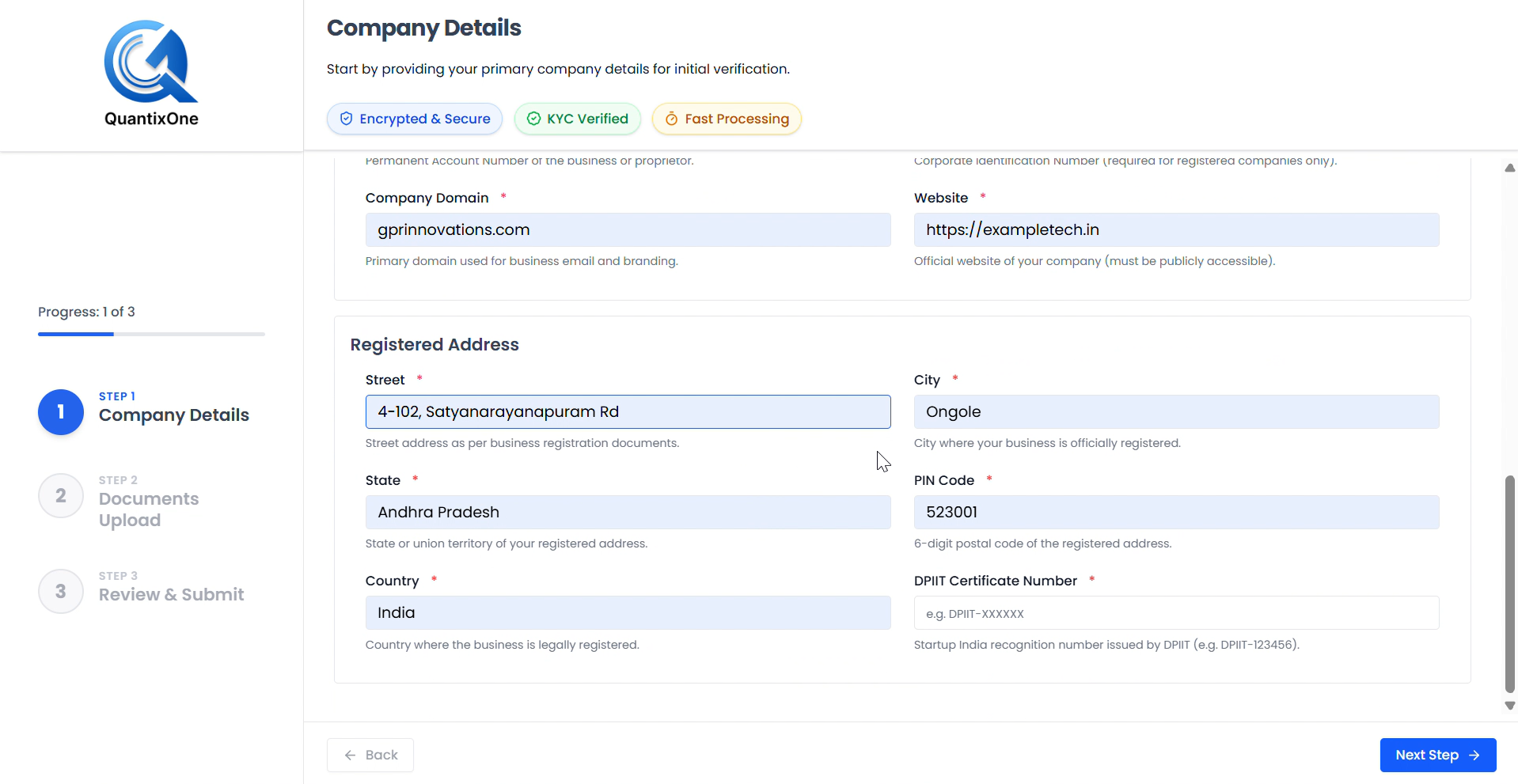 Enter your business address as per registration documents. DPIIT number is only required for Startup India recognised businesses.
| Field | Description |
|---|---|
| Street | Street address as per business registration documents |
| City | City where your business is officially registered |
| State | State or union territory of your registered address |
| PIN Code | 6-digit postal code of the registered address |
| Country | Country where the business is legally registered |
| DPIIT Certificate Number | Startup India recognition number — e.g. DPIIT-123456 (if applicable) |
Once all fields are filled, click Next Step to proceed to document upload.
Step 2 — Documents Upload
This step requires uploading your business and personal documents so QuantixOne can verify the information submitted in Step 1. The documents required depend on the Business Type you selected in Step 1.
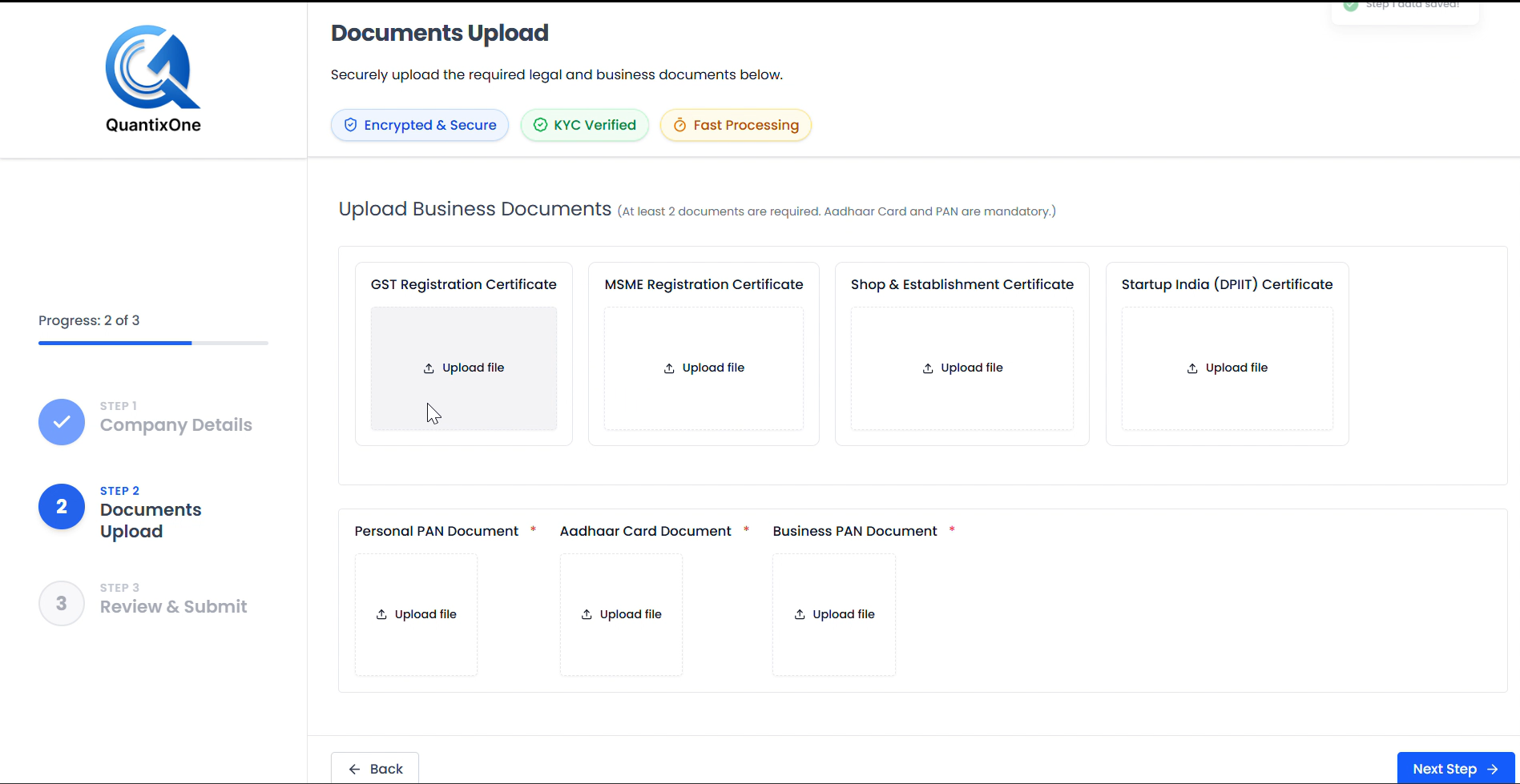 The upload page shows all document slots relevant to your business type. Mandatory documents are marked with a red asterisk ( * ).
Tip: Keep your documents ready as scanned copies or clear photos before starting this step to avoid interruptions.
Required Documents by Business Type
Sole Proprietorship
| Document | Required |
|---|---|
| Personal PAN Document | Mandatory |
| Aadhaar Card Document | Mandatory |
| GST Registration Certificate | At least 1 business proof required |
| MSME Registration Certificate | At least 1 business proof required |
| Shop & Establishment Certificate | At least 1 business proof required |
| Startup India (DPIIT) Certificate | At least 1 business proof required |
Partnership Firm
| Document | Required |
|---|---|
| Aadhaar Card Document | Mandatory |
| Business PAN Document | Mandatory |
| Registered Partnership Deed | At least 1 business proof required |
| Startup India (DPIIT) Certificate | At least 1 business proof required |
Limited Liability Partnership (LLP)
| Document | Required |
|---|---|
| Aadhaar Card Document | Mandatory |
| Business PAN Document | Mandatory |
| Certificate of Incorporation (COI) | At least 1 business proof required |
| LLP Agreement | At least 1 business proof required |
| Startup India (DPIIT) Certificate | At least 1 business proof required |
One Person Company (OPC)
| Document | Required |
|---|---|
| Aadhaar Card Document | Mandatory |
| Business PAN Document | Mandatory |
| Certificate of Incorporation (COI) | At least 1 business proof required |
| Startup India (DPIIT) Certificate | At least 1 business proof required |
Private Limited Company
| Document | Required |
|---|---|
| Aadhaar Card Document | Mandatory |
| Business PAN Document | Mandatory |
| Certificate of Incorporation (COI) | At least 1 business proof required |
| Memorandum of Association (MOA) | At least 1 business proof required |
| Articles of Association (AOA) | At least 1 business proof required |
| Startup India (DPIIT) Certificate | At least 1 business proof required |
Public Limited Company
| Document | Required |
|---|---|
| Aadhaar Card Document | Mandatory |
| Business PAN Document | Mandatory |
| Certificate of Incorporation (COI) | At least 1 business proof required |
| Memorandum of Association (MOA) | At least 1 business proof required |
| Articles of Association (AOA) | At least 1 business proof required |
Section 8 Company (Non-Profit / NGO)
| Document | Required |
|---|---|
| Aadhaar Card Document | Mandatory |
| Business PAN Document | Mandatory |
| Section 8 License | At least 1 business proof required |
| Certificate of Incorporation (COI) | At least 1 business proof required |
Co-operative Society
| Document | Required |
|---|---|
| Aadhaar Card Document | Mandatory |
| Business PAN Document | Mandatory |
| Society Registration Certificate | At least 1 business proof required |
| Society Bye-laws | At least 1 business proof required |
Company (Legacy)
| Document | Required |
|---|---|
| Aadhaar Card Document | Mandatory |
| Business PAN Document | Mandatory |
| Certificate of Incorporation (COI) | At least 1 business proof required |
Click Upload file under each document slot and select the file from your device. Once all mandatory documents are uploaded, click Next Step.
Step 3 — Review & Submit
Before submitting, take a moment to verify that all information and documents are correct. This is your last chance to make edits before the application goes to the QuantixOne team.
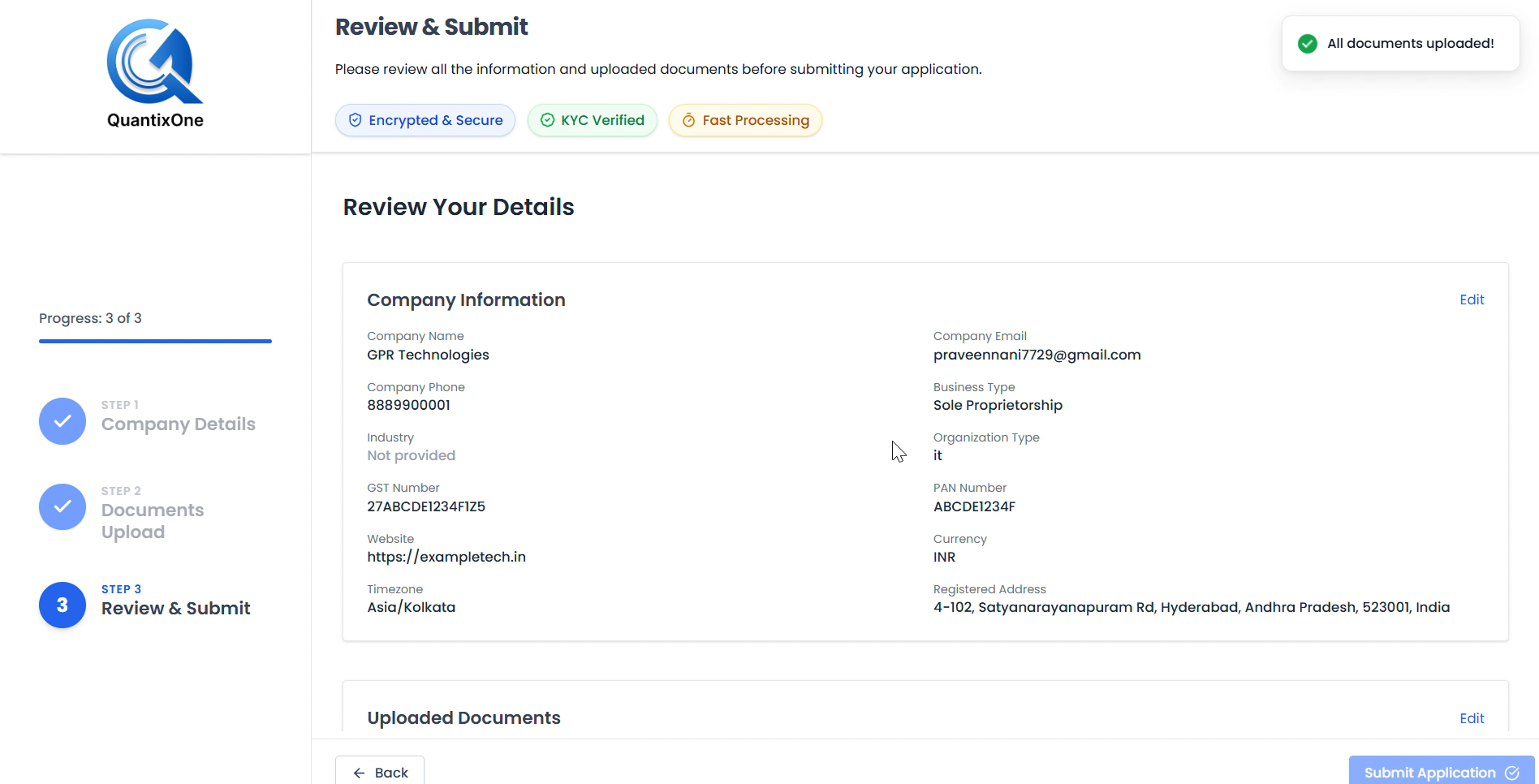 The Review & Submit page shows a summary of all your Company Information. Click Edit next to any section to go back and make corrections.
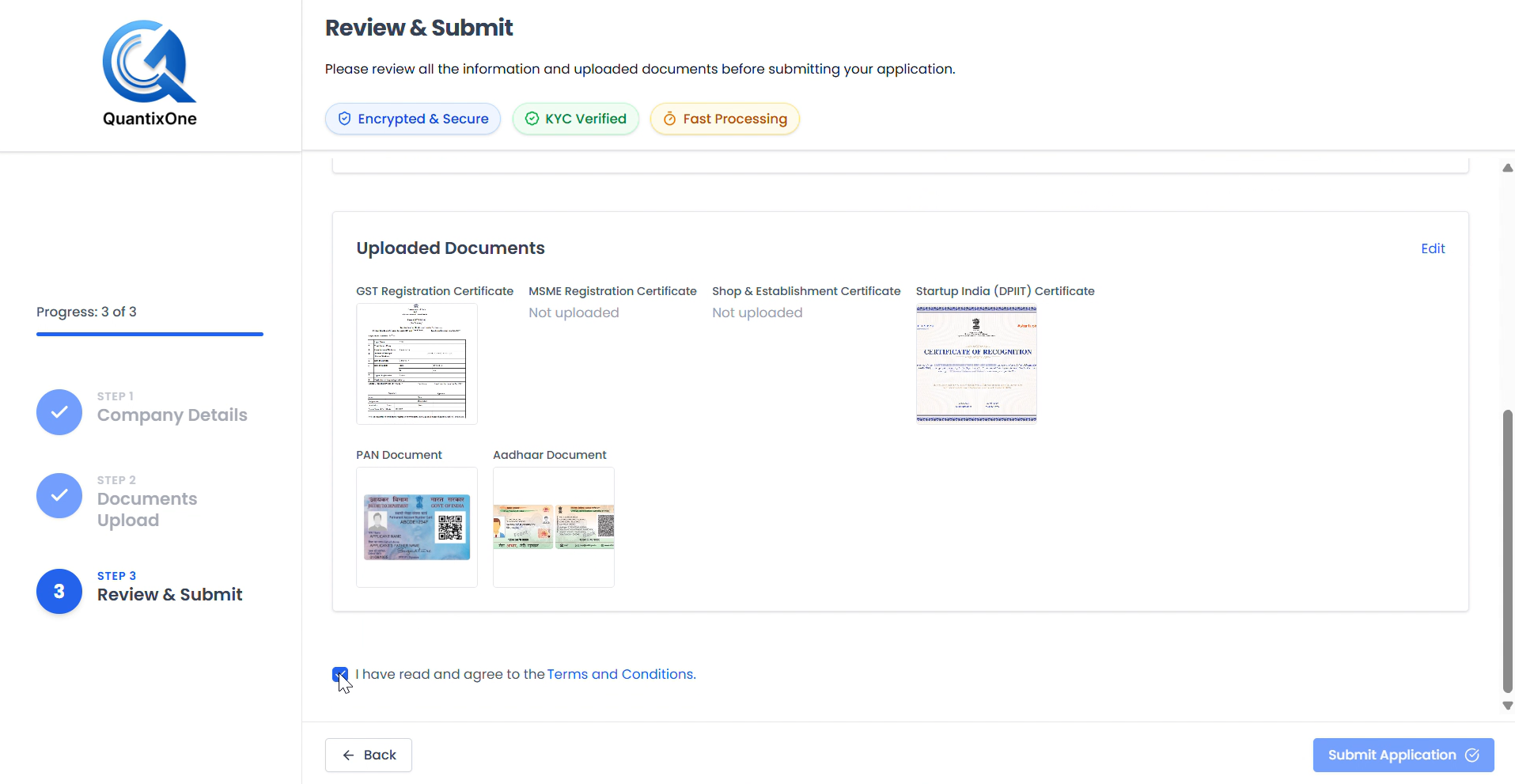 Uploaded documents are shown as thumbnails. Documents not uploaded show "Not uploaded". Check the Terms and Conditions checkbox and click Submit Application to complete.
Note: Make sure all mandatory documents (PAN and Aadhaar) show a thumbnail before submitting. If a document is missing, click Edit in the Uploaded Documents section to go back and upload it.
After Submission
Once you submit, your application goes to the QuantixOne review team. Your dashboard will show a review status banner while it's being processed.
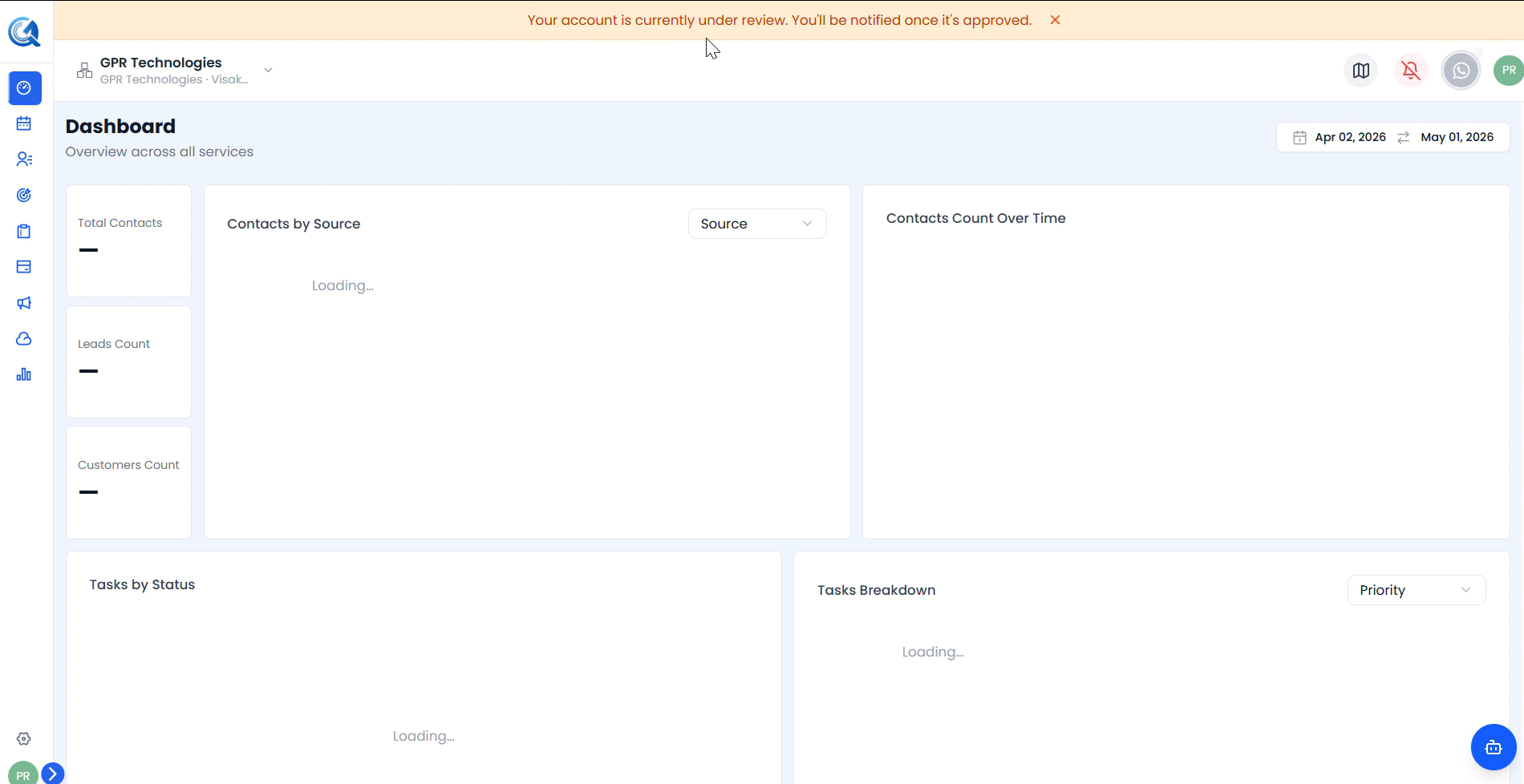 The banner reads: "Your account is currently under review. You'll be notified once it's approved." No further action is needed from your side.
| What happens | Details |
|---|---|
| Review timeline | Review typically completes within 24 hours |
| Notification | You'll receive an email notification once your account is approved |
| Features unlocked | After approval, Email, WhatsApp, and Telecalling will be fully available |
After Approval — Conversations Unlocked
Once the QuantixOne team approves your account, the Conversations module becomes available in your sidebar and all communication channels are fully unlocked.
Before approval
While your account is under review, the Conversations option is not visible in the sidebar. You will only see the core modules available during the review period.
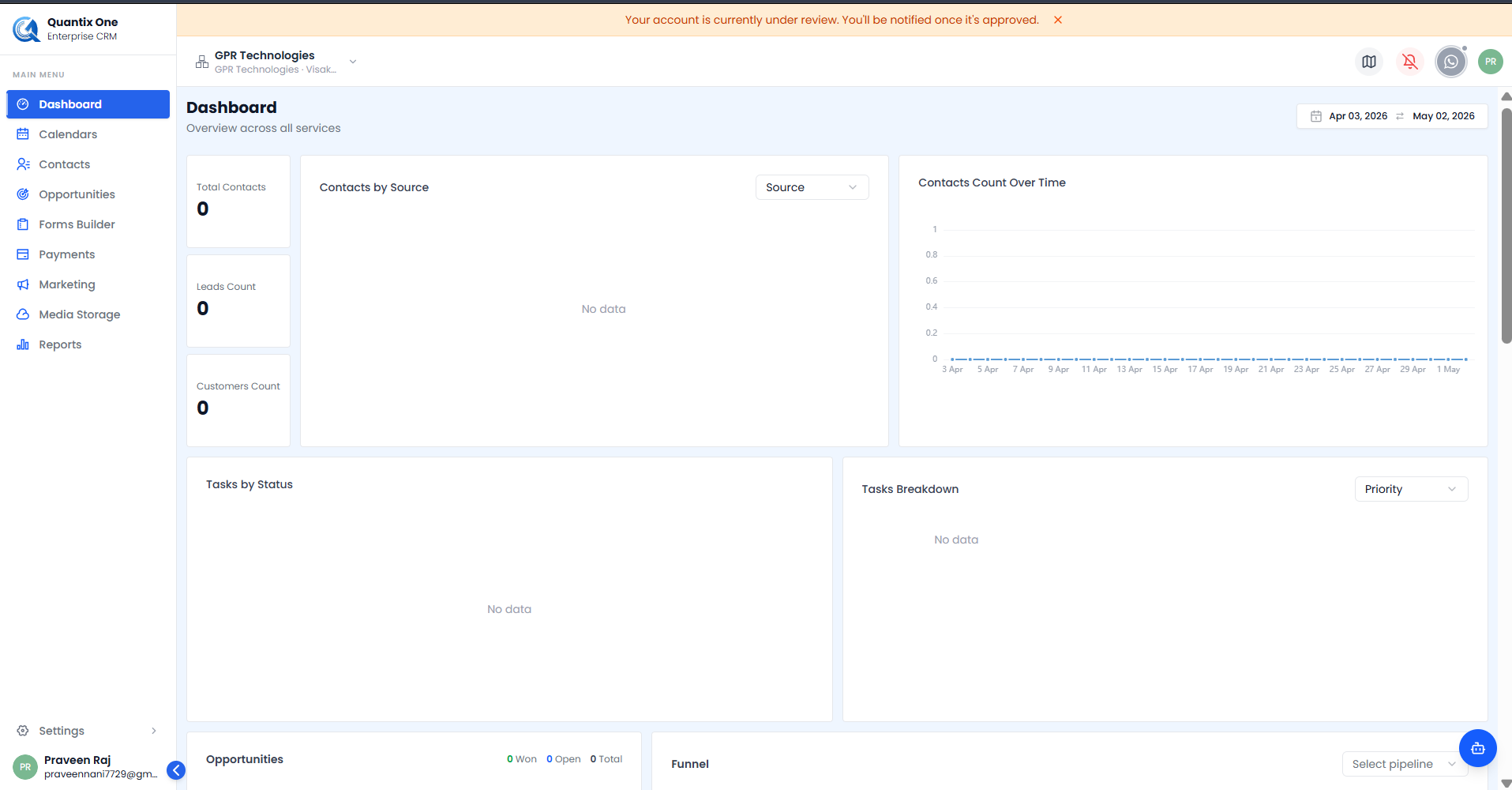 The sidebar before approval — Conversations is not yet available.
After approval
Once approved, Conversations appears in the left sidebar. Clicking it opens your Inbox where you can send and receive messages via WhatsApp, SMS, and Email.
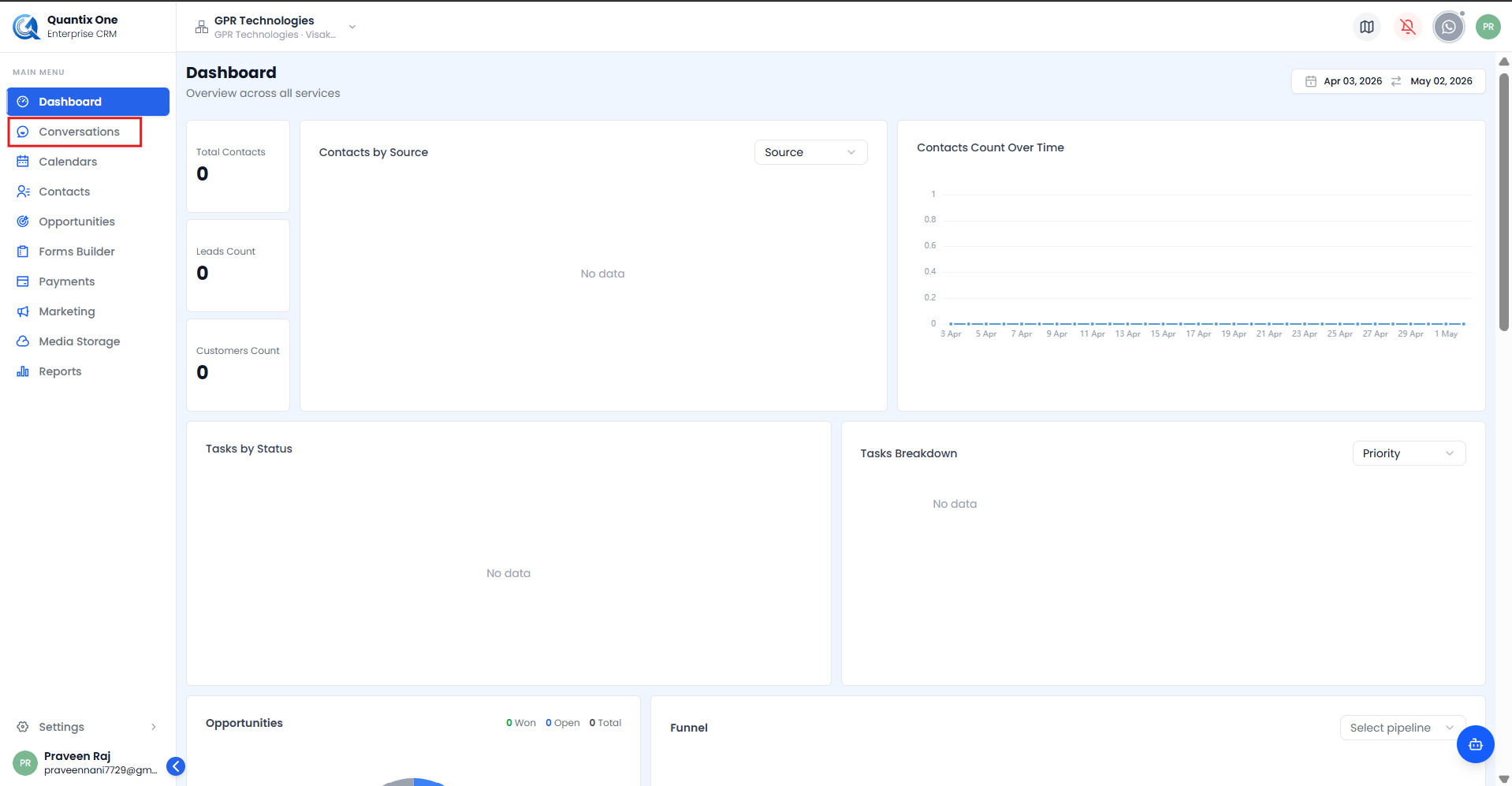 After approval, Conversations is unlocked and visible in the sidebar.
| Feature | What gets unlocked |
|---|---|
| Conversations | Send and receive messages via WhatsApp, SMS, and Email from the unified Inbox |
| Direct messaging with contacts through your connected WhatsApp number | |
| SMS | Text messaging via your assigned SMS channel |
| Two-way email communication linked to your verified business domain |
Video Walkthrough
Watch the full onboarding flow from dashboard to submission.