Roles & Permissions
QuantixOne CRM gives administrators full control over what each staff member can see and do across the platform. Every user is assigned a role, and each role can be fine-tuned with module-level permissions — so your team only ever has access to what they need.
Viewing Staff & Their Roles
Go to Settings → My Staff → Staffs to see all active staff members in your organization.
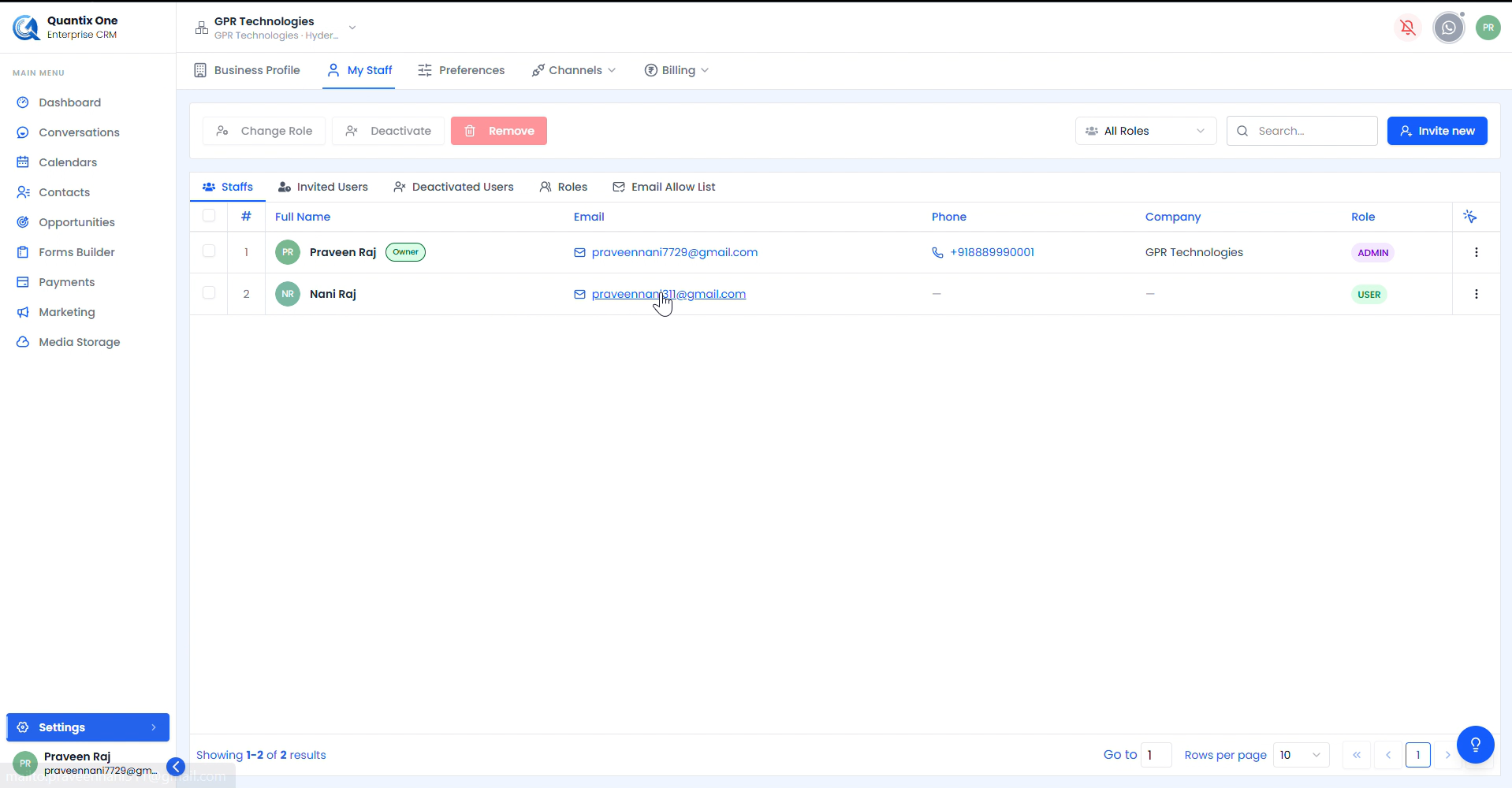 Each staff member shows their name, email, phone, company, and assigned role badge. The account creator is marked Owner. Other members are assigned roles like ADMIN or USER.
| Role | Description |
|---|---|
| Owner | The account creator — has full unrestricted access |
| Admin | Has broad access including settings and staff management |
| User | Standard access — limited based on permissions assigned |
The toolbar at the top provides bulk actions — Change Role, Deactivate, and Remove — for selected staff members.
Editing a Staff Member
Click the ⋮ action menu on any staff row to open options.
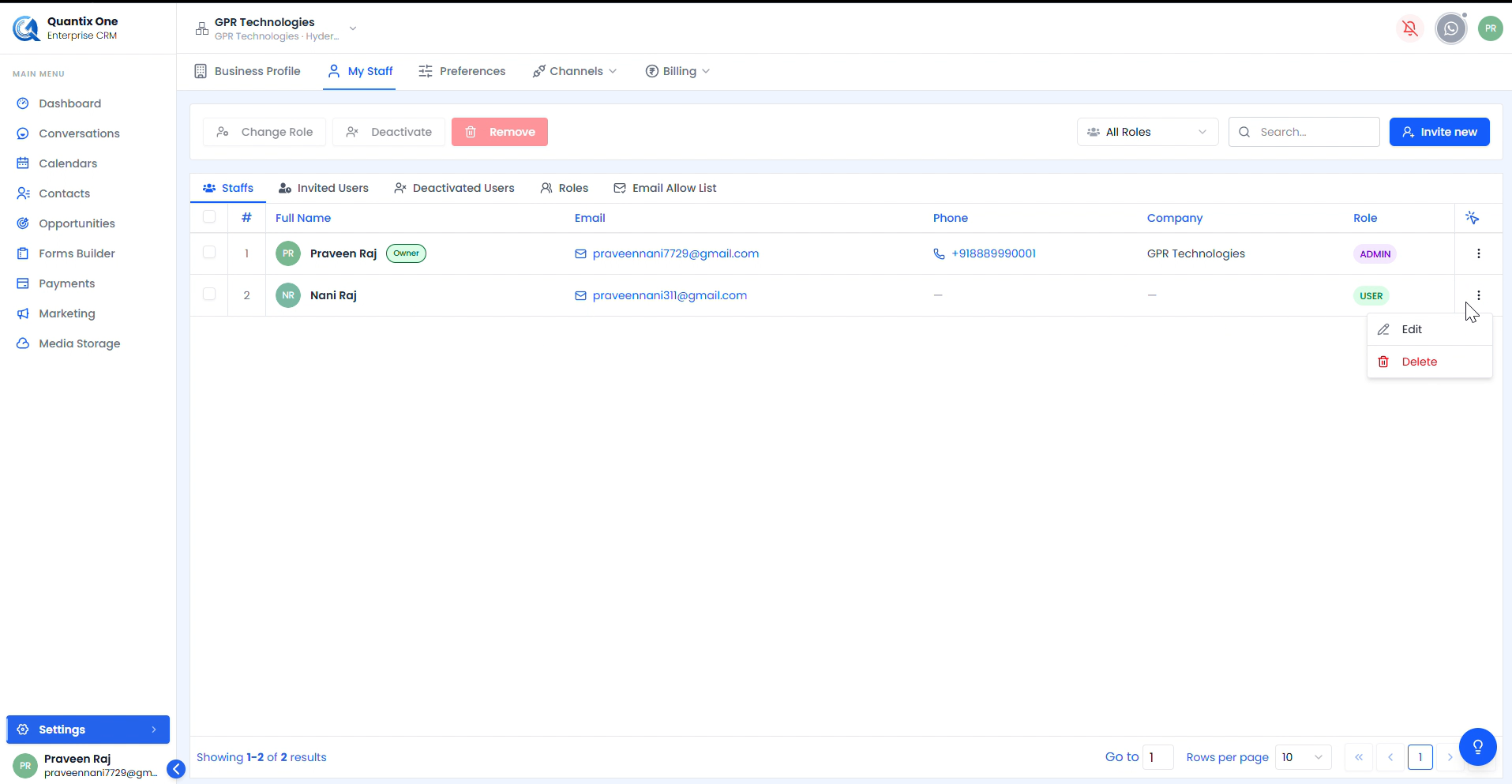 The action menu provides two options — Edit to update the user's profile and permissions, and Delete to remove the staff member.
Click Edit to open the Edit Staff Member form.
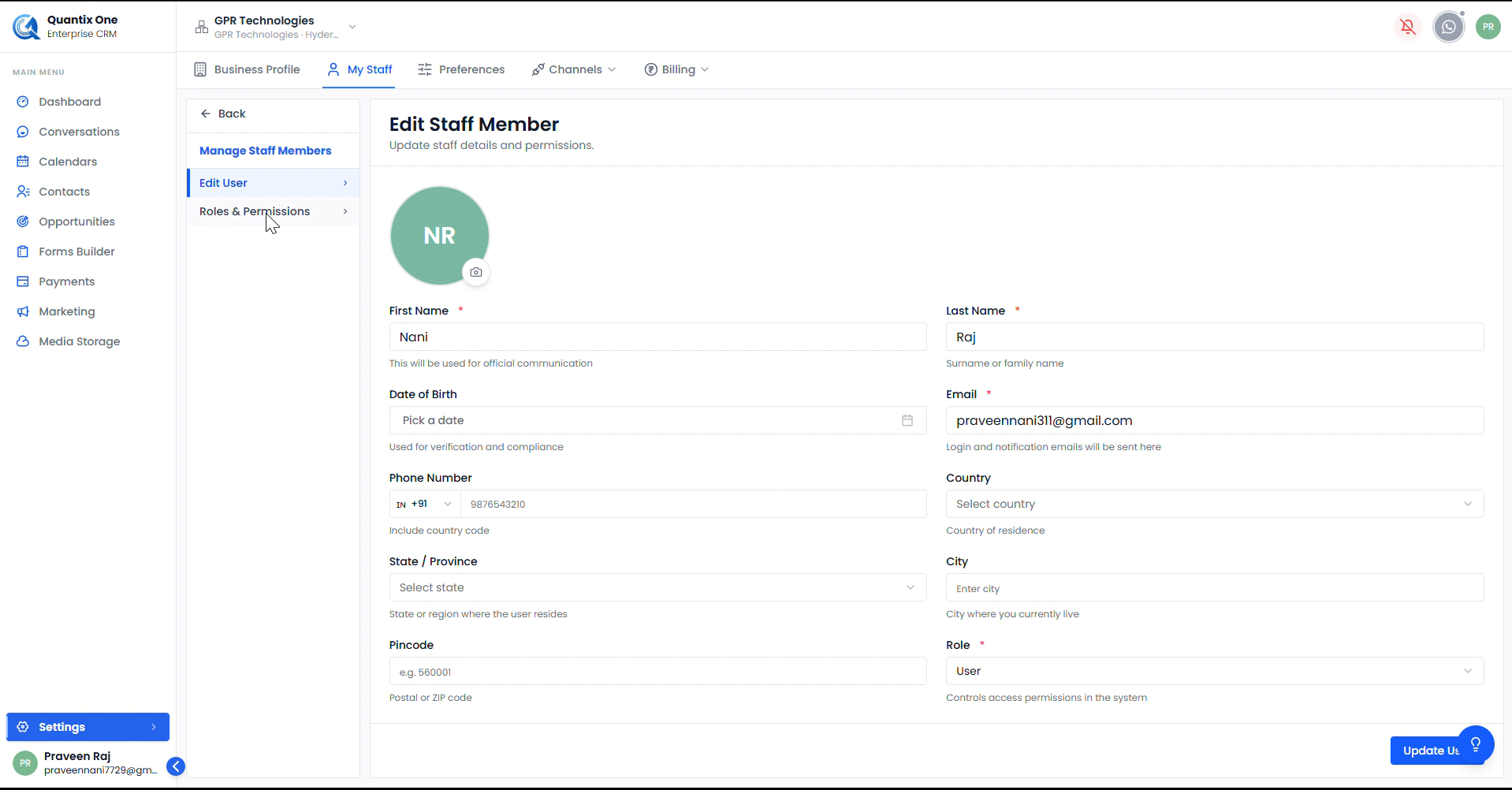 Update the user's personal details — First Name, Last Name, Date of Birth, Email, Phone Number, Country, State / Province, City, Pincode, and Role. Click Update User to save changes.
The left panel shows two sections — Edit User and Roles & Permissions. Switch to Roles & Permissions to configure module access for this user.
Configuring Roles & Permissions
The Roles & Permissions page lists every CRM module with a toggle. Enable or disable access per module for the selected staff member.
Enabling Permissions
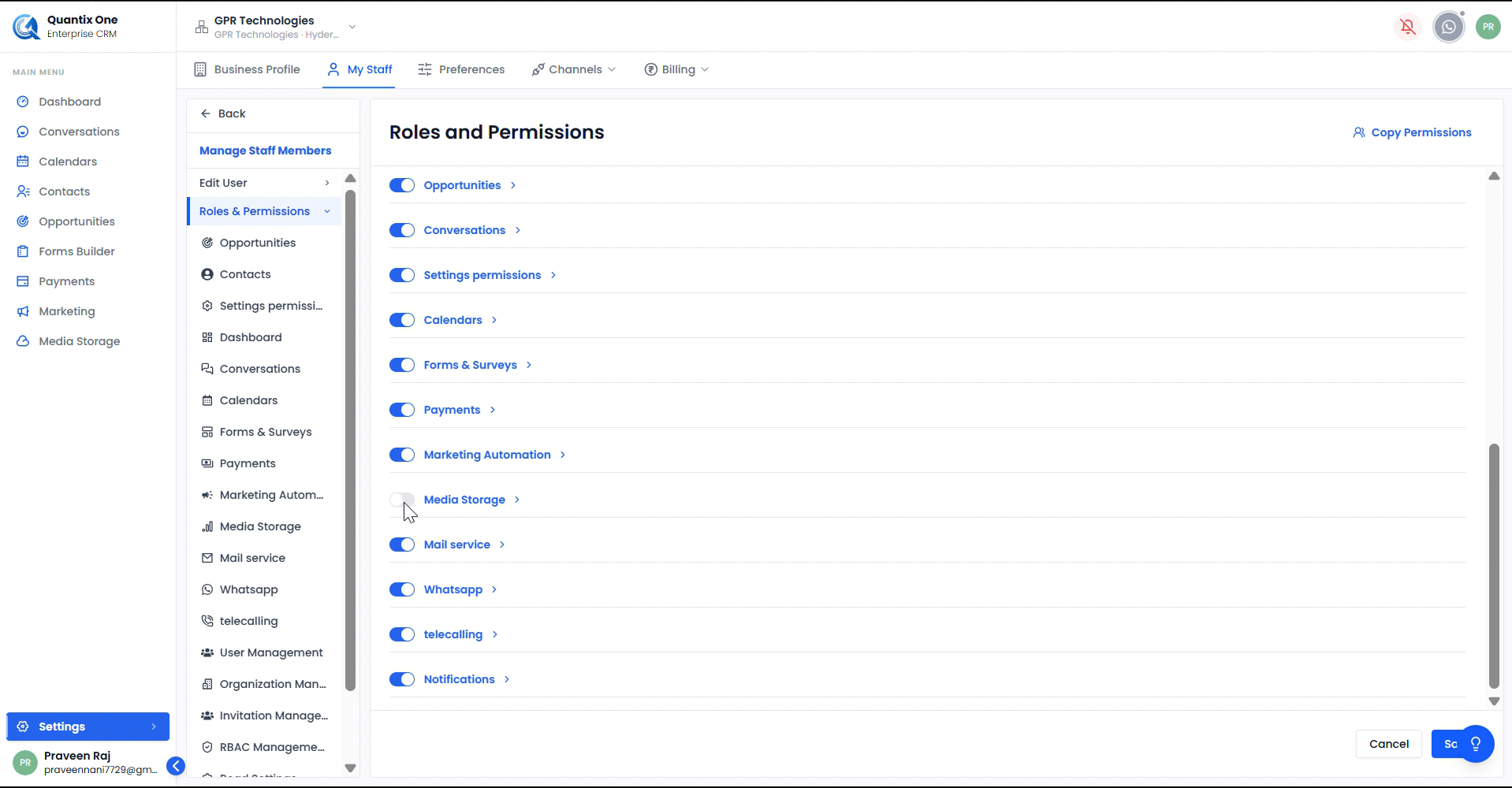 Logged in as Praveen Raj (Admin) — configuring permissions for Nani Raj. Each module row has a toggle — blue means enabled, grey means disabled. Toggle on the modules this user should have access to.
The full list of available permission modules:
| Module | What it controls |
|---|---|
| Dashboard | Overview stats and activity charts |
| Opportunities | Access to deals, pipelines, and stages |
| Conversations | Inbox, messages, and communication channels |
| Settings Permissions | Access to platform settings |
| Calendars | Calendar creation, appointments, and booking |
| Forms & Surveys | Form builder and submissions |
| Payments | Payment records and transactions |
| Marketing Automation | Campaigns and automation workflows |
| Media Storage | File upload, download, and storage management |
| Mail Service | Email channel access |
| WhatsApp messaging access | |
| Telecalling | Calling features access |
| User Management | Add, edit, and remove staff members |
| Organization Management | Company profile and settings |
| Invitation Management | Send and manage staff invitations |
| RBAC Management | Role-based access control configuration |
Saving Permissions
Once all toggles are configured, click Save to apply.
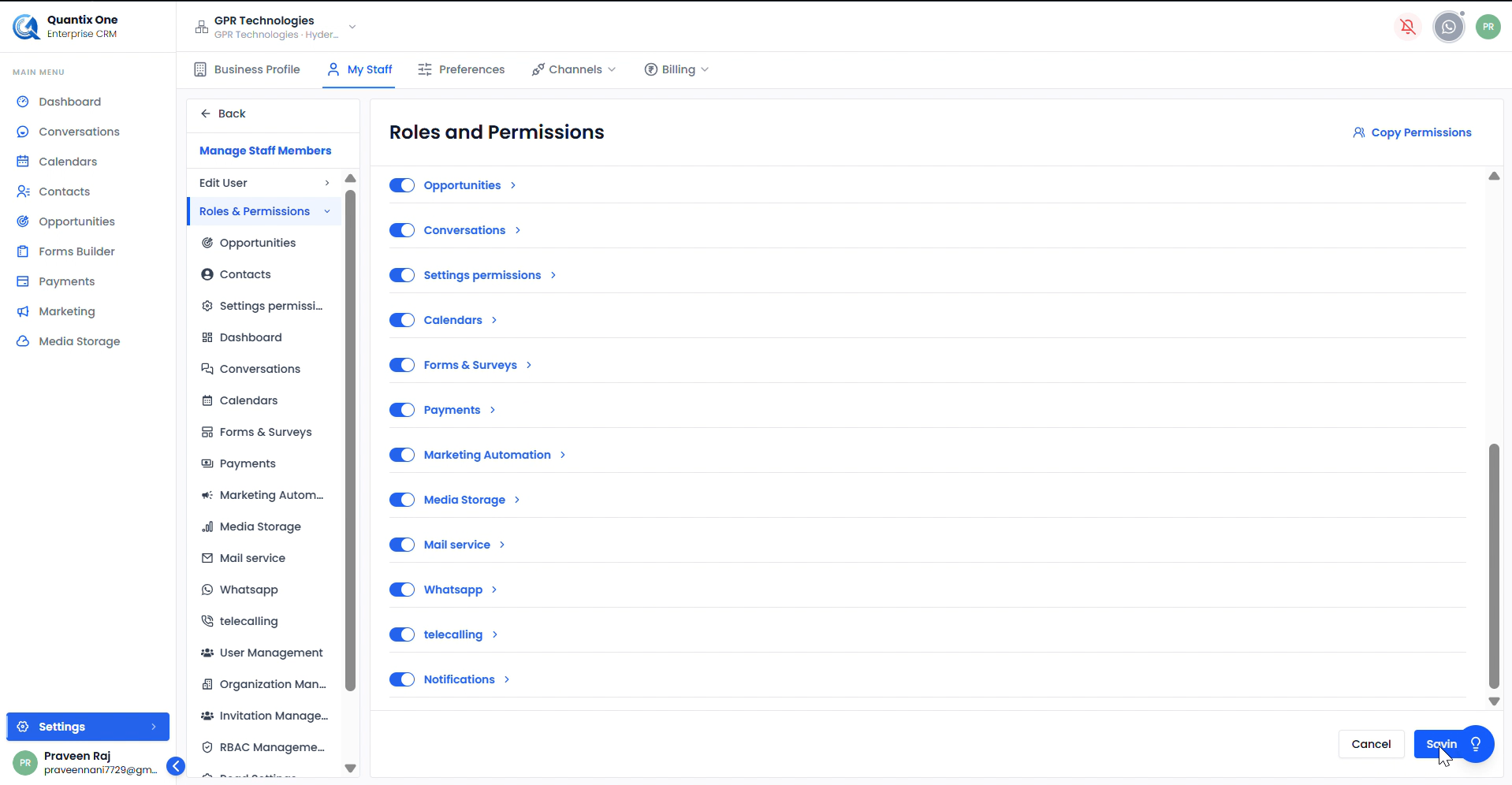 Logged in as Praveen Raj (Admin) — review all toggles before saving. Click Save to apply the updated permissions to Nani Raj's account, or Cancel to discard changes.
Note: Changes take effect immediately after saving.
Sub-permissions
Some modules support granular sub-permissions. Click the › arrow next to a module to expand it.
 The Media Storage module expands to show three sub-permissions — View and download files, Upload and rename files, and Manage storage limits and deletion. Check only the ones the user needs.
Checking What the User Sees
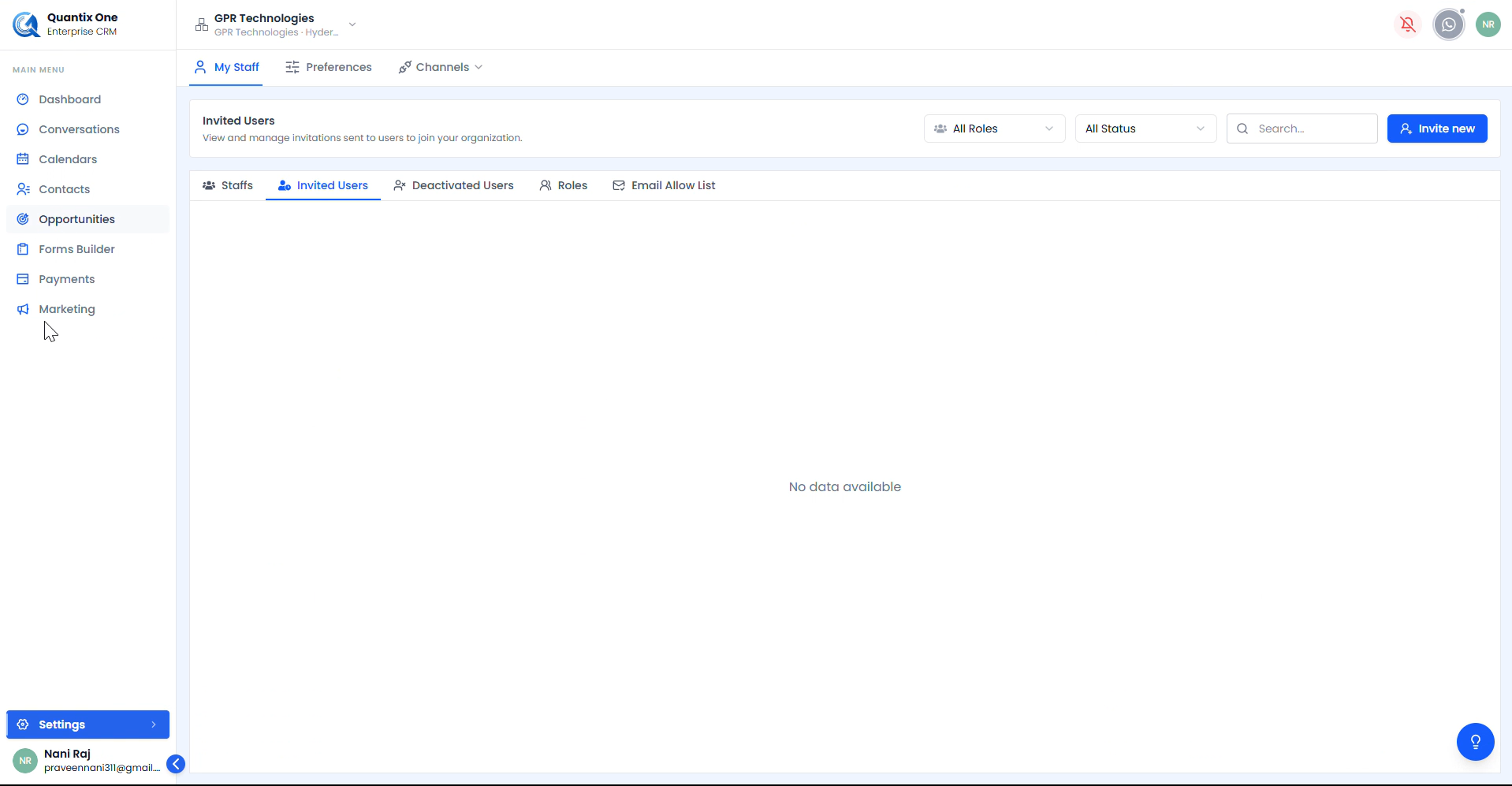
After saving, verify the user's access by checking their view. A restricted user will see only the modules enabled for them.
 Logged in as Nani Raj (User) — the left navigation reflects only the modules enabled by the Admin. Disabled modules are completely hidden.
Disabling Permissions
To restrict access, toggle off the modules the user should no longer access and click Save.
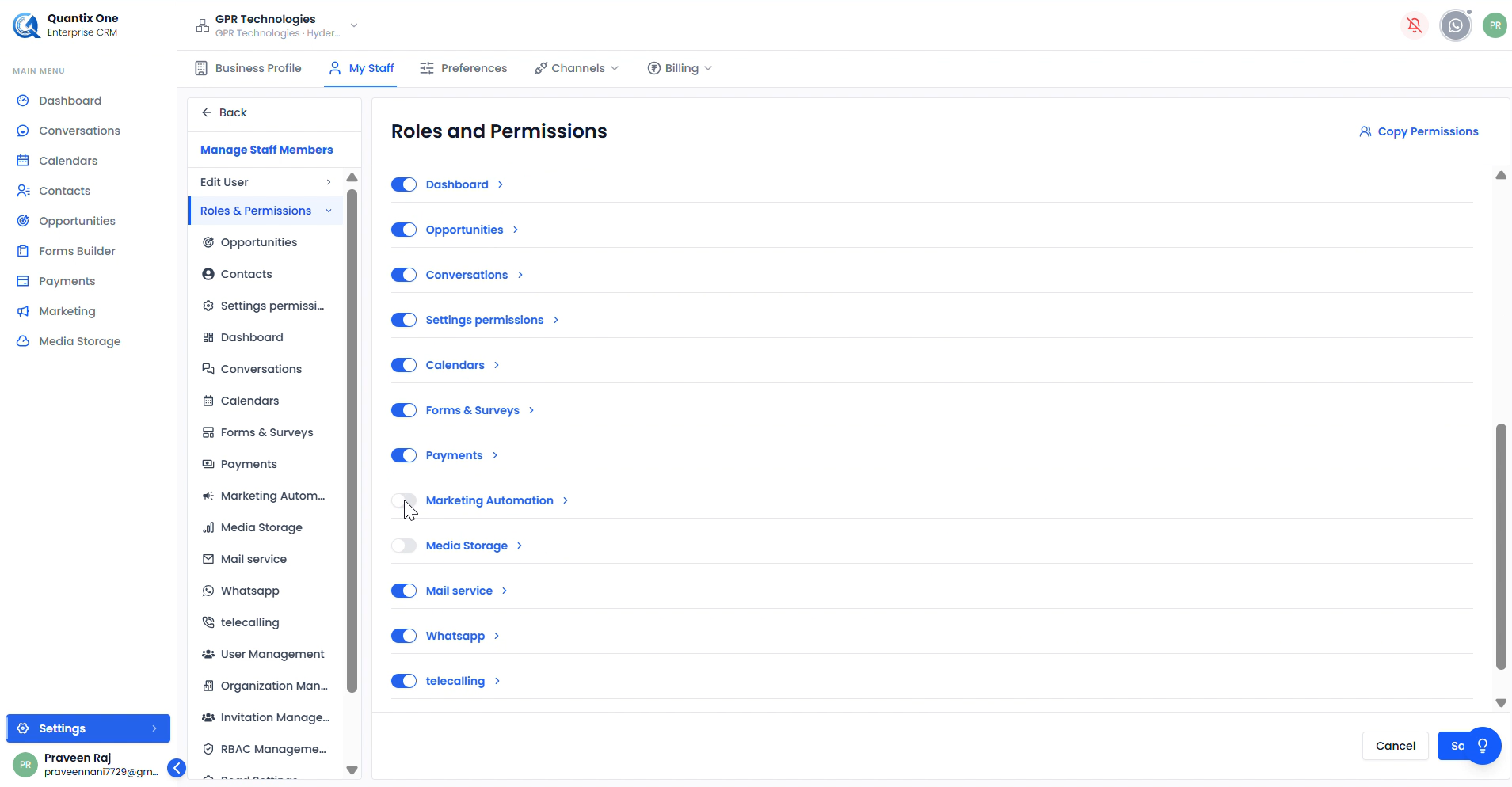 Logged in as Praveen Raj (Admin) — toggling off modules for Nani Raj. Grey toggles mean the user will lose access to those modules after saving.
Checking User Permissions
To verify a user's current access level, open their profile and navigate to Roles & Permissions.
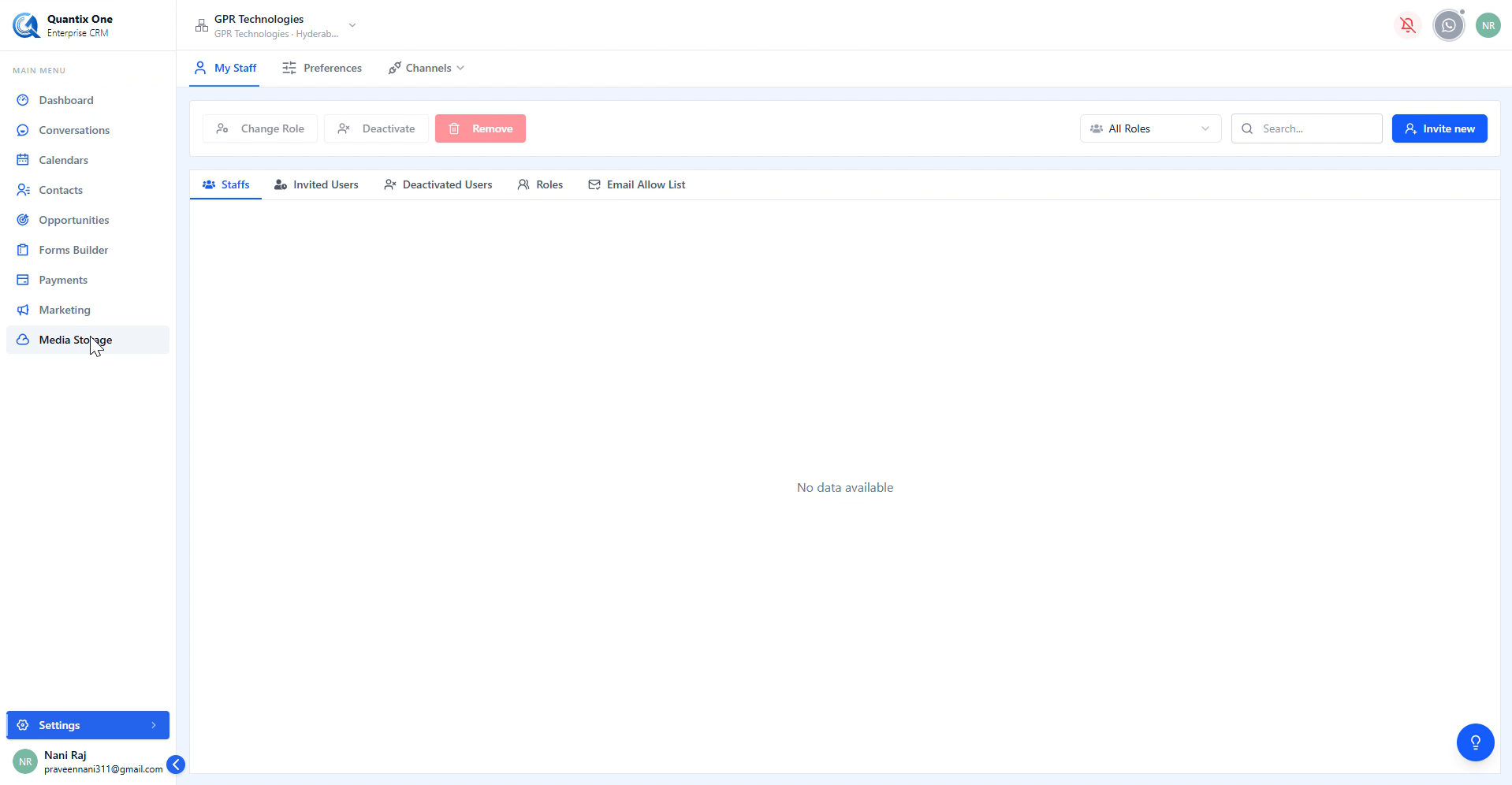
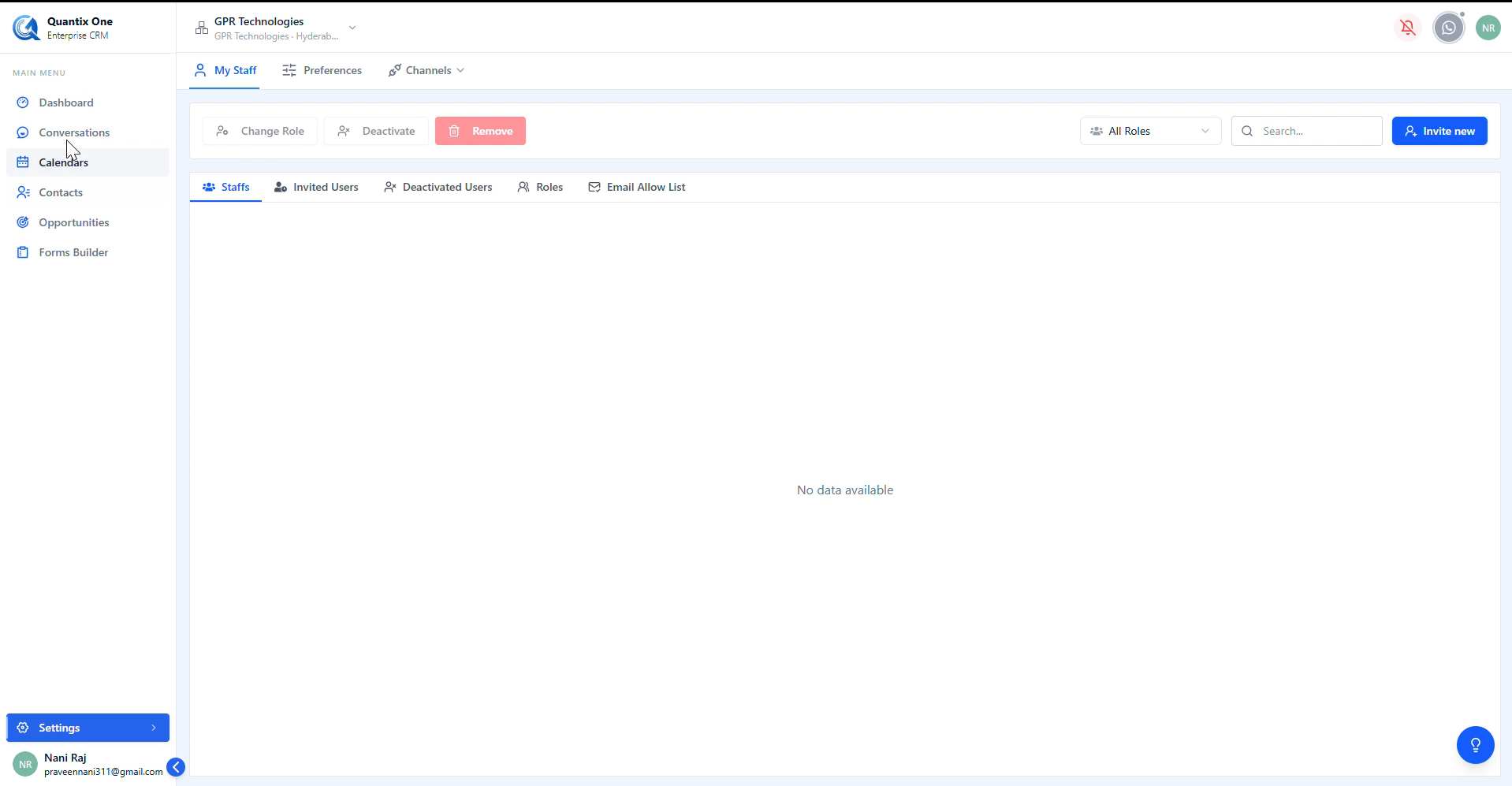 Logged in as Nani Raj (User) — the navigation now shows only the modules that remain enabled. Modules toggled off by the Admin are no longer visible.
Enabling Specific Permissions
To grant access to a previously disabled module, simply toggle it back on and save.
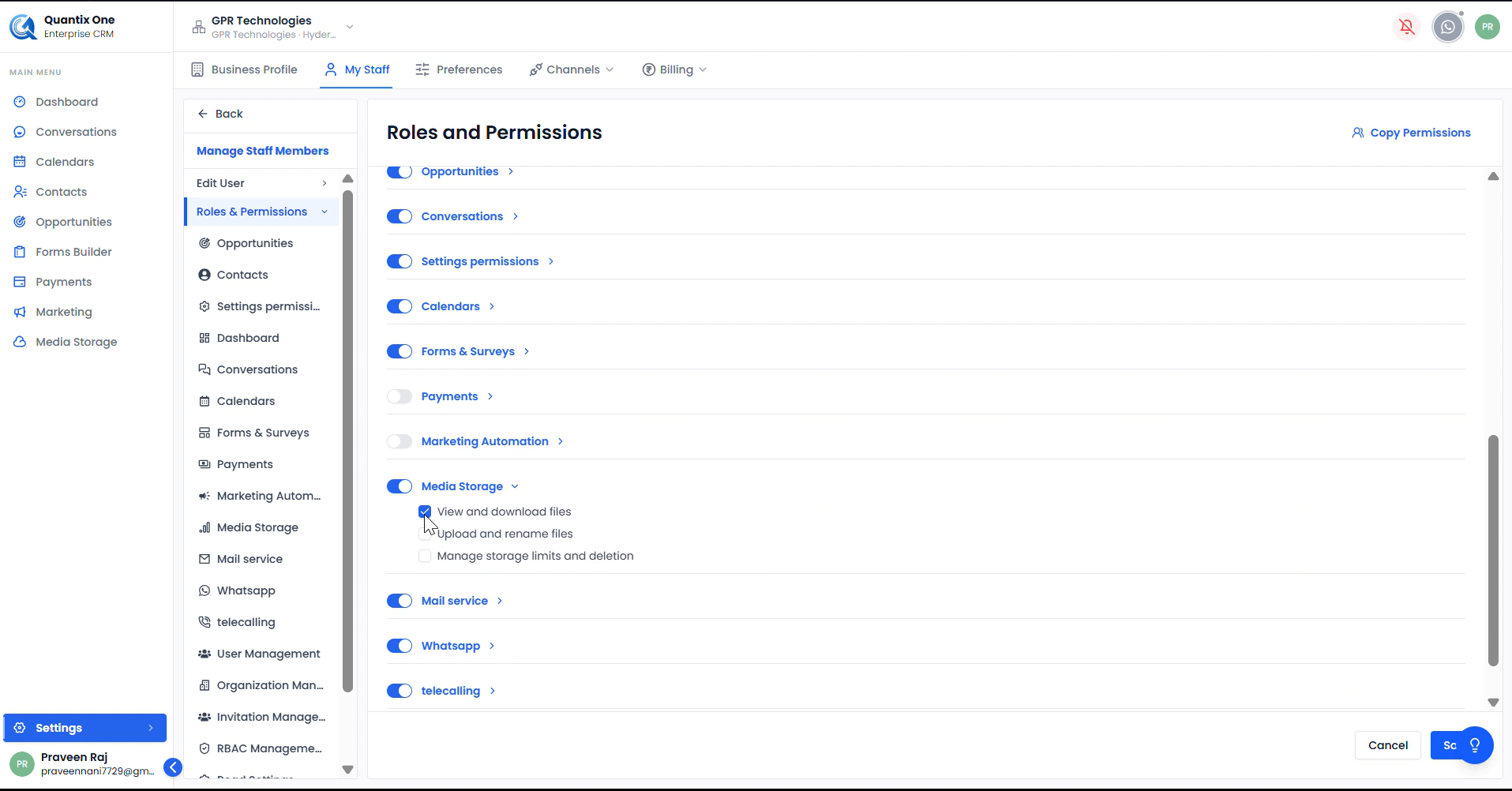 Logged in as Praveen Raj (Admin) — re-enabling modules for Nani Raj. Toggle on the required module and click Save. Nani Raj will see the module restored in their navigation immediately.
Use the Copy Permissions button at the top right to copy an existing user's full permission set — useful for quickly applying a standard configuration to a new staff member.
Note: When a module is disabled for a user, it is hidden from their left navigation menu entirely. For example, disabling Calendars means the user will not see the Calendars menu item when they log in.
Video Walkthrough
Watch the complete Roles & Permissions walkthrough below.