Activity Logs
The Logs page is a read-only audit trail of every create, update, delete, import, and restore action taken across Contacts, Companies, Tasks, and Custom Fields. It gives your team full visibility into who changed what, and when.
Viewing Logs
Click Logs in the left sidebar under Contacts to open the audit trail.
The page shows a table with an action-type icon, a description, the user who performed the action (or a bot icon for system-generated actions), the timestamp, and the affected entity.
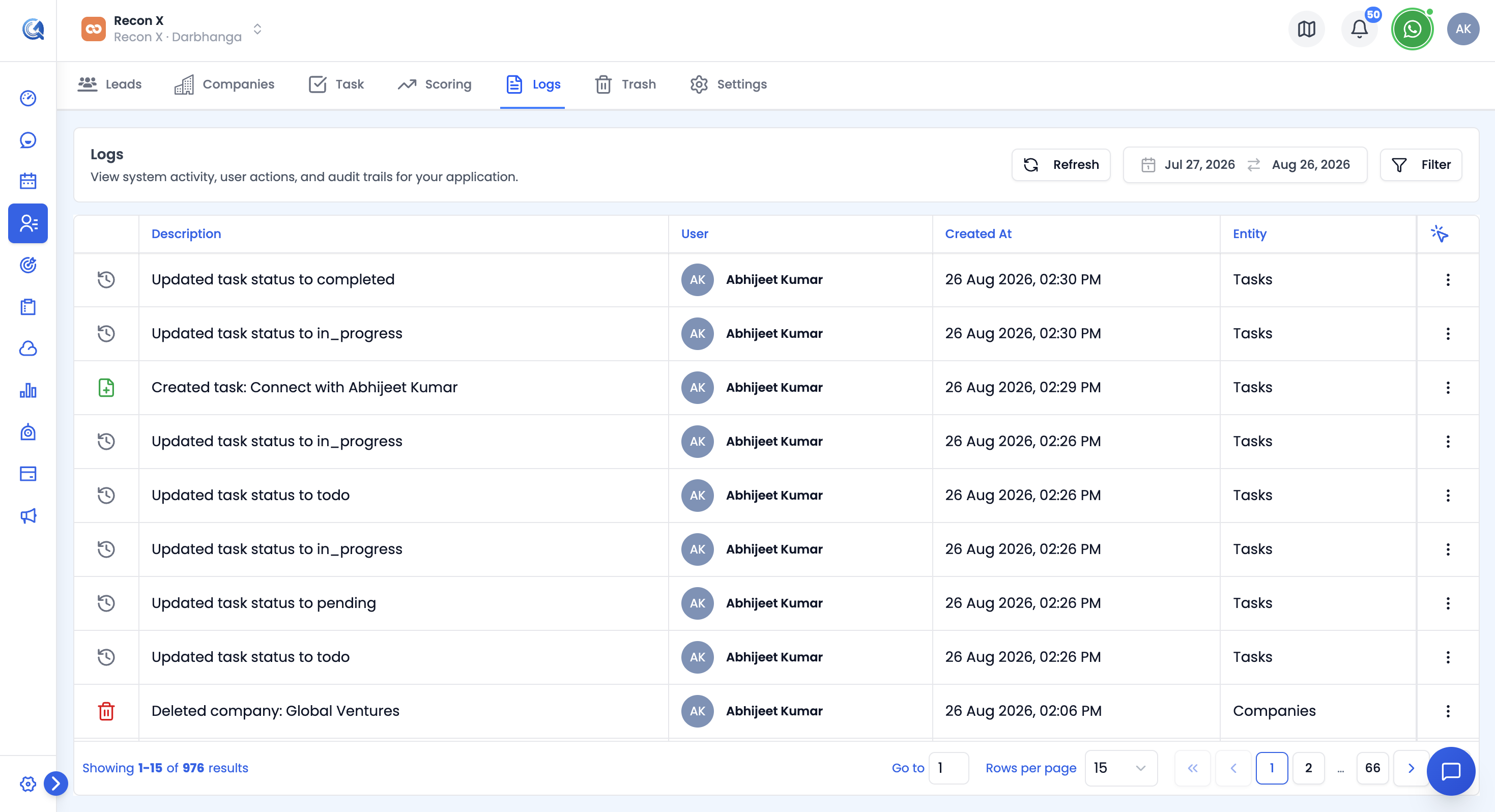 The Logs page lists every action taken across Contacts, Companies, Tasks, and Custom Fields.
Filtering Logs
Use the toolbar to narrow down the log:
- Date Range — defaults to the last 30 days.
- Action — All, Create, Import, Update, Bulk Update, Delete, Bulk Delete, Permanently Delete, or Restore.
- Entity — All, Contacts, Companies, Tasks, or Custom Fields.
- User — All Users, or a specific team member from a searchable list.
Use Clear in the filter panel to reset, or Apply to run the filter. Click Refresh to reload the log with your current filters.
Viewing a Log Entry's Details
Click the ⋮ menu on any row and select View Details to open a dialog showing:
- The user (or system) who performed the action, and when.
- Feature Type, Service, and Feature ID badges identifying exactly what was affected.
- A Details section with any additional metadata for the action.
- For Update actions, a Changes table listing each field that changed and its new value — booleans are shown as Yes/No badges, and lists as chips.
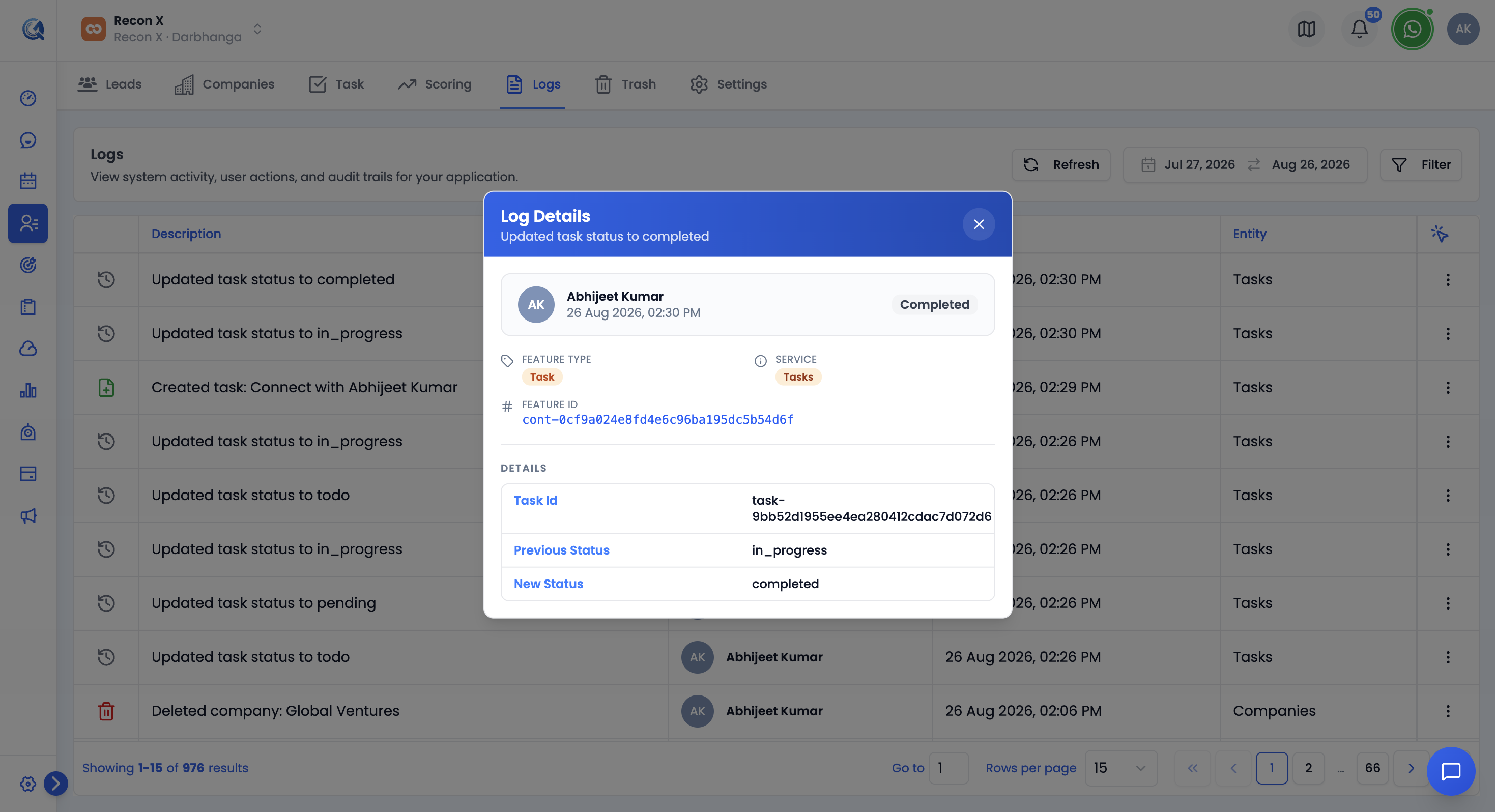 The View Details dialog breaks down exactly what changed for a given log entry.
What Gets Logged
Every significant action on a Contact, Company, Task, or Custom Field is recorded automatically, including:
- Record creation, edits, and deletions (single or bulk)
- Permanent deletions from Deleted Items
- Restores from Deleted Items
- Bulk imports
There is no manual way to add or edit a log entry — this page is a system-generated record, not something you configure.
Video Walkthrough
Watch the step-by-step video below to see how to view and filter the activity log.