Companies Directory
The Companies Directory lets you manage all businesses and organizations associated with your contacts. You can create company records, link them to contacts, and keep their details up to date — all from one place.
Viewing the Companies List
To access the Companies Directory, click Companies in the left sidebar under the Contacts section.
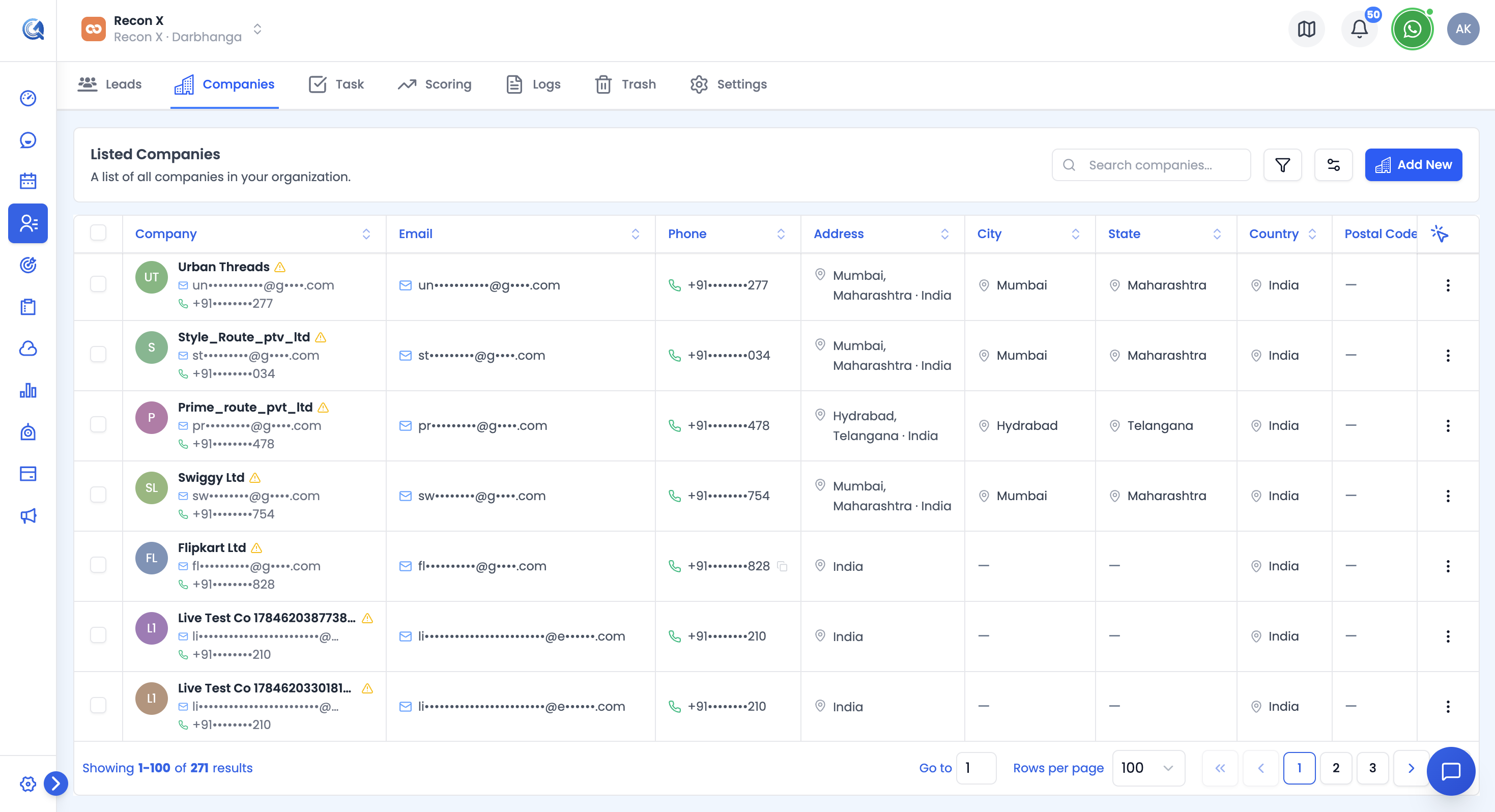 Click Companies in the sidebar to open the Companies Directory.
The list displays all companies in your location. Available columns include Company (avatar, name, email, phone), Email, Phone, Address, Links (Website/LinkedIn/X/Facebook/Instagram/YouTube icons), City, State, Country, Postal Code, Description, and Created/Updated At/By — use Manage Fields to choose which ones you see. Hovering a company name shows a quick preview card with its email, phone, website, location, and social links.
Adding a New Company
To create a new company, click the + New Company button in the top-right corner of the Companies list.
Fill in the company details in the form that appears:
- Company Name — The official business name (required).
- Description — A brief description of the company.
- Company Email Address — validated for email format.
- Company Phone Number — with a country code selector.
- Address — Free-text street address.
- Country — Searchable dropdown with country flags.
- City, State/Province, Postal Code
- Website — validated for URL format.
- Custom Fields — Any fields your team has configured for Companies appear at the end of the form.
Click Save to create the company record.
Linking a Contact to a Company
When creating or editing a contact, you can link them to a company by entering the company name in the Company field of the contact form. QuantixOne will automatically match the contact to an existing company record.
Once linked, the contact will appear in the company's contact list, and the company name will be visible on the contact's detail page.
Viewing a Company's Details
Click on any company name in the Companies list to open its detail page. Here you can see:
- Company Information — Name, email, phone, website, and address.
- Social Links — Website, LinkedIn, X/Twitter, Facebook, Instagram, YouTube (only shown if present).
- Custom Fields — Any custom data your team has configured for companies.
- Record Metadata — Who created and last updated the record, and when.
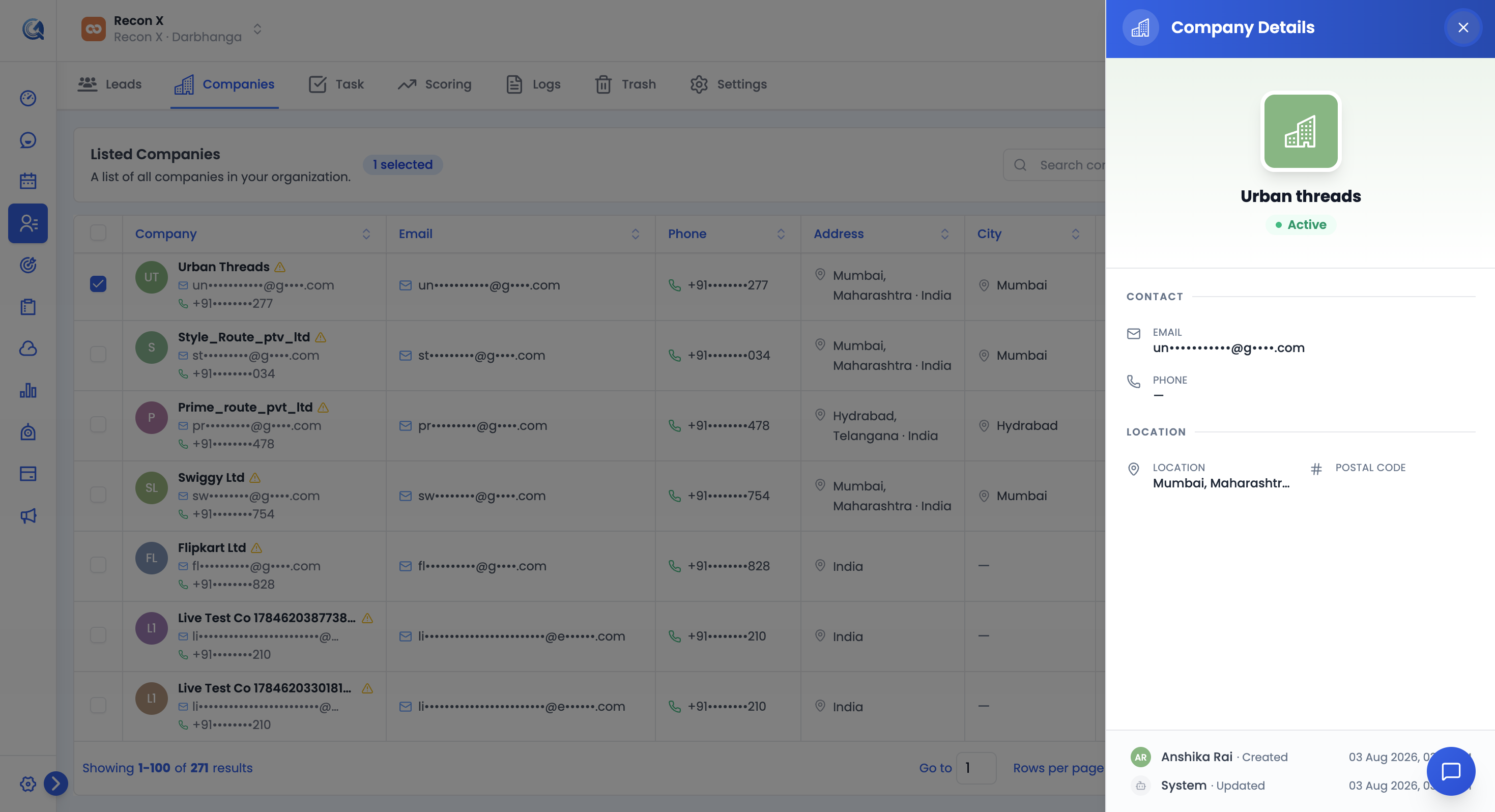 The Company Details panel shows the company's contact info, website, and full address.
Editing a Company
To update a company's details, open the company record and click the Edit button (pencil icon) or the Edit Company button at the top of the page.
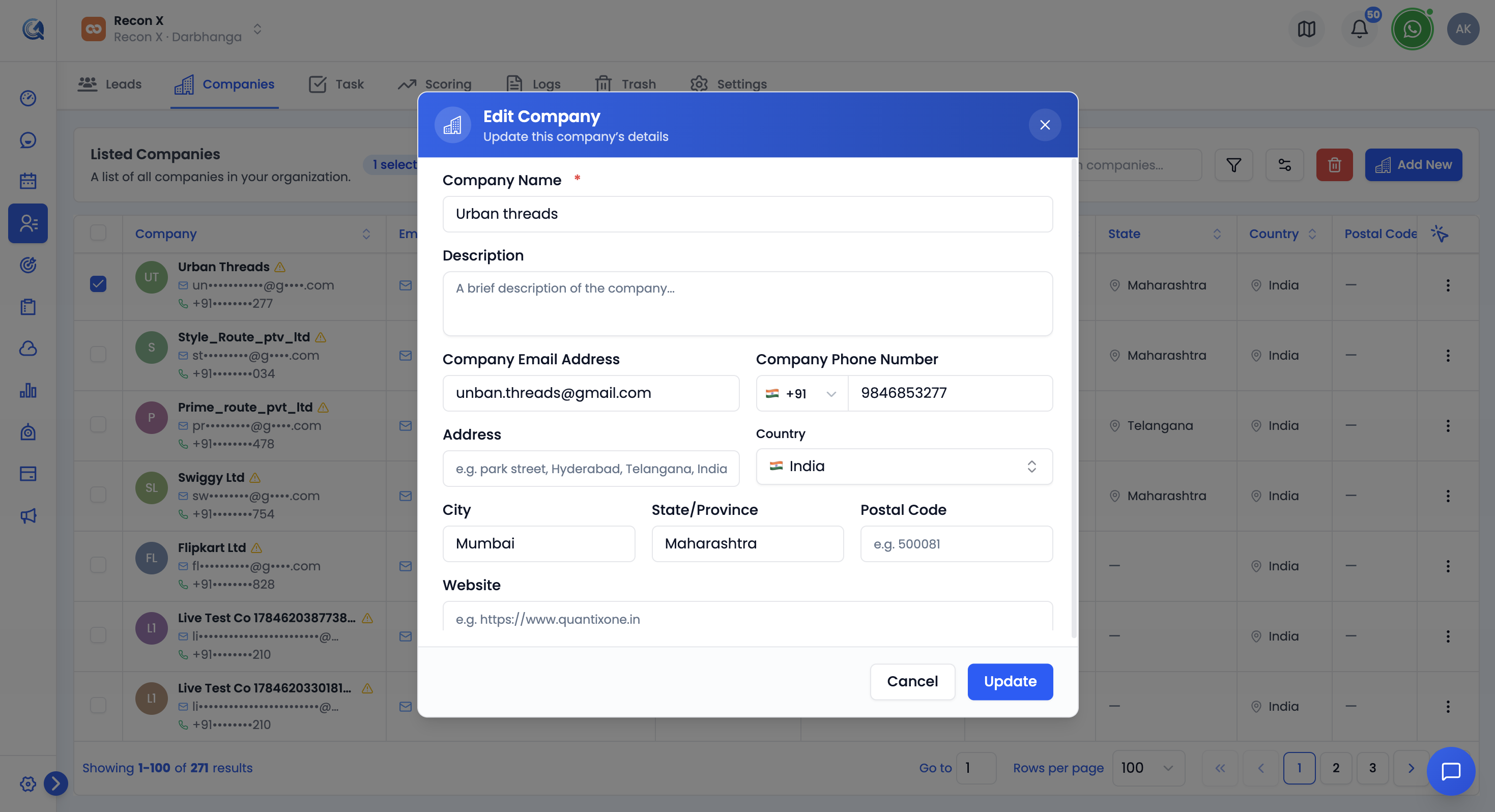 Click Edit Company to update the company's information.
Make your changes and click Save.
Deleting a Company
To delete a company, open the company record, click the More Options menu (three dots), and select Delete. Deleted companies are moved to Deleted Items and can be restored — see Deleted Items.
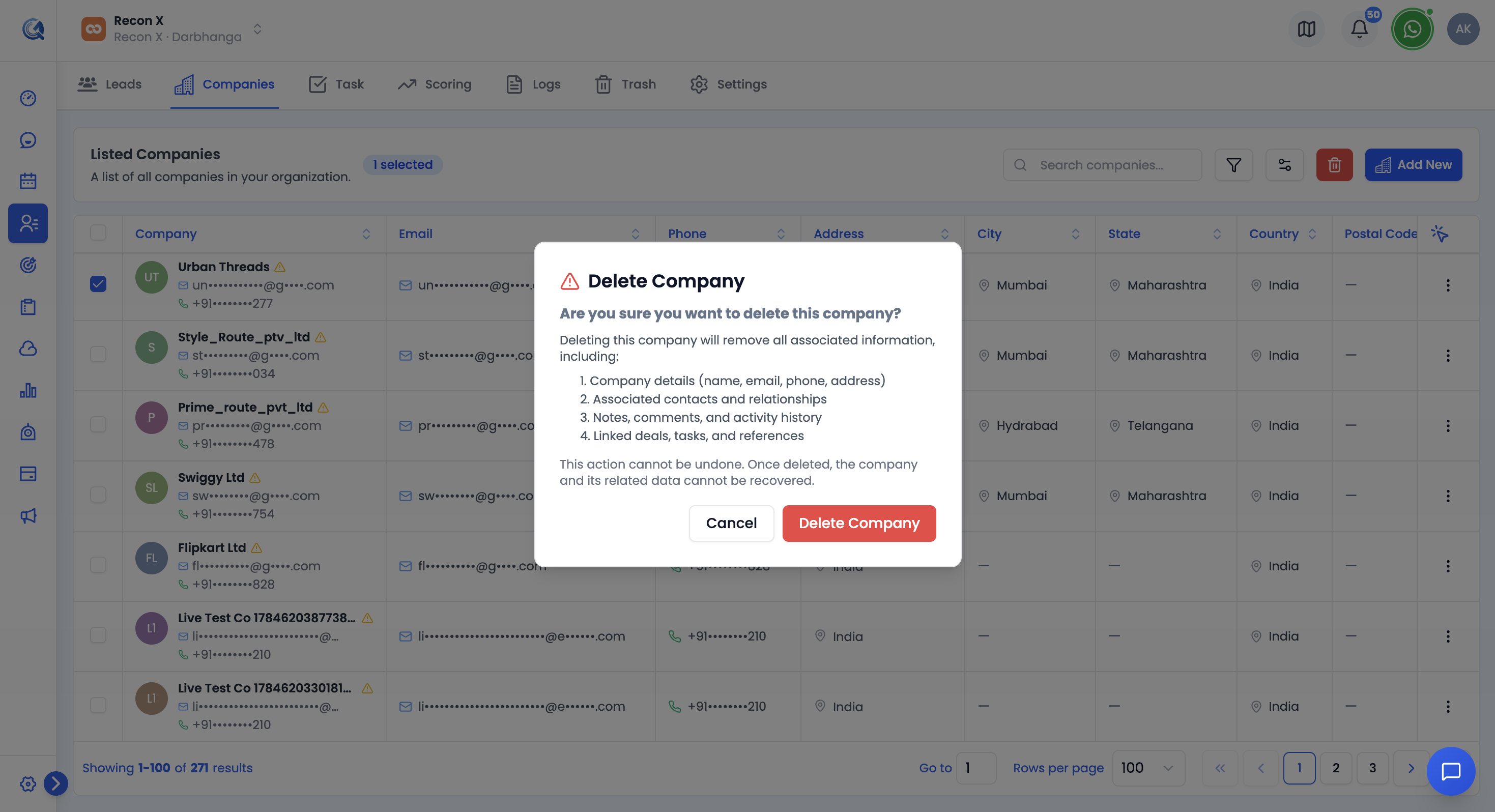 Select Delete from the options menu to remove a company record.
Note: The confirmation dialog explains that deleting a company removes its details, associated contact relationships, notes and activity history, and any linked deals or tasks. This is why the record is recoverable from Deleted Items rather than deleted outright.
Video Walkthrough
Watch the complete walkthrough below to see how to manage companies in QuantixOne CRM.