Viewing Contact Details
The Contact Details page gives you a complete picture of a contact — their information, communication history, linked company, tasks, notes, and more. Everything related to a contact is accessible from one place.
Navigating to a Contact
From the Contacts section in the left sidebar, click on any contact's name in the list to open their details.
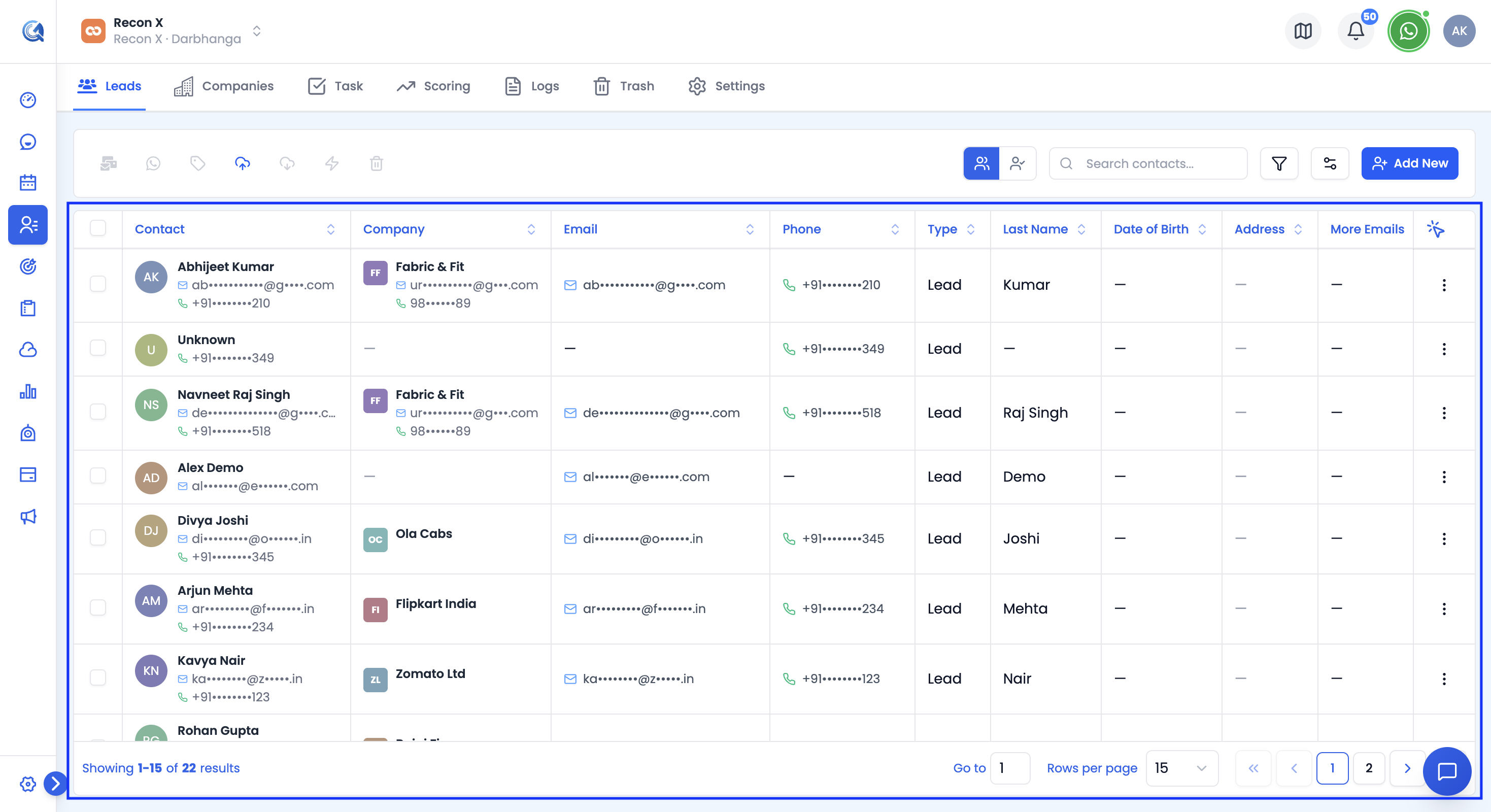 The Leads tab with your contacts list. Click a contact's name to open their details.
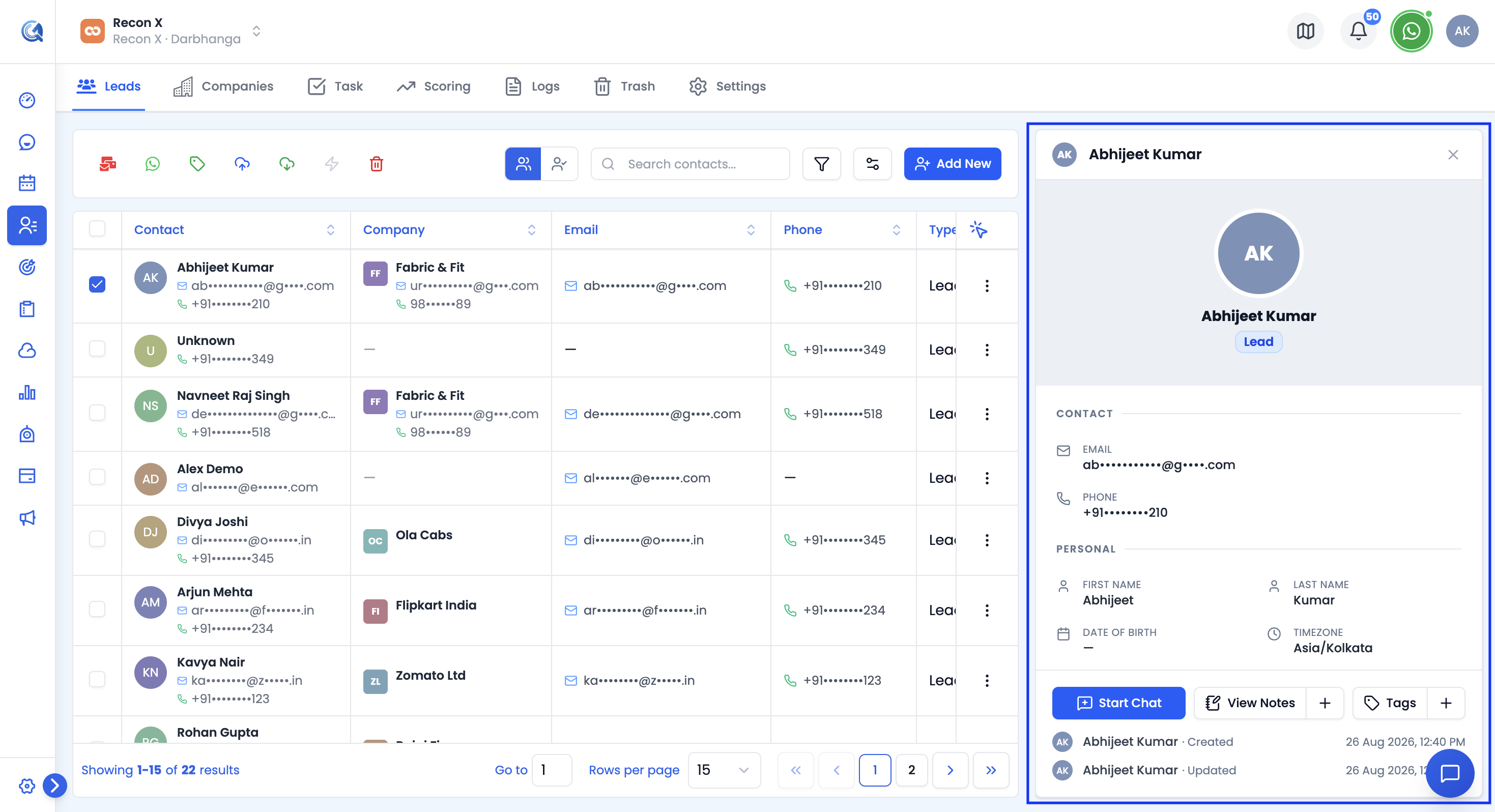 The Contact Details panel opens on the right, showing the contact's full profile.
Contact Overview
At the top of the contact page, you will see a summary of the most important information at a glance:
- Full Name and Contact Type (Lead or Customer)
- Primary Email and Phone Number
- Company the contact is linked to
- Owner and Assigned Team Members
- Tags applied to this contact
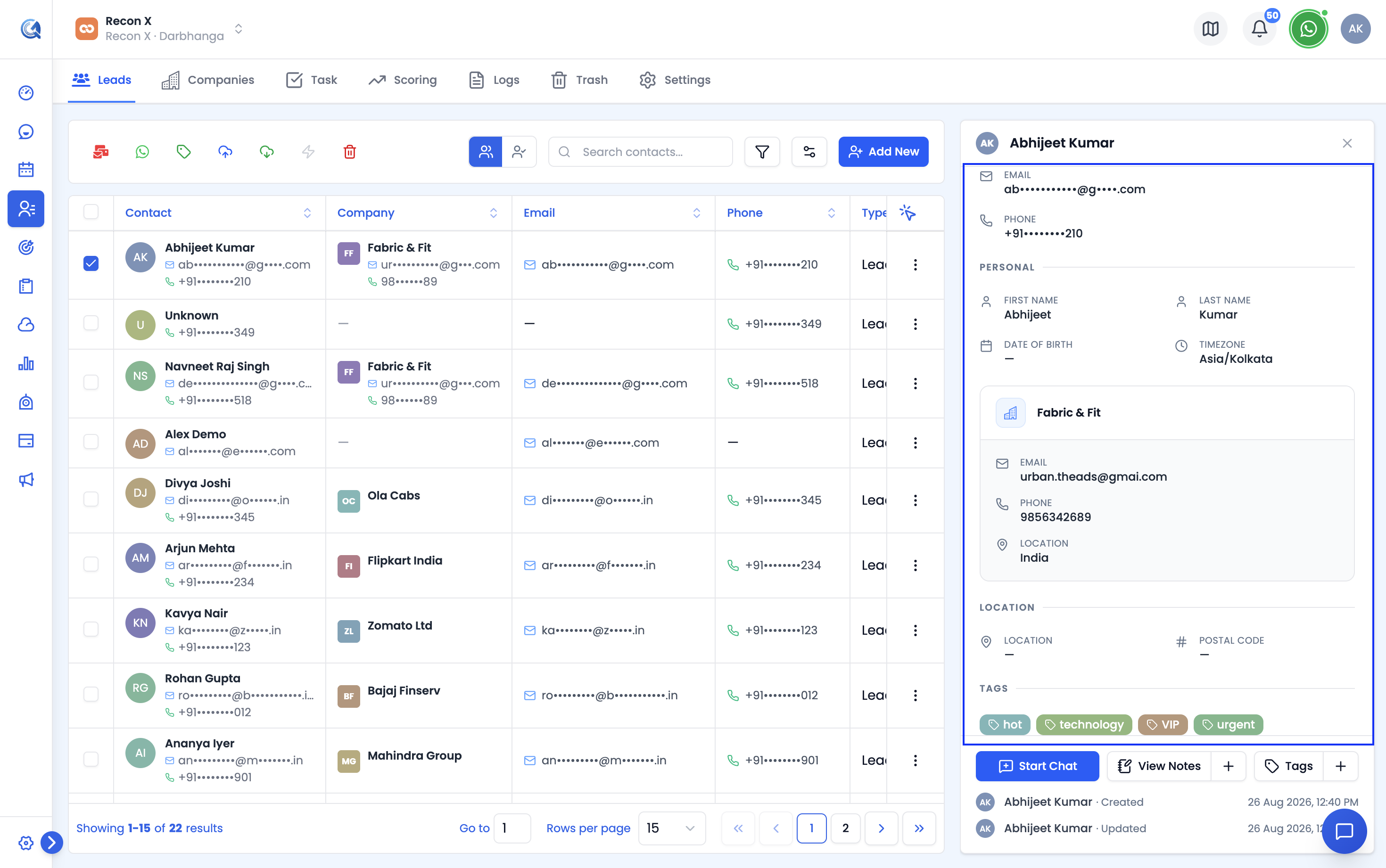 The Contact Details panel shows the contact's name, type, email, phone, personal details, company, and location all in one view.
Contact Information Sections
Below the overview, the contact page is divided into collapsible sections. Click any section header to expand or collapse it.
 View and edit personal details, contact info, address, company, and DND settings.
- Personal Details — Displays the contact's full name, date of birth, timezone, and website.
- Contact Information — Shows all email addresses and phone numbers on file for this contact, including any additional emails or phones that were added.
- Address — Displays the contact's full address: street, city, state, postal code, and country.
- Company — Shows the company this contact is linked to. Click the company name to navigate directly to the Companies Directory entry for that company.
- Editing Information — To update any detail, click the Edit button (pencil icon) next to the relevant section, or click the Edit Contact button at the top of the page. Make your changes and click Save.
- Do Not Disturb (DND) — The DND setting controls whether QuantixOne will send communications to this contact. You can toggle DND globally (Do Not Disturb (All Channels)) or opt out of individual channels: Email, WhatsApp, SMS, Calls.
Note: Enabling DND does not delete previous messages. It only prevents future outbound communications from being sent to this contact.
Tags
Tags help you categorize and filter contacts quickly. To add or remove tags on a contact, click the Tags field and select from your existing tags or type to create a new one.
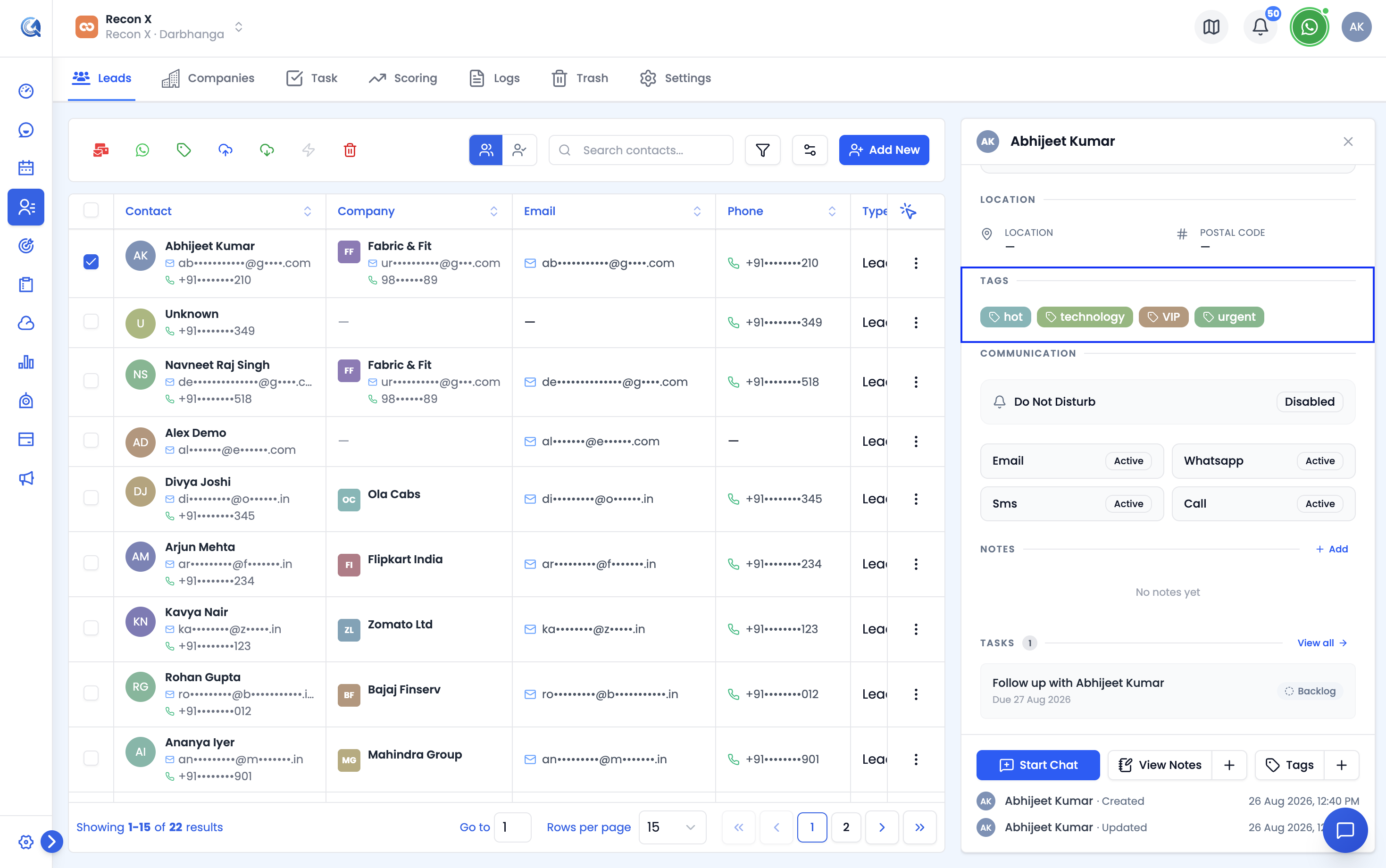 Add, remove, or create tags directly from the contact page.
Video Walkthrough
Watch the complete walkthrough below to see how to navigate and use the Contact Details page.