Contacts Overview
Contacts are the foundation of your CRM. Every person you interact with — whether a lead or a customer — is stored as a contact in Quantixone. Manage all your contact information in one central place, organize it with tags and custom fields, and track every interaction.
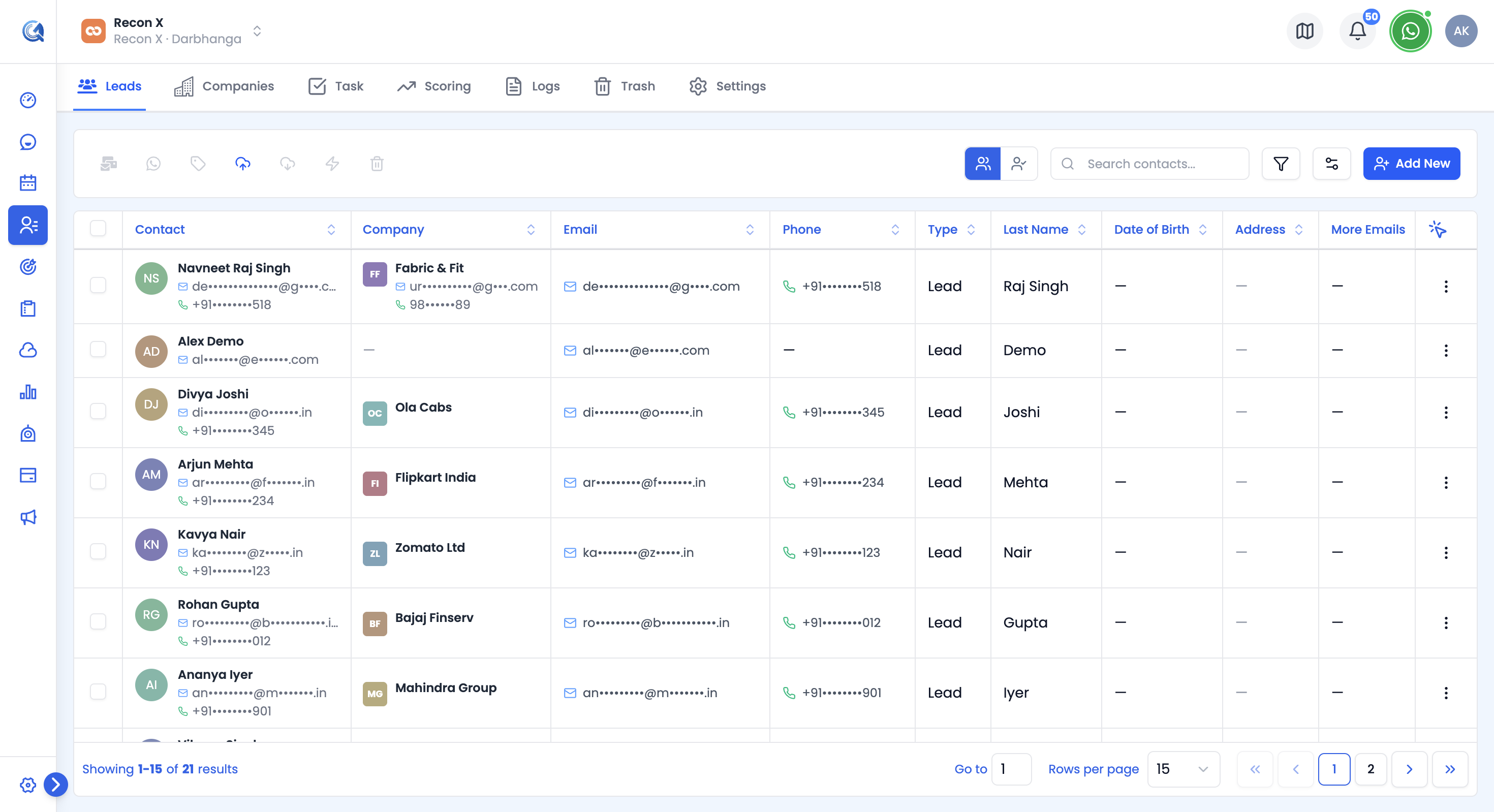 The Contacts list — your central hub for all contacts in QuantixOne CRM.
What is a Contact?
A contact represents a person you work with. Each contact stores:
- Basic Information — Name, email, phone, company
- Personal & Location Details — Date of birth, timezone, address, social links
- Engagement Data — Tags, custom fields, source, Do Not Disturb status
- Related Records — Linked company, tasks, and notes
Contact Types
Every contact is one of two types:
Lead
A potential customer you're reaching out to — someone who hasn't converted yet. Use this type for prospects you're actively working to bring on board.
Customer
Someone you already do business with. Switch a contact from Lead to Customer as they convert.
Core Contact Features
1. Creating and Managing Contacts
Add contacts individually or import in bulk:
- Single Entry — Manually add one contact
- Bulk Import — Upload a CSV/Excel file with an AI-assisted column mapping step
- Duplicate Detection — The import flow flags matching existing contacts before anything is saved, so you decide how to merge them
- Quick Updates — Edit contact info anytime
Learn more in Creating a Contact.
2. Contact Information
Every contact includes:
- System Fields — Built-in fields available to every organization (name, email, phone, address, social links, and dozens more)
- Custom Fields — Additional fields your team defines for Contacts, Companies, or Calendar records
- Company Details — Linked company information
- Do Not Disturb — Per-channel opt-out (Email, WhatsApp, SMS, Calls)
Learn more in System Fields & Custom Fields.
3. Companies
Every contact can be linked to a company record, which tracks its own details, contacts, and custom fields separately from the people who work there.
Learn more in Companies Directory.
4. Finding and Filtering
Quickly locate contacts:
- Search — Find by name, email, or phone
- Advanced Filters — Build multi-condition filters across Contact, Task, or Note fields
- Manage Fields — Choose which columns show in your list view
Learn more in Search & Filters.
5. Organization with Tags
Categorize contacts using tags — apply them individually or in bulk, then filter or target campaigns by tag.
6. Tasks
Create and track follow-ups, calls, and meetings linked to a contact, in a table or Kanban view.
Learn more in Tasks & Activity.
7. Activity Logs
Every create, update, delete, import, and restore action across Contacts, Companies, Tasks, and Custom Fields is recorded in an audit trail you can filter and review.
Learn more in Activity Logs.
8. Lead Scoring
Define scoring models that award points for fit and engagement signals, then automatically bucket contacts into Cold, Nurture, Warm, Hot, or SQL categories.
Learn more in Lead Scoring.
9. Bulk Messaging
Send a one-off email or WhatsApp message — or a full campaign — directly to the contacts you have selected in the list.
Learn more in Bulk Messaging.
10. Importing Contacts
Bulk-create or update contacts from a CSV/Excel file, with AI-suggested field mapping and duplicate handling built in.
Learn more in Importing Contacts.
11. Trash & Restore
Deleted contacts, companies, tasks, and custom fields aren't erased immediately — they move to Deleted Items, where you can restore or permanently delete them.
Learn more in Deleted Items.
Contact Lifecycle
1. Create
Add a contact manually or import in bulk.
2. Organize
Use tags, custom fields, and filters to organize your contacts.
3. Engage
Send messages, create tasks, and track conversations.
4. Score
Let your scoring model qualify leads automatically as they engage.
5. Convert
Move a contact from Lead to Customer as they convert.
Key Benefits
- Single Source of Truth — All contact info in one place
- Safe Bulk Import — Duplicate detection and merge review before anything is written
- Complete History — An audit trail of every change
- Smart Organization — Tags and custom fields for your unique needs
- Team Collaboration — Tasks, notes, and ownership keep the whole team informed
- Scalable — Handle thousands of contacts efficiently
Contact Best Practices
- Keep Data Current — Update phone/email regularly
- Use Tags Consistently — Organize for better segmentation
- Create Useful Custom Fields — Only add fields you'll actually use
- Review Imports Carefully — Check duplicate matches before confirming a merge
- Review Regularly — Clean up stale tasks and contacts periodically
- Note Context — Use notes to remember key details
Video Walkthrough
Watch the complete Contacts walkthrough to get a full overview of the Contacts module in QuantixOne CRM.