Creating a New Contact
In QuantixOne CRM, a Contact represents any person your business interacts with — a lead or a customer. This guide walks you through how to add a new contact and fill in their details.
Creating a New Contact
To add a new contact, navigate to the Contacts section from the left sidebar. Click the Add New button in the top-right corner of the contacts list.
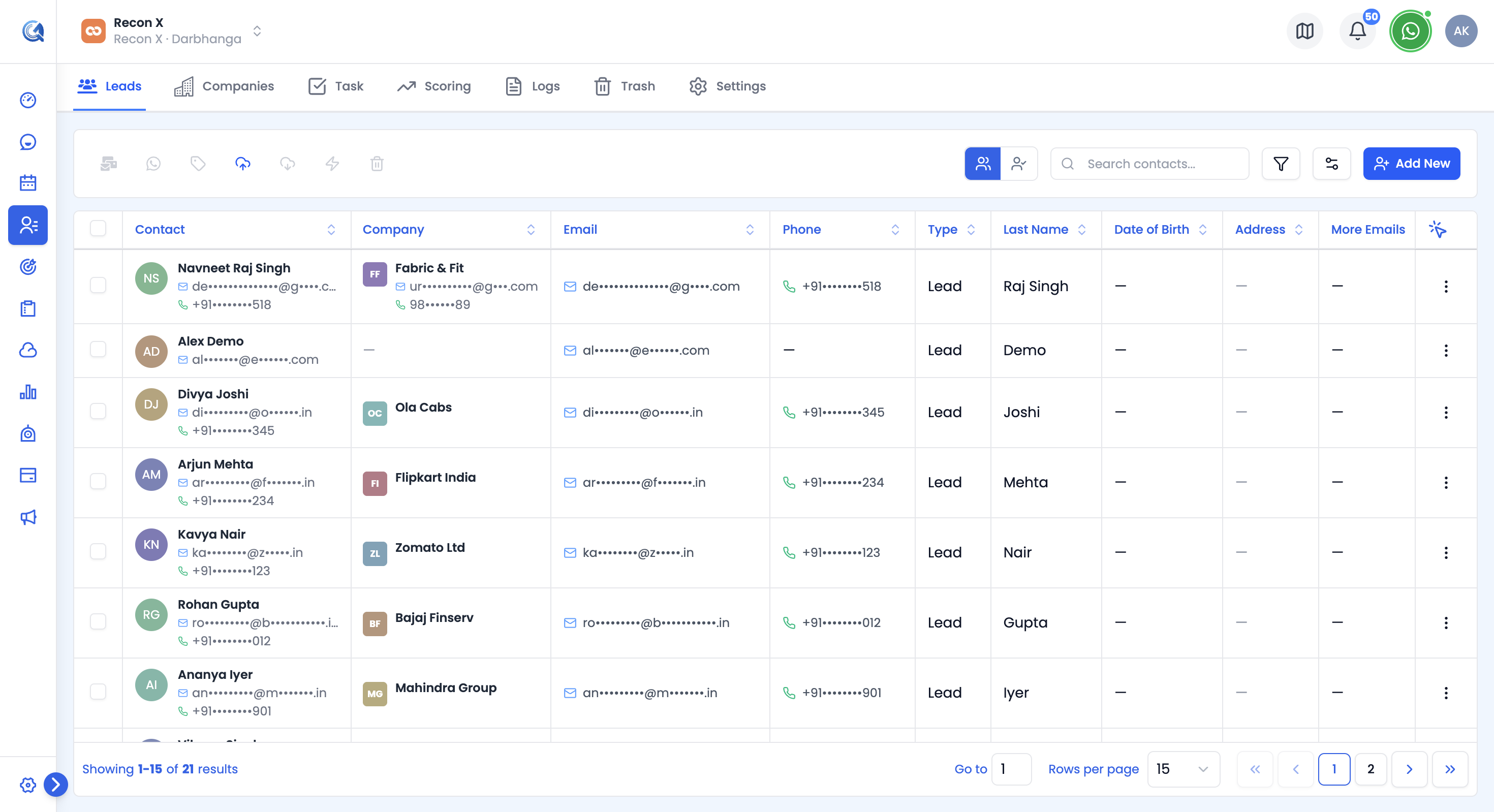 The Leads tab shows all your contacts. Click Add New in the top-right to begin.
A Create Contact panel will slide open on the right side of the screen.
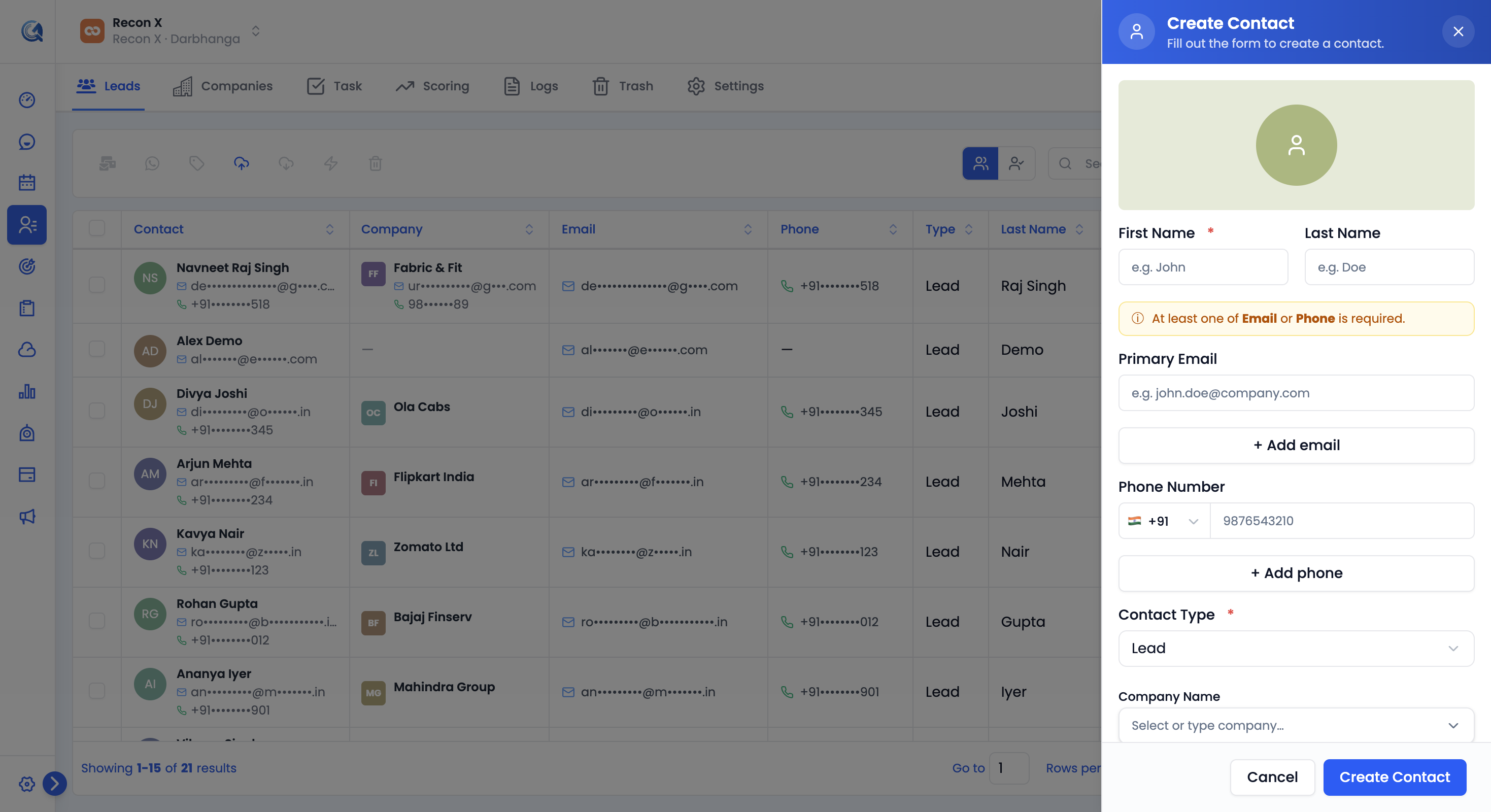 The Create Contact panel. At least one of Email or Phone is required along with the contact's name.
Filling Out Contact Details
The contact form is divided into several sections, in the order they appear on screen. You do not need to fill in every field — only the fields relevant to your contact.
Name
- First Name — required.
- Last Name — optional.
The full name is automatically combined and displayed throughout the CRM.
Contact Information
- Primary Email — validated for email format.
- Additional Emails — click + Add email to add more.
- Phone Number
- Additional Phones — click + Add phone to add more.
Note: At least one of Email or Phone is required — the form shows this inline reminder until one is filled in.
Contact Type
- Contact Type — required. Choose Lead or Customer.
Company
- Company Name — search for an existing company or type a new name; QuantixOne will link the contact to a matching company or create one if it doesn't exist yet.
Location
- City
- State / Region
- Country — dropdown with country flags.
- Timezone — required.
Additional Details
- Date of Birth — optional.
- Do Not Disturb (All Channels) — a single toggle to stop all outbound communication to this contact.
- Block specific channels — opt this contact out of individual channels: Email, WhatsApp, SMS, Calls.
- Custom Fields — any fields your team has configured for Contacts appear here, if set to show on the create form.
Saving the Contact
Once you have filled in the relevant details, click Create Contact at the bottom of the form (this button reads Update Contact when editing an existing contact).
The contact will be created and added to your contacts list, where you can open it to view details, add notes, create tasks, and track activity.
Note: Each email and phone number should be unique within your location. During bulk import, QuantixOne detects matching existing contacts and lets you choose how to merge them — see Importing Contacts.
Video Walkthrough
Watch the step-by-step video below to see how to create a contact in QuantixOne CRM.