Deleted Items
When you delete a contact, company, task, or custom field in QuantixOne CRM, it is not permanently removed right away. Instead, it moves to Deleted Items, where it can be reviewed, restored, or permanently deleted.
Viewing Deleted Items
Click Trash (or Deleted Items) in the left sidebar under Contacts.
The page shows a table with the item's Name, its Type (CONTACT, COMPANY, TASK, etc.), who deleted it, and when. Use the Date Range filter to narrow the list.
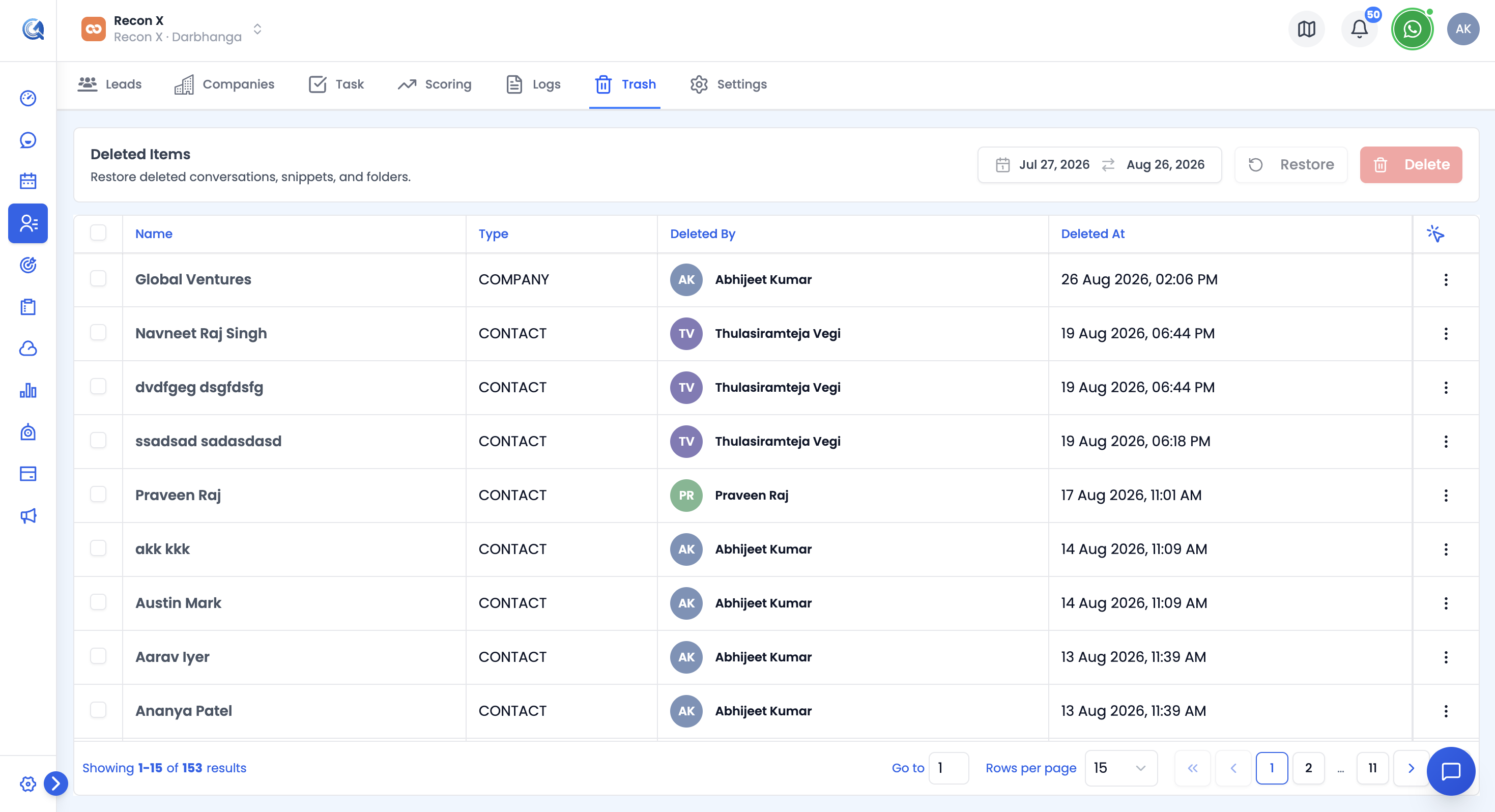 The Deleted Items page lists every removed Contact, Company, Task, and Custom Field.
Restoring an Item
Select one or more rows using the checkboxes (or use the row's ⋮ menu), then click Restore.
A confirmation dialog explains that the original content, relationships, and history return, and that this happens immediately — you can always delete the item again later if needed.
Note: For contacts specifically, the delete confirmation dialog states you have 30 days to restore before the record is permanently and irrecoverably deleted.
Permanently Deleting an Item
Select the item(s) and click Delete (permanent) in the toolbar, or use the row's ⋮ menu and select Delete Permanently.
A confirmation dialog warns that this removes the original content, metadata, linked references, and activity history, and cannot be undone.
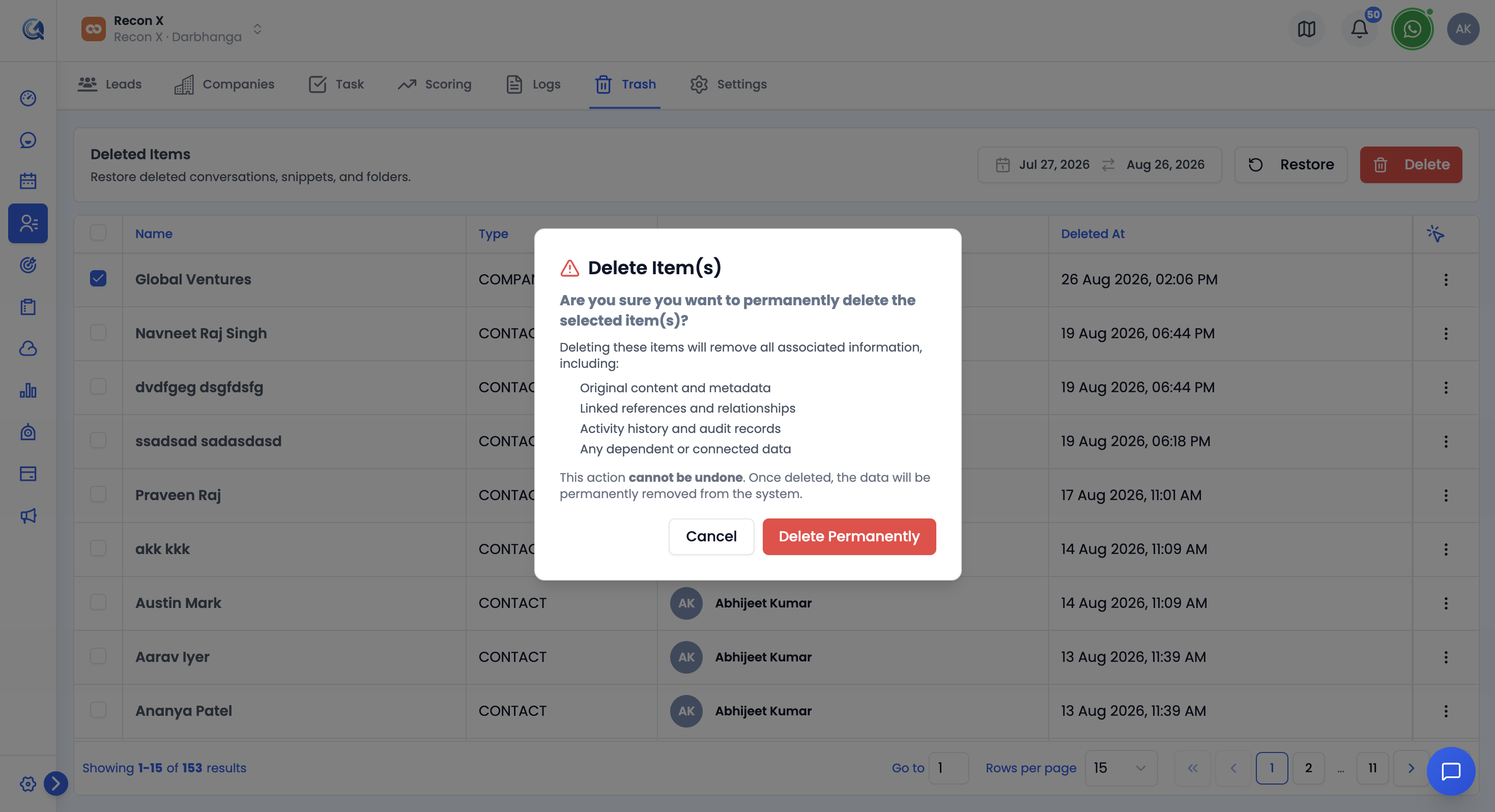 Permanently deleting removes the item and all its references beyond recovery.
Permissions
Restoring and permanently deleting both require the contacts.manage permission scope. Without it, these buttons and menu items don't appear.
Video Walkthrough
Watch the step-by-step video below to see how to restore or permanently delete an item.