Searching Contacts
QuantixOne CRM makes it easy to find any contact using the search bar or by applying filters. You can search by name, email, or phone, and narrow down results using one or more filter conditions.
Using the Search Bar
At the top of the Contacts list, you will find a Search bar. Click on it and start typing to find contacts instantly.
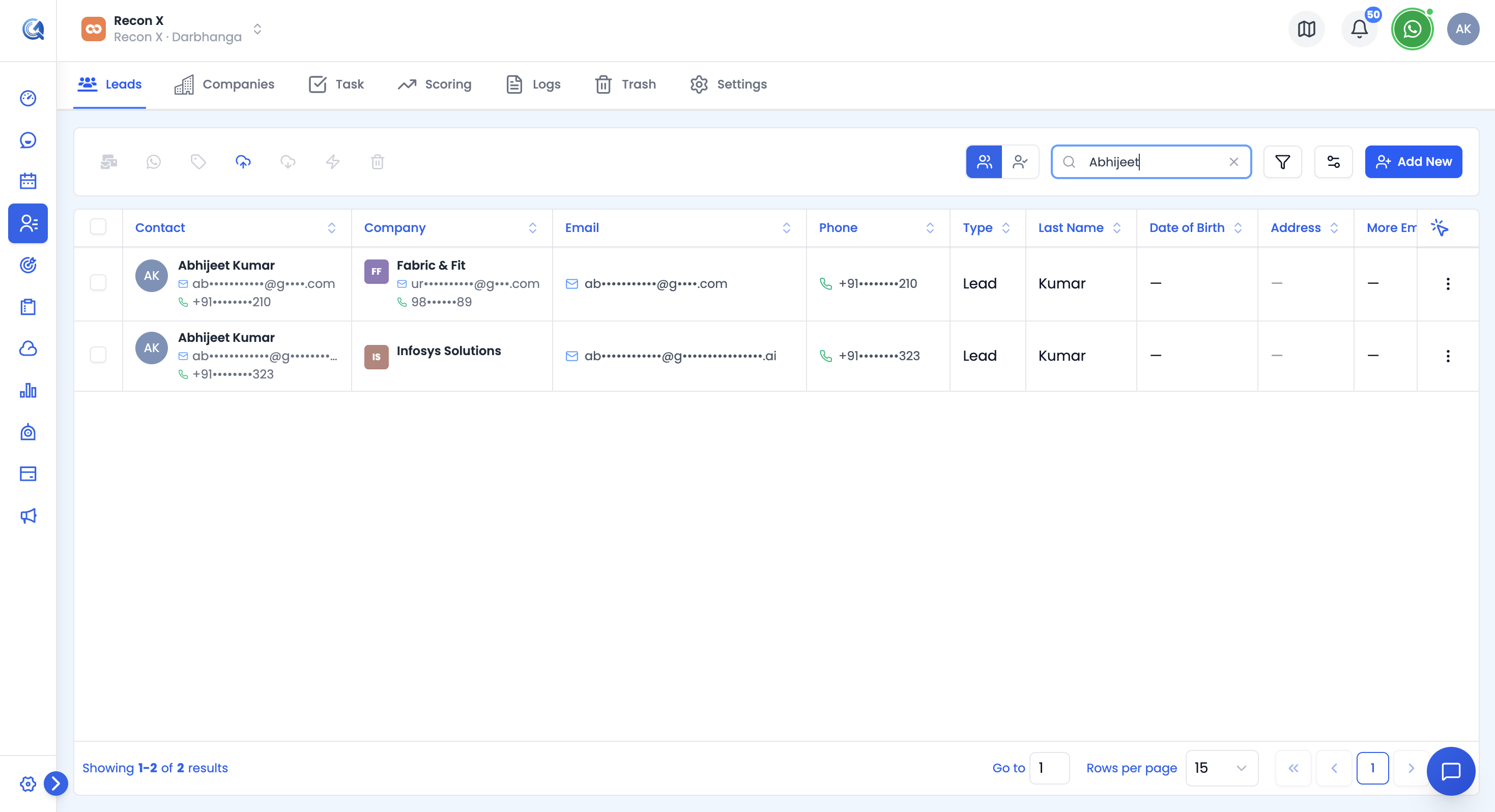 The search bar at the top of the Contacts list.
Results update in real time as you type. Click on any result to open that contact's detail page.
Applying Custom Filters
Filters let you refine the contacts list based on specific criteria — such as contact type, tags, company, or any custom field.
To open the filter panel, click the Filter button (funnel icon) near the top of the contacts list — a badge shows how many conditions are currently active.
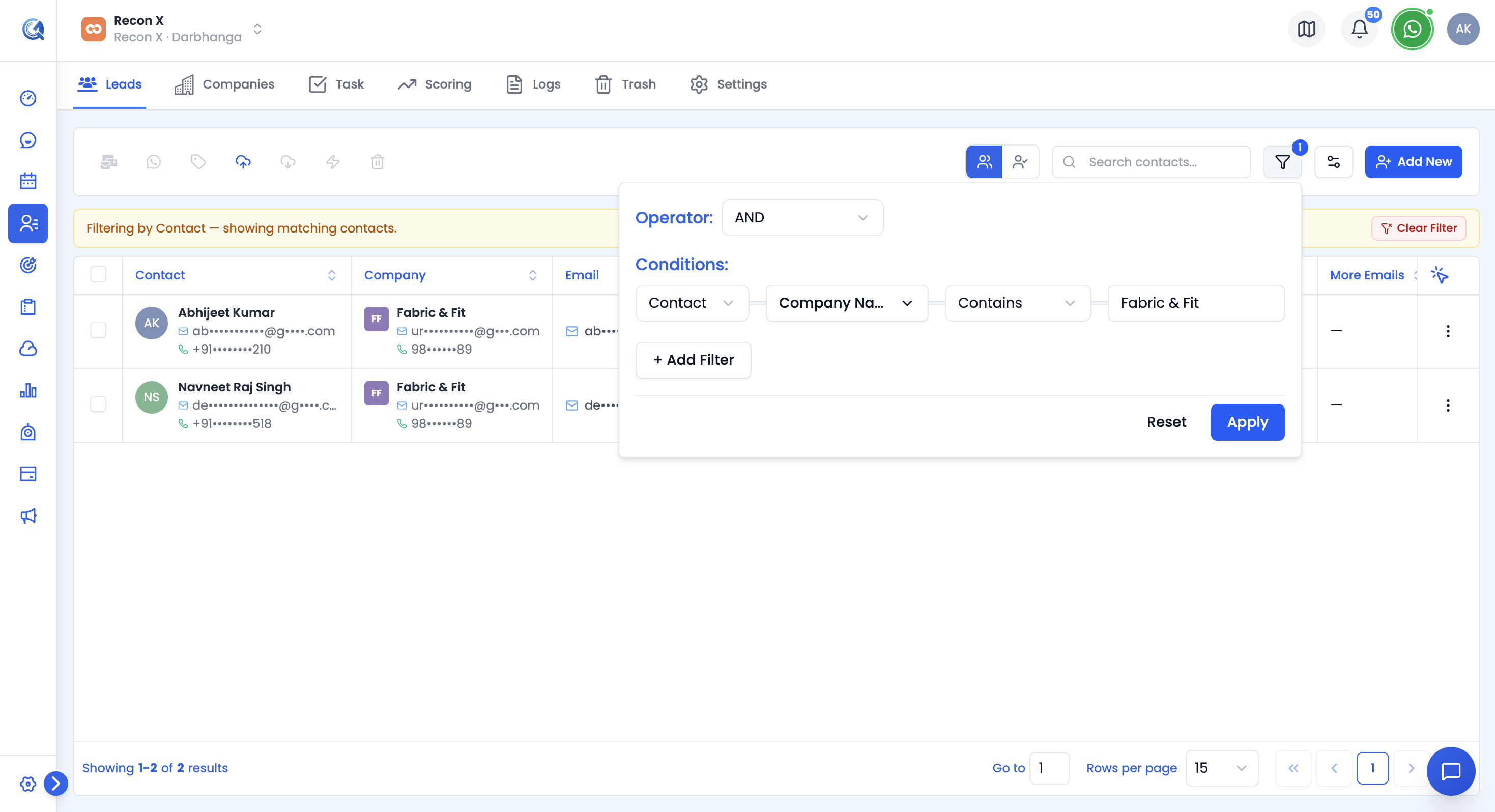 Click Filter to open the filter panel.
The filter panel will open as a popover on the right side of the list. The same filter builder is shared across Contacts, Companies, and Tasks.
Building a Filter
Each filter condition has up to four parts:
- Entity (Contacts only) — Filter on a Contact field, or switch this row to filter on a related Task or Note instead. Mixing entities shows one stacked mini-table per entity in the results.
- Field — The property you want to filter by (e.g., Contact Type, Tag, Created Date, Owner, or any custom field).
- Operator — How to compare the value; the available operators depend on the field's type (see below).
- Value — The specific value to filter by.
Click Apply to see the filtered results in the contacts list.
Combining Multiple Filters
You can add more than one filter condition to narrow your results further.
Click + Add Filter to add another condition to the panel.
A top-level AND / OR toggle controls how all conditions combine:
- AND — The contact must match all conditions.
- OR — The contact must match at least one condition.
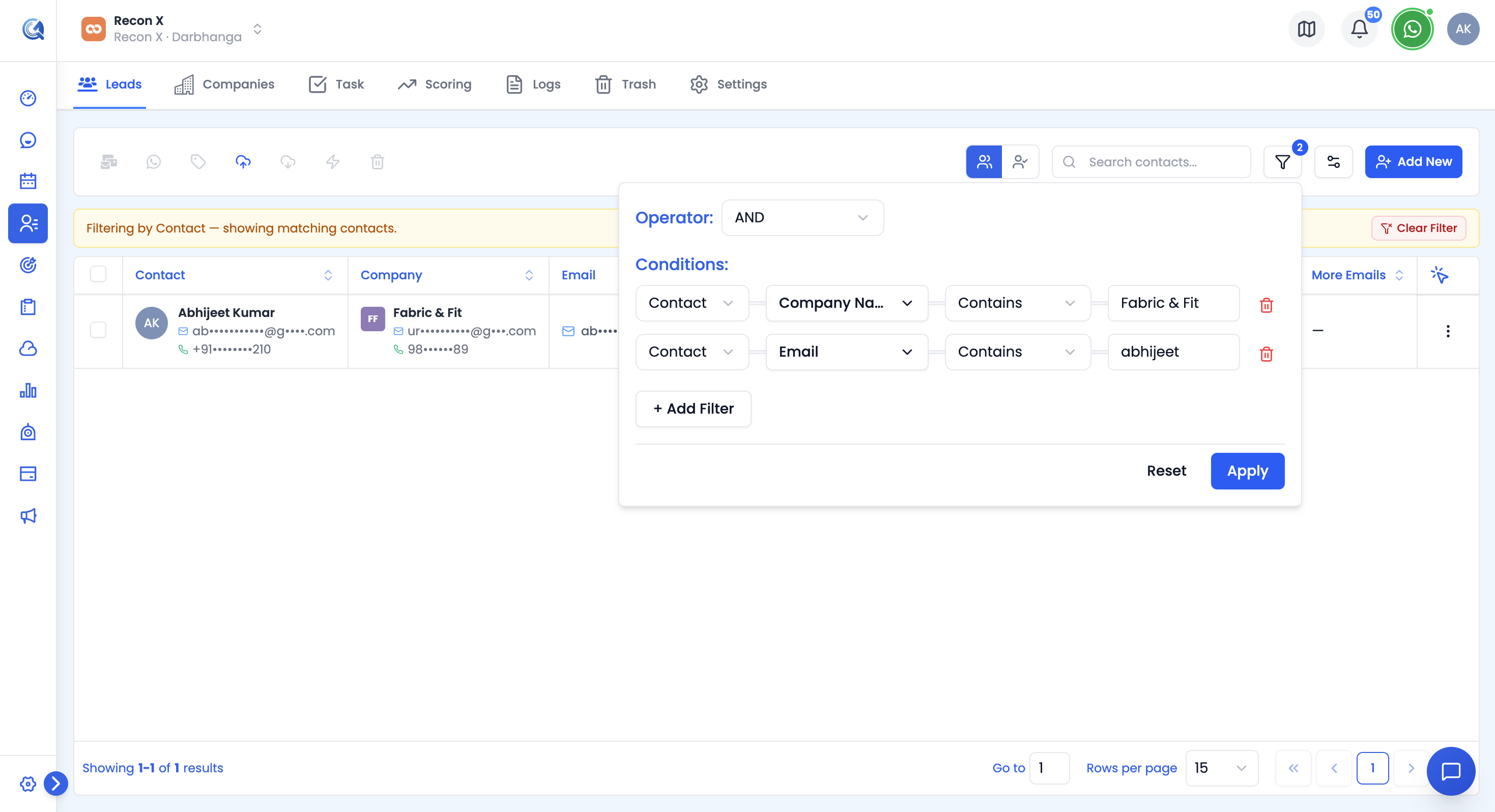 Two filter conditions combined with AND logic — contacts must match both to appear in the results. Click Apply to run the filter.
Operators by Field Type
The operators offered depend on the field you pick:
| Field Type | Available Operators |
|---|---|
| Text / Email / Phone / URL | Contains, Does not contain, Equals, Not equals, Starts with, Is empty, Is not empty |
| Number | Equals, Not equals, Greater than, Greater or equal, Less than, Less or equal, Between, Is empty, Is not empty |
| Date | On day, In month/year, Before, After, Between, Today, Yesterday, This week, This month, This year, Last 7 days, Last 30 days, Is empty, Is not empty |
| Select (e.g. Contact Type) | Is, Is not, Is empty, Is not empty |
| Multi-select (e.g. Tags) | Includes any of, Excludes, Is empty, Is not empty |
| Boolean (e.g. DND) | Is true, Is false |
| User (Created By / Updated By) | Is, Is not, Is empty, Is not empty |
Available Filter Fields
You can filter contacts by a wide range of fields, including:
| Field | Description |
|---|---|
| Contact Type | Lead or Customer |
| Tags | One or more tags applied to the contact |
| Company | The linked company name |
| Source | Where the contact originally came from (Website, WhatsApp, Email, Calendar, Form Submission, CSV/Excel Import, Agent) |
| Created Date / Updated Date | When the contact was added or last modified |
| Email / Phone | The contact's primary email or phone |
| Country | The contact's country |
| DND | Whether Do Not Disturb is active |
| Custom Fields | Any custom fields your team has created |
| Task fields (via the entity selector) | Filter by a related task's title, status, priority, due date, and more |
| Note fields (via the entity selector) | Filter by a related note's content |
Managing Columns
Click Manage Fields (gear icon) next to the Filter button to show, hide, or reorder the columns in your contacts list. Your choice is saved to your account.
Clearing Filters
To remove a single filter condition, click the row's remove icon in the filter panel.
To reset all filters at once, use Reset in the filter panel footer.
Video Walkthrough
Watch the complete walkthrough below to see how to search and filter contacts in QuantixOne CRM.