Settings & Custom Fields
The Settings page under Contacts is where you configure custom fields for Contact, Company, and Calendar records, and review the built-in system fields.
Accessing Settings
Click Settings in the left sidebar under Contacts.
The page has three tabs — Contact Custom Fields, Company Custom Fields, Calendar Custom Fields — and within each, a toggle between Custom Fields and System Fields.
System Fields is read-only: you can search it, but there's no add/edit/delete/import here. See System Fields & Custom Fields for the full list.
What Are Custom Fields?
Custom Fields let you add extra data fields to Contacts, Companies, or Calendar records beyond the built-in fields — for example, a Lead Score, Preferred Language, or Subscription Plan field specific to your business.
Once created, a custom field can appear:
- As a column in the Contacts/Companies list (toggle via Manage Fields)
- As an input on the Contact/Company create-edit form (if you enable Show in ... Form)
- In the hover preview under "More Information"
- As a filterable field in the filter builder and the CSV import mapper
Creating a Custom Field
On the Custom Fields tab, click Add New.
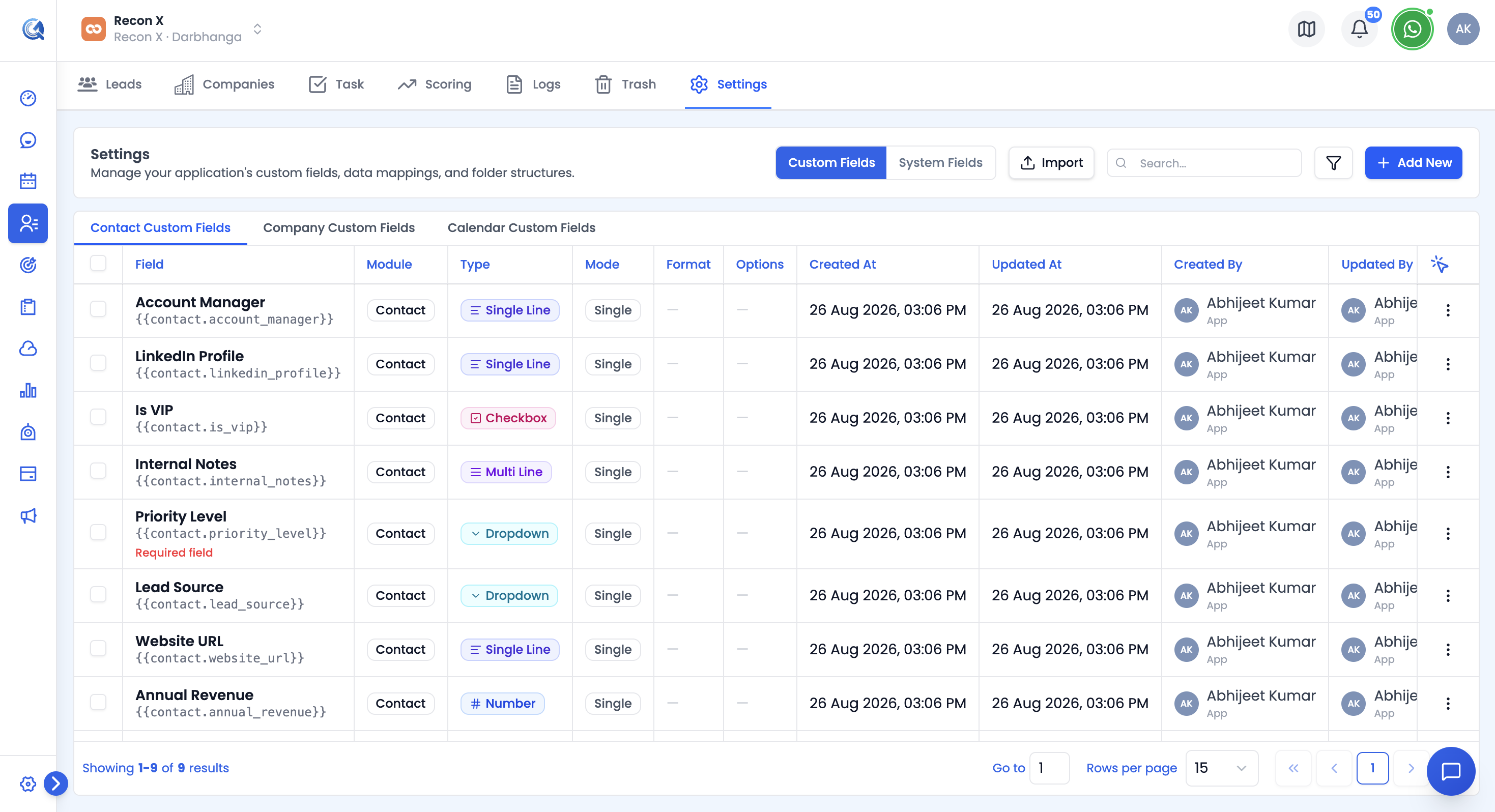 The Custom Fields tab shows all existing custom fields. Click Add New to add one.
The creation form is a three-pane layout: pick a field type on the left, configure it in the middle, and see a Live Preview with a Field Summary on the right.
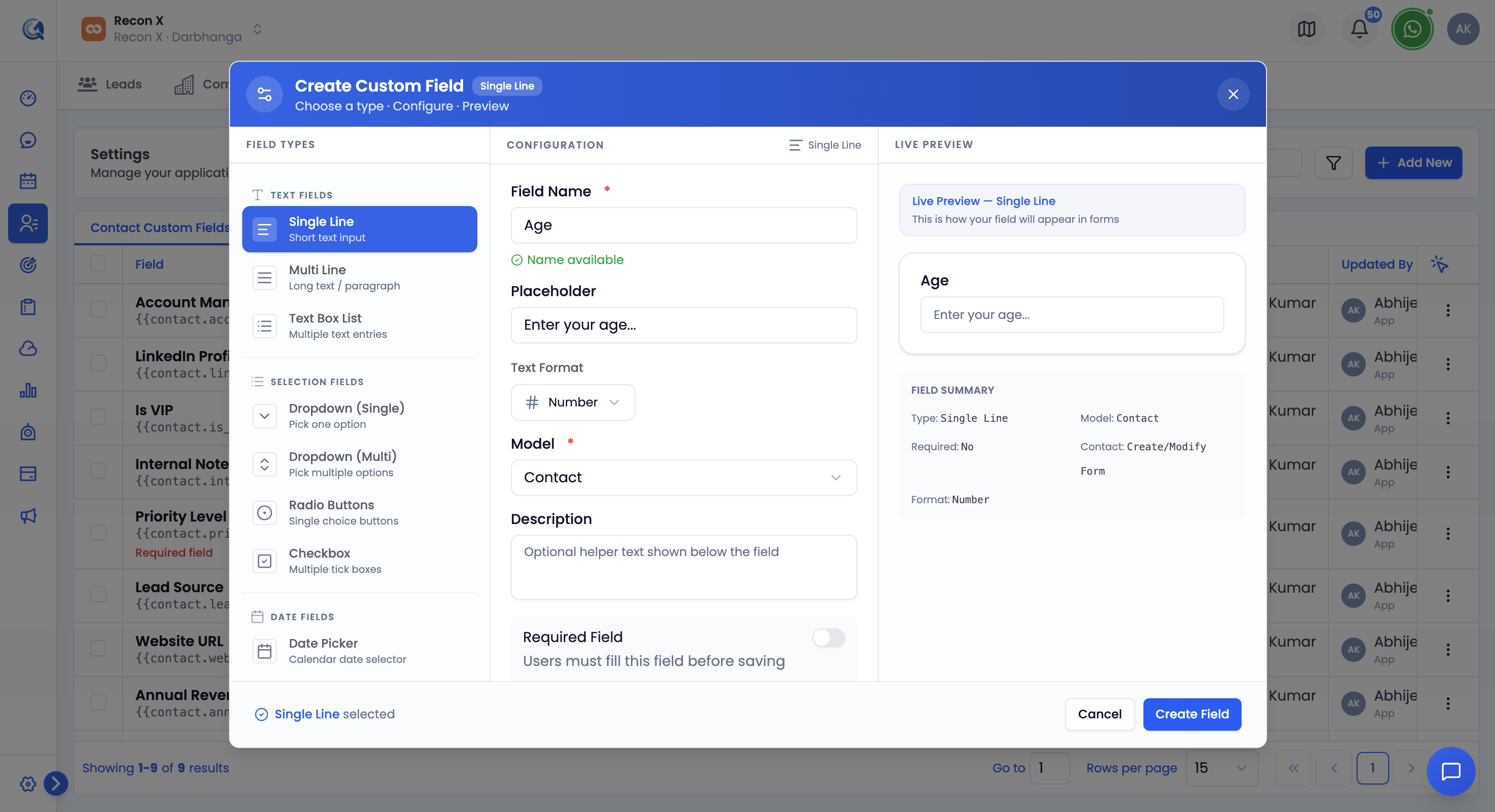 Pick a type, configure it, and preview it live before saving.
Common Settings (every field type)
- Field Name — required, 3–50 characters, letters/numbers/spaces only. As you type, QuantixOne checks name availability and warns you if it conflicts with a system field name or an existing custom field.
- Placeholder — optional hint text shown in the empty field.
- Model — Contact, Company, or Calendar. This is locked once you're editing an existing field.
- Description — optional helper text shown under the field.
- Required Field — toggle to make the field mandatory before saving a record.
- Show in [Model] Create/Modify Form — toggle to control whether the field appears on the create/edit form, as opposed to only in list and detail views.
Click Create Field to save (or Save Changes when editing).
Custom Field Types
| Field Type | Description | Extra configuration |
|---|---|---|
| Single Line | Short text entry | Text Format: Text, Number, Percentage, Currency, Email, URL, or Phone |
| Multi Line | Multi-line text area | Same Text Format options as Single Line |
| Text Box List | A list of short text entries | Picklist options editor + Allow Custom Options |
| Dropdown (Single) | Single selection from a list | Style: Default or Searchable; picklist options; Allow Custom Options |
| Dropdown (Multi) | Multiple selections from a list | Same options as Dropdown (Single) |
| Radio Buttons | Single choice shown as radio buttons | Layout: Vertical or Horizontal; picklist options; Allow Custom Options |
| Checkbox | Yes/No or multi-choice toggle | Mode: Single (one yes/no field) or Multiple (pick any of several options); Style: Checkboxes or Toggles; picklist options (Multiple mode) |
| Date Picker | Date selection | Date Format (5 options); Show: Date, Time, or Date & Time; Time Format (24h or 12h, if time is shown) — with a live example preview |
Managing Existing Custom Fields
To edit a custom field, click the Edit (pencil) icon next to it in the list. To delete one, select it and use Delete — this works on a single field or in bulk.
Note: Deleting a custom field permanently removes the field definition, all stored values across every record, and any references to it in filters, views, or reports. This action cannot be undone.
Bulk-Importing Custom Fields
Click Import on the Custom Fields tab to open the field import wizard (Contacts > Settings > Import):
- Upload File — CSV, drag-drop or Upload File, 5 MB limit. Click Download Sample for a template. Required columns: Field Name, Module, Type. Optional: Display On, Description, Placeholder, Required, Options, Show In Forms.
- Preview Fields — review the parsed rows, then click Confirm & Import.
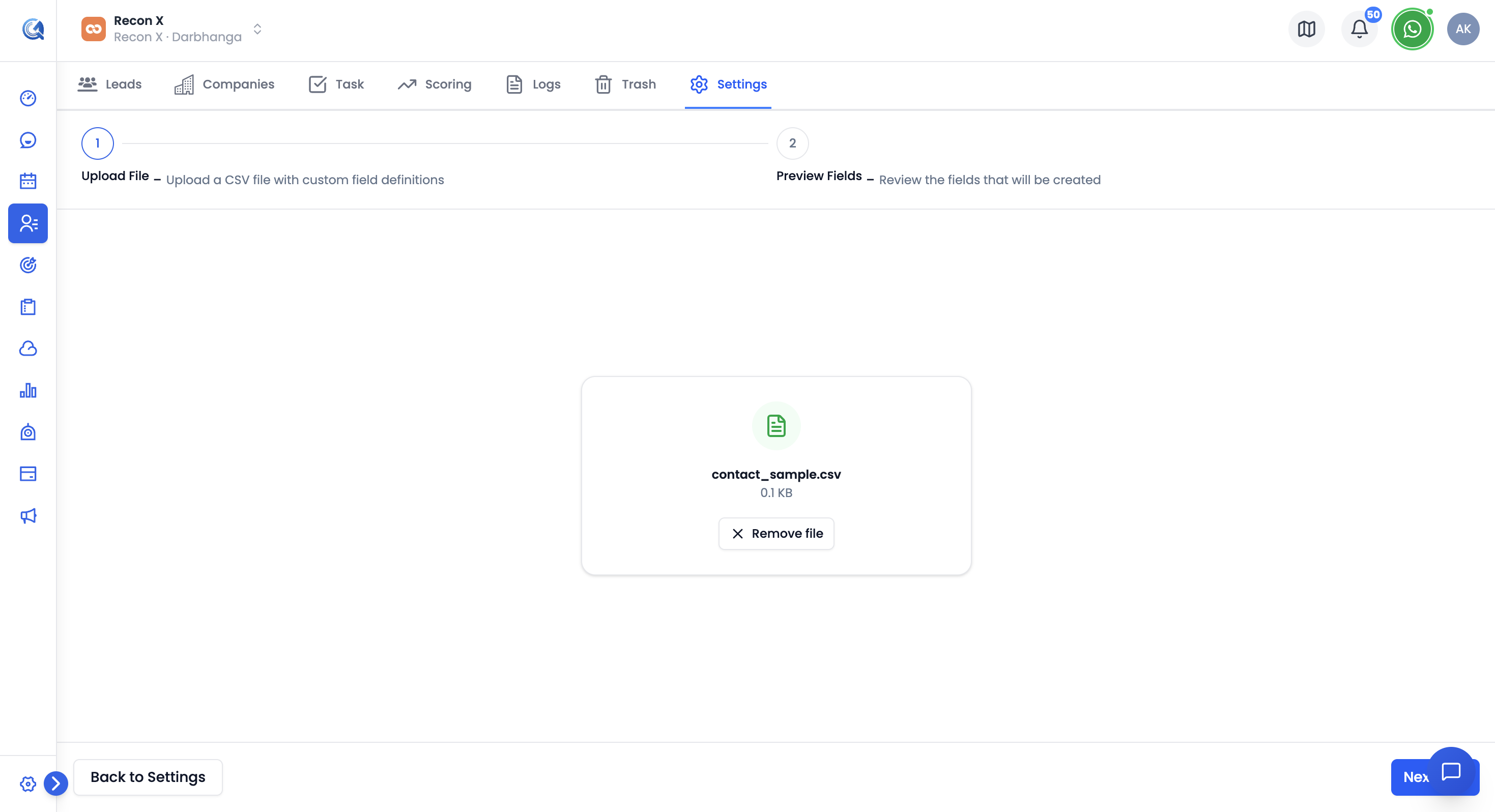 Upload a CSV of field definitions, preview the parsed rows, then confirm the import.
A results modal shows Created / Skipped / Errors counts, with per-row reasons for anything skipped or failed.
Video Walkthrough
Watch the step-by-step video below to see how to create and manage custom fields.