Task Management
Tasks in QuantixOne CRM help your team stay on top of follow-ups, calls, meetings, and any other actions related to your contacts. Every task can be linked to a contact, assigned to a team member, and tracked through to completion.
Viewing Tasks
To see all tasks across your contacts, click Tasks in the left sidebar under Contacts.
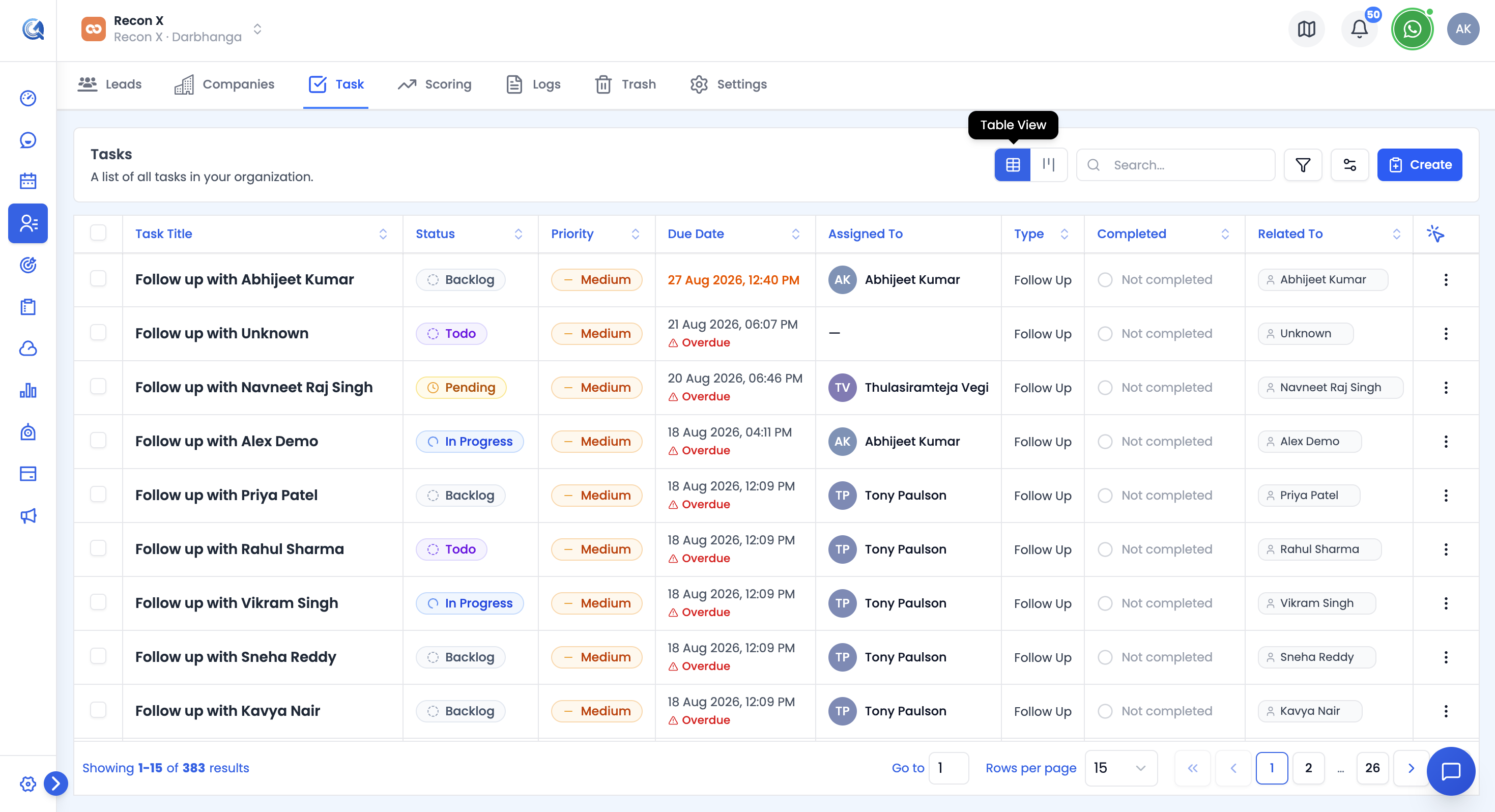 Click Tasks in the sidebar to see all tasks in your location.
You can switch between a Table view and a Kanban view using the toggle near the top of the page; Kanban is the default.
Creating a Task
To create a new task, click the Create button at the top of the Tasks page.
Fill in the task details:
- Title — required, 5–255 characters.
- Description — rich-text editor; can be shown or hidden.
- Due Date & Time — cannot be set in the past; if the date is today, the time can't be earlier than the current time.
- Priority — High, Medium, or Low.
- Task Type — Call, Email, Follow-up, Meeting, or Other.
- Status — Backlog, Todo, Pending, In Progress, Completed, or Blocked.
- Assigned To — required; searchable staff picker (defaults to you for new tasks).
- Relations — link the task to one or more contacts.
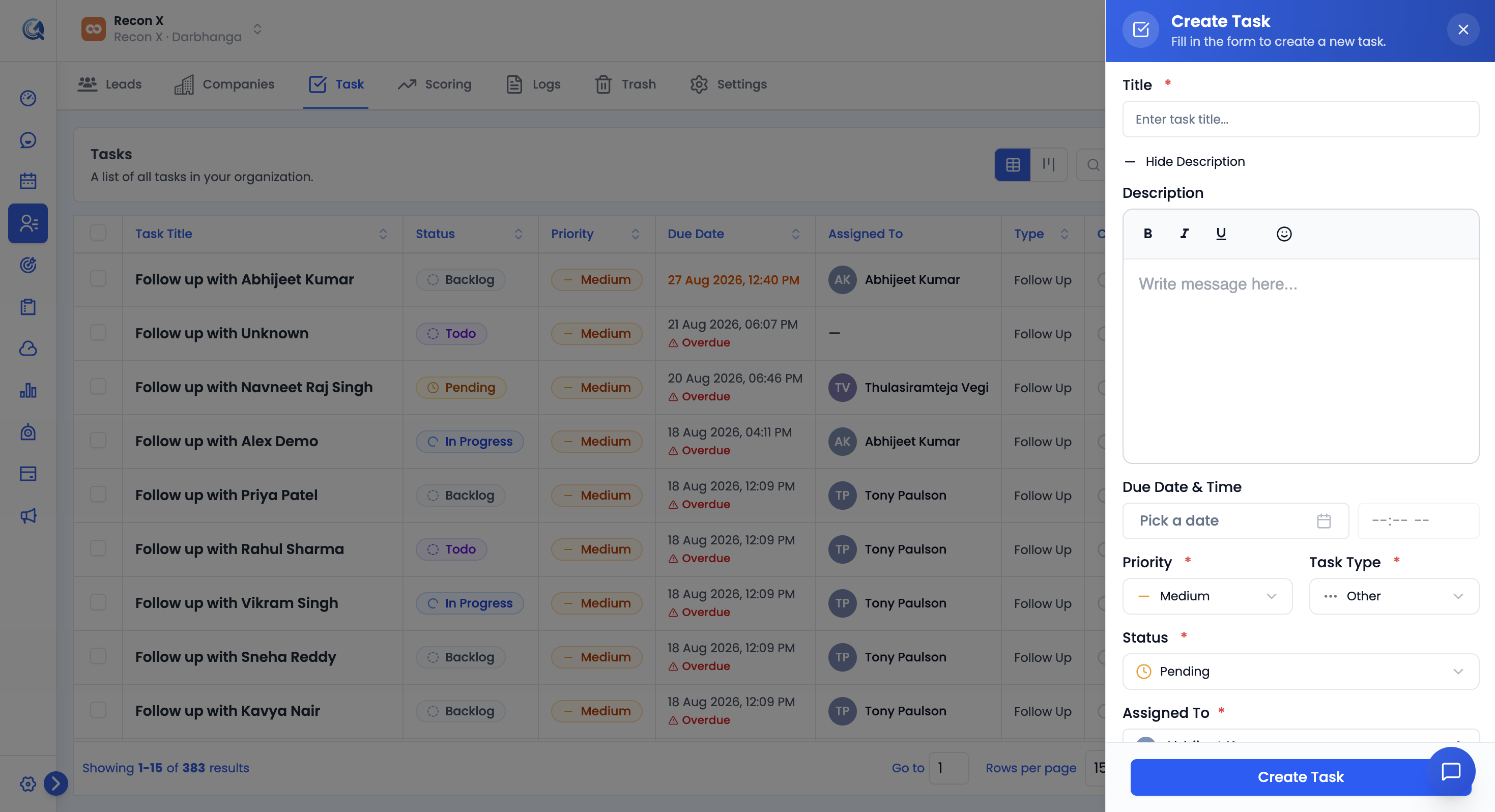 The Create Task panel. Fill in the title, priority, due date, and assigned team member, then click Create Task.
Click Create Task to save it.
Kanban Board View
The Kanban board gives you a visual overview of tasks organized by status. Drag a card from one column to another to update its status. Columns are:
- Backlog — Tasks logged but not yet scheduled.
- Todo — Tasks ready to be picked up.
- Pending — Tasks waiting on something before they can proceed.
- In Progress — Tasks currently being worked on.
- Completed — Tasks that have been finished.
- Blocked — Tasks that cannot move forward due to a dependency.
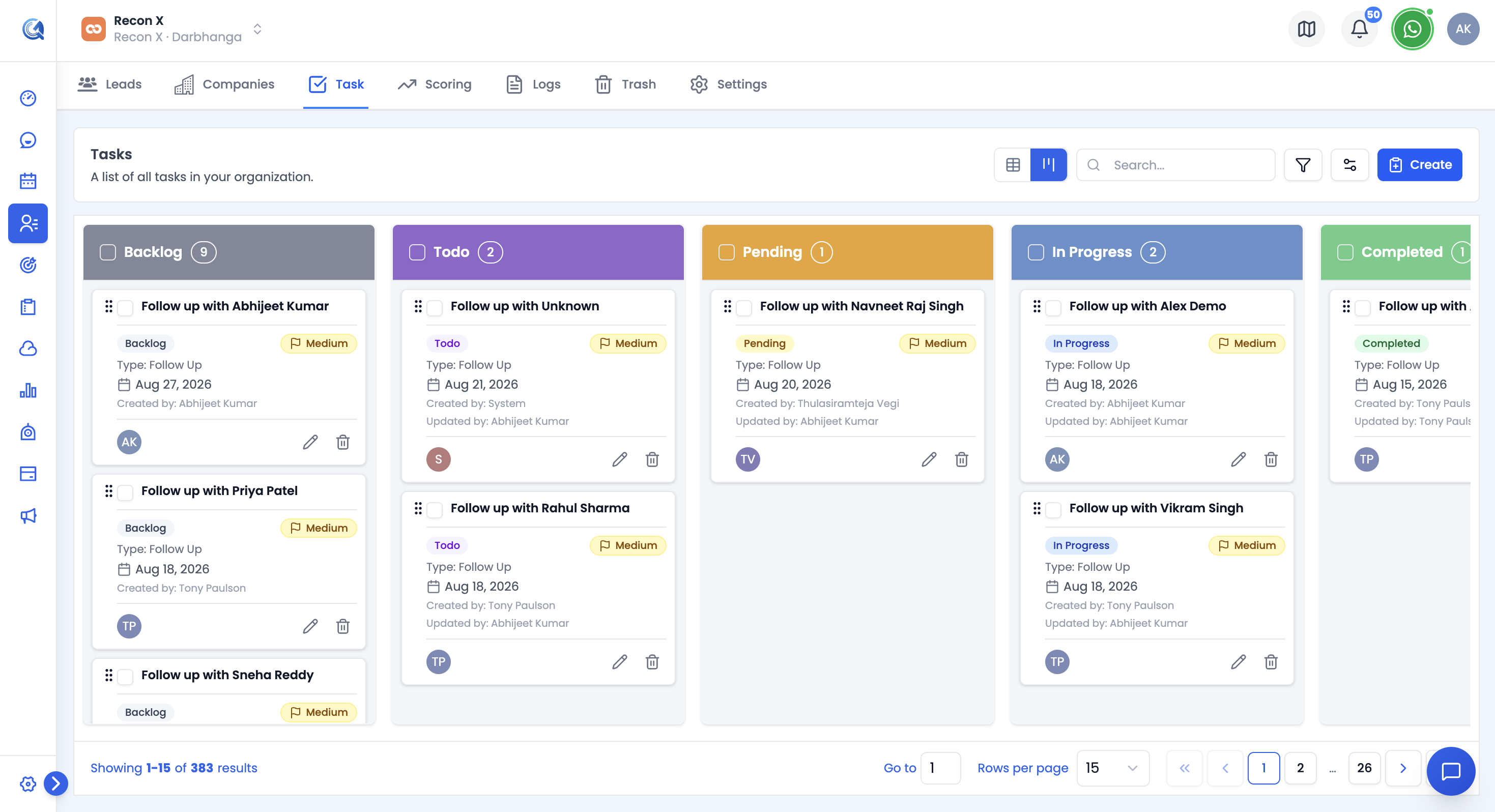 The Kanban board gives a visual overview of all tasks organized by status.
Each task card shows its title, description snippet, status/priority badges, type, and a color-coded due date — orange if due within 24 hours, amber within 72 hours, and red Overdue once it's past due.
Updating Task Status
From the Kanban board: Drag a task card from one column to another to update its status.
From the Edit Task panel: Select a task, click the Edit icon (or use the bulk action bar for multiple tasks), and update the Status dropdown. You can also update the assignee, priority, task type, and due date from the same panel.
Bulk actions: With one or more tasks selected, use the toolbar to bulk Assign to a team member, bulk change Status, or bulk Delete.
Creating an Opportunity from a Completed Task
When you drag a task that's linked to a contact into the Completed column, QuantixOne asks: "Would you like to create an opportunity for this task?" You can Create Opportunity on the spot, or Skip for now.
Skipped tasks are collected in a dismissible banner ("N completed tasks have no opportunity yet") so you can come back and create the opportunity later, or dismiss it individually.
The opportunity form asks for: Opportunity Name, Business Name (existing company or a new one), Pipeline, Stage (defaults to the pipeline's first stage), Status, Opportunity Value, Owner (defaults to you), and Source.
Video Walkthrough
Watch the complete walkthrough below to see how to manage tasks in QuantixOne CRM.