Activity & Analytics
QuantixOne keeps an activity log of everything that happens across Conversations, Templates, and Trigger Links, so you always have an audit trail of who did what and when.
Navigating to Logs
Click Logs in the left sidebar under the Conversations section.
The Logs page lists every recorded action, most recent first.
The Log List
Each row in the log shows:
- Icon — A visual indicator of the type of action.
- Description — A short summary of what happened.
- User — Who performed the action.
- Created At — When it happened.
- Entity — Which area it happened in: Conversations, Templates, or Trigger Links.
Click the View Details option (from the row's options menu) to see the full details of a log entry.
Filtering Logs
Use the filter bar at the top of the page to narrow down the list:
- Action — Filter by action type, e.g. Create, Update, Delete, Restore, Bulk Create, Bulk Update, Bulk Delete, Import.
- Entity — Filter by area: Conversations, Templates, or Trigger Links.
- User — Filter by who performed the action.
- Date Range — Defaults to the last 30 days; pick a custom range to look further back.
You can combine filters, and clear them all at once with Clear. Click Refresh to pull the latest logs without reloading the page.
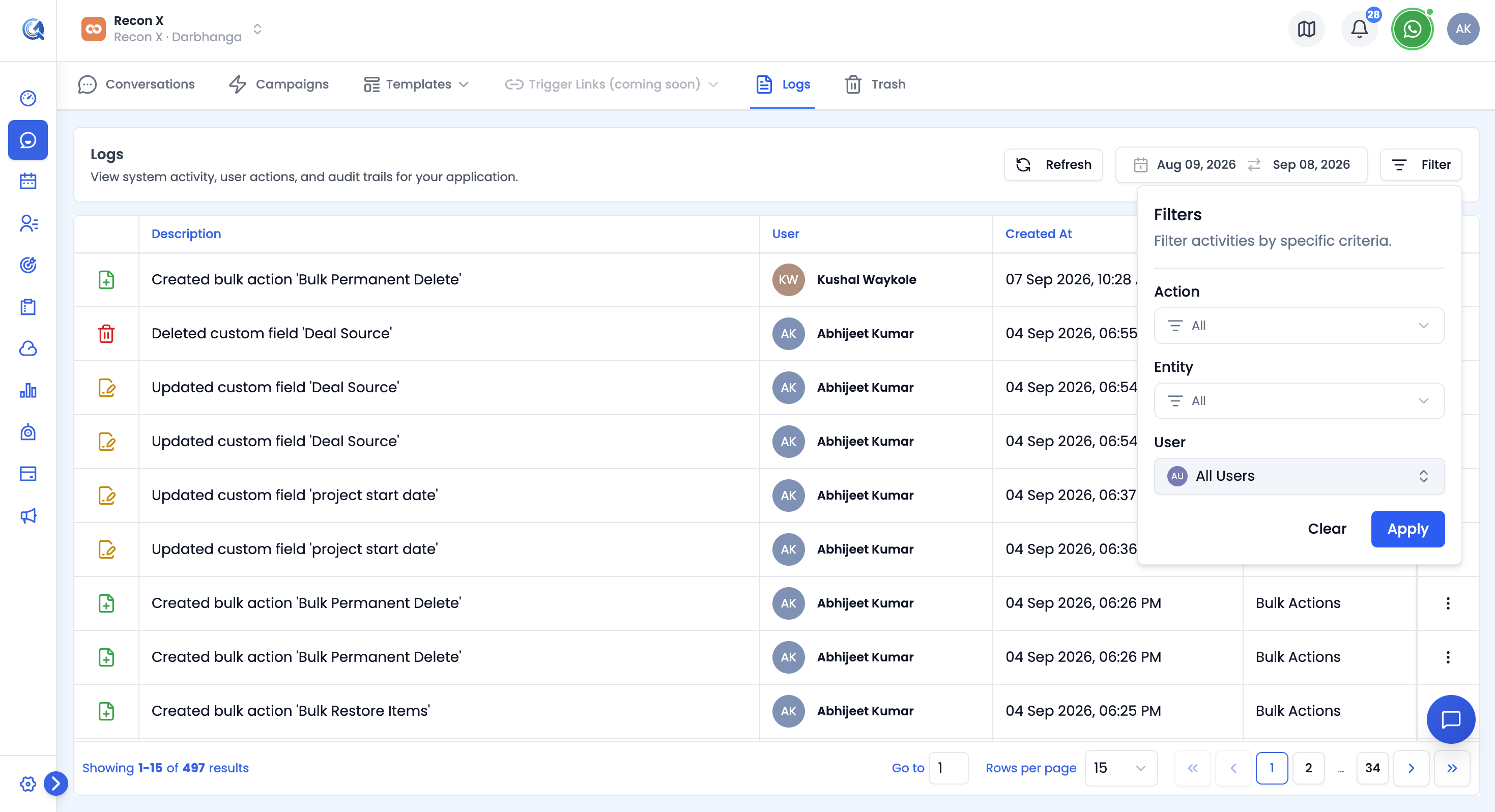 The Logs page — filter bar across the top, log rows below.
Per-Conversation Activity
In addition to the module-wide Logs page, each individual conversation has its own Activities tab showing a timeline scoped to that contact — message timestamps, note additions, status changes, ownership changes, and field updates. See Conversation Overview for details.
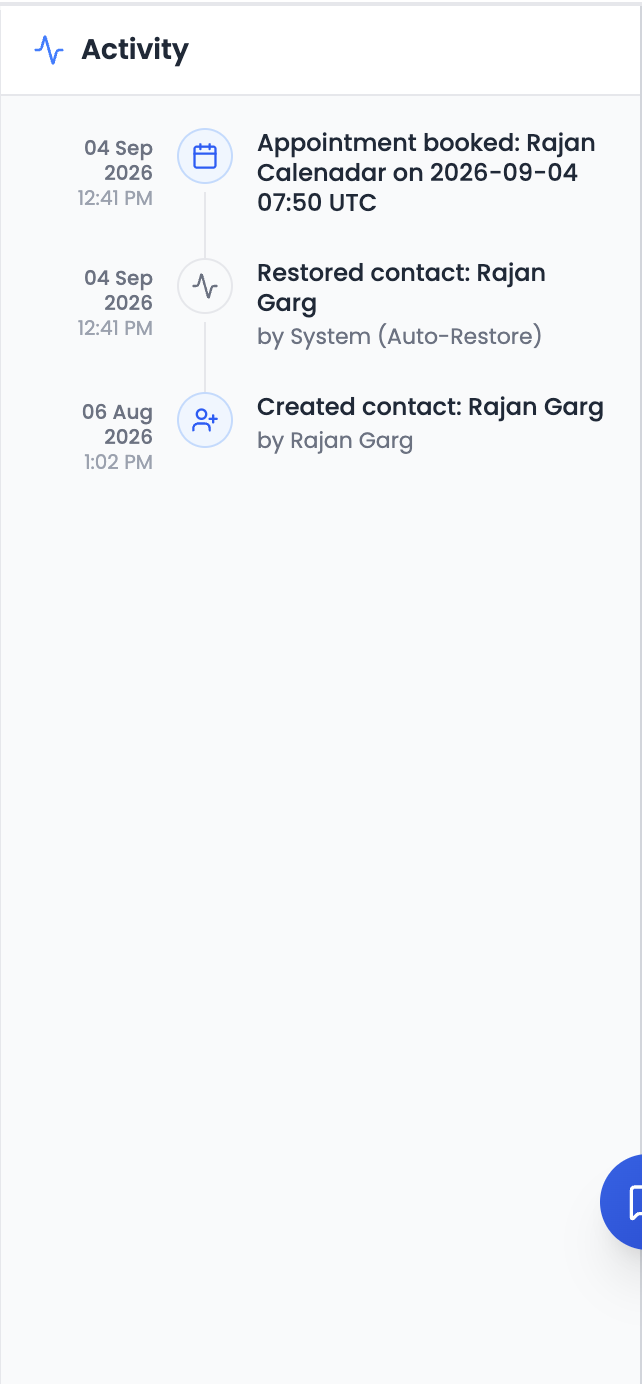 The Activities tab, scoped to one contact's conversation.
Trigger Link Analytics
For click-tracking analytics on your trigger links — total clicks, unique visitors, clicks by type, and top-performing links — see Trigger Links.