Conversation Overview
A conversation is your unified communication thread with a contact. It brings together all messages, notes, tasks, and activities in one place—regardless of which channel (WhatsApp, Email, SMS) the communication came through.
What is a Conversation?
Each contact has one conversation thread that serves as:
- Unified Inbox — All messages from any channel in one place
- Activity Timeline — Complete history of all interactions
- Team Workspace — Collaborate with your team on this contact
- Context Hub — See profile, tasks, appointments, all at once
Elements in a Conversation
When you open a conversation, you can view multiple elements:
1. Messages
The main timeline of all communications:
- Inbound Messages — Messages from the contact (replies, inquiries)
- Outbound Messages — Messages you sent to the contact
- Multi-Channel — WhatsApp, Email, SMS all in the same thread
- Message Status — See if messages were delivered, read, or failed
- Timestamps — Exact time each message was sent
What You Can Do:
- Reply to messages
- Forward messages to teammates
- Search message content
- Mark as important or spam
- Delete messages (soft delete)
View all messages in chronological order.
2. Notes
Private team-only comments (internal notes):
- Team Collaboration — Only your team sees notes, not the contact
- Rich Text — Add formatting, links, and emphasis
- Edit & Delete — Update or remove notes anytime
- Pin — Pin an important note so it stays at the top of the list
When to Use Notes:
- Discuss strategy with teammates
- Share context about the contact
- Leave instructions for handoffs
- Track internal decisions
- Discuss next steps
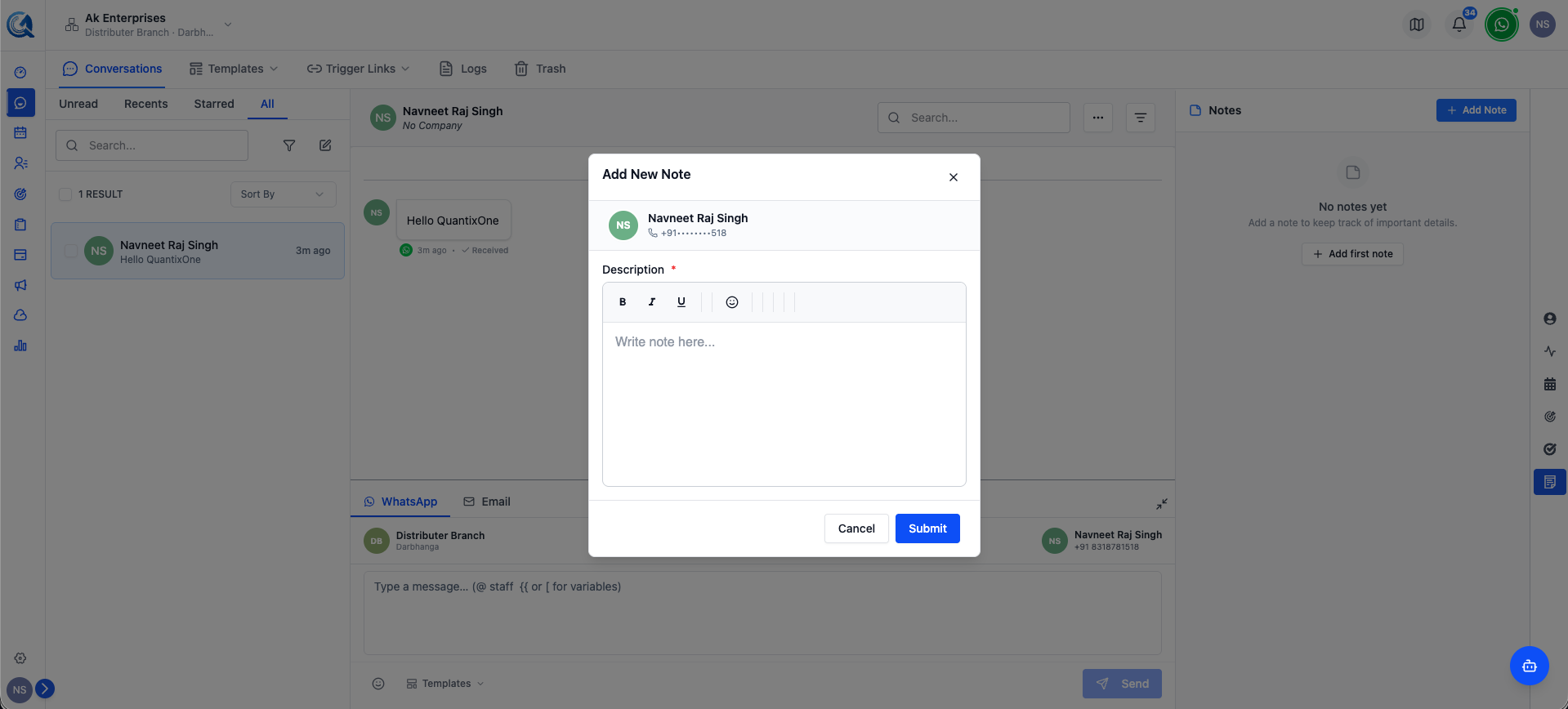 Add private notes to collaborate with your team.
3. Profile
Contact and company information sidebar:
- Contact Details — Name, email, phone, company
- Contact Status — Active, archived, DND (do not disturb)
- Tags — How contact is categorized
- Custom Fields — Business-specific information
- Quick Actions — Call, email, message buttons
- Last Activity — When you last heard from them
- Engagement — Overall interaction status
What You Can Do:
- View and edit contact information
- Add or remove tags
- Update custom fields
- Create quick tasks or notes
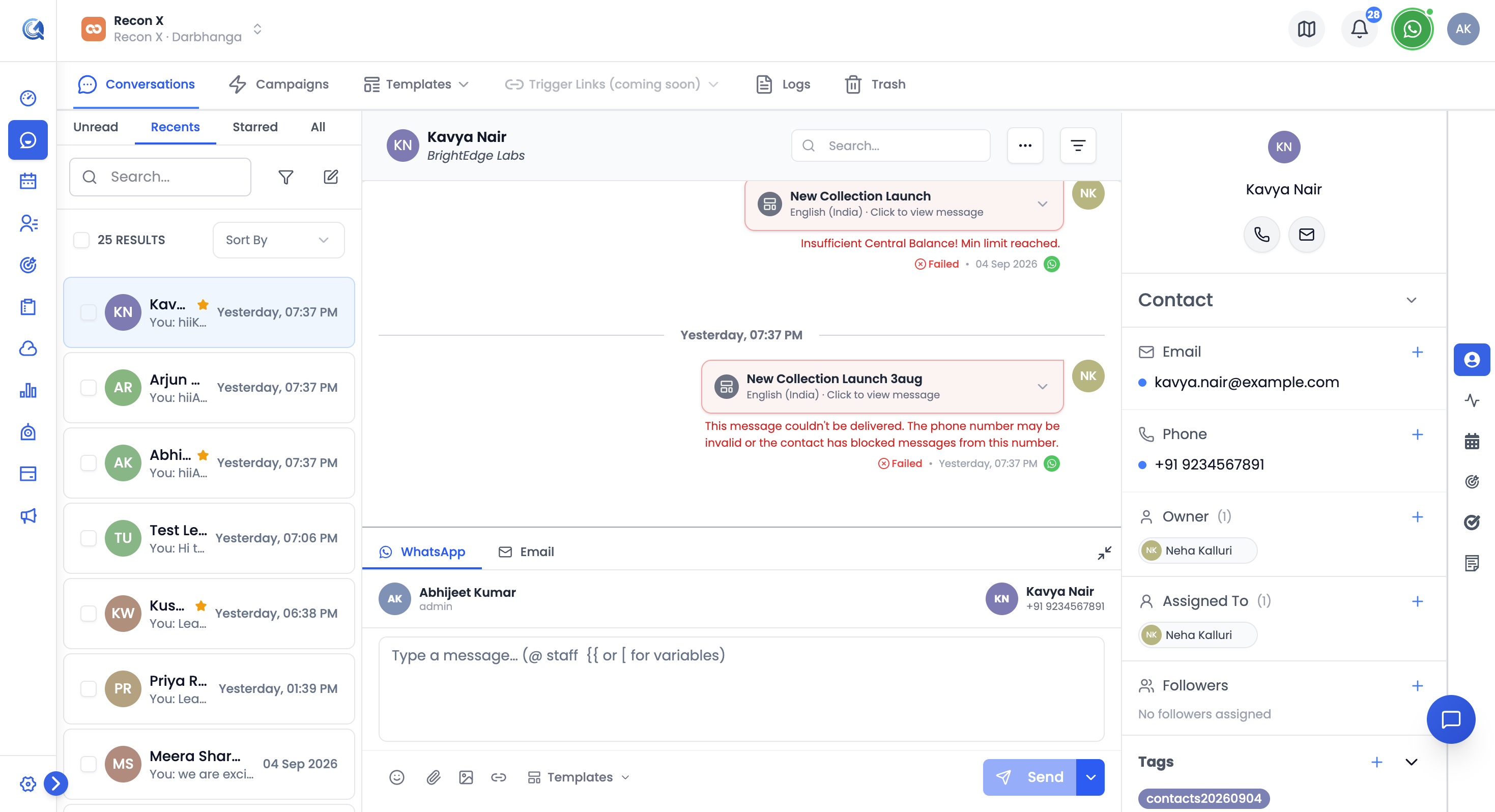 View contact information and assign owners in the sidebar.
4. Tasks
Action items and to-dos:
- Auto-Created — System creates tasks for follow-ups
- Assigned — Tasks can be assigned to team members
- Tracked — Monitor task status (open, in progress, complete)
- Linked — Each task connects to this conversation
- Reminders — Get notified for overdue tasks
Task Examples:
- "Follow up on proposal"
- "Send contract"
- "Schedule demo"
- "Check on payment"
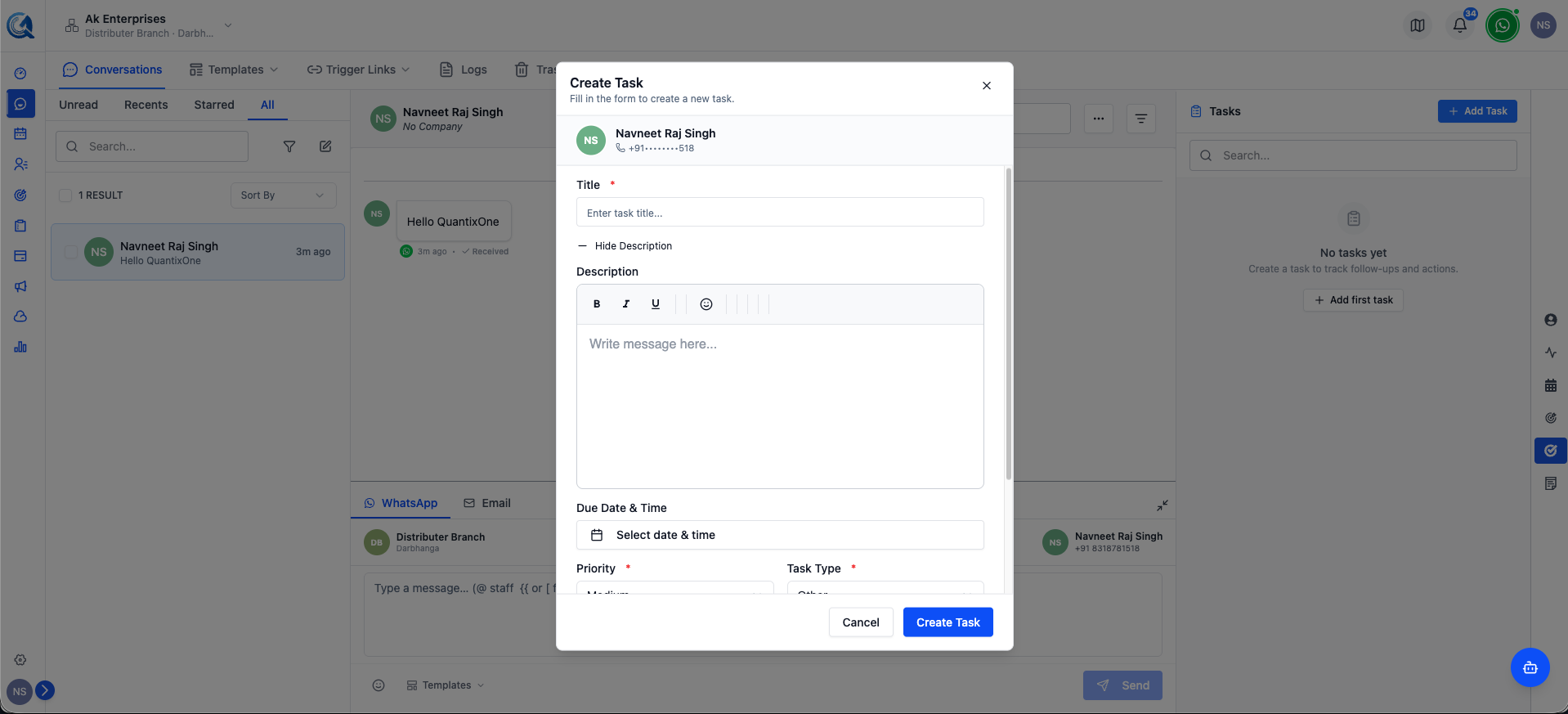 Create and track action items.
5. Appointments
Scheduled meetings and calendar events:
- Calendar Integration — See scheduled appointments
- Event Details — Time, date, attendees, location
- History — View past appointments
- Context — Understand purpose of meeting
Appointment Information:
- Meeting date and time
- Attendees and organizer
- Location or video call link
- Meeting notes or agenda
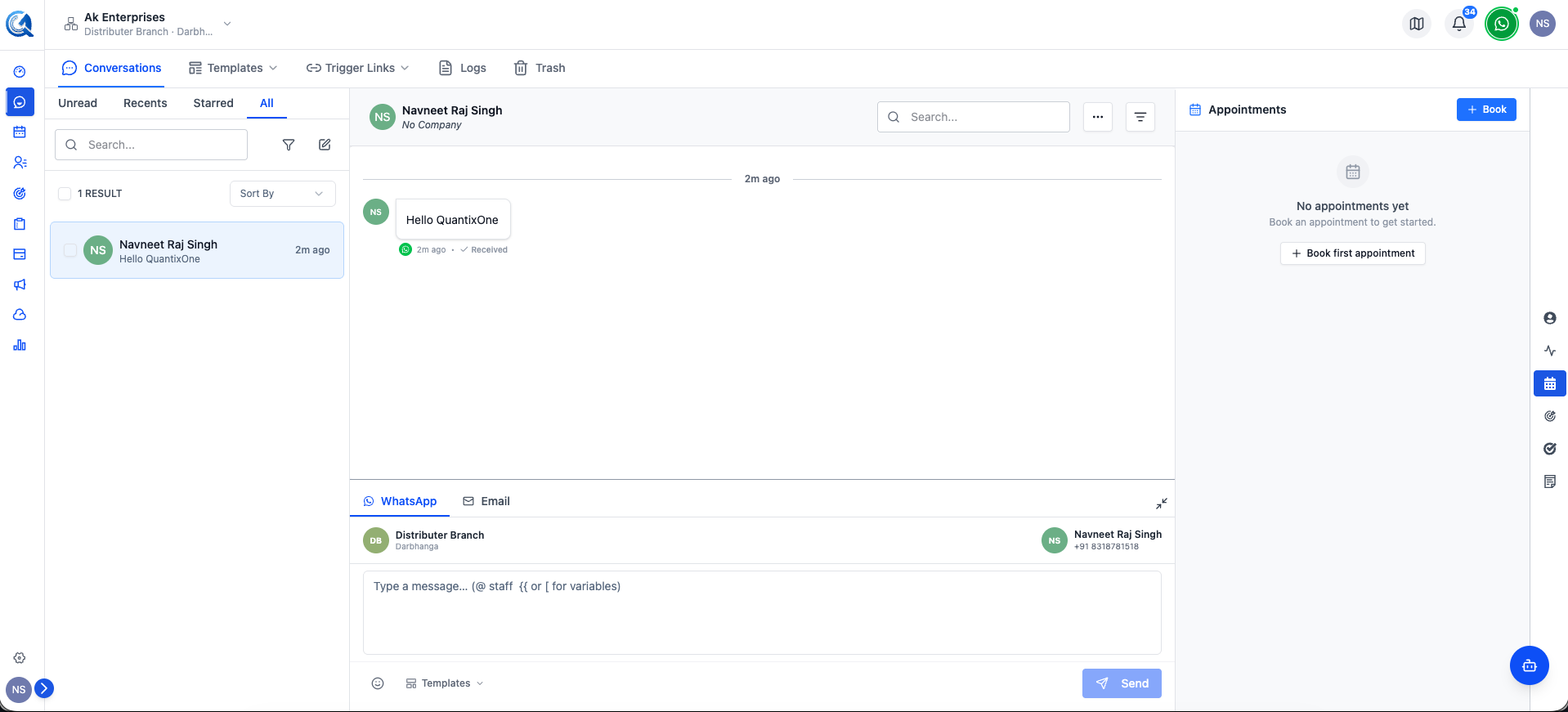 Book and manage appointments directly from the conversation.
5b. Opportunities
Manage deals and pipelines for this contact:
- Active Deals — See deals this contact is associated with
- Create New — Start a new opportunity instantly
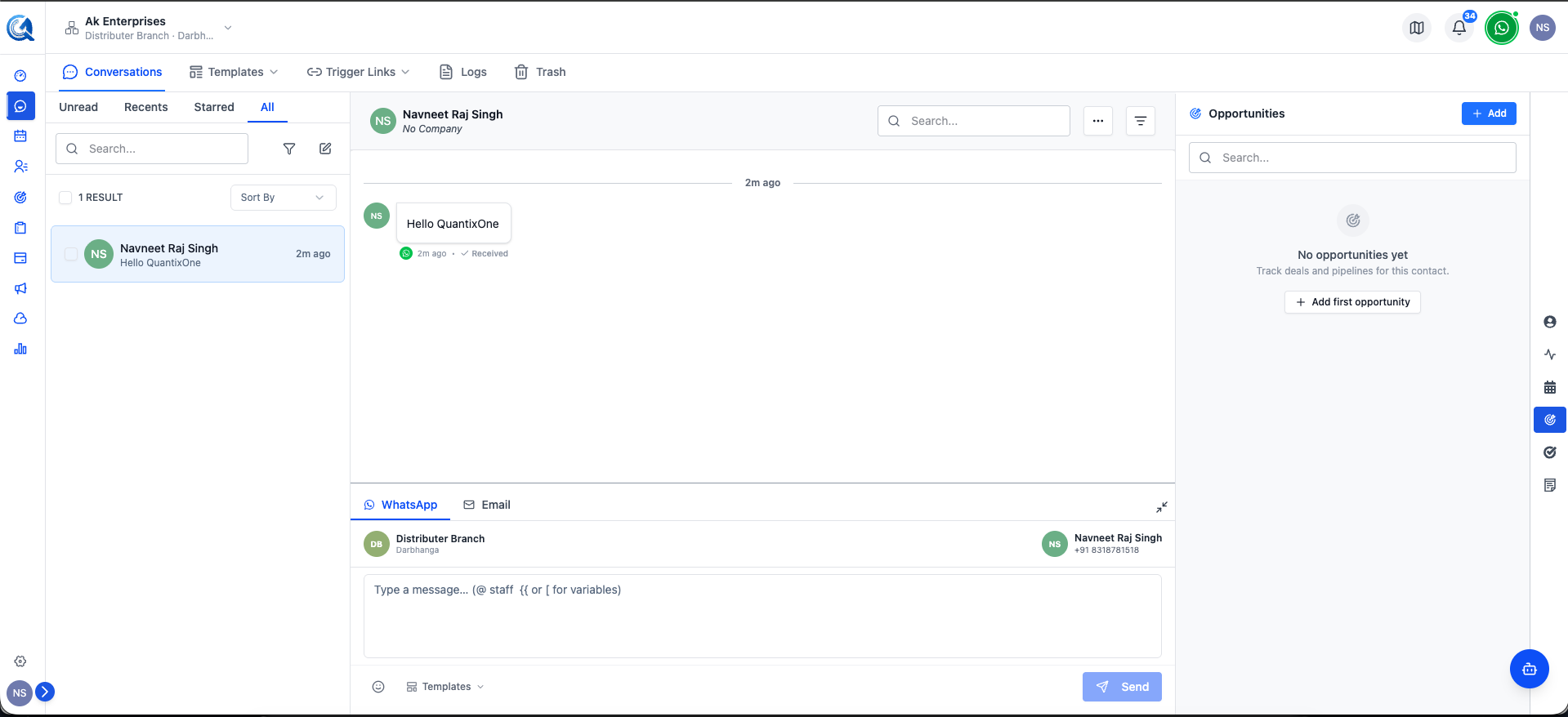 Manage opportunities without leaving the inbox.
6. Activities
Timeline of what happened and when:
- Message Timestamps — When messages sent/received
- Note Additions — When internal notes created
- Status Changes — When conversation marked read/unread
- Ownership Changes — When contact reassigned
- Field Updates — When contact info changed
- System Events — Workflow triggers, automations
Why Activities Matter:
- Full audit trail of interaction
- Understand what happened and when
- Compliance and record-keeping
- See team collaboration history
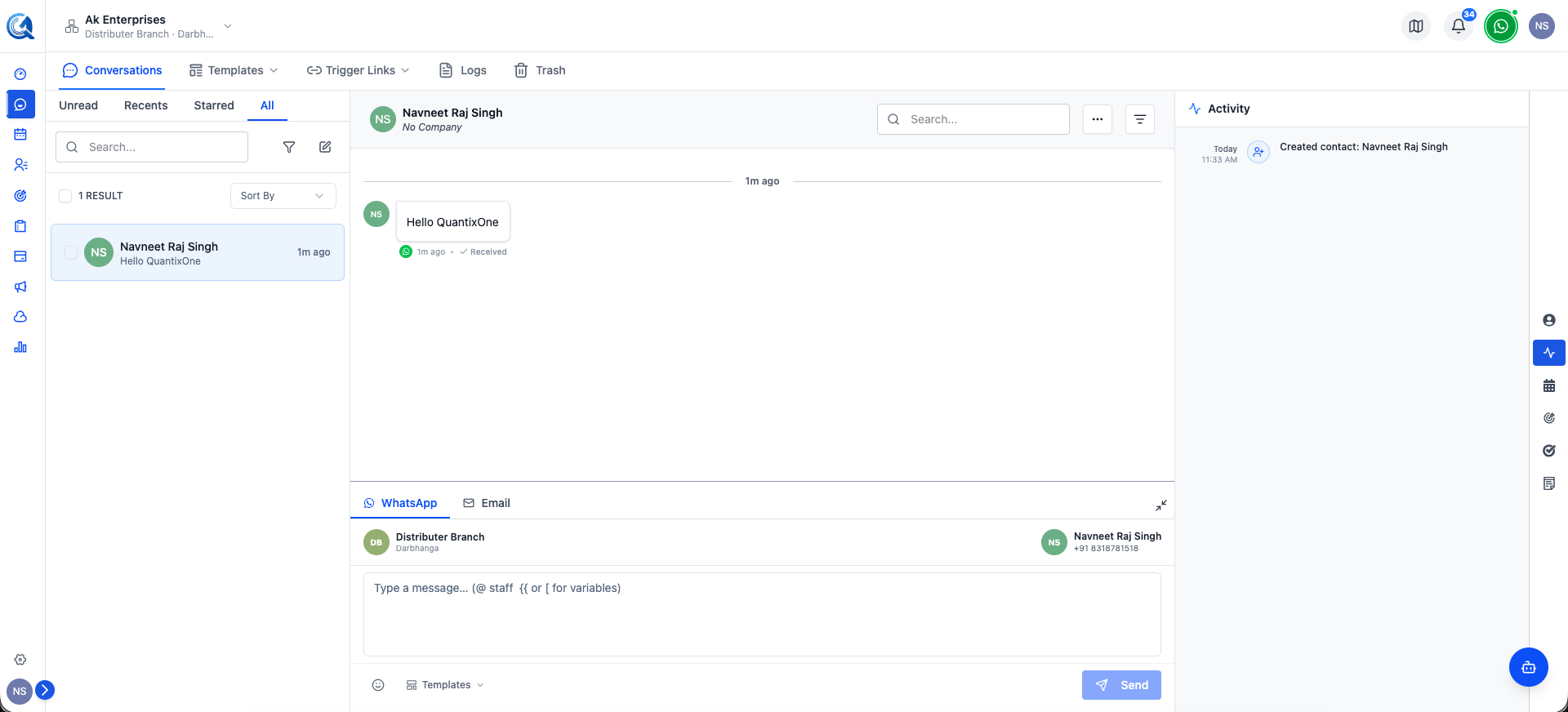 View complete activity history.
Conversation Lifecycle
1. Conversation Created
When first message from/to a contact:
- Automatically created (no manual setup)
- Linked to contact record
- Ready to receive messages from any channel
2. Messages Flow In
Messages arrive from multiple channels:
- WhatsApp message received
- Email thread started
- SMS received
- All in the same conversation
3. Team Collaborates
Your team works together:
- Add internal notes
- Assign tasks
- Share context
4. Conversation Active
Contact stays in your inbox as:
- Unread — Has new messages to review
- Open — Active conversation
- Starred — Marked as important
5. Conversation Completed (Optional)
When done with contact:
- Mark as completed/archived
- Conversation moves out of inbox
- Still accessible for reference
- Can be reopened anytime
Conversation Status
Open
- Active conversation with recent activity
- Contact actively engaging or needs follow-up
- Appears in your inbox
Completed
- Conversation archived or closed
- Not in main inbox view
- Still searchable and accessible
- Can reopen if needed
Starred
- Marked as important
- Prioritized in inbox
- Quick visual indicator
Unread
- Has new messages you haven't seen
- Badge shows message count
- Disappears when you read messages
Best Practices
Organizing Conversations
- Use Filters — Filter by status, channel, contact type
- Star Important — Mark high-priority conversations
- Archive Old — Clean inbox by archiving completed conversations
- Search Efficiently — Use search to find past conversations
Using Notes Effectively
- Be Specific — Clear notes help future team members
- Pin What Matters — Pin the most important note so the next person sees it first
- Update Regularly — Keep notes current as situation evolves
- Link Context — Reference decisions and reasoning
Collaboration Best Practices
- Assign Tasks — Clear ownership of next steps
- Document Handoffs — Leave a note explaining context when assigning to someone else
- Document Decisions — Why choices were made
- Respect Privacy — Notes are internal, use appropriately
Managing Messages
- Respond Promptly — Timely replies maintain momentum
- Use Templates — Speed up common responses
- Reference History — Check past messages before responding
- Professional Tone — Professional communication important
Multi-Channel Messaging
A single conversation can include:
| Channel | When Used | Example |
|---|---|---|
| Real-time, personal | Quick questions, confirmations | |
| Professional, detailed | Proposals, contracts, formal updates | |
| SMS | Urgent, quick notification | Appointment reminders, alerts |
| Internal Notes | Team communication | Strategy, decisions, handoffs |
All in one timeline, so nothing gets lost between channels.