Inbox Overview
The Inbox is the central hub for all customer conversations in QuantixOne CRM. Every incoming message — whether via WhatsApp, SMS, or Email — appears here as a conversation thread. Your team can monitor, respond to, and manage all customer communication from one place.
Navigating to the Inbox
Click Conversations in the left sidebar to open the Inbox.
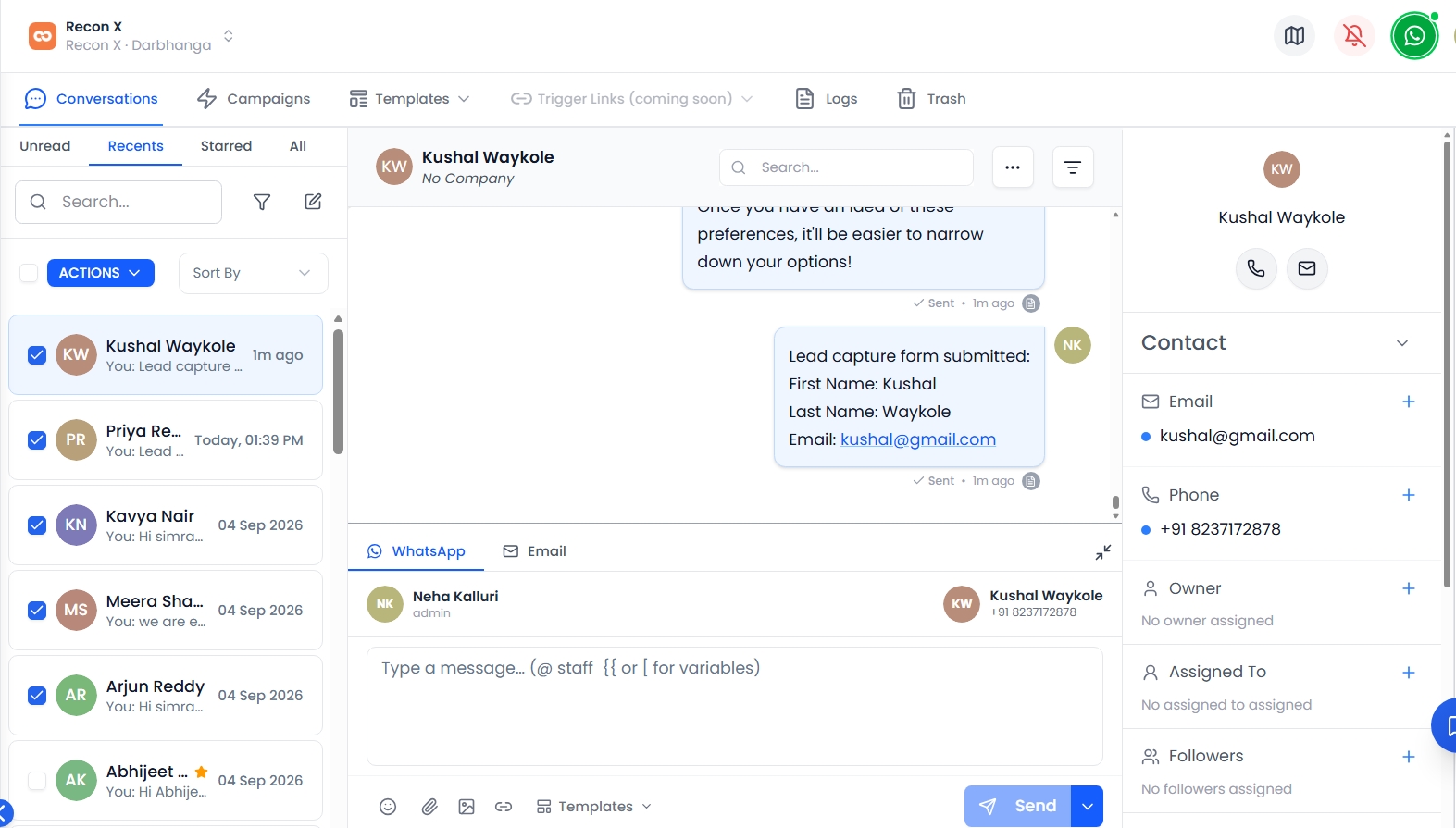 Click Conversations in the sidebar to open the Inbox.
The Conversation List
The Inbox displays all conversations with the most recent activity at the top. Each row in the list shows:
- Contact Name — The person the conversation is with.
- Last Message Preview — A snippet of the most recent message.
- Timestamp — When the last message was sent or received.
- Unread Badge — A count of unread messages in that conversation.
- Star Icon — Whether the conversation has been starred for priority.
- Channel Icon — Which channel was used (WhatsApp, SMS, or Email).
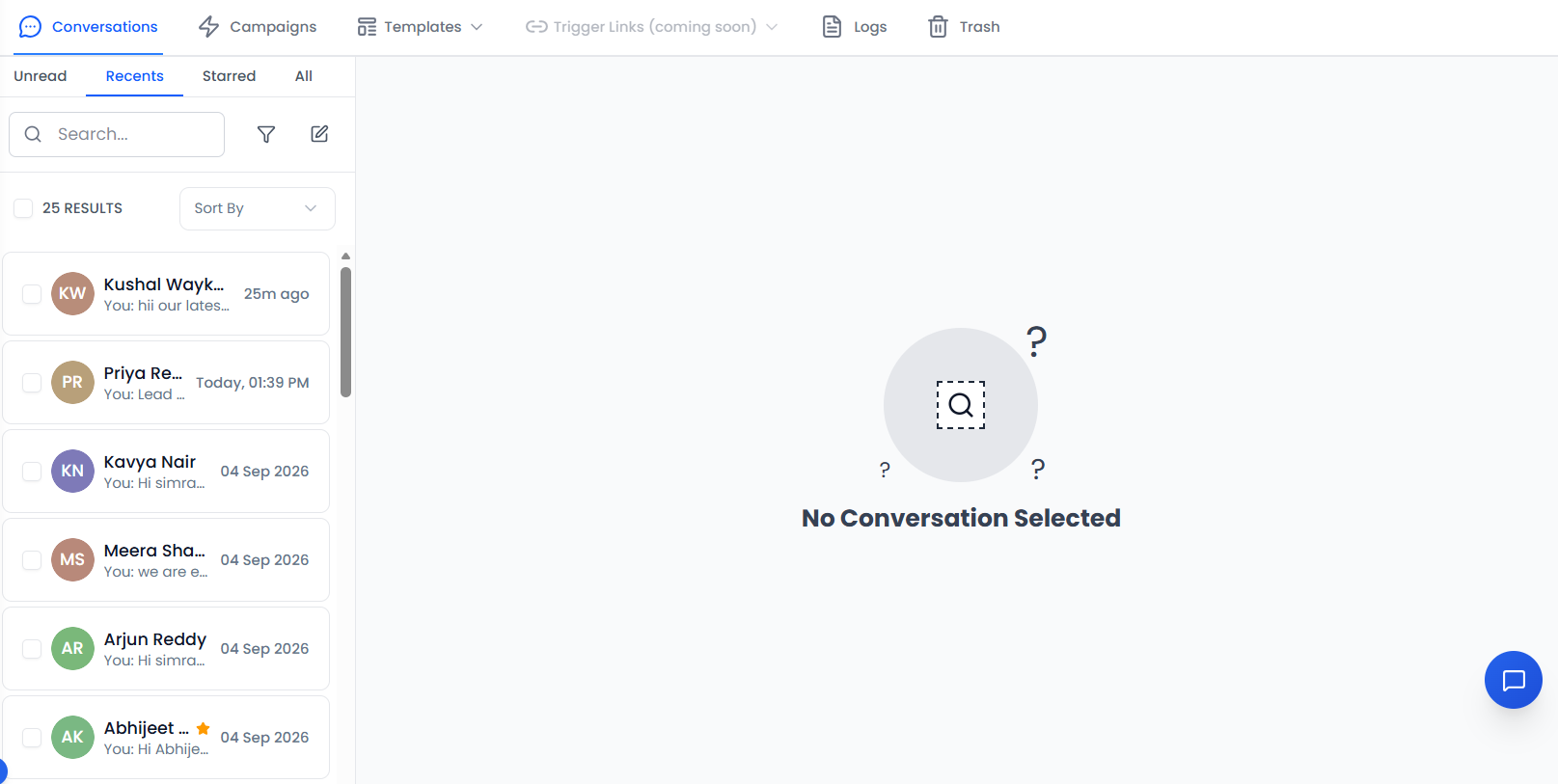 Each row shows the contact, last message preview, timestamp, unread badge, star, and channel icon.
Searching Conversations
To find a specific conversation, use the Search bar at the top of the Inbox. You can search by:
- Contact name
- Email address
- Phone number
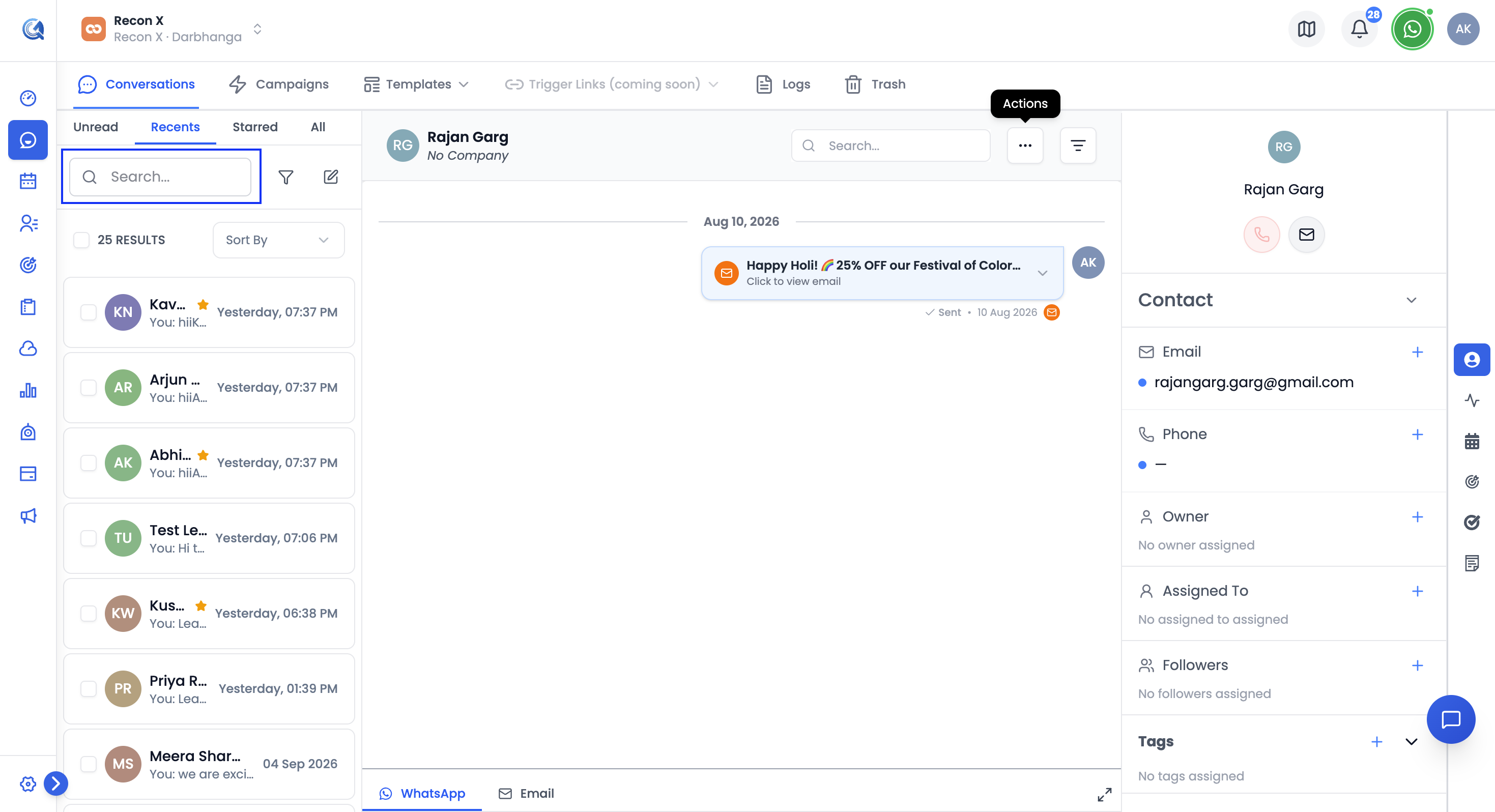 Search by contact name, email, or phone number.
Filtering the Inbox
Use the Filter options to narrow down the conversation list. You can filter by:
- Owner — Show conversations owned by you or a specific teammate.
- Assigned To — Show conversations assigned to you, a specific teammate, or unassigned.
- Follower — Show conversations where you or a specific teammate is a follower.
- Mentions — Show conversations where you or a specific teammate was mentioned.
- Last Message Direction — Show only inbound or outbound conversations.
- Last Message Type — Show only conversations whose last message was manual or automated.
- Last Outbound Action — Show only conversations whose last outbound action was manual or automated.
Click the Filter icon near the top of the Inbox to open the filter options. You can combine multiple filters at once.
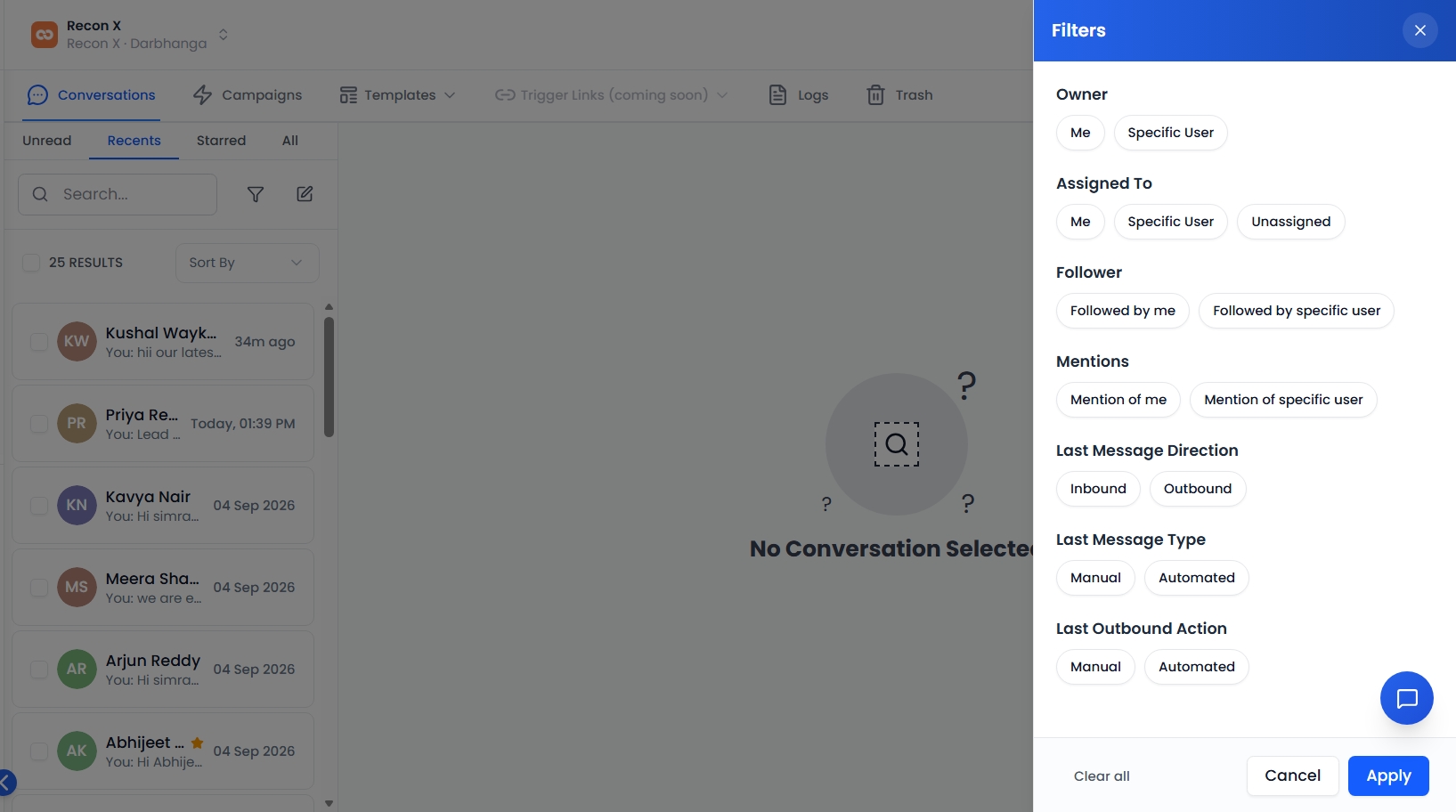 The filter panel — Owner, Assigned To, Follower, Mentions, and message-direction filters.
Bulk Actions
You can take action on multiple conversations at once. Select conversations by clicking the checkboxes that appear when you hover over each row. Once one or more are selected, the bulk action toolbar appears:
- Mark as Read — Remove unread badges from selected conversations.
- Mark as Unread — Re-mark selected conversations as unread.
- Star / Unstar — Prioritize or deprioritize conversations.
- Delete — Move selected conversations to the Trash.
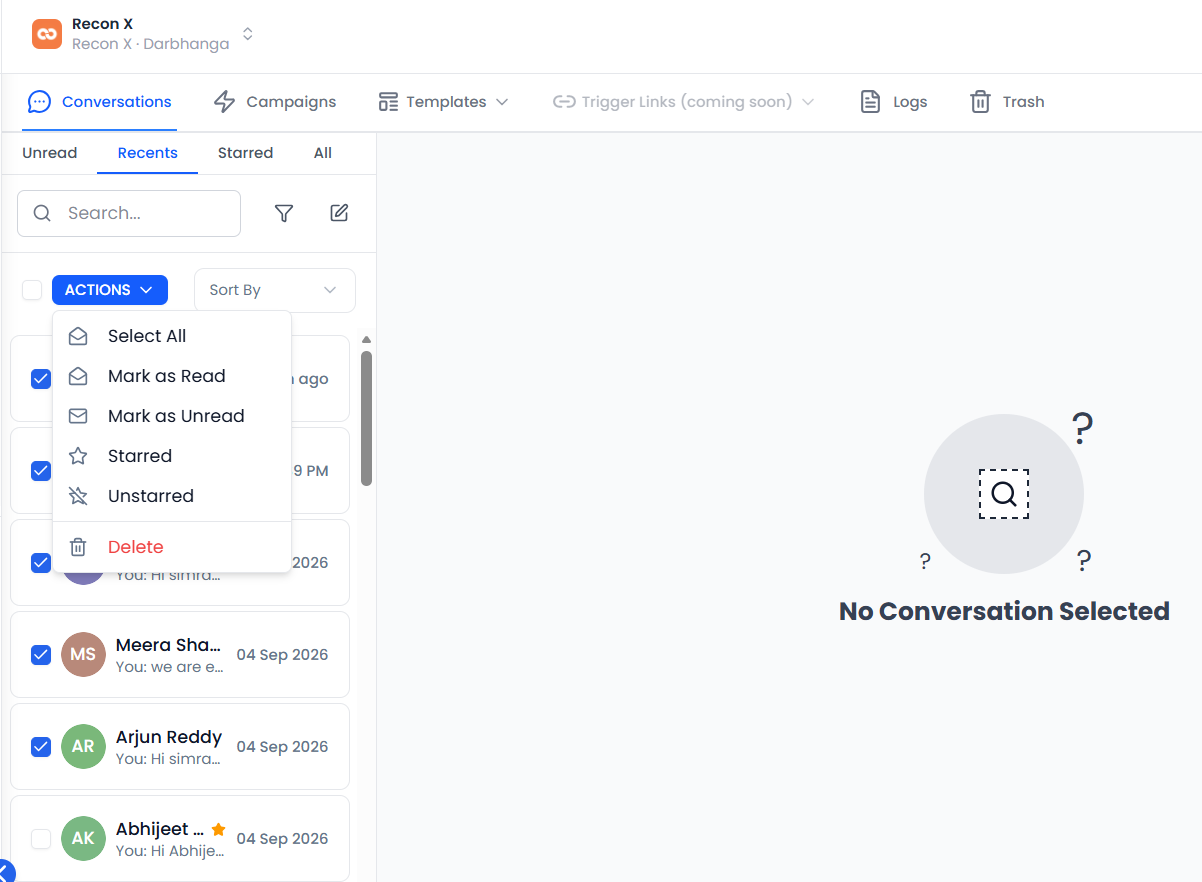 The bulk action toolbar appears once you select one or more conversations.
Viewing a Conversation
Click on any conversation in the Inbox to open the full message thread.
The full message thread for a conversation.
The Message Timeline
The conversation timeline shows the complete history of all messages exchanged with the contact — inbound messages from the customer, outbound messages sent by your team, and system events.
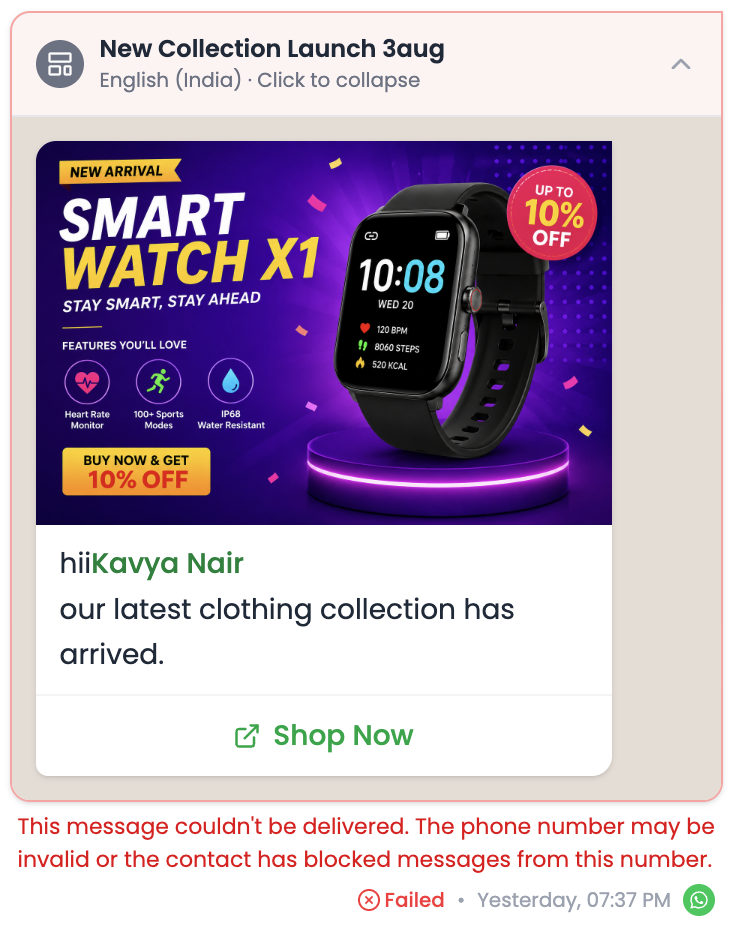 The timeline mixes inbound messages, outbound replies, and system events in order.
Each message in the timeline shows:
- Sender — Who sent the message (customer or which team member).
- Timestamp — When the message was sent.
- Content — The message text, image, document, or other attachment.
- Delivery Status — The current status of the message (see below).
Message Delivery Status
For outbound messages, QuantixOne shows the delivery status of each message:
| Status | Meaning |
|---|---|
| Sent | The message has been submitted to the messaging provider. |
| Delivered | The message has been received on the customer's device. |
| Read | The customer has opened and read the message. |
| Failed | The message could not be delivered. See the error details on the message. |
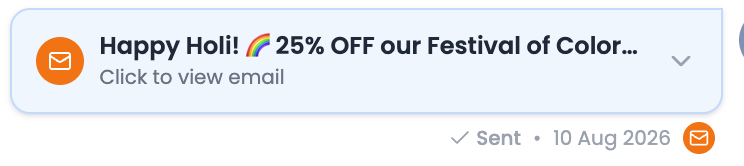 Sent, Delivered, Read, and Failed status indicators on outbound messages.
Marking a Conversation as Read or Unread
Open a conversation and click the Mark as Unread button (envelope icon) in the top-right of the conversation panel to toggle the read state. Marking as unread will show the conversation with an unread badge in the Inbox list.
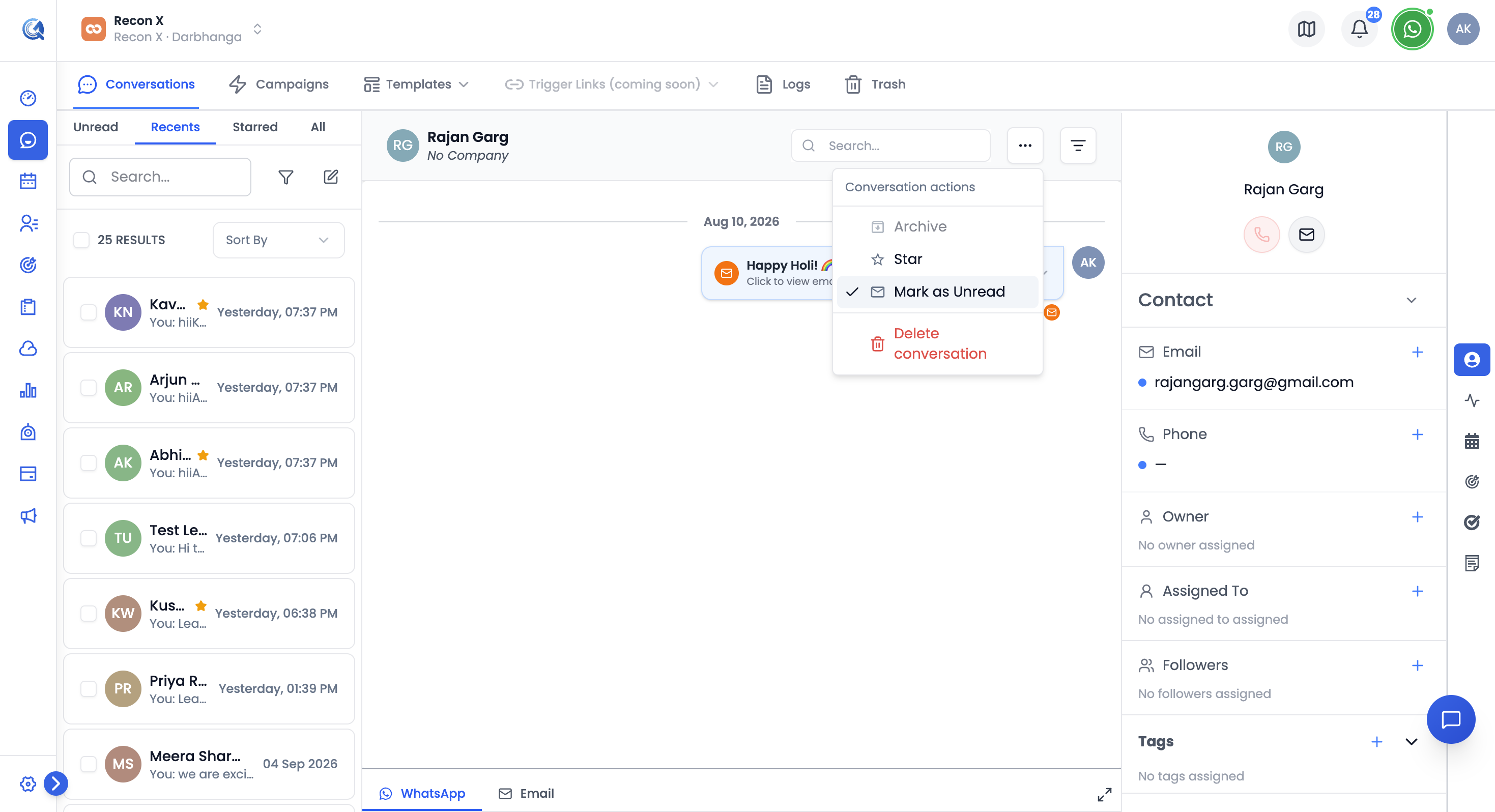 The envelope icon toggles the conversation's read state.
Starring a Conversation
Click the Star icon on any conversation — either from the Inbox list or from inside the conversation — to mark it as a priority. Starred conversations can be filtered to the top of the Inbox.
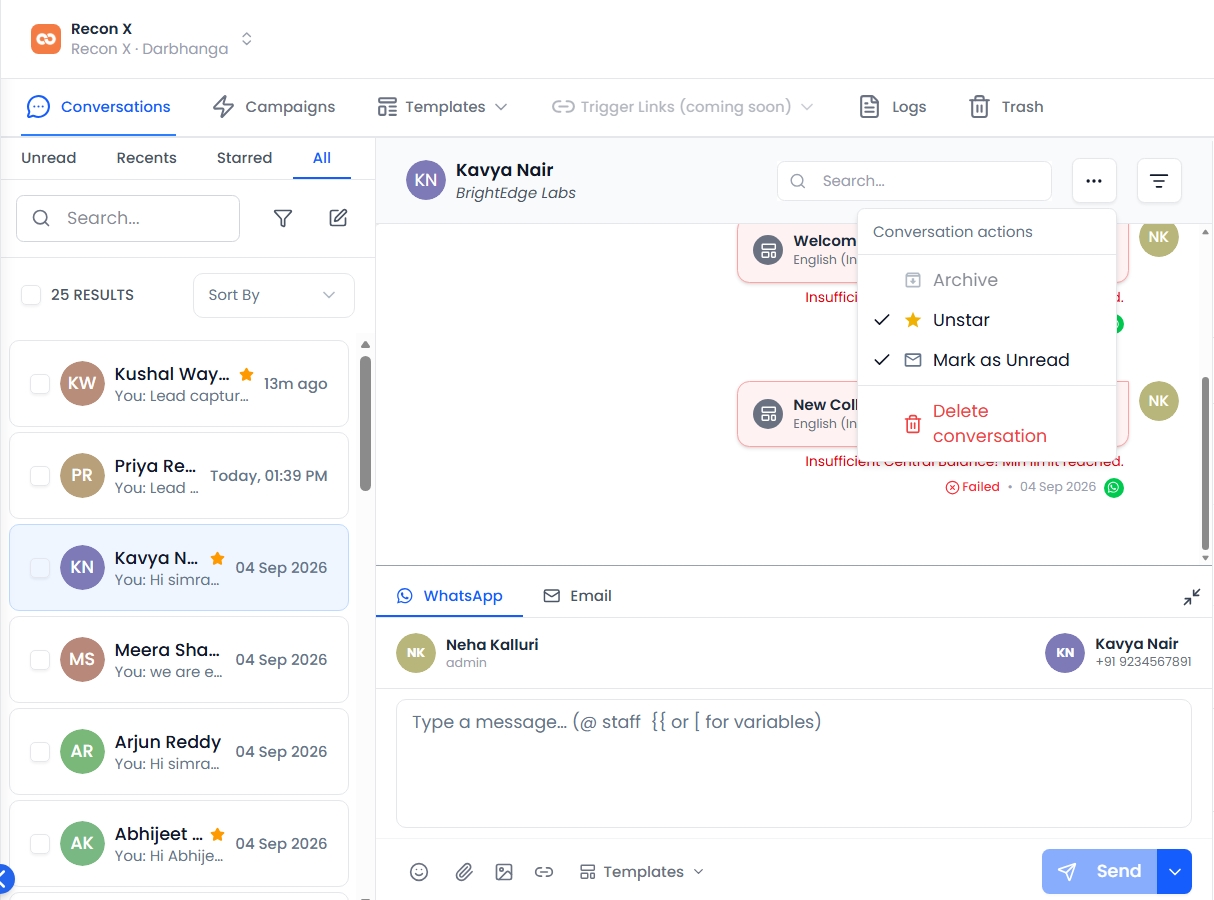 Click the star icon to prioritize a conversation.
Video Walkthrough
Watch the complete walkthrough below to see how to navigate the Inbox and use conversations in QuantixOne CRM.