Message Templates
Message Templates are pre-written messages that your team can save and reuse. Instead of typing the same message repeatedly, you can create a template once and use it in any conversation or campaign. Templates are organized separately per channel — WhatsApp and Email — each with its own library.
Note: SMS templates are not available yet.
Navigating to Templates
Click Templates in the left sidebar under the Conversations section.
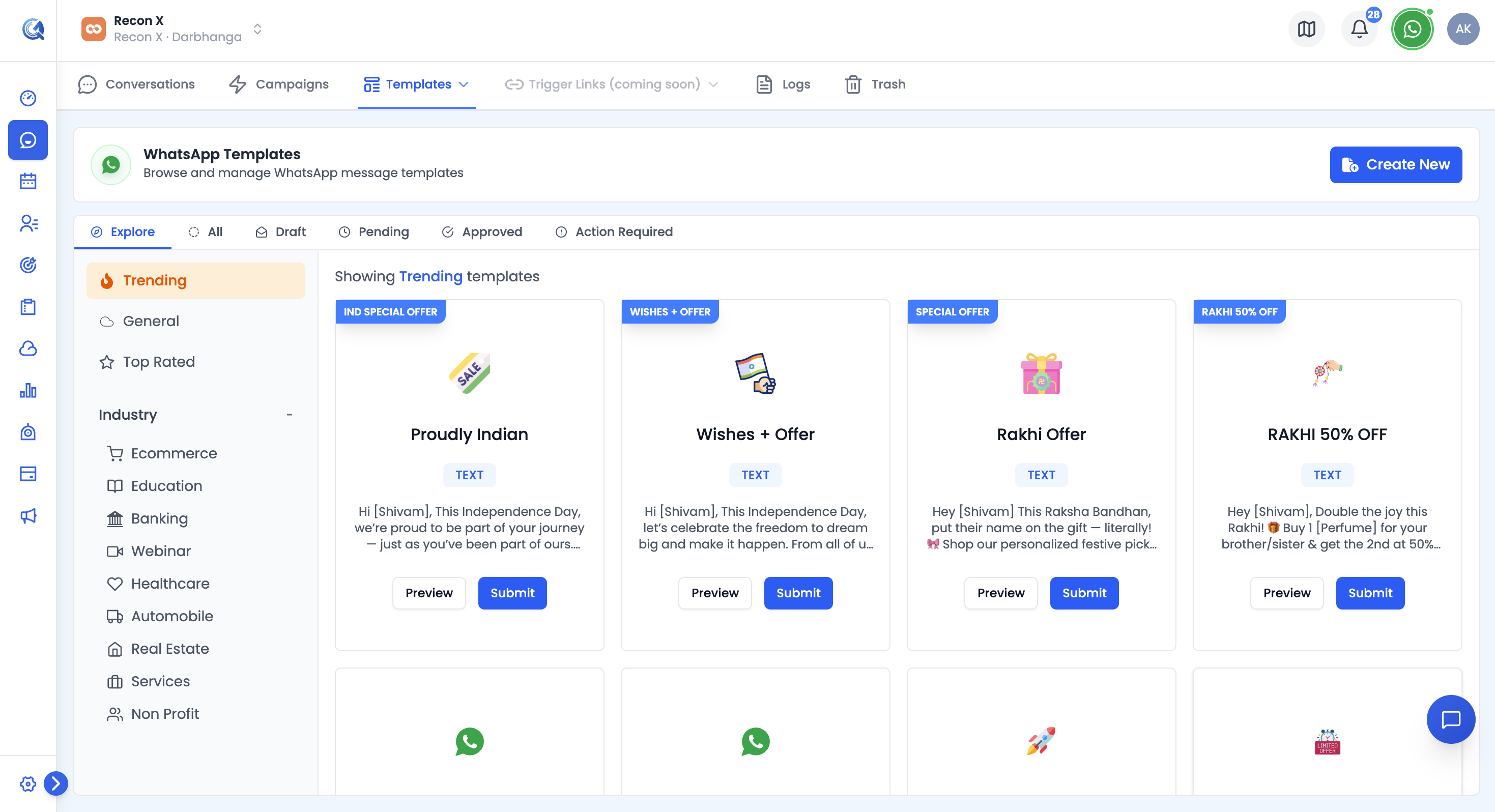 Your WhatsApp templates library.
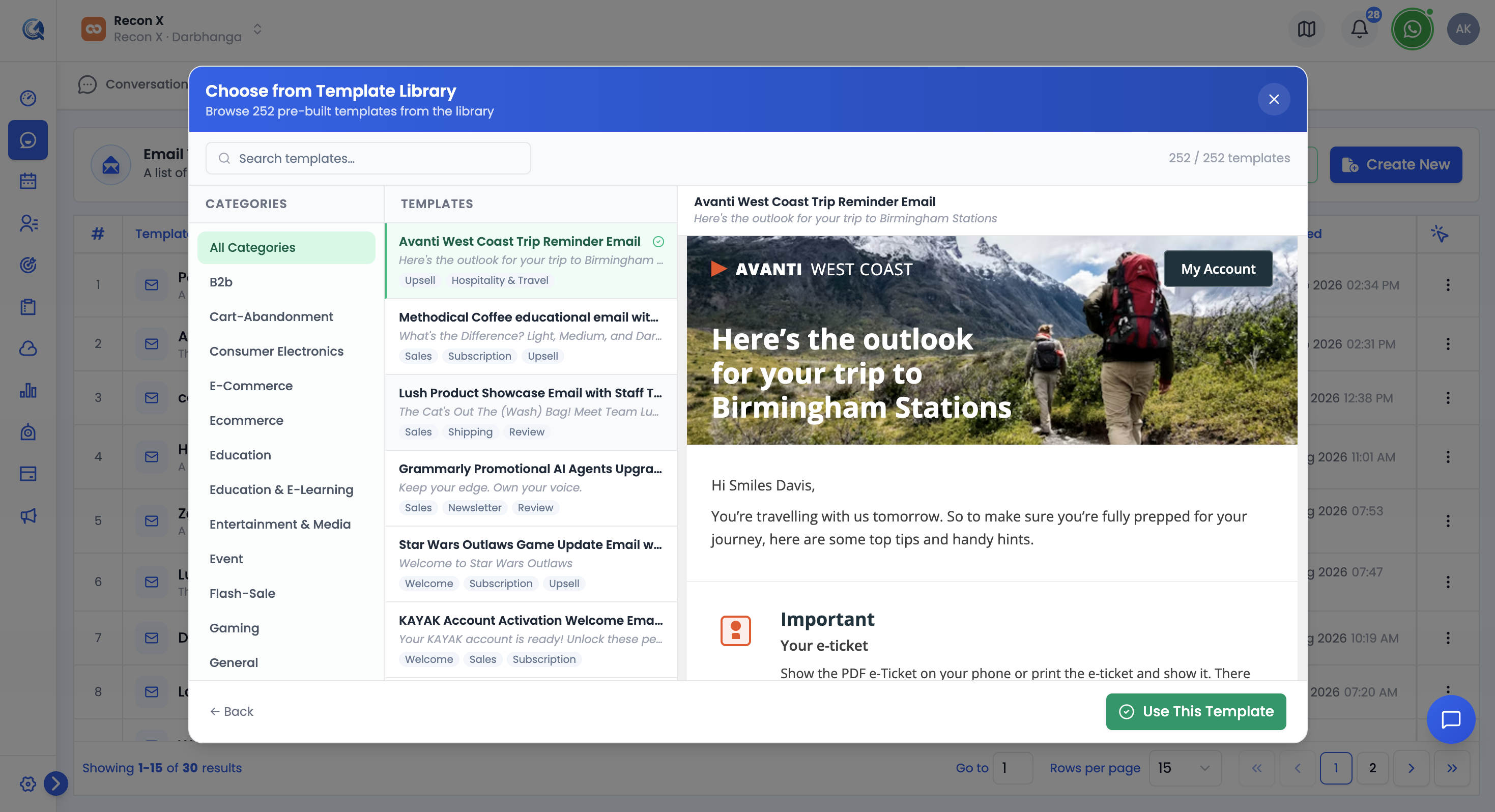 Your Email templates library.
WhatsApp Templates
WhatsApp templates go through the following tabs as they move through Meta's approval process:
| Tab | What it shows |
|---|---|
| Explore | A gallery of ready-made templates by industry, for inspiration when starting a new one |
| All | Every WhatsApp template for your org, regardless of status |
| Draft | Templates you've created but not yet submitted for approval |
| Pending | Templates submitted to Meta and awaiting review |
| Approved | Templates Meta has approved and are ready to send |
| Action Required | Templates Meta rejected or flagged — see the reason and resubmit |
Click + New to start a template, then choose how to build it:
- Start from Scratch — Build the template manually, field by field.
- Create using AI — Describe what the template should do in a sentence, and QuantixOne pre-fills a draft for you to refine.
Either way you land on the template form, where you fill in:
- Template Name — A descriptive name for internal reference (e.g., "welcome_message"). Must be unique.
- Template Category — The Meta category (e.g. Marketing, Utility, Authentication).
- Template Language and Template Type (text, image, video, document, etc.).
- Header Text (optional) and Message Body — the content of the template. You can include variable placeholders like
{{1}},{{2}}which will be filled in when the template is used. - Optional quick-reply buttons and call-to-action buttons (URL or phone).
Your work is saved automatically as a Draft as you edit — no separate "Save" step. When you're ready for approval, click Submit to Meta.
Note: WhatsApp templates that will be used outside the 24-hour customer care window must be approved by Meta before they can be sent. Approval can take anywhere from a few minutes to a day or more.
Editing a template: Only Draft templates can be edited — open a draft to update its content, or submit it to Meta once ready. Once a template is Pending, Approved, or Action Required, its content can no longer be changed directly (submit a new template instead).
Email Templates
Email templates are managed in a single list — no approval process is required. For each template you can:
- Edit — Update the subject and body.
- Duplicate — Create a copy to start a variation from.
- Activate / Deactivate — Toggle whether the template is available for use without deleting it.
- Delete — Remove the template.
Click + New Template, then choose how to build it:
- Start from Scratch — Open a blank canvas in the drag-and-drop email editor.
- Create with AI — Describe your email in a sentence and QuantixOne recommends matching templates to start from.
- Browse Templates — Pick from the ready-made library of pre-built templates.
- From Screenshot — Upload a screenshot of an email and QuantixOne generates matching HTML for you.
Whichever path you choose, you'll end up in the editor with a Subject line and a drag-and-drop Body, where you can include variable placeholders like {{contact_name}}.
Use Preview to see the fully-rendered email (with variables resolved) before saving — it now renders the real HTML, not a stripped-down text preview.
Using a Template in a Conversation
While composing a message in any conversation, click the Templates button in the composer toolbar.
A searchable template list will appear. Click a template to preview it, then select it to insert it into the composer.
Any {{variable}} placeholders will be automatically filled in with the contact's information before the message is sent.