Sending a Message
QuantixOne CRM lets you reply to customers via WhatsApp or Email — all from within the conversation thread. This guide walks you through composing and sending messages, understanding the WhatsApp messaging window, scheduling messages, and handling attachments.
Note: SMS is not yet available as a sending channel — it's planned but not enabled in the composer today.
Opening the Message Composer
Open any conversation from the Inbox. At the bottom of the conversation thread, you will find the message composer. Click inside the text area to start typing your reply.
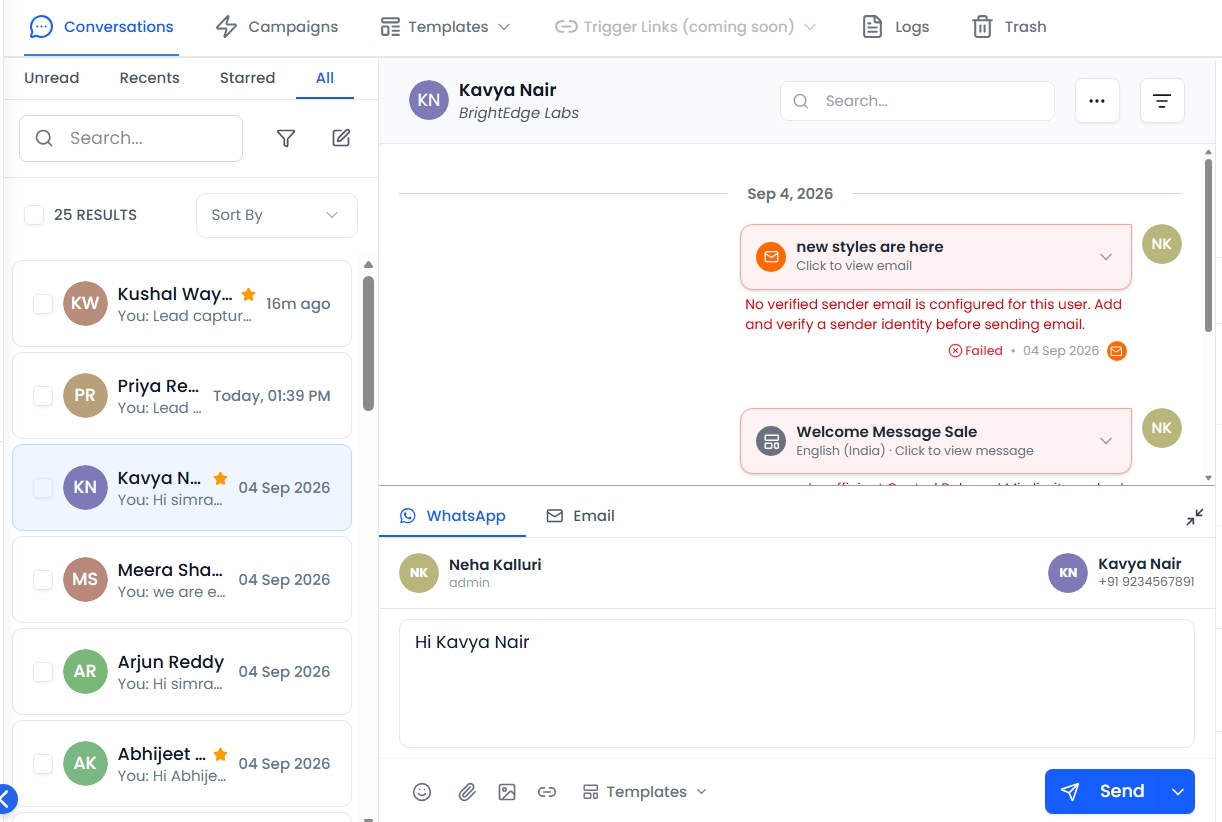 The message composer sits at the bottom of every conversation thread.
Choosing a Channel
If the contact has more than one channel available (for example, both WhatsApp and Email), you can choose which channel to send through. Click the Channel selector above the composer to switch between channels.
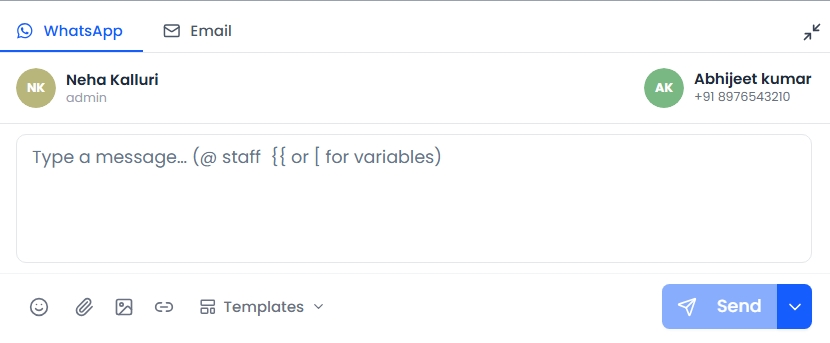 Switch between WhatsApp and Email using the tabs above the composer.
Sending a WhatsApp Message
Within the 24-Hour Window
WhatsApp allows your team to send free-form messages (any text you write) only within 24 hours of the customer's last inbound message. This is called the customer care window.
When the window is open, simply type your message in the composer and click Send.
Outside the 24-Hour Window
If the customer has not sent a message in the last 24 hours, the composer text area is disabled and shows "Select a template below to send," along with a banner reading "Conversation window closed — only template messages can be sent." You must send a pre-approved WhatsApp template message to re-open the conversation.
Note: WhatsApp requires businesses to use approved templates when initiating or re-opening a conversation. Template messages may have an associated cost per message.
Click Templates in the composer toolbar to open the template picker.
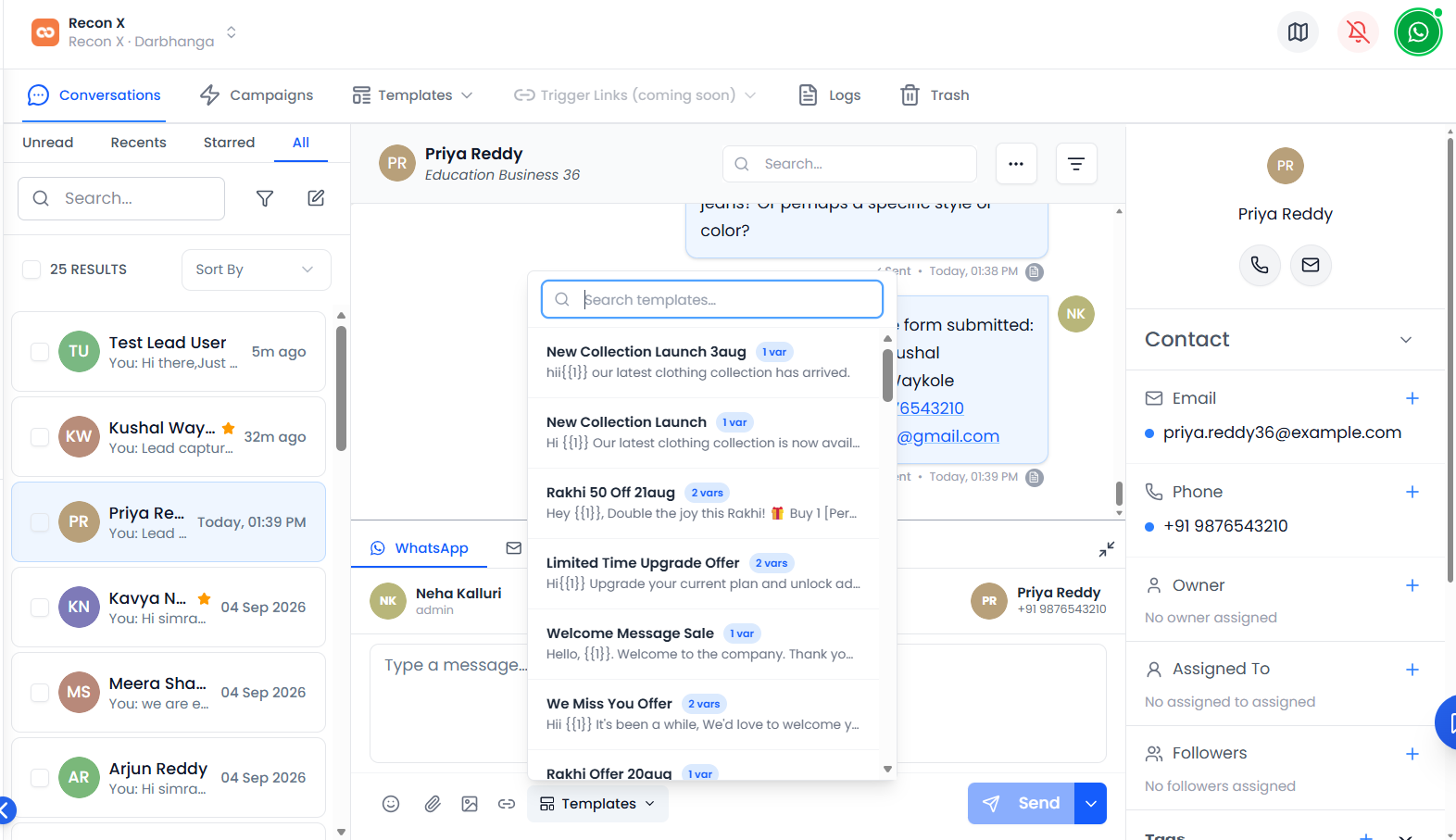 Choose the appropriate template from your library. A preview is shown before sending.
Pick a template, review the mapped variables in the preview, then click Send to deliver the message.
Sending an Email
Switch the channel to Email using the channel selector. The composer will expand to show:
- Subject Line — Enter a subject for the email.
- CC / BCC — Add additional recipients, if needed.
- Body — The email content, with a rich-text formatting toolbar.
- Templates — Pick an email template to start from instead of writing from scratch.
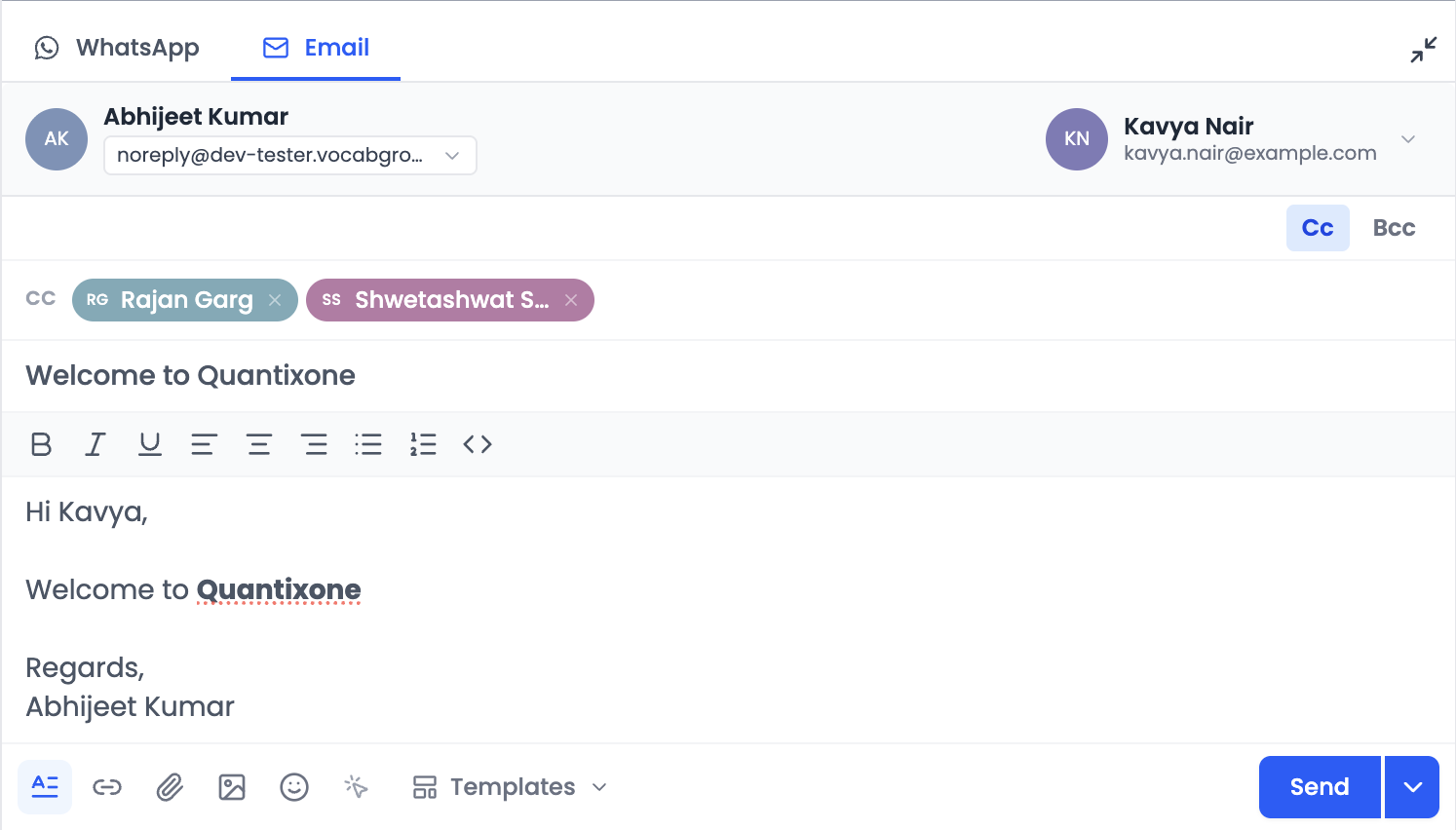 Fill in the subject and body for your email reply.
Click Send when your email is ready.
Scheduling a Message
Instead of sending immediately, you can schedule a WhatsApp or Email message for later. Click the small arrow next to the Send button and choose Schedule for later, then pick a date and time.
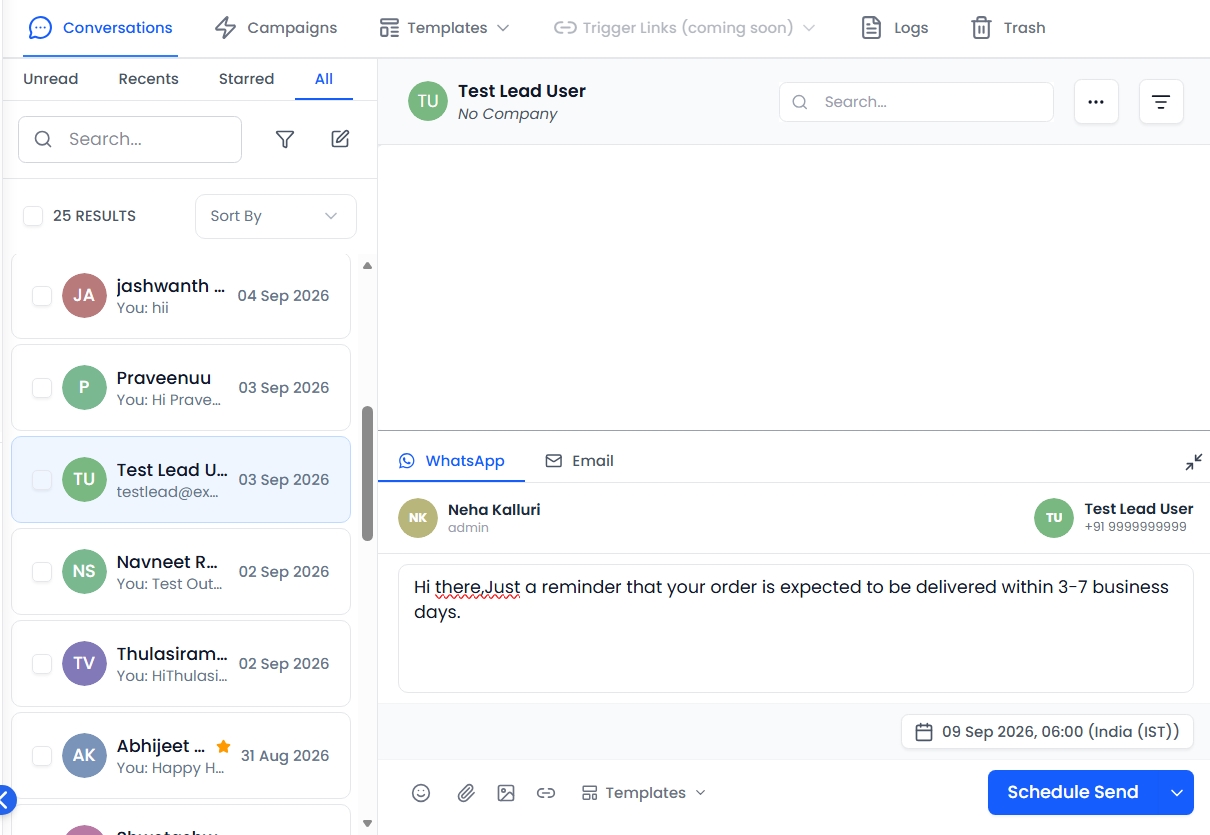 Once a date and time are chosen, the button changes to Schedule Send.
Note: A scheduled message is sent automatically at the chosen time — no need to keep the conversation open.
Attaching Files, Images, and Links
You can attach files to any message — images, documents, and more. In the composer toolbar you'll find:
- Attach File (paperclip icon) — attach any file from your device.
- Insert Image — attach an image specifically, shown as an inline preview.
- Insert Link — add a hyperlink to the message text.
Select the file from your device. The file will be uploaded and appear as a preview in the composer before you send.
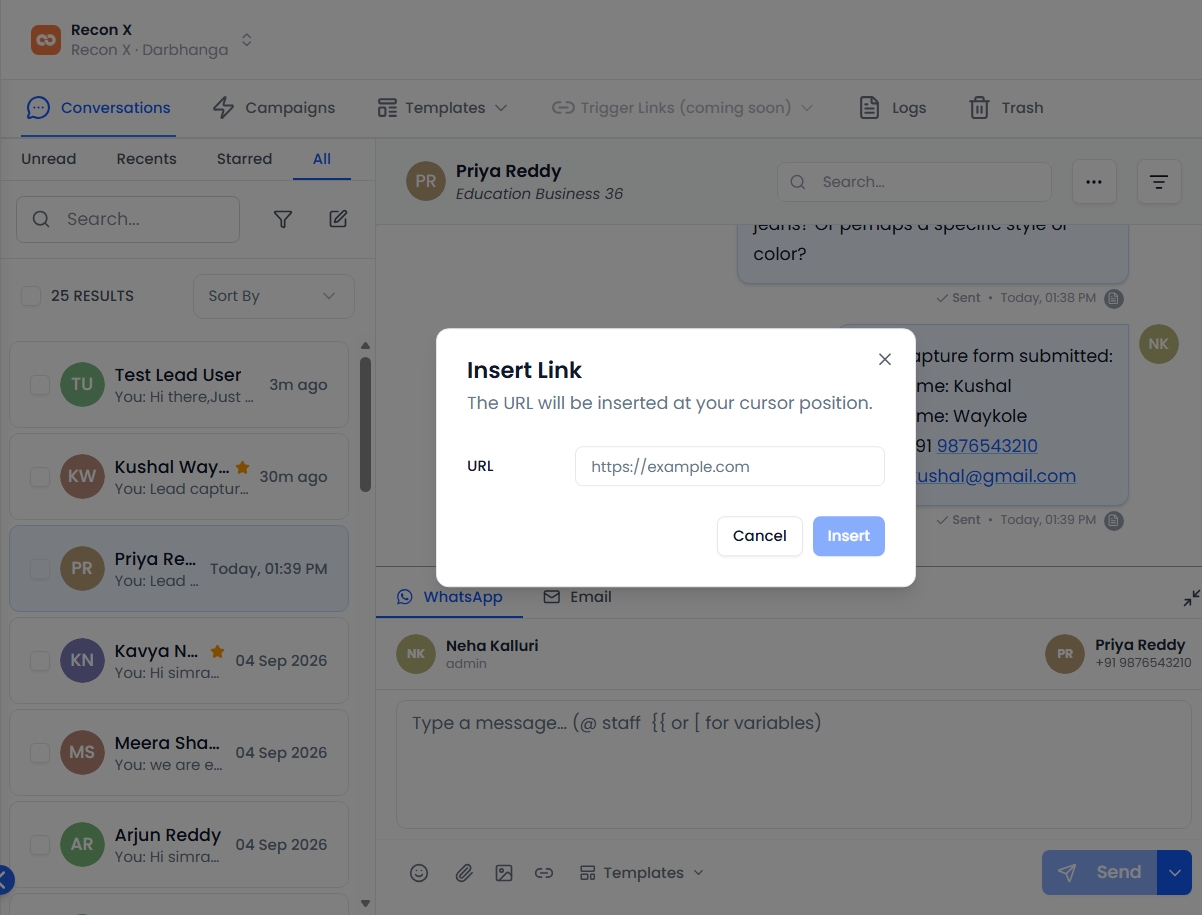 Click Insert Link, paste the URL, and it's added at your cursor position.
Note: File size limits depend on the channel. WhatsApp supports images, documents, audio, and video up to certain sizes. Very large files may not be deliverable.
Mentions and Variables in the Composer
While typing a WhatsApp message, type @ to mention a teammate, or {{ to insert a contact/company variable (like {{contact_name}}) — an autocomplete list will appear as you type.
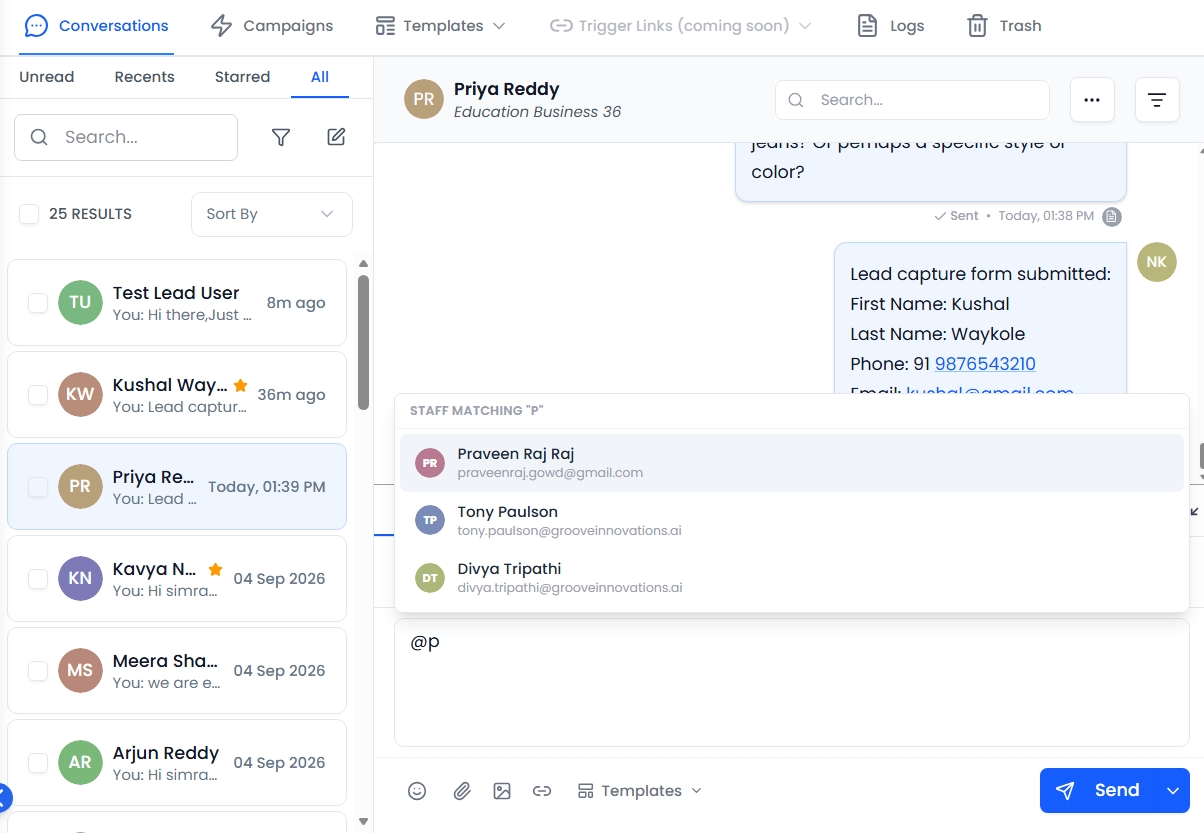 Typing @ shows a list of teammates matching what you've typed.
Applying a template works the same way — pick one from the Templates dropdown, and any variables it uses are mapped and previewed before you apply it.
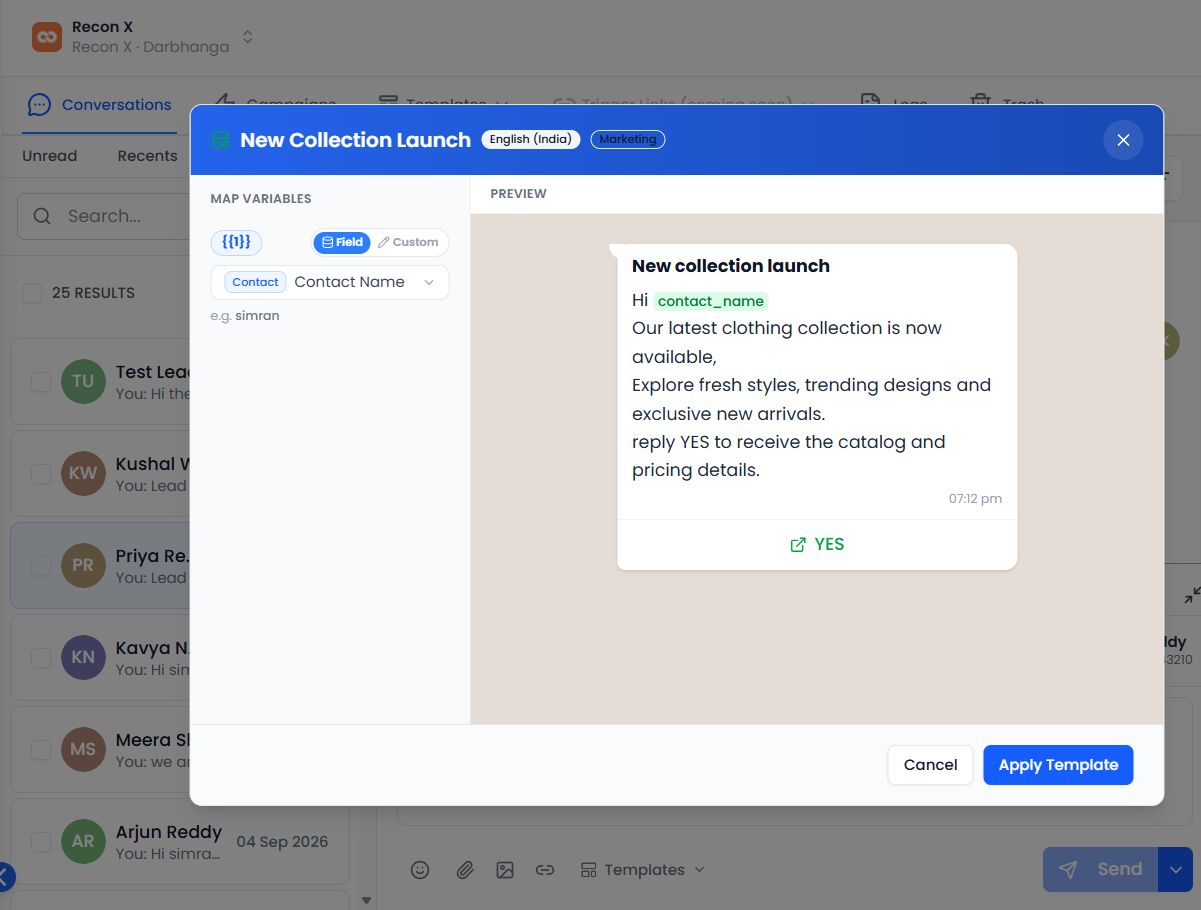 Map each variable to a contact field, then review the rendered preview before applying.
Failed Messages
If a message fails to deliver, it appears in the timeline with a Failed status and a red error indicator, showing the reason for the failure.
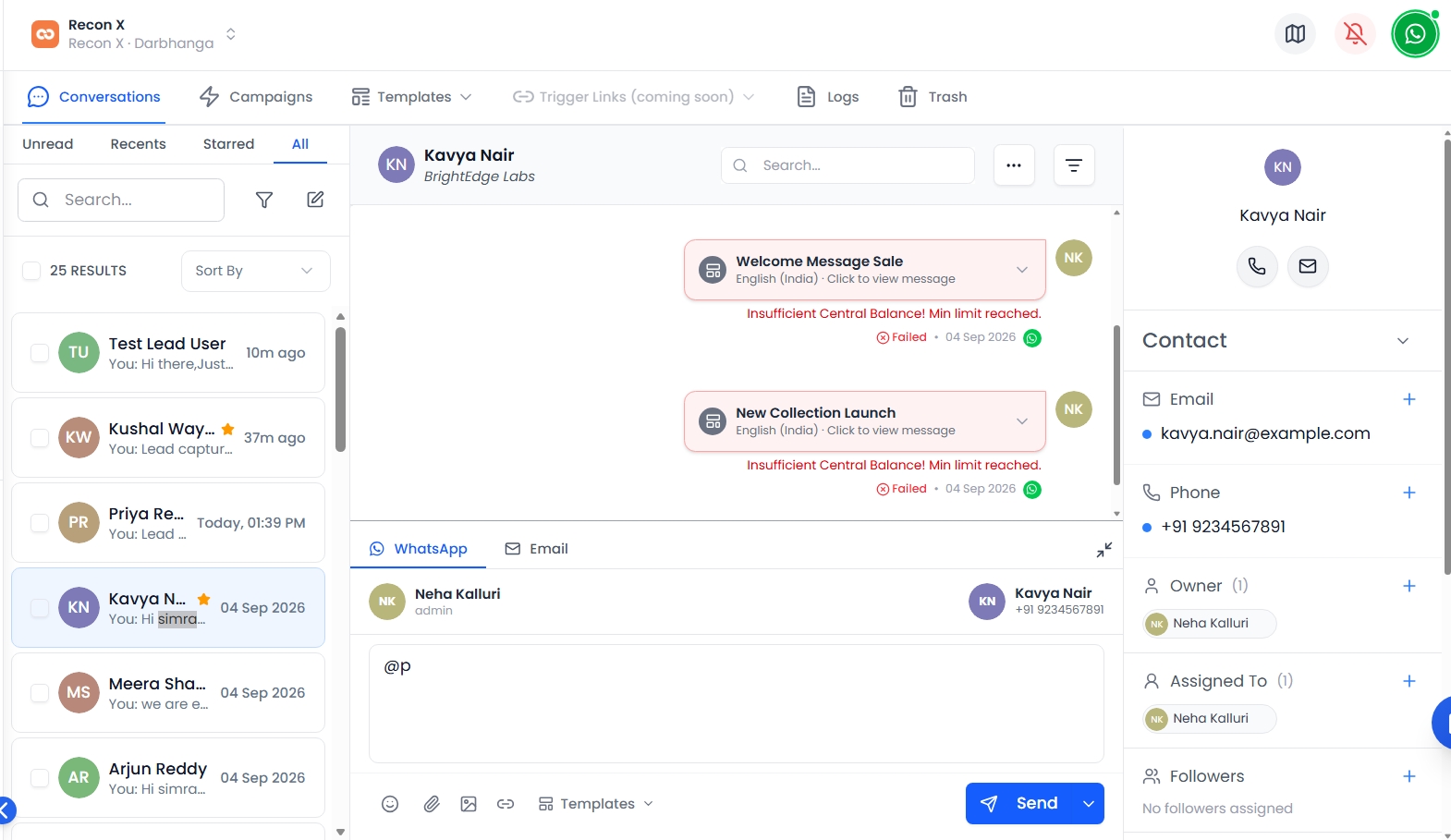 A Failed badge appears with the reason, such as an insufficient credit balance.
Note: Automatic resending of a failed message isn't available yet — if a message fails, send a new message once the underlying issue (e.g. an invalid number, or the customer care window closing) is resolved.
Video Walkthrough
Watch the complete walkthrough below to see how to compose and send messages in QuantixOne CRM.