Delete and Restore Forms
The Forms Builder lets you delete forms you no longer need and recover them if removed by mistake. Deleted forms move to the Restore tab, where they stay until you restore or permanently delete them — giving you a safety net before data is gone for good.
Step 1 — Delete a Form
From the Forms tab, hover over the form row you want to remove and click the ... (three-dot) icon on the right to open the action menu.
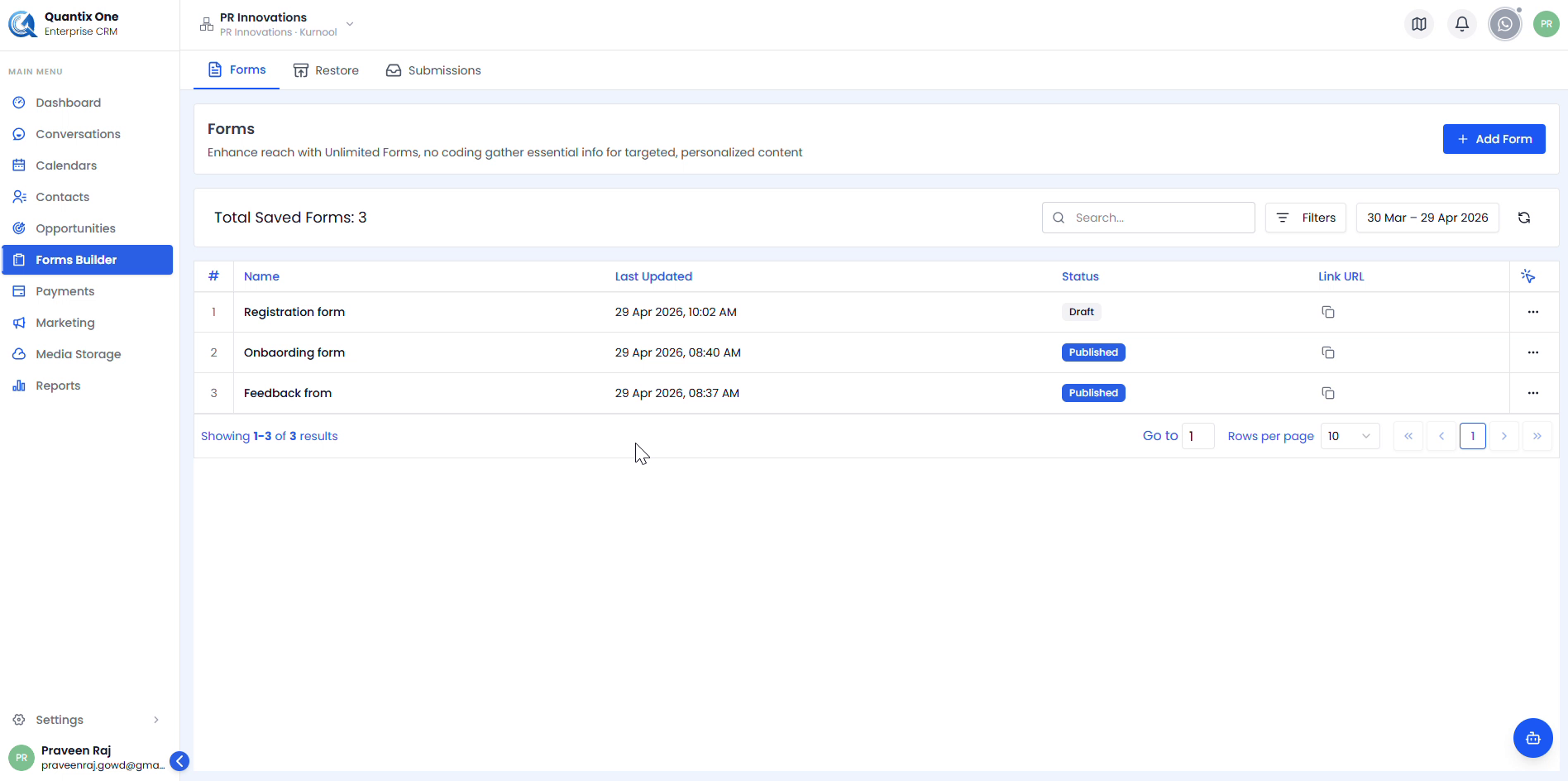 The Forms tab showing all active forms with name, last updated date, status (Draft or Published), and link URL. Each row has a ... action menu on the right.
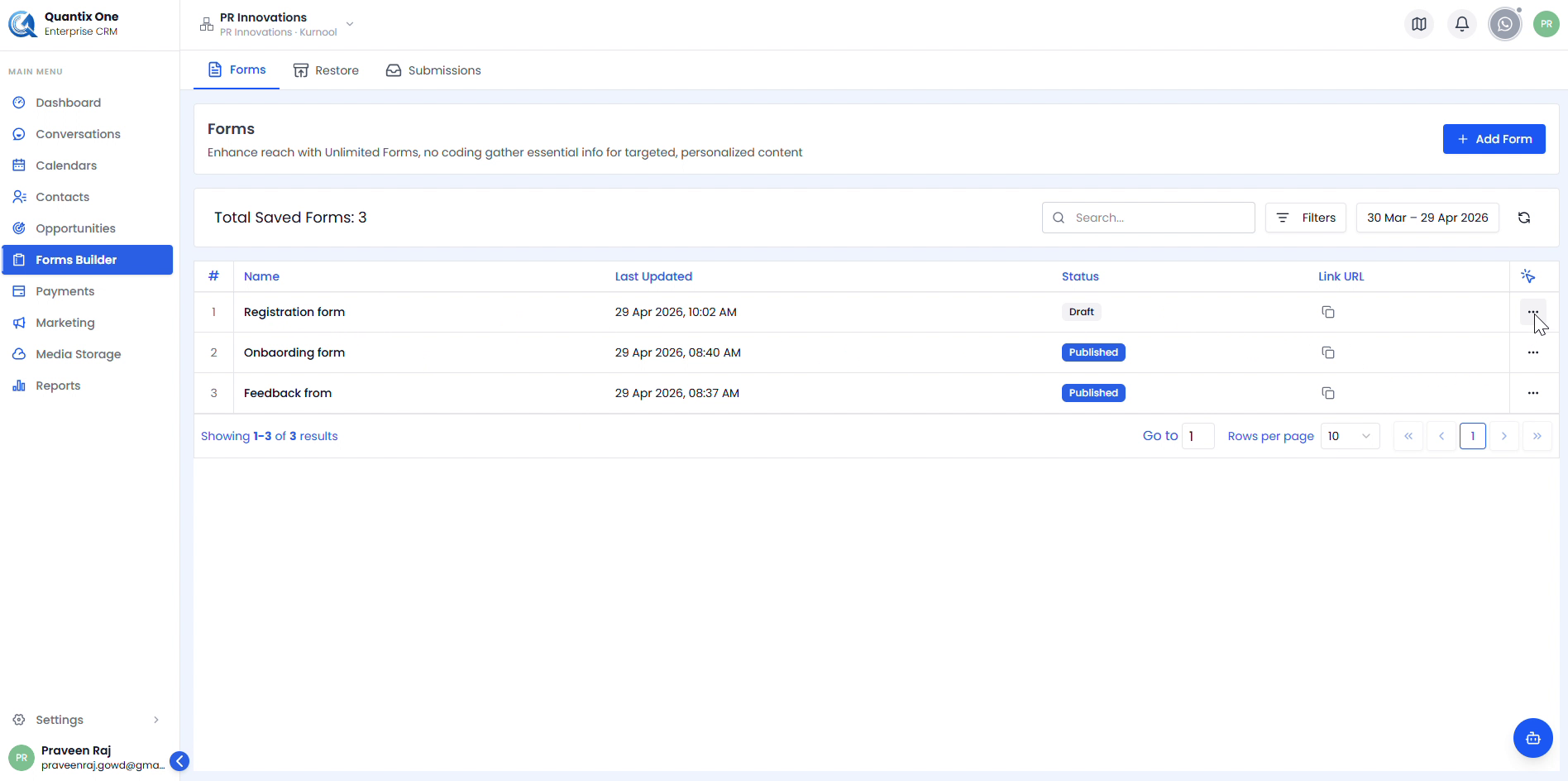 Click the ... icon to open the action menu. Select Delete to remove the form.
After clicking Delete, the form is removed from the Forms tab immediately. The total saved forms count updates and the form moves to the Restore tab.
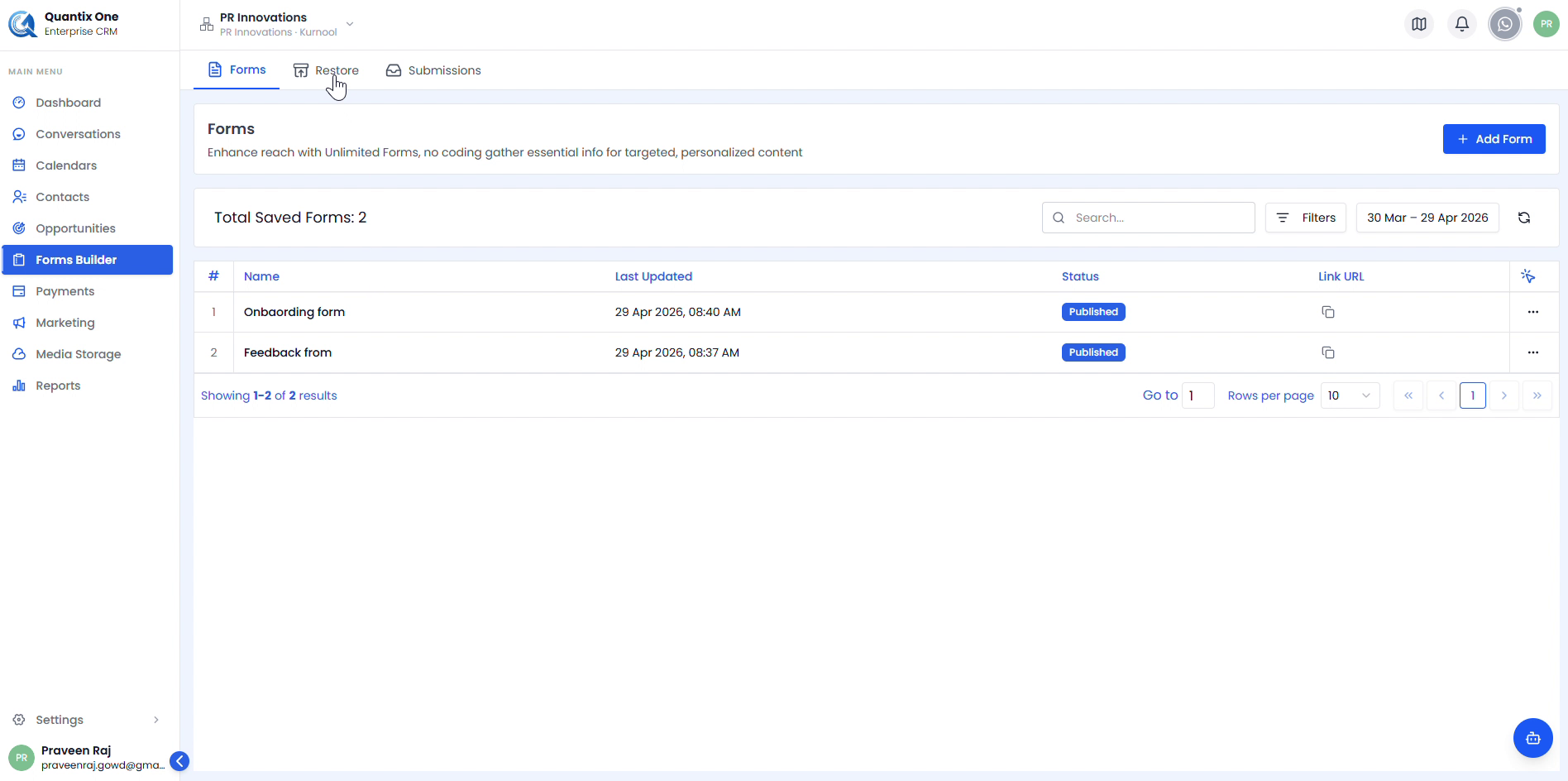 After deleting the Registration form, the list drops from 3 to 2 forms. The deleted form is now accessible under the Restore tab.
Step 2 — Restore a Form
Open the Restore Tab
Click the Restore tab at the top of the Forms Builder. It lists all deleted forms with their Form Name, Deleted Date, Version, and an Actions column.
 The Restore tab showing the Registration form with its deleted date (29 Apr 2026, 10:02 AM) and version (v1). Check the checkbox to enable the Restore and Delete Permanently actions.
Select and Restore
Check the checkbox next to the form you want to recover. The action bar shows Restore (1) in blue and Delete Permanently (1) in red. Click Restore (1) to begin.
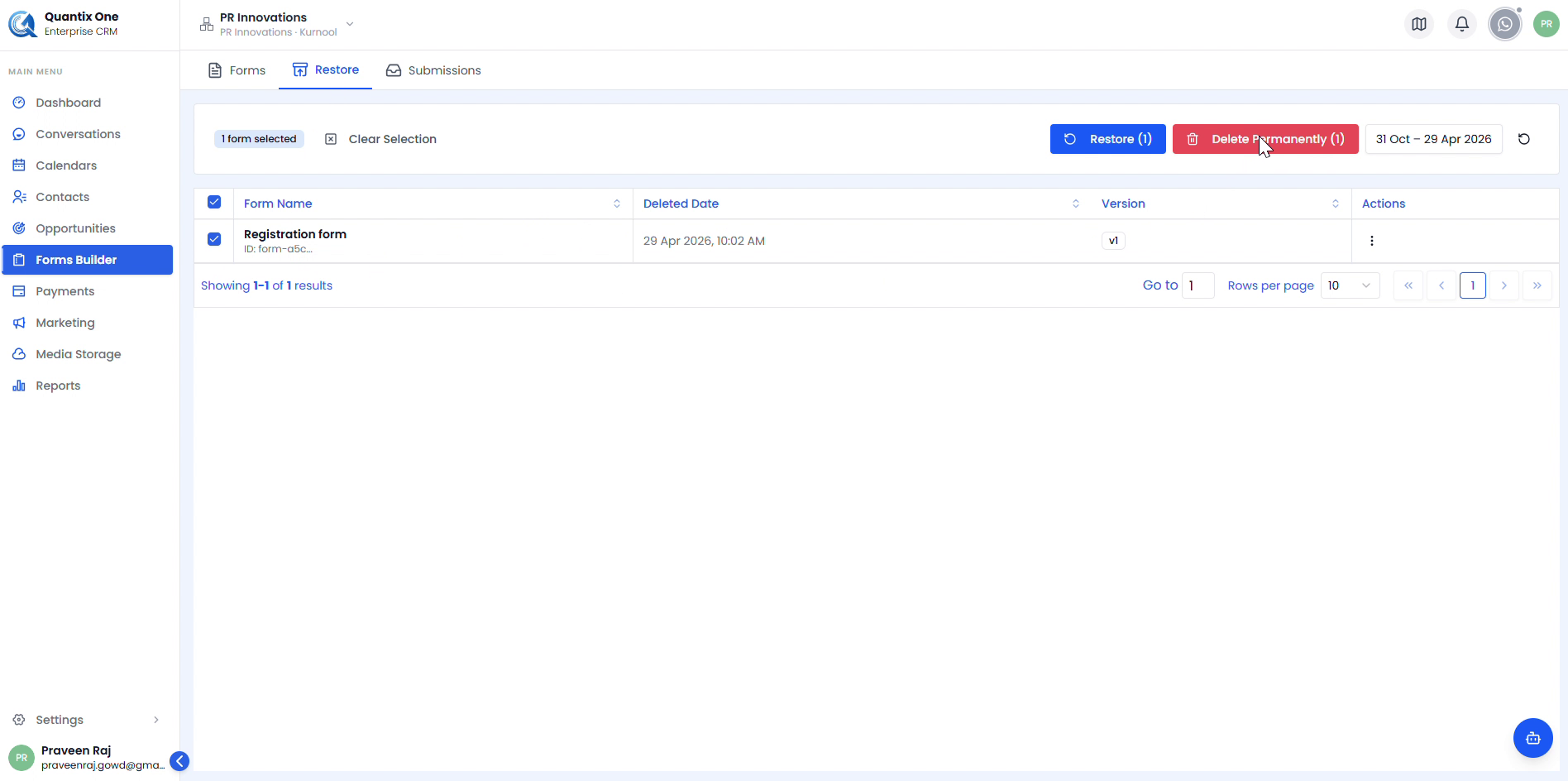 With 1 form selected, click Restore (1) to recover it or Delete Permanently (1) to remove it forever.
Confirm the Restore
A confirmation dialog appears: "Restore Forms? — Are you sure you want to restore 1 form?" Click Restore to confirm or Cancel to go back.
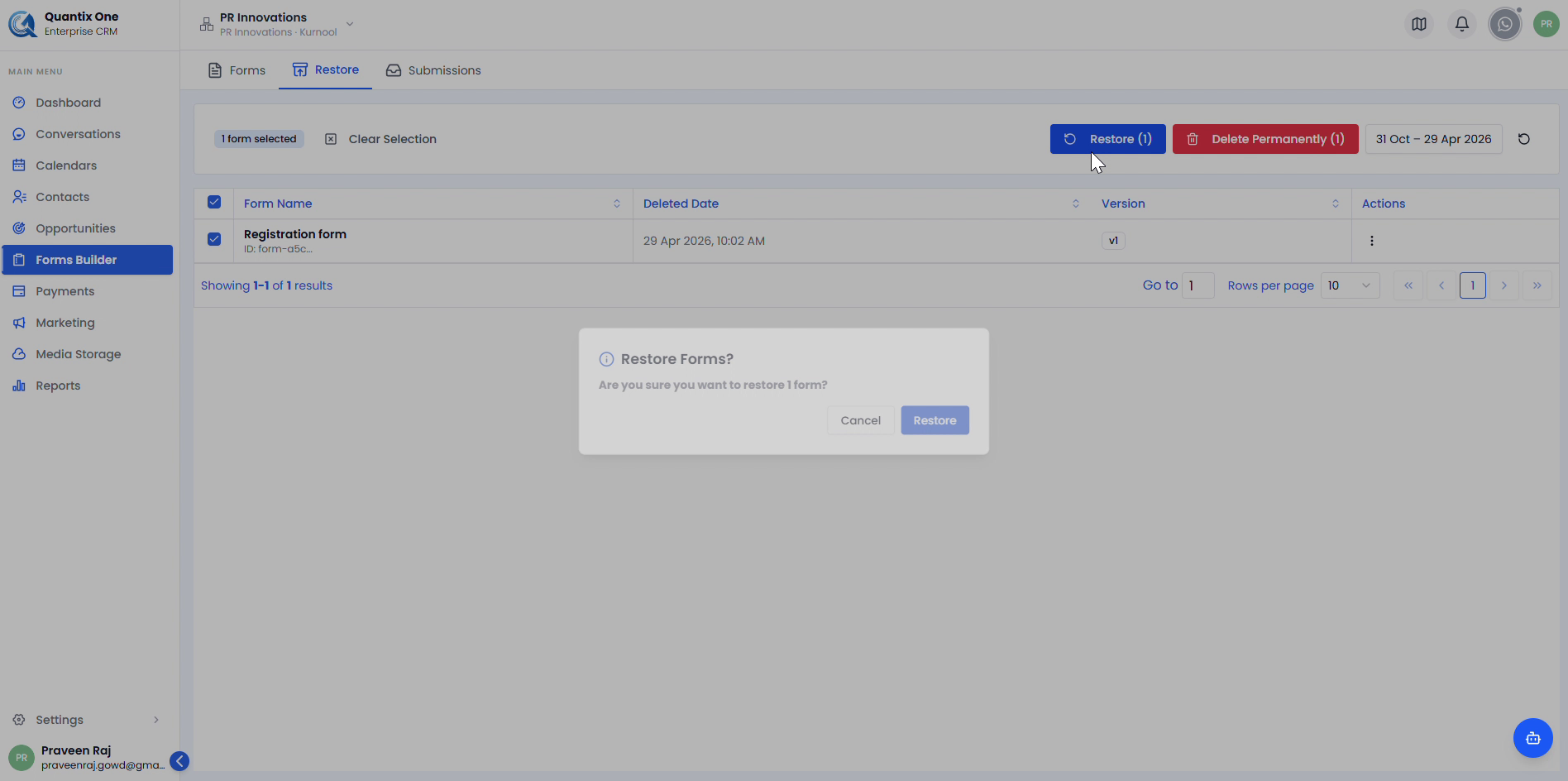 Click Restore to proceed or Cancel to keep the form in the Restore tab.
Once restored, the Restore tab shows "No Deleted Forms" and the form reappears in the active Forms tab.
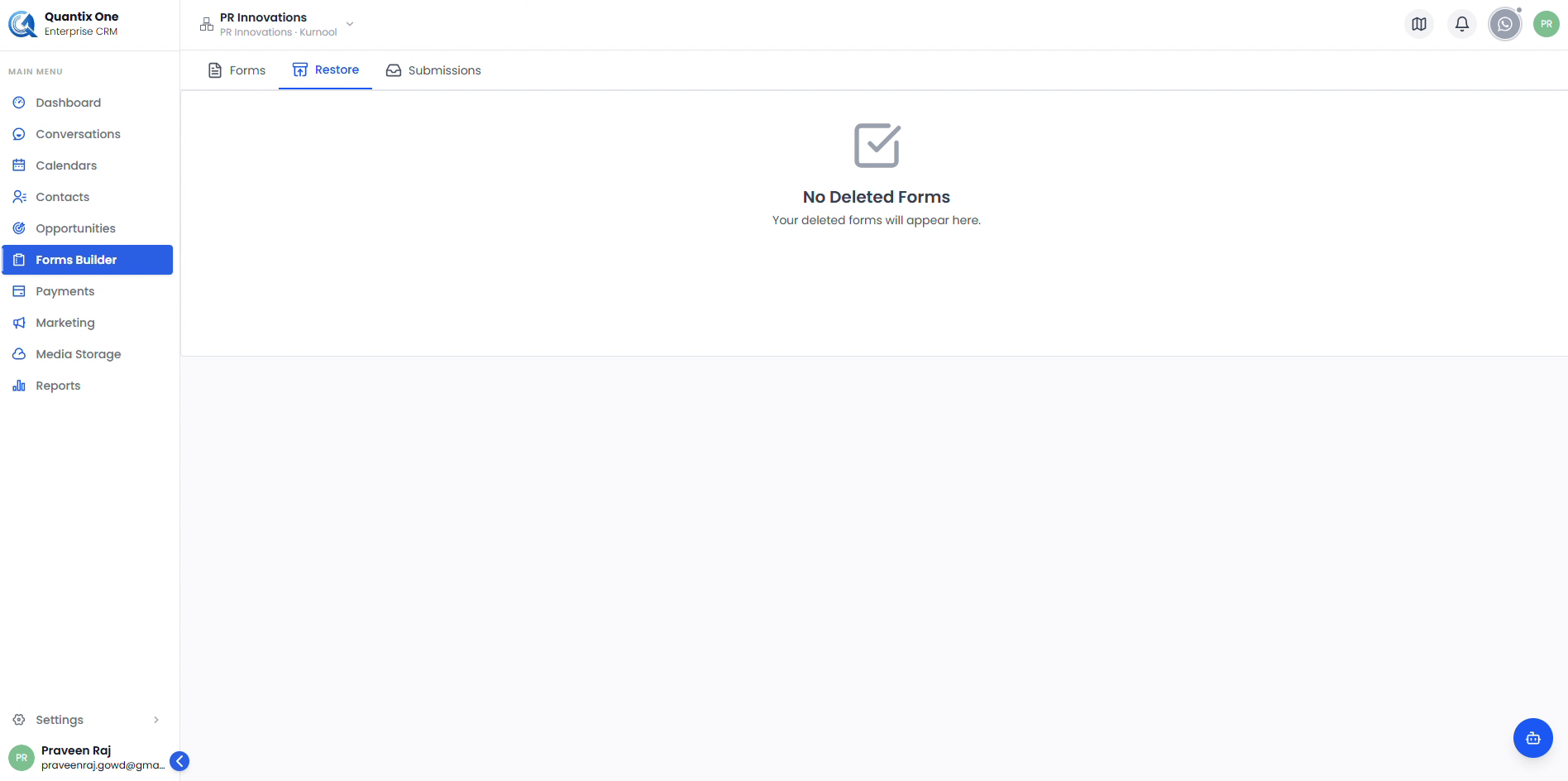 The Restore tab empty state after a successful restore. Switch back to the Forms tab to confirm the form is active again.
Permanently Deleting a Form
If you want to remove a form completely, select it in the Restore tab and click Delete Permanently (1). This action is irreversible — the form and all its configuration are permanently removed.
Note: Restoring a form does not affect its submissions. All responses collected before deletion remain intact and are accessible from the Submissions tab.
Video Walkthrough
Watch the complete Delete and Restore walkthrough below for a step-by-step visual guide.