Submissions
The Submissions section gives you a centralized view of all responses collected through your published forms. Browse all submitted forms at once, drill into individual responses, view each submission in detail, and download data as a CSV file.
Step 1 — Open the Submissions Tab in Forms builder
Go to Forms Builder from the left navigation sidebar, then click the Submissions tab in the top navigation bar. The tab lists all published forms that have received at least one submission.
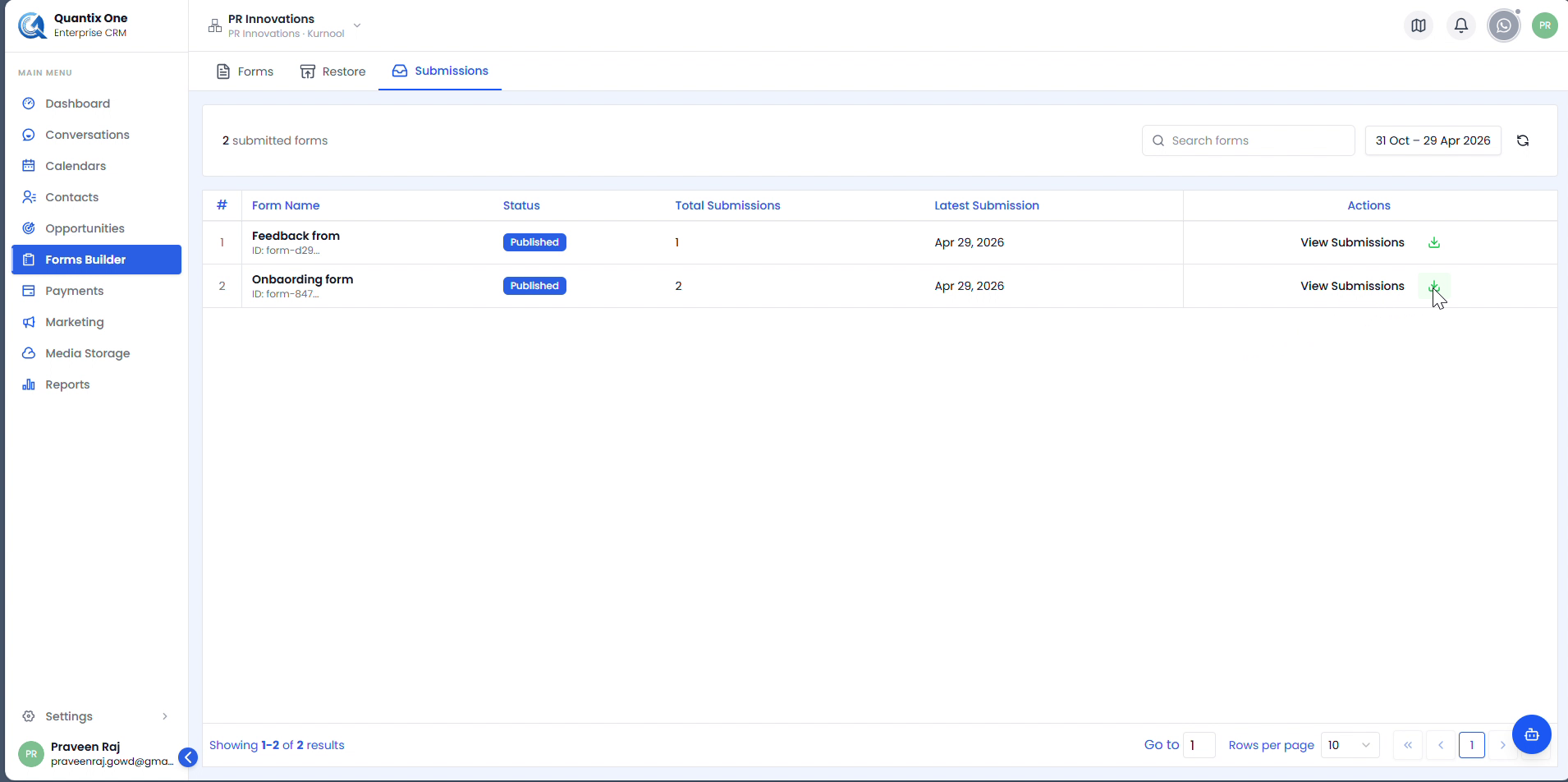
 The Submissions tab showing all submitted forms with columns for Form Name, Status, Total Submissions, Latest Submission date, and an Actions column. Here, Feedback form has 1 submission and Onboarding form has 2 submissions.
Step 2 — View Submissions for a Form
Click View Submissions in the Actions column next to the form you want to inspect. This opens the submissions list for that specific form, with each response displayed as a row.
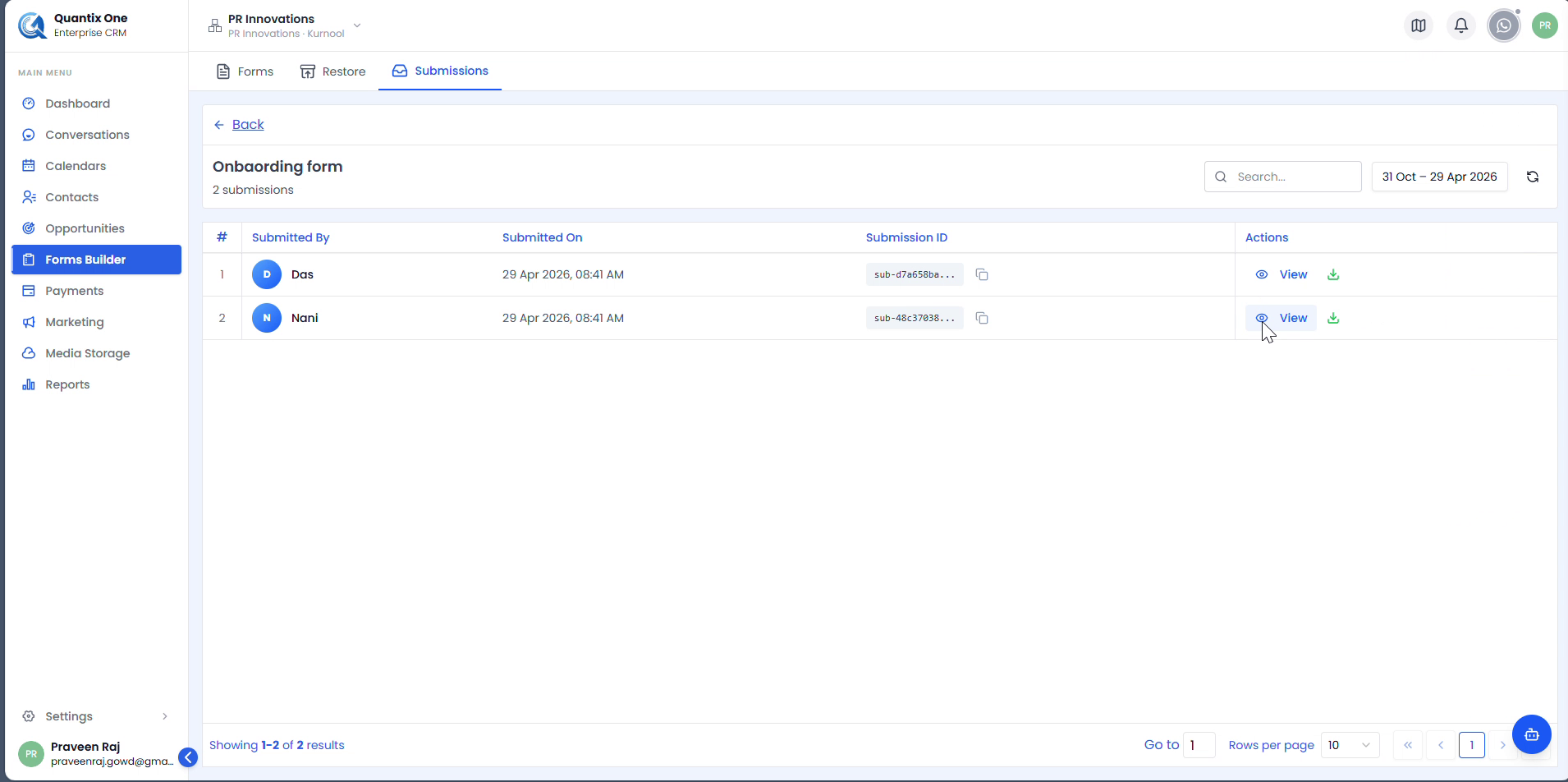
 The Onboarding form submissions page showing 2 submissions. Each row displays Submitted By (respondent name), Submitted On (date and time), Submission ID (truncated, with a copy icon), a Contact Sync status badge (Synced, Failed, or Skipped — see Form Settings & Sync), and Actions with a View button and a download icon. Click ← Back to return to the full submissions list.
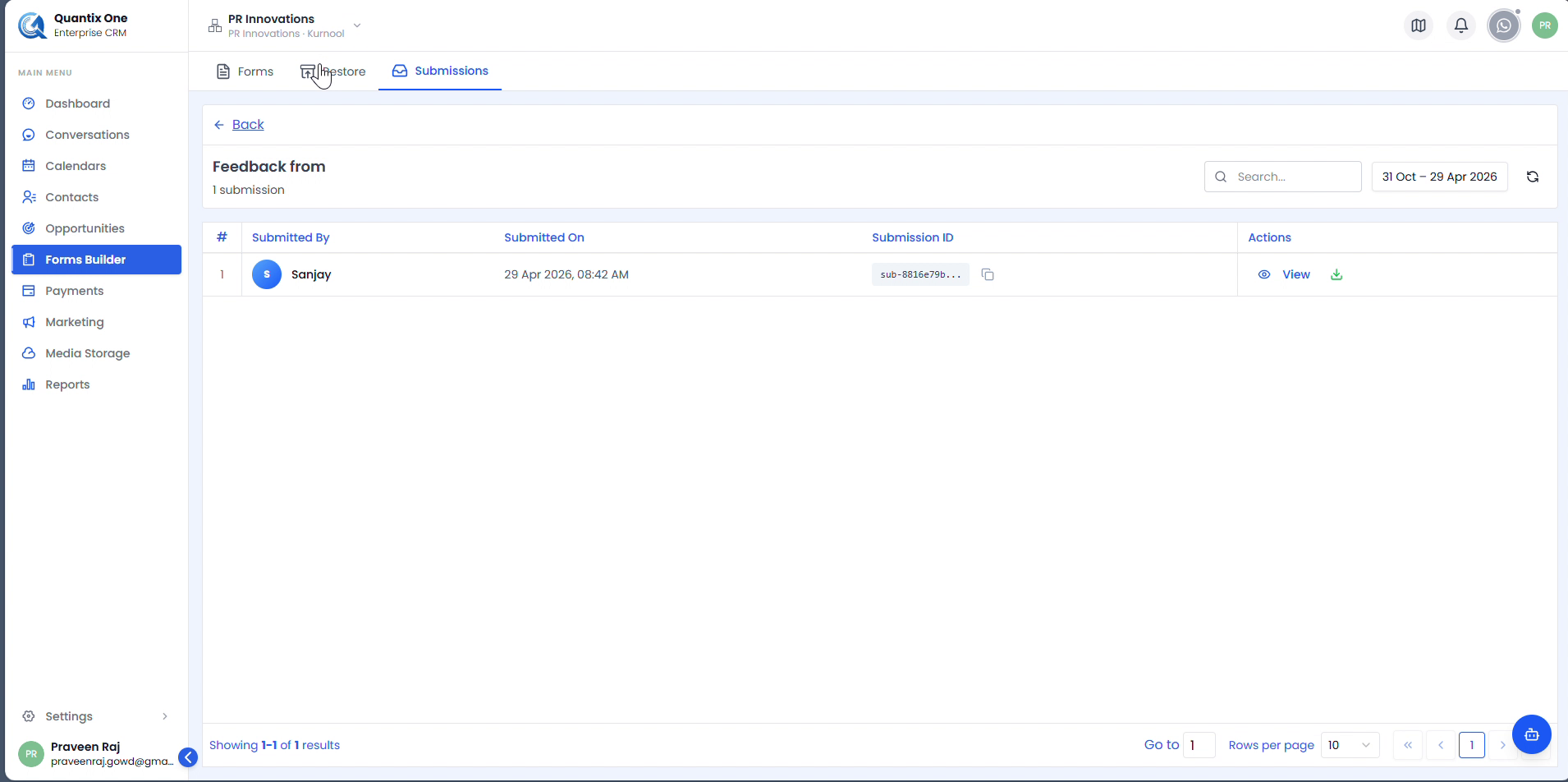
The same view applies to all forms. Here, the Feedback form shows 1 submission by Sanjay, submitted on 29 Apr 2026 at 08:42 AM.
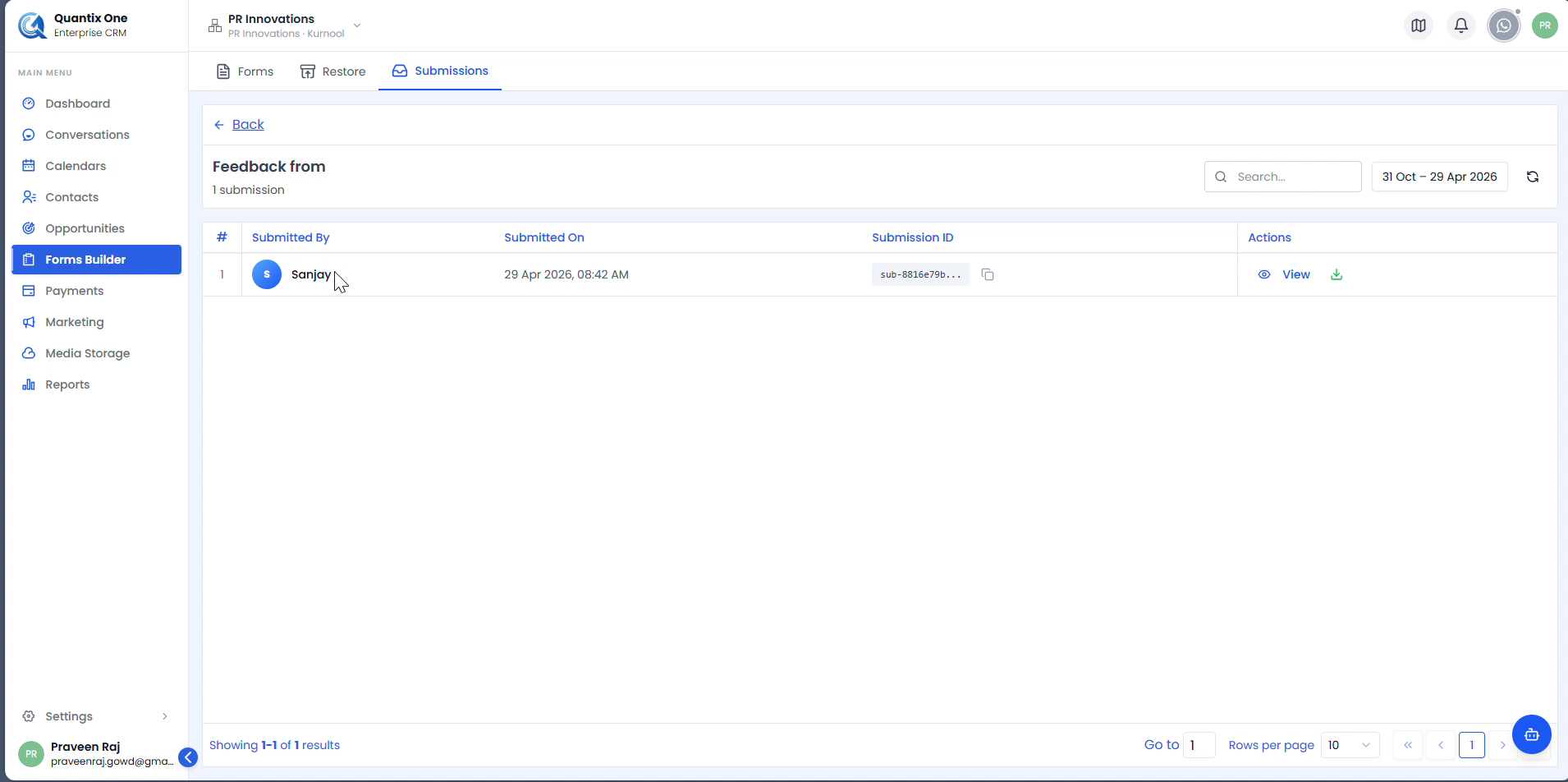 The Feedback form submissions page showing 1 submission by Sanjay. Click View to open the full submission detail or the download icon to export that response as a CSV.
Step 3 — View a Single Submission
Click the View button on any submission row to open the full details of that response. The detail view displays every field and the value provided by the respondent, along with the submission timestamp and Submission ID.
Clicking View opens the individual submission detail showing every field and the respondent's answers, along with the submission timestamp and Submission ID.
Step 4 — Download Submissions
Download a Single Submission
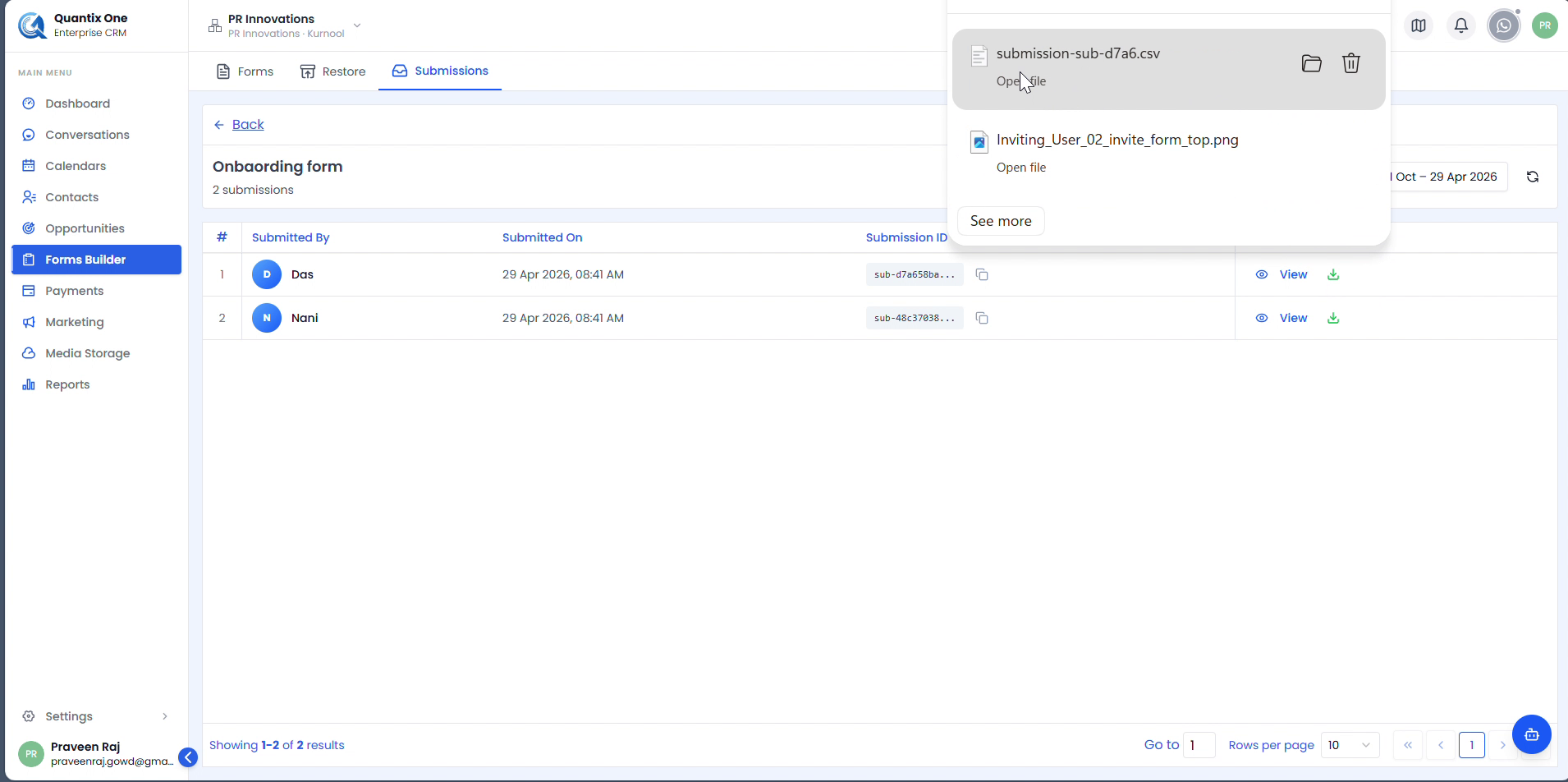
Click the download icon next to any submission row to export that individual response as a CSV file. The browser downloads the file (e.g., submission-sub-d7a6.csv) immediately.
 Clicking the download icon triggers a CSV download. The browser shows the file name (e.g., submission-sub-d7a6.csv) at the bottom of the screen.
Download All Submissions for a Form
From the main Submissions tab, click the download icon in the Actions column next to the form name to export all submissions for that form as a single CSV file.
 The download icon in the Actions column on the Submissions overview page exports all responses for that form in one CSV file.
Note: Only Published forms appear in the Submissions tab. Draft forms do not collect or display any responses.
Video Walkthrough
Watch the complete Submissions walkthrough below for a step-by-step visual guide.