All Tickets
The All Tickets page lists every support ticket, with search, filters, and an inline preview for reading and replying without leaving the list.
Navigating to All Tickets
From Help & Support Overview, click View all next to Recent Tickets, or go directly to Help & Support → All Tickets.
The Toolbar
- Search — filter tickets by keyword.
- Priority filter — All Priorities, Low, Medium, High, or Urgent.
- A live count of matching tickets.
- New Ticket — opens the ticket creation form.
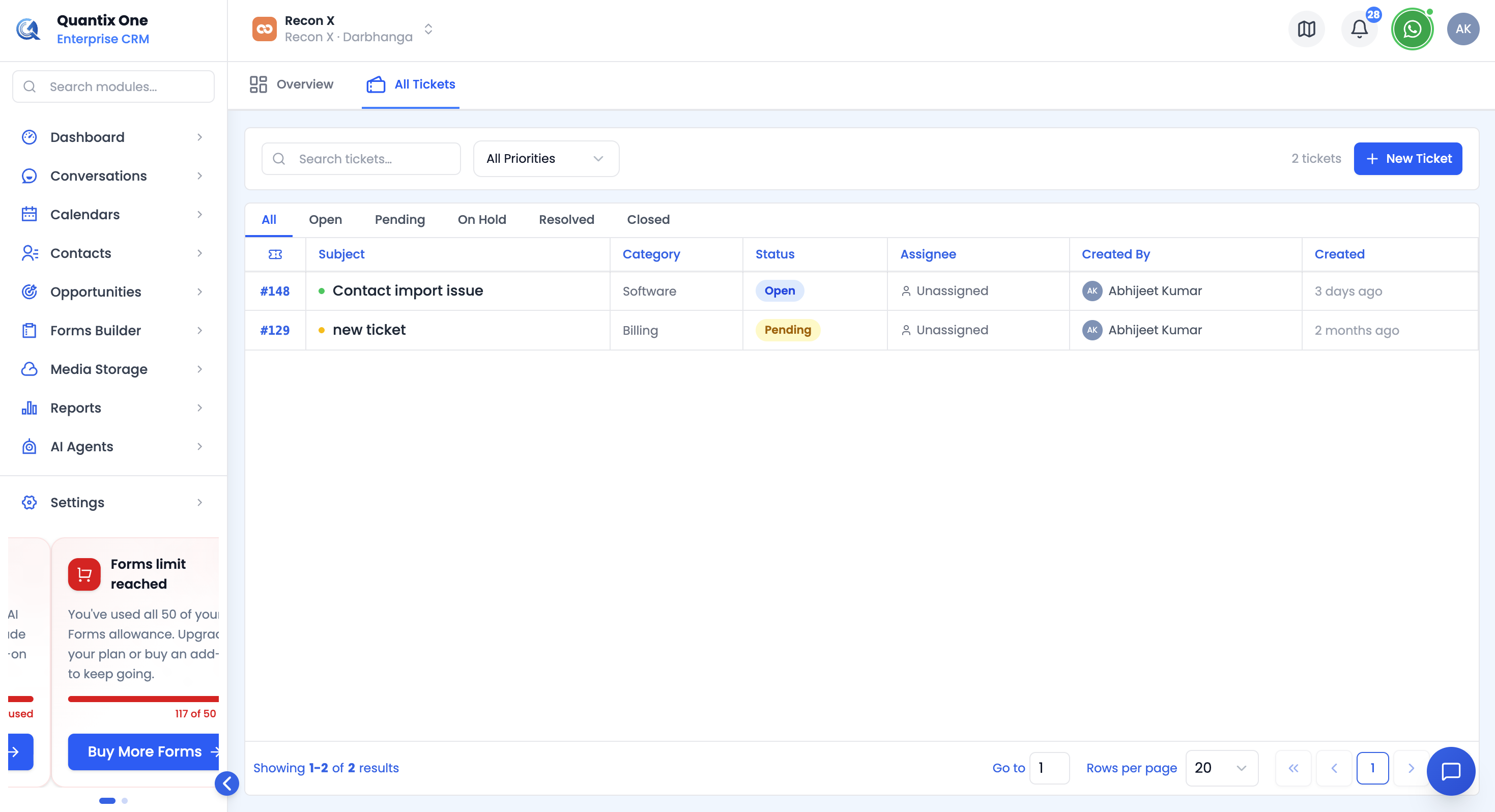 Search, priority filter, ticket count, and the New Ticket button.
Status Tabs
Switch between All, Open, Pending, On Hold, Resolved, and Closed to focus on what matters right now.
The Ticket Table
Each row shows the ticket number, subject (with a priority-colored dot), category, status, assignee, who created it, and how long ago it was created. Click any row to open it in the preview panel on the right.
Creating a Ticket
Click New Ticket to open the form:
| Field | Description |
|---|---|
| Subject | Required, at least 3 characters. |
| Category | Billing, Technical, Accountant, or Others. |
| Priority | Low, Medium, High, or Urgent (defaults to Medium). |
| Description | Optional free-text details. |
| Attachments | Click Add files to attach one or more files. |
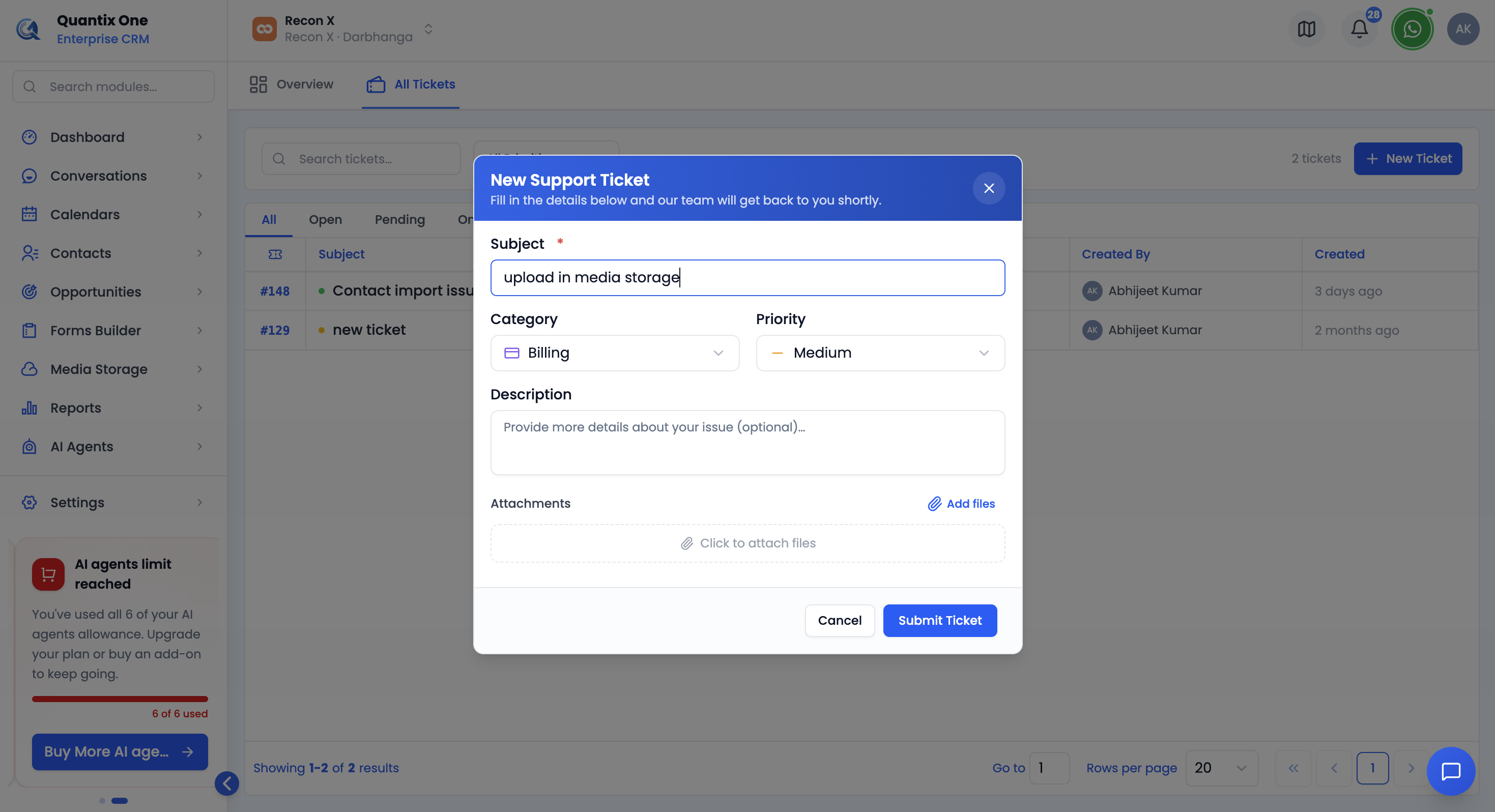 The New Support Ticket modal — subject, category, priority, description, and attachments.
Click Submit Ticket to create it — you'll see a confirmation toast with the new ticket's number.
Viewing and Replying to a Ticket
Click any row to open the inline preview panel, split into three collapsible cards:
- Ticket Details — subject, description, original attachments, priority, category, assignee, ticket number, creator, and created/updated timestamps.
- Conversation — a system event for when the ticket was opened, every reply (yours and support's) in its own expandable card, and a system event for when it was resolved.
- Attachments — every file across the ticket and its replies, grouped by who sent them.
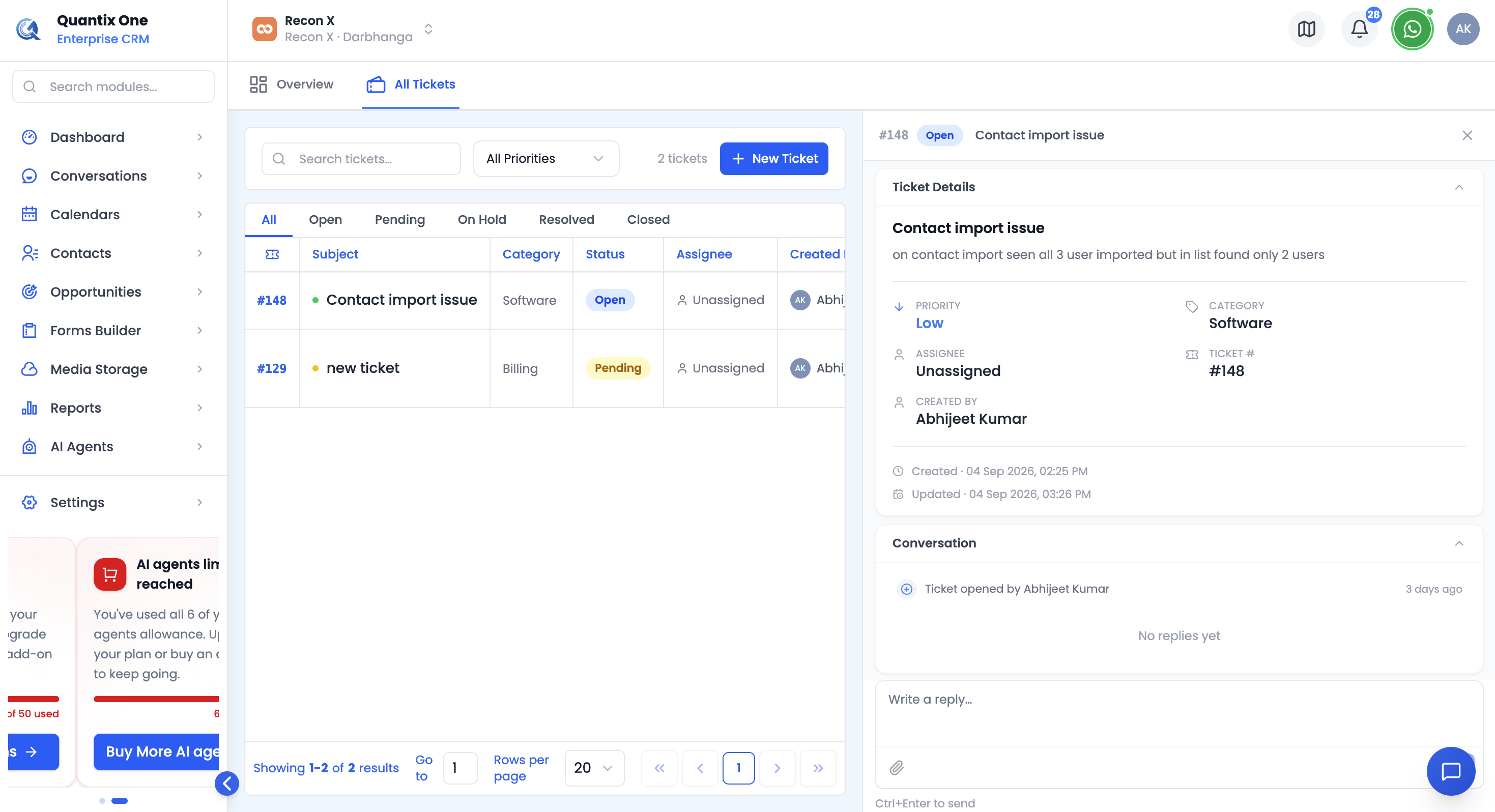 The three-card preview — Ticket Details, Conversation, and Attachments.
While a ticket isn't Resolved or Closed, a reply box stays fixed at the bottom of the panel — type a message, optionally attach a file, and press the send button or Ctrl+Enter to reply.
Video Walkthrough
Watch the complete walkthrough below.