Support Chatbot
A floating support widget — nicknamed Qbot — sits in the bottom-right corner of every page in the CRM, letting you raise and check tickets without leaving what you're doing.
Opening the Widget
Click the round chat bubble in the bottom-right corner. You can drag it up or down along the right edge to reposition it; your chosen position is remembered for next time.
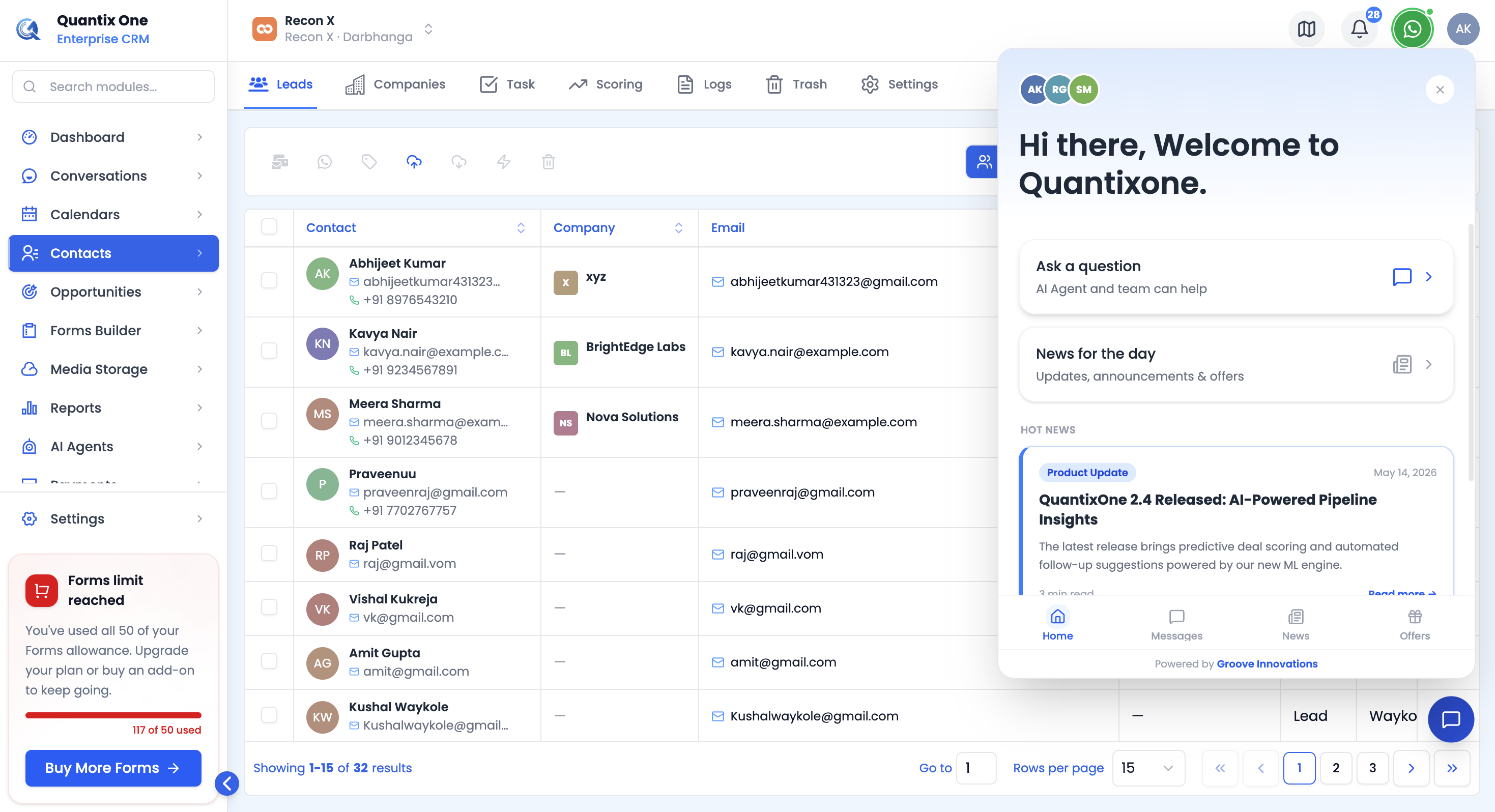 The floating bubble, and the Home tab it opens to.
The panel has four tabs along the bottom: Home, Messages, News, and Offers. Use the expand/collapse icon in a panel's header to toggle between a compact and a wider view.
Messages — Ticket Assistant
The Messages tab is a guided chat for working with your support tickets. From the welcome screen, three quick actions get you started:
- List tickets — asks you to pick a status (All, Active, Pending, On Hold, Closed), then shows a table of matching tickets inline in the chat. Click any row to open its full conversation.
- Raise ticket — opens a ticket form inline in the chat: Subject, Category (Hardware, Software, Network, Access, or Other), Description, and Attachments. Submitting creates the ticket and shows its conversation right there.
- Get ticket — asks whether you know the ticket number; if not, it shows your ticket list instead. Once found, choose to see Details only, Conversations, or All.
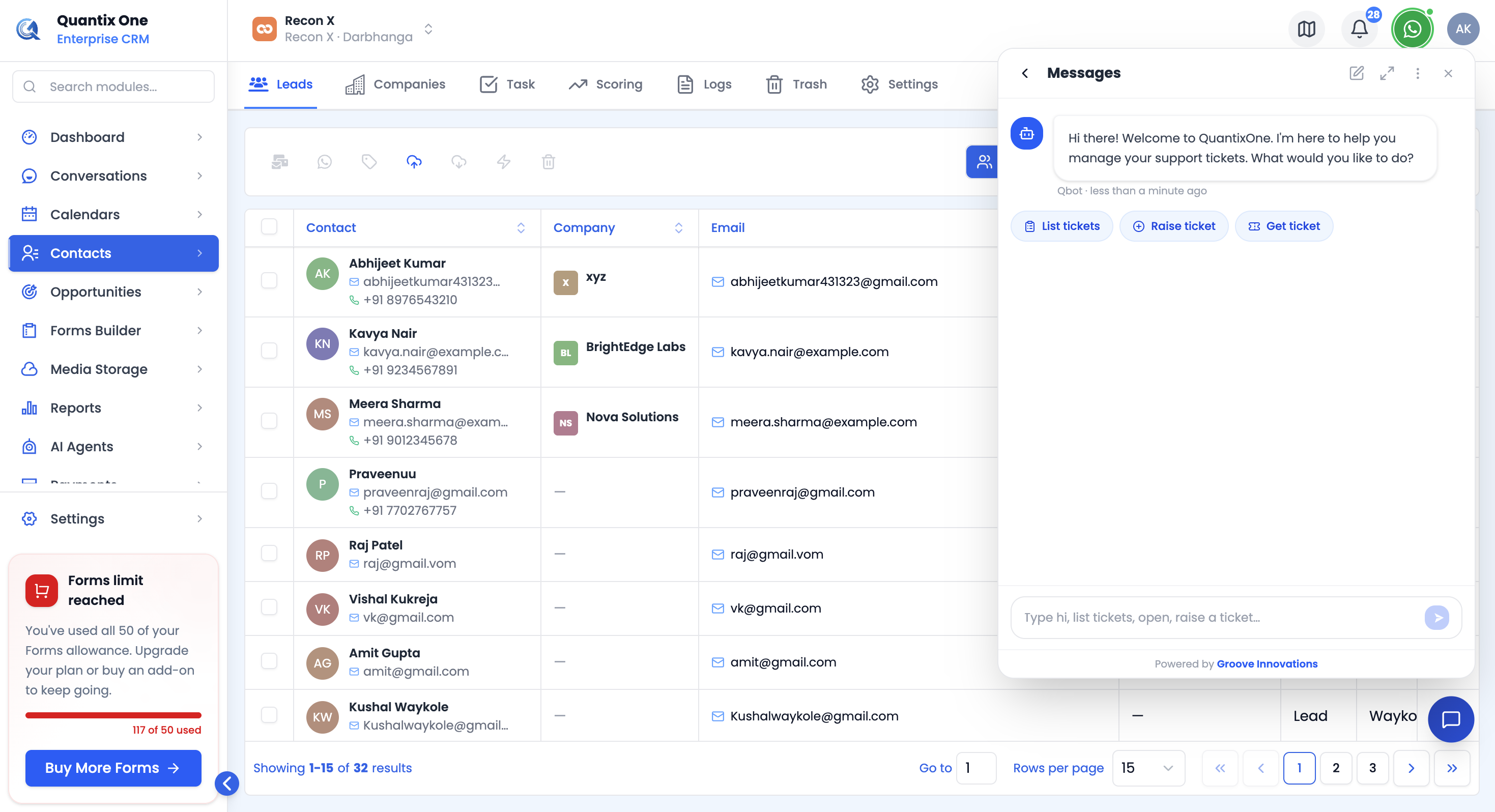 The three quick actions, and an inline ticket table after choosing a status.
You can also just type what you want — things like "list tickets", "open", "pending", "raise a ticket", or "get ticket #12" all work directly in the chat input.
The chatbot's ticket form uses Hardware / Software / Network / Access / Other as categories, while the All Tickets page's New Ticket form uses Billing / Technical / Accountant / Others. Both create tickets in the same place — just double-check you're picking a category that fits from whichever list is in front of you.
Managing Your Chat
The Messages header has a few extra controls:
- New chat (pencil icon) — saves your current conversation to history and starts fresh.
- Expand/Collapse — widen or narrow the panel.
- The ⋮ menu — Download chat (saves the conversation as a text file) and History (your last 5 saved conversations, stored on this device only).
Home, News, and Offers
- Home — a welcome screen with shortcuts into Messages and News, plus a "Hot News" preview of the top story.
- News — product updates and announcements to read through.
- Offers — current upgrade and referral offers.
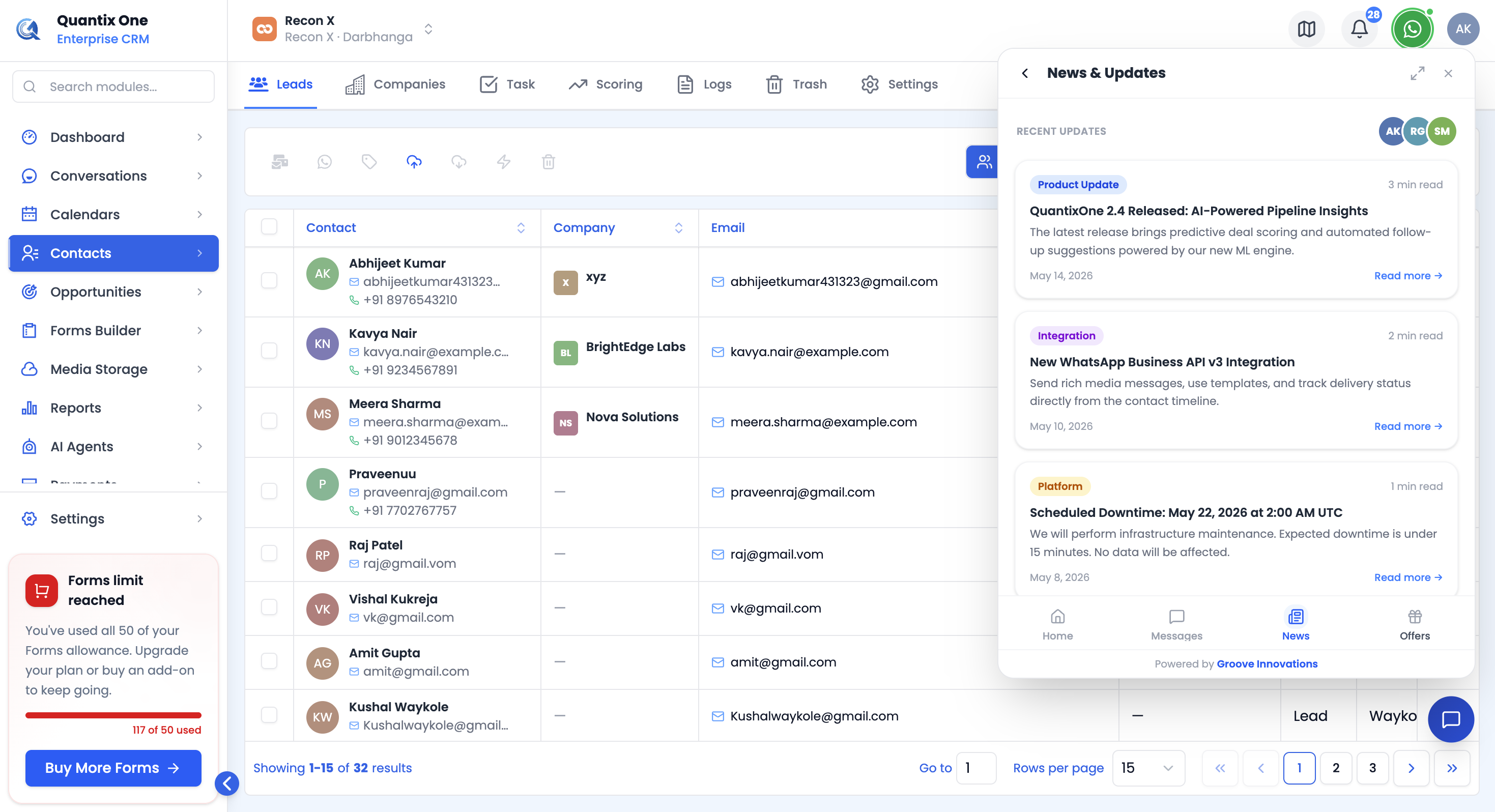 The News tab's article list, and the Offers tab.
Video Walkthrough
Watch the complete walkthrough below.