Attachments & Images
You can attach files and embed inline images in any email you send from QuantixOne. Attachments are uploaded before sending, and their download links are included in the email automatically.
Attaching Files
- In the email composer, click the Attachment (paperclip) icon in the toolbar.
- Select one or more files from your device.
- Each file appears as a preview chip below the email body.
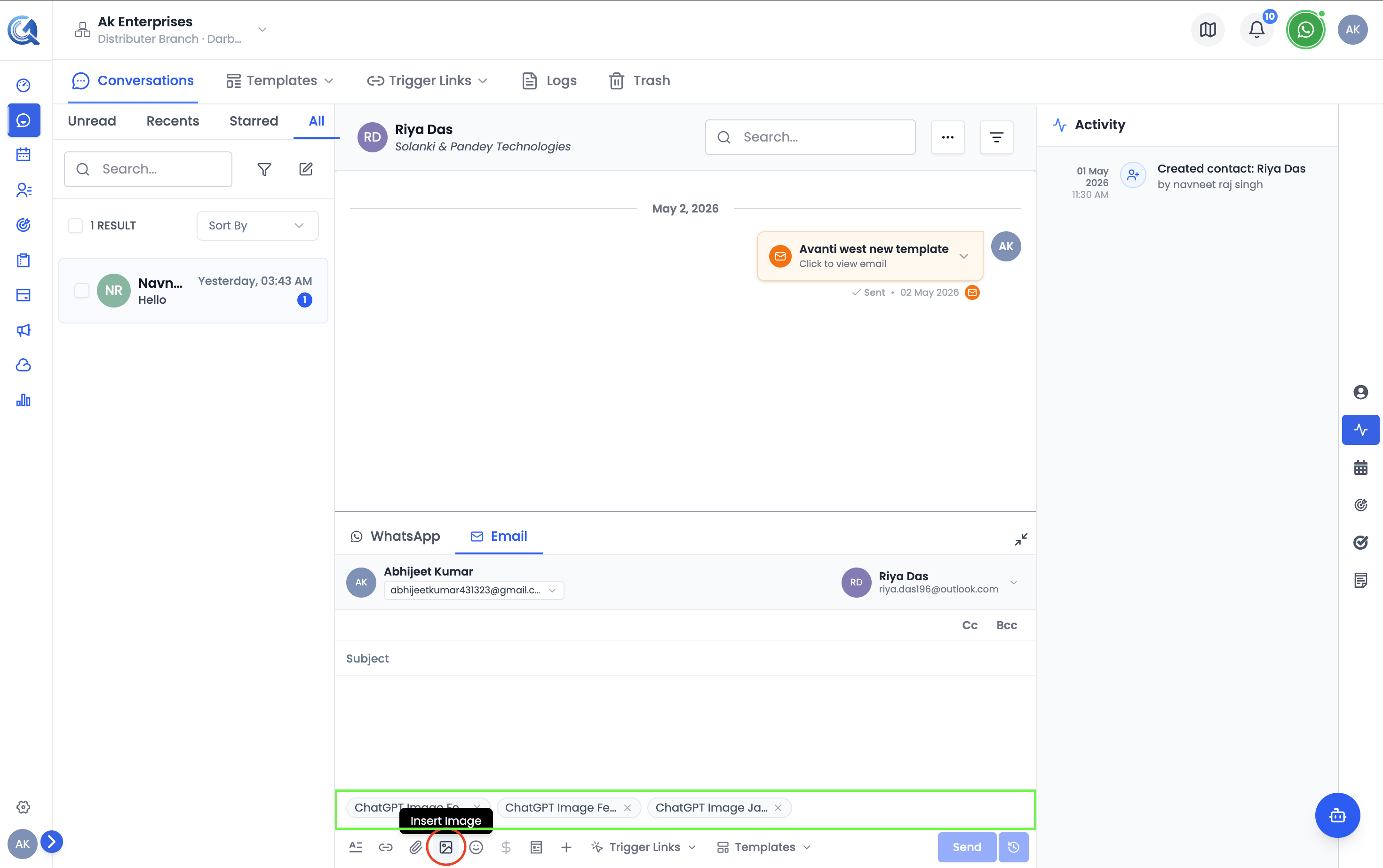 Attached files appear as chips beneath the email body.
Supported File Types
QuantixOne supports the following file types for email attachments:
- Documents: PDF, DOC, DOCX, TXT
- Any image file
- Any video file
Files outside these types may be rejected during upload.
Removing an Attachment
Click the × on an attachment chip to remove it before sending.
Embedding Inline Images
To insert an image directly into the email body (not as a download attachment):
- Place the cursor in the body where you want the image to appear.
- Click the Image icon in the editor toolbar.
- Upload an image file or paste an image URL.
- The image renders inline inside the email body.
Attachment Upload Behavior
When you click Send, QuantixOne:
- Uploads all pending attachments to secure storage.
- Collects the resulting attachment IDs.
- Includes them in the email delivery request.
If any attachment fails to upload, the entire email send is blocked. Remove the problematic file or retry — QuantixOne will not send a partial attachment set.
If an upload fails, the send is blocked and an error message appears. Re-try by clicking Send again or removing the problematic file.