Recipients, CC & BCC
The email composer lets you send to multiple recipients and use CC (carbon copy) and BCC (blind carbon copy) fields — giving you full control over who receives each email and who can see the other recipients.
Setting the To Address
The To field is pre-filled with the contact's primary email address when you open the email tab in a conversation.
To change or add recipients:
- Click inside the To field.
- Type an email address or search for a contact by name.
- Press Enter or select a suggestion to add them as a chip.
- Repeat to add multiple To recipients.
To remove a recipient, click the × on their chip.
Adding CC Recipients
CC recipients receive the email and can see all other To and CC addresses.
- Click CC to expand the CC field (it is hidden by default).
- Type an email address or search for a contact.
- Press Enter to add the recipient.
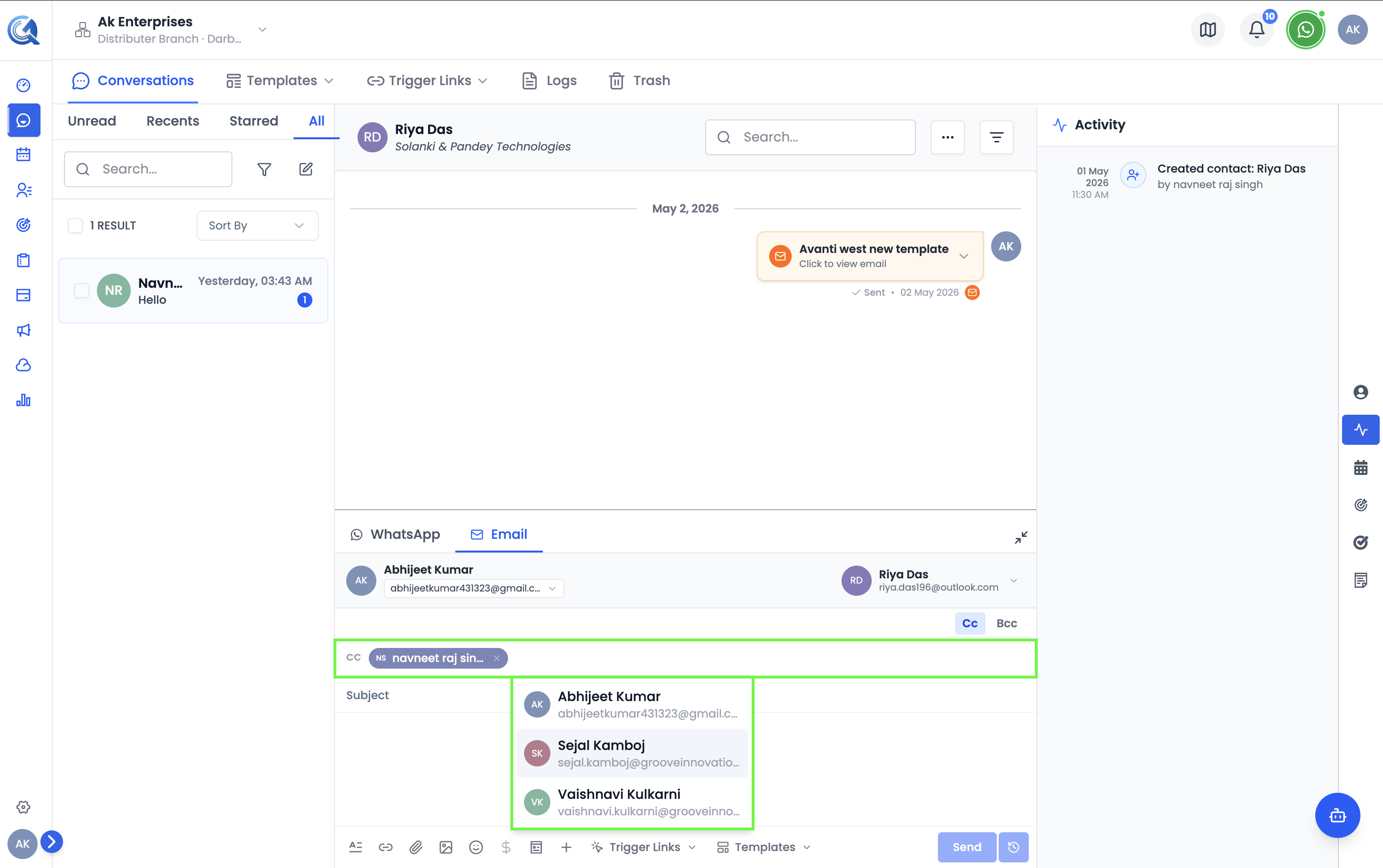 CC recipients are visible to everyone who receives the email.
Adding BCC Recipients
BCC recipients receive the email but are hidden from all other recipients.
- Click BCC to expand the BCC field.
- Type an email address or search for a contact.
- Press Enter to add the recipient.
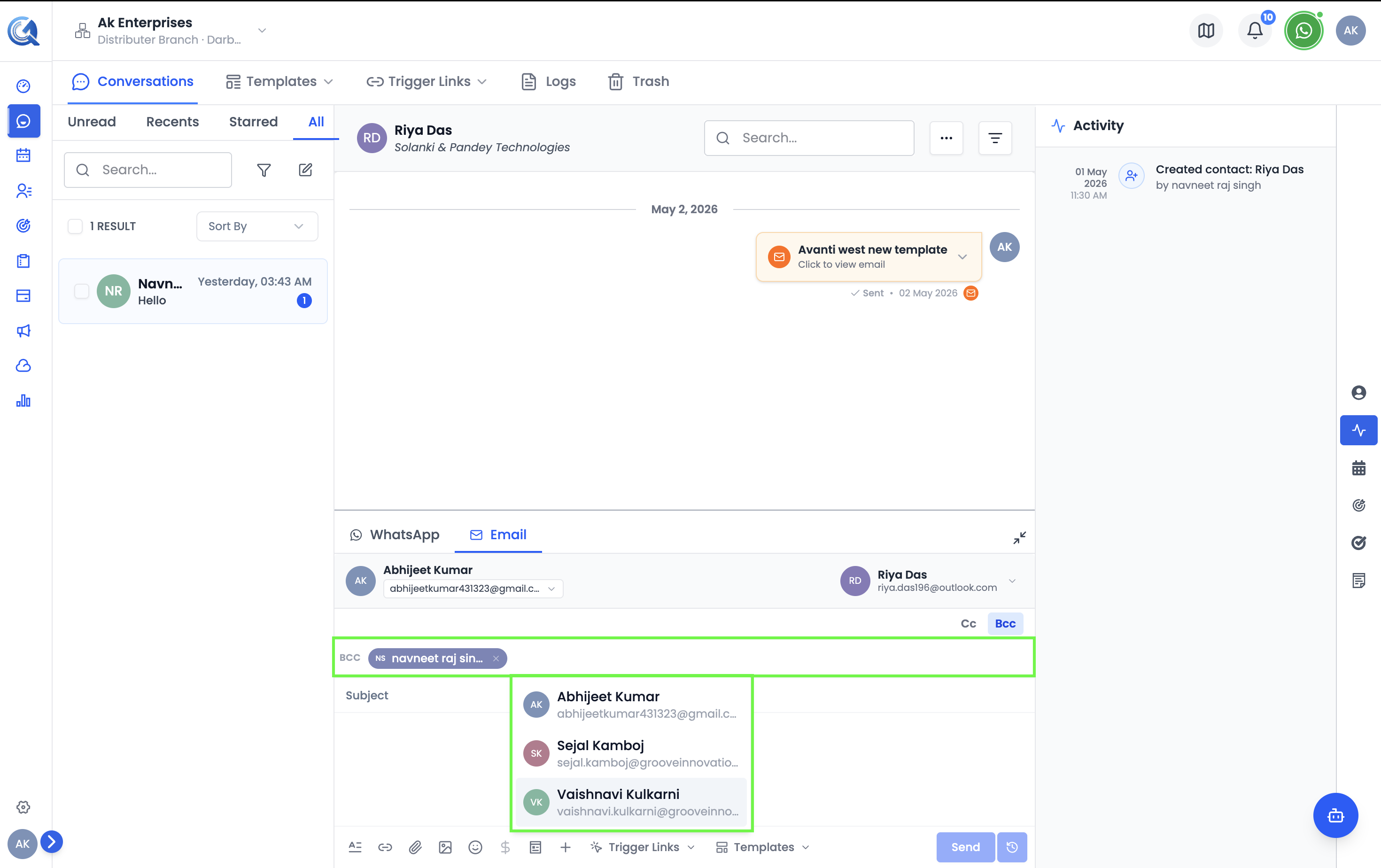 Use BCC to include someone without revealing their address to others.
Using Contact Email Addresses
Each contact can have a primary email and multiple additional email addresses. When you search in the To, CC, or BCC fields, all of a contact's addresses are shown:
Recipient Validation
Before sending, QuantixOne checks that:
- At least one To recipient is present.
- All email addresses are valid format.
- The contact does not have email Do Not Disturb (DND) enabled.
If the contact has email DND enabled, the whole send is blocked — this is currently a single, contact-level check, not evaluated per individual To/CC/BCC address.