Scheduling Emails
Instead of sending an email immediately, you can schedule it to be delivered at a specific date and time in any timezone. This is useful for reaching contacts during business hours or coordinating timed follow-ups.
Scheduling an Email
- Compose your email as normal (subject, body, recipients, attachments).
- Click the dropdown arrow next to the Send button.
- Select Schedule Send.
 Click the arrow next to Send to reveal the scheduling option.
Setting the Date, Time, and Timezone
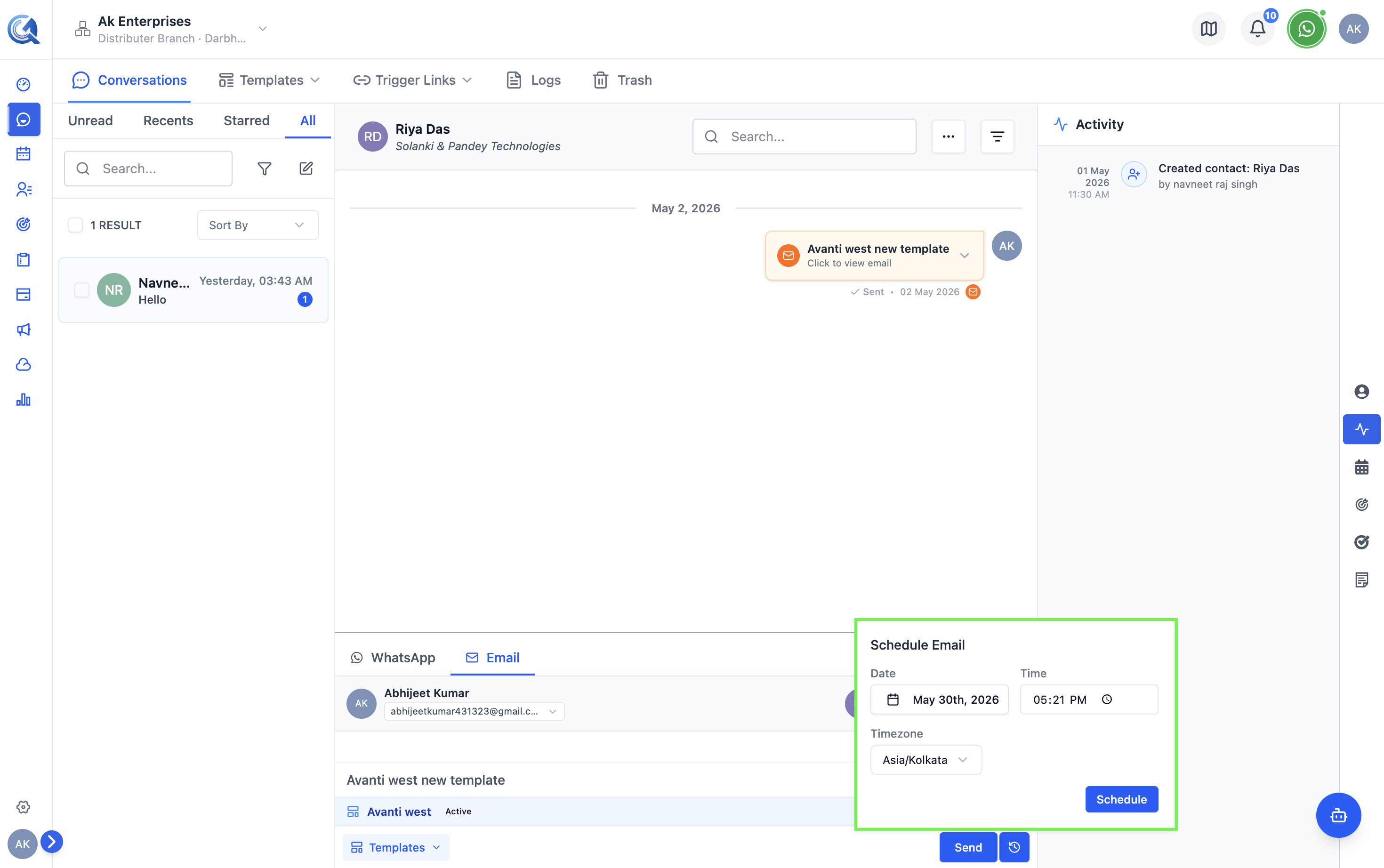
A scheduling panel opens:
- Click the Date field and select a future date from the calendar picker.
- Click the Time field and enter the desired time.
- Use the Timezone dropdown to select the correct timezone for the recipient.
Always set the timezone to the recipient's local timezone, not your own. A 9 AM email scheduled in the wrong timezone can arrive in the middle of the night.
Set the exact date, time, and timezone for delivery.
- Click Confirm to schedule the email.
A confirmation message shows the scheduled send time. The email is queued and will be delivered automatically.
Viewing and Cancelling a Scheduled Email
Cancelling a scheduled email once it's queued has not been verified as a supported action in the current version — review the date, time, and content carefully before clicking Schedule Send.