Creating a Template
Email templates let you save and reuse professionally designed email layouts. Once created, a template can be applied in the composer with one click, with contact fields automatically personalized.
Navigating to Email Templates
- Click Conversations in the left sidebar.
- Click Templates in the sub-navigation.
- Select the Email tab.
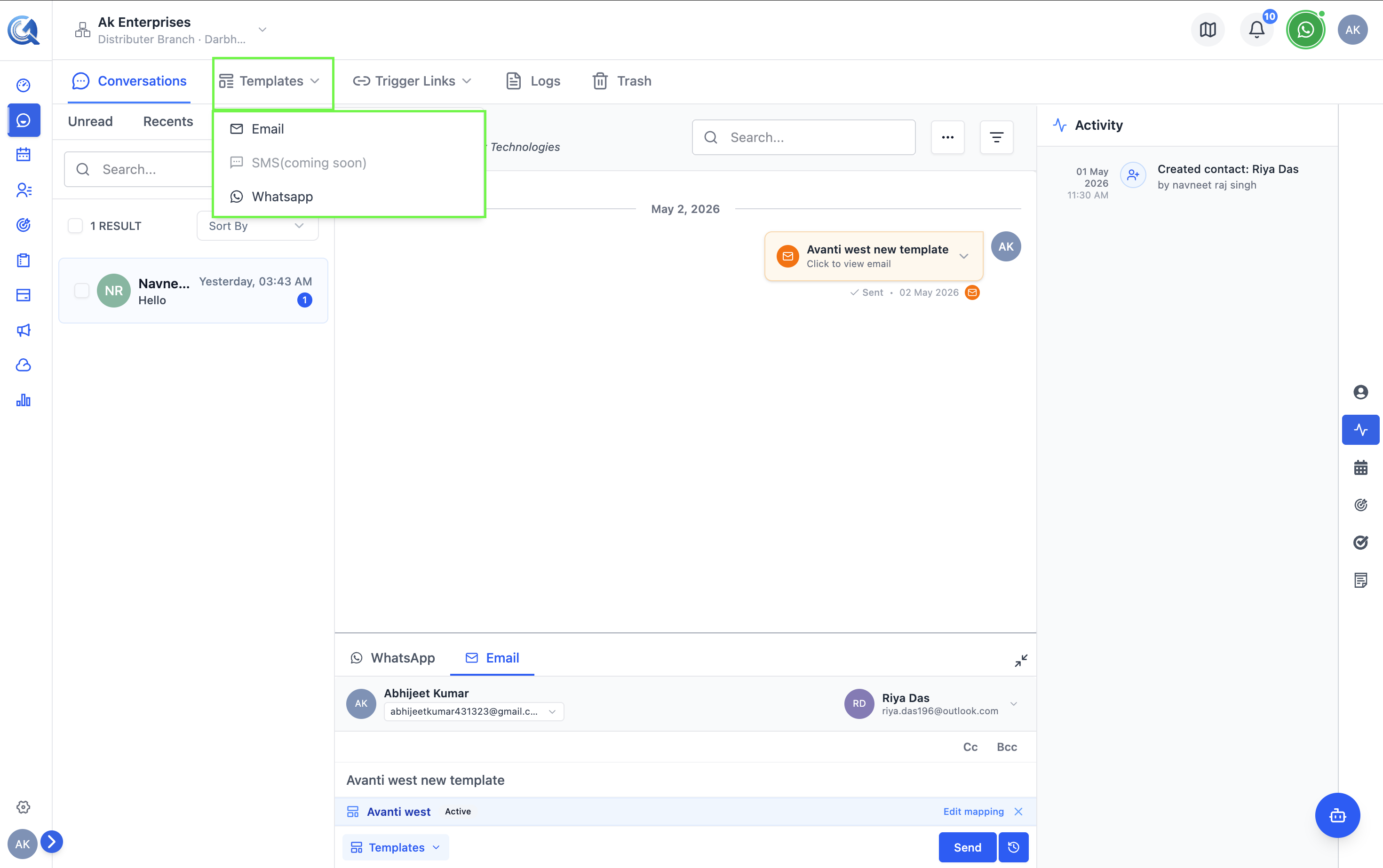 The Email tab shows all your saved email templates.
Creating a New Template
Click + New Template in the top-right corner. A dialog appears with four starting options:
| Option | Description |
|---|---|
| Start from Scratch | Open the template builder with a blank canvas. |
| Create with AI | Describe your email in a sentence and QuantixOne recommends matching templates to start from. |
| Browse Templates | Browse the pre-built template library and customize a starting design. |
| From Screenshot | Upload a screenshot of an email and QuantixOne generates matching HTML. |
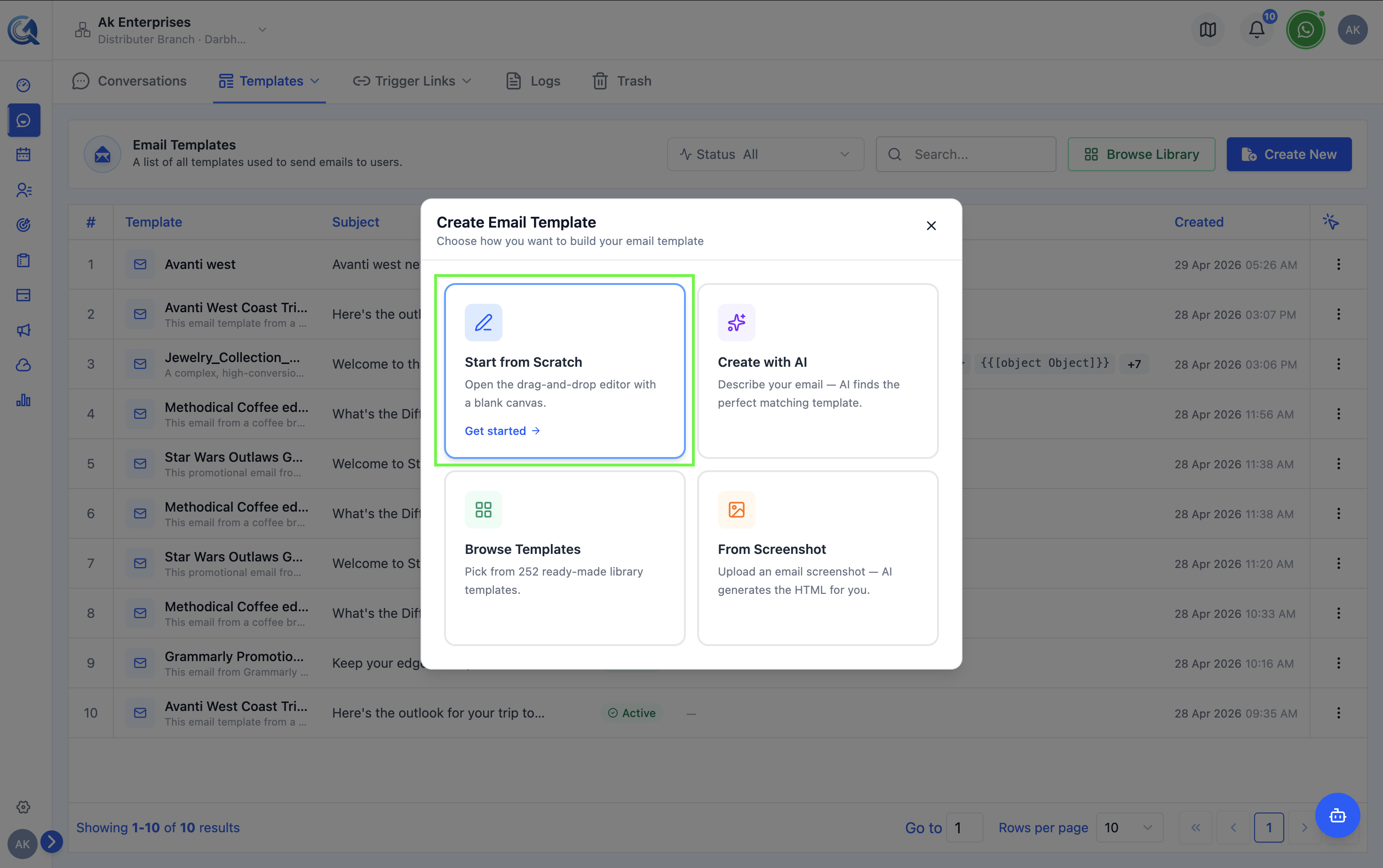 Choose to start blank or from a library template.
Names like Welcome Email – New User or Promo – Summer Sale are far easier to find in the composer picker than generic names like Template 1.
Whichever option you choose, you land directly in the template builder — the template's name and subject are set from within the editor itself, not a separate naming dialog first.
Building the Template
The template builder opens with a drag-and-drop canvas. See Template Builder for a full walkthrough of the editor.
In short:
- Drag components from the palette on the left onto the canvas in the center.
- Click any component to configure it in the settings panel on the right.
- Add personalization using variables like
{{contact_name}}.
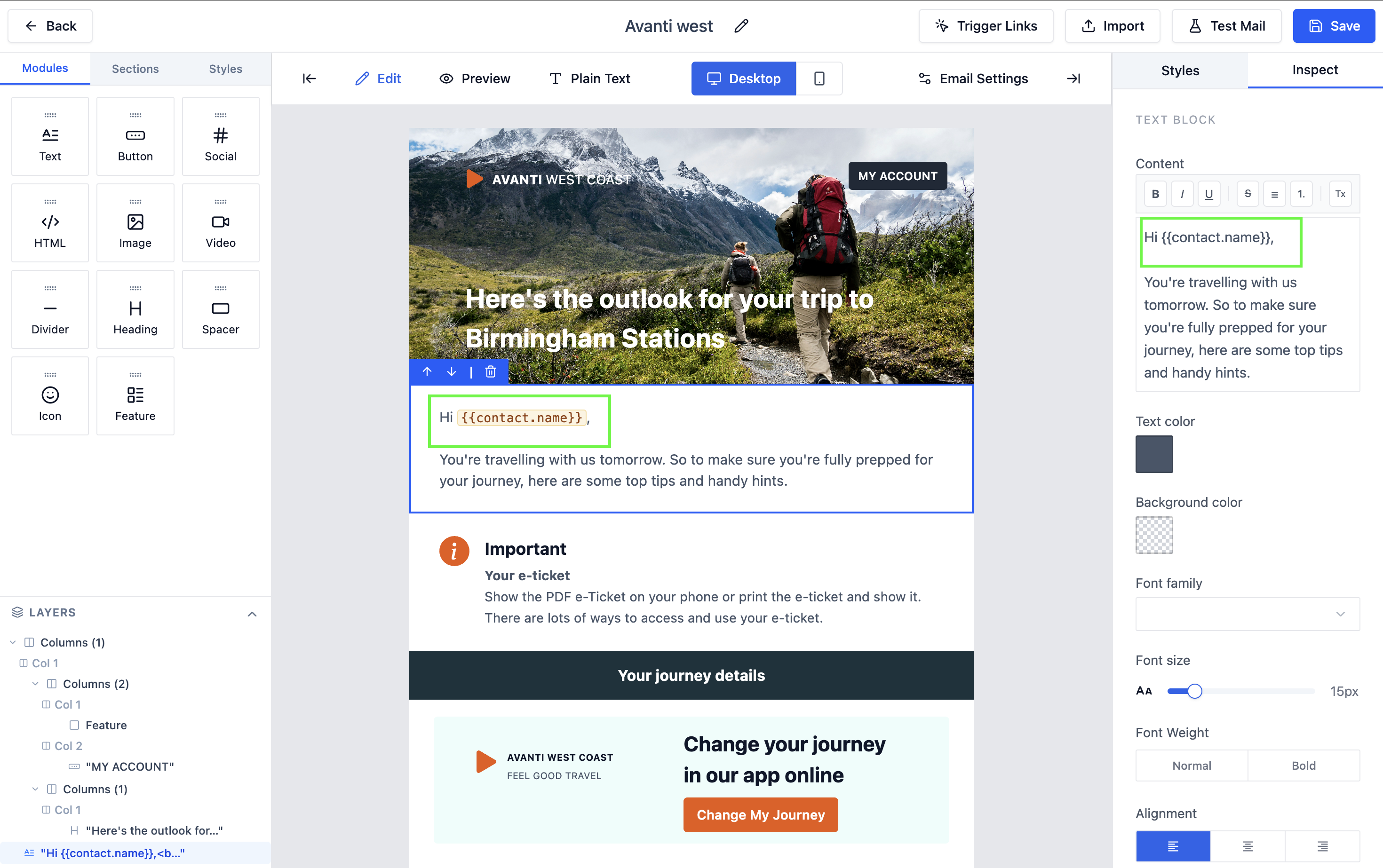 The template builder has three panels: component palette, canvas, and settings.
Activating the Template
Only Active templates appear in the email composer picker.
New templates save as you edit. Once it's ready to use, make sure its status is set to Active (see Managing Templates) — an Inactive template is kept but hidden from the composer picker.