Managing Templates
After creating email templates, you can activate or deactivate them, duplicate them, search and filter the list, and delete templates you no longer need.
The Templates List
Navigate to Conversations → Templates → Email to see all your templates in a table.
Each row shows:
- Name — Template name
- Status — Active or Inactive
- Last Modified — When the template was last edited
- Actions — Edit, Copy, Activate/Deactivate, Delete
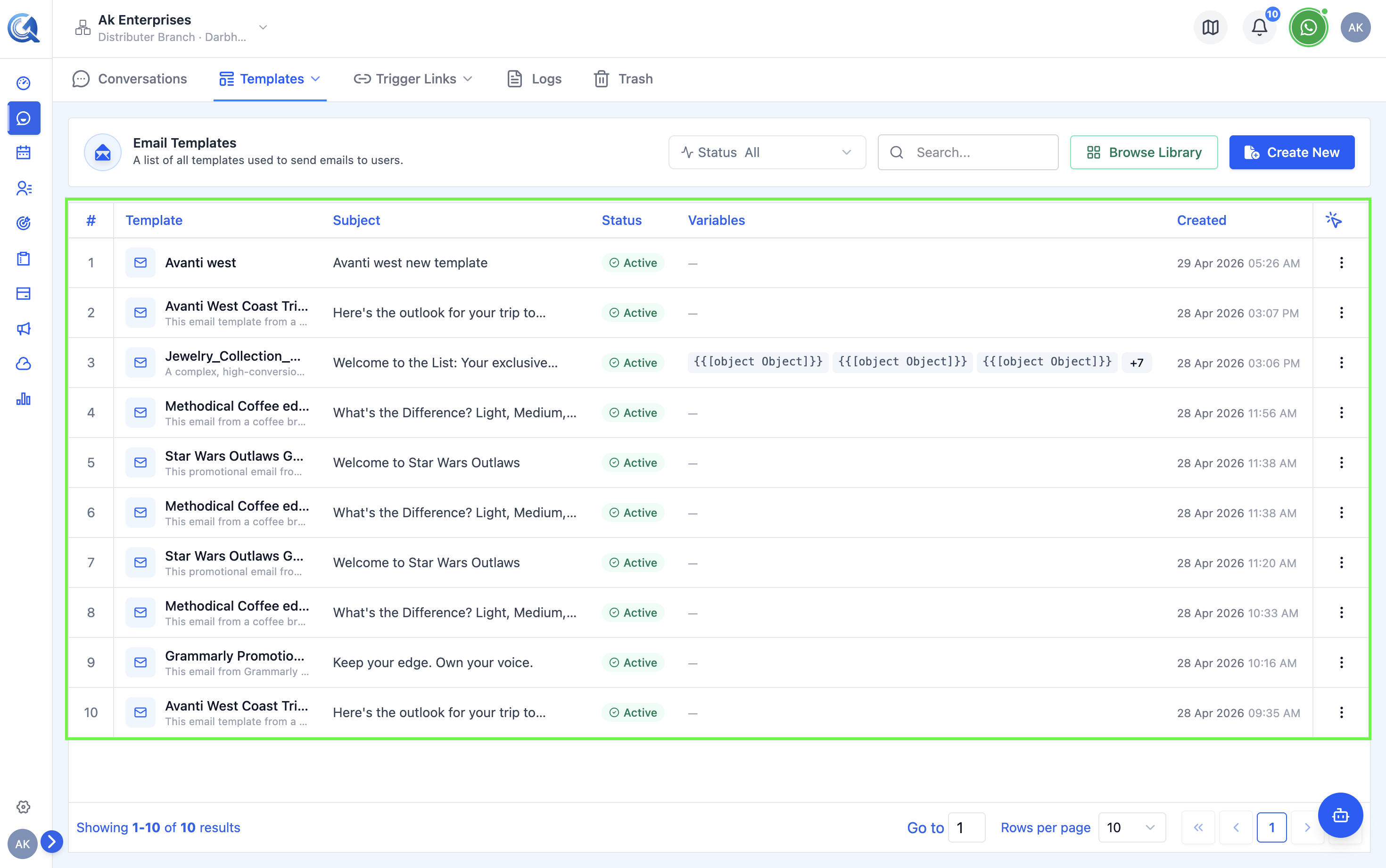 The templates list shows all templates with their current status.
Searching and Filtering Templates
Use the Search bar to find a template by name. Use the Status filter to show only Active or Inactive templates.
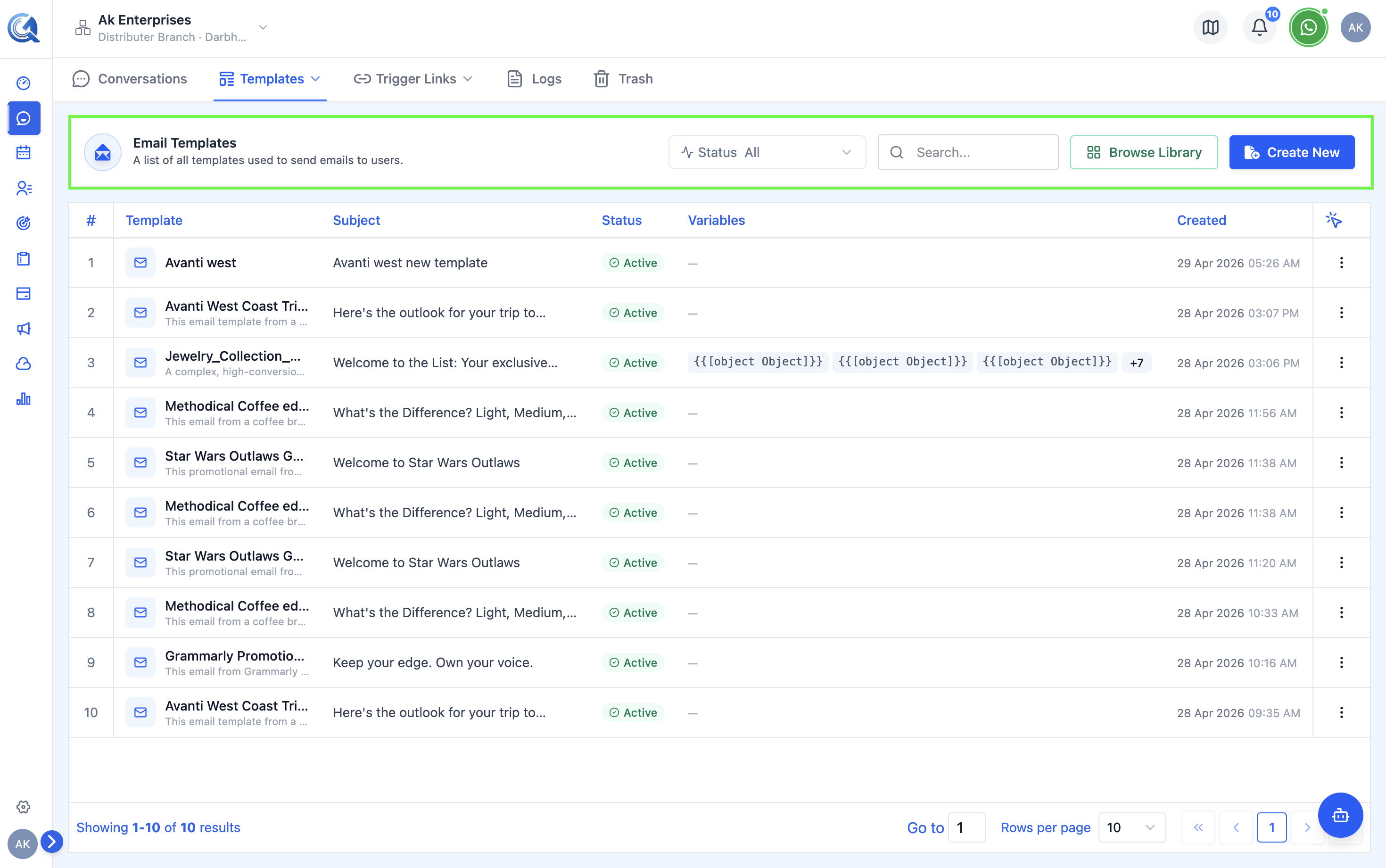 Search by name or filter by status to find templates quickly.
Activating and Deactivating Templates
Deactivating a template immediately removes it from the email composer picker for all staff — even mid-session. Reactivate it at any time to restore access.
Only Active templates appear in the email composer template picker.
To toggle a template's status:
- Locate the template in the list.
- Click the Status toggle or click Activate / Deactivate in the Actions menu.
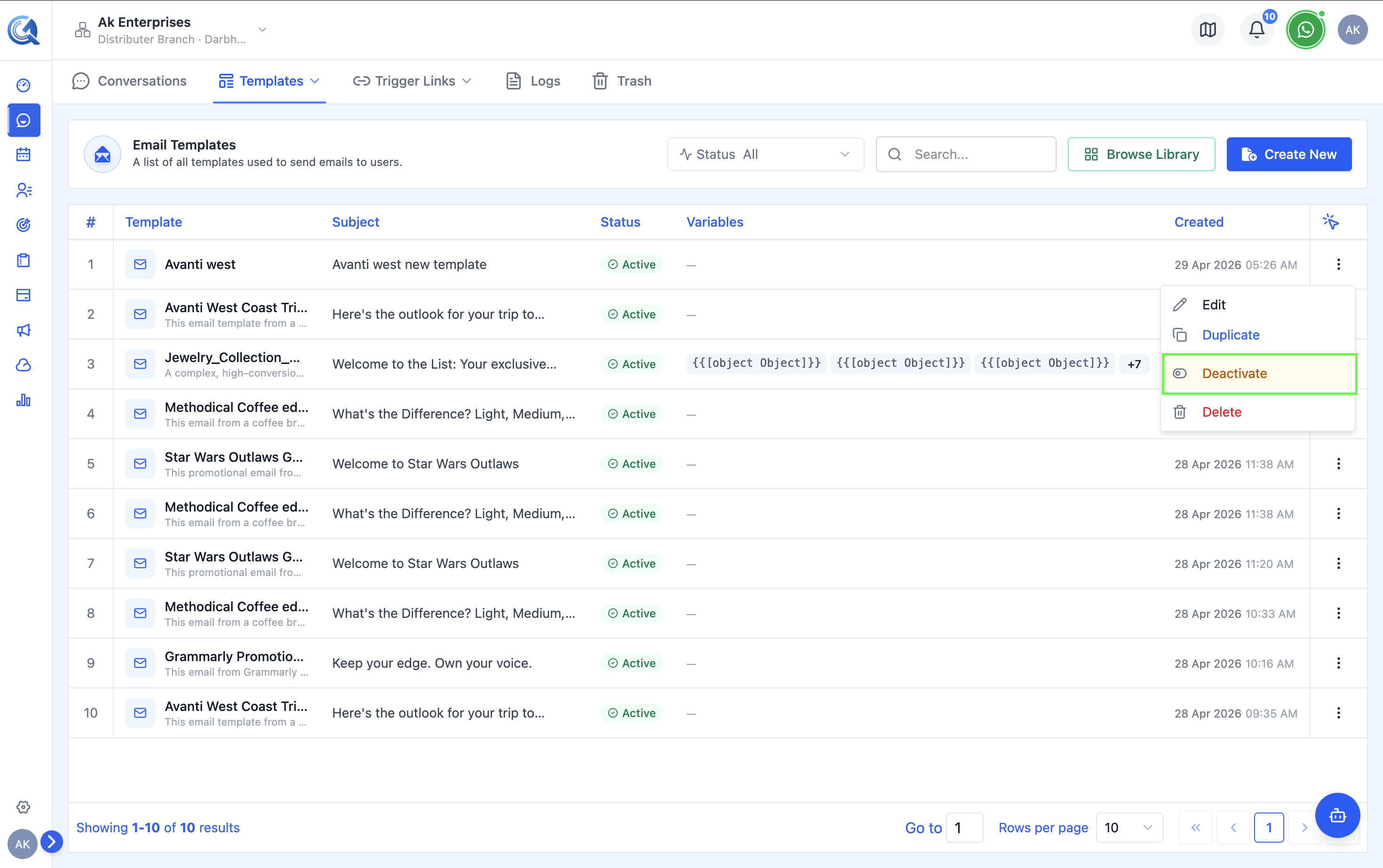 Toggle the status to control whether a template appears in the composer picker.
Duplicating (Copying) a Template
To create a copy of an existing template:
- Click the Copy icon in the Actions column for the template.
- A new template is created with the same name and
(Copy)appended. - The copy opens in the template builder for you to edit.
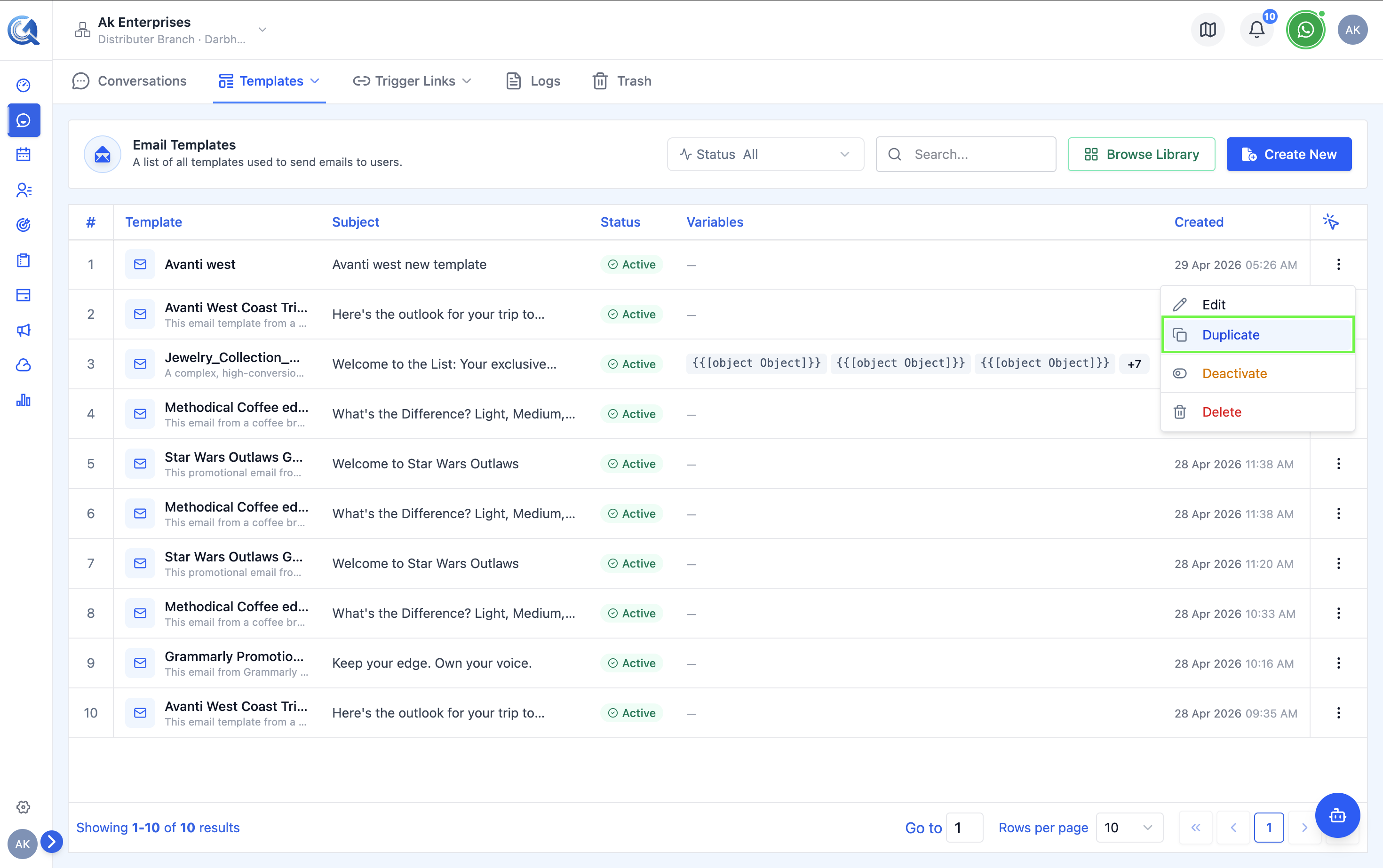 Duplicating a template creates an editable copy.
Editing a Template
Click the Edit (pencil) icon to open the template in the template builder. Make your changes and click Save or Publish.
Deleting a Template
Deleted email templates cannot be recovered. If you're unsure, Deactivate the template instead — it hides it from the composer picker without removing it.
To permanently delete a template:
- Click the Delete (trash) icon in the Actions column.
- Confirm deletion in the prompt.
Deleted templates cannot be recovered.
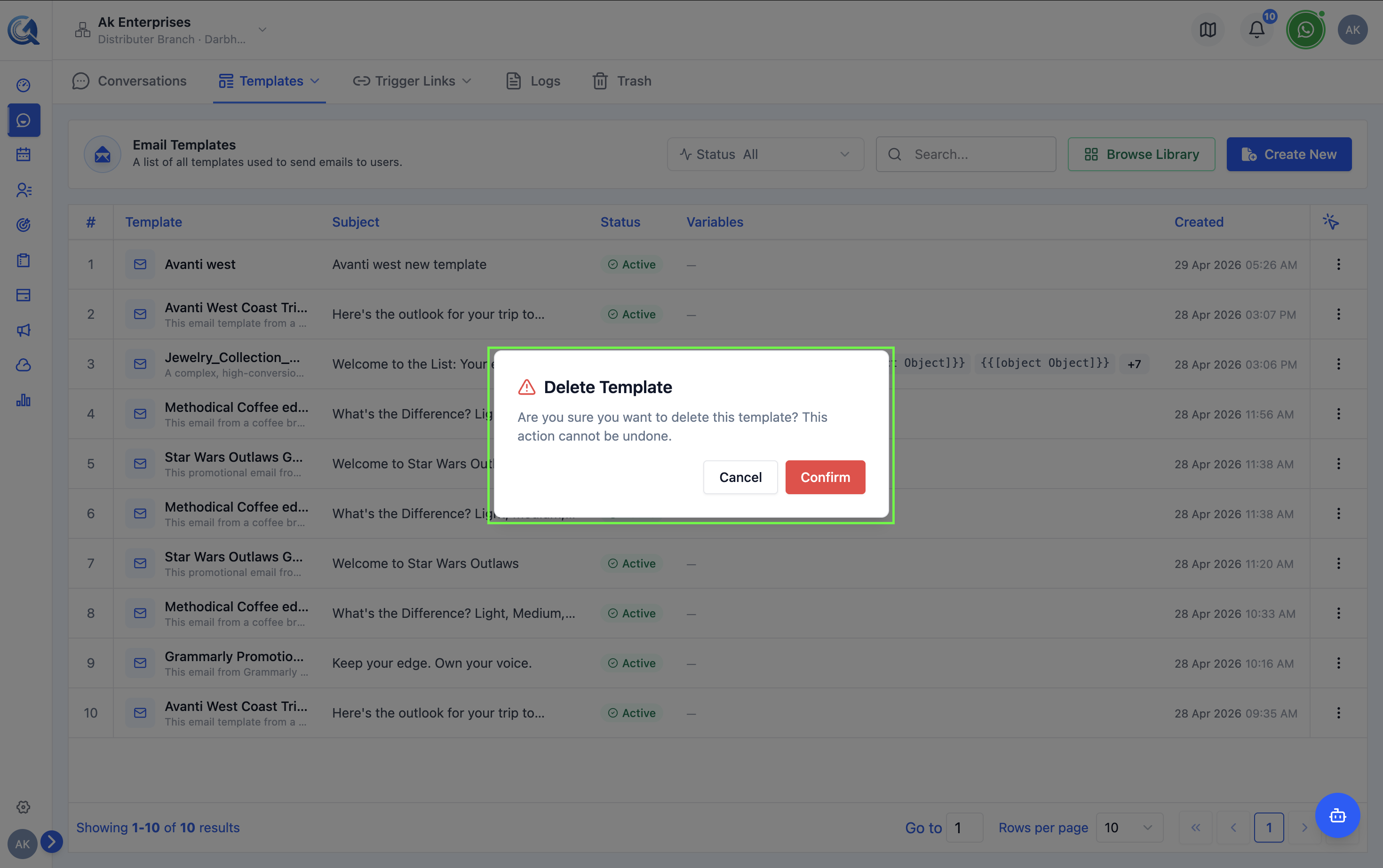 Confirm deletion — this action is permanent.