Template Library
The Template Library is a collection of professionally designed email templates you can use as a starting point. Instead of building from scratch, pick a library template, customize it to match your brand, and publish it.
Accessing the Library
When creating a new template:
- Go to Conversations → Templates → Email.
- Click + New Template.
- In the dialog, choose Browse Templates.
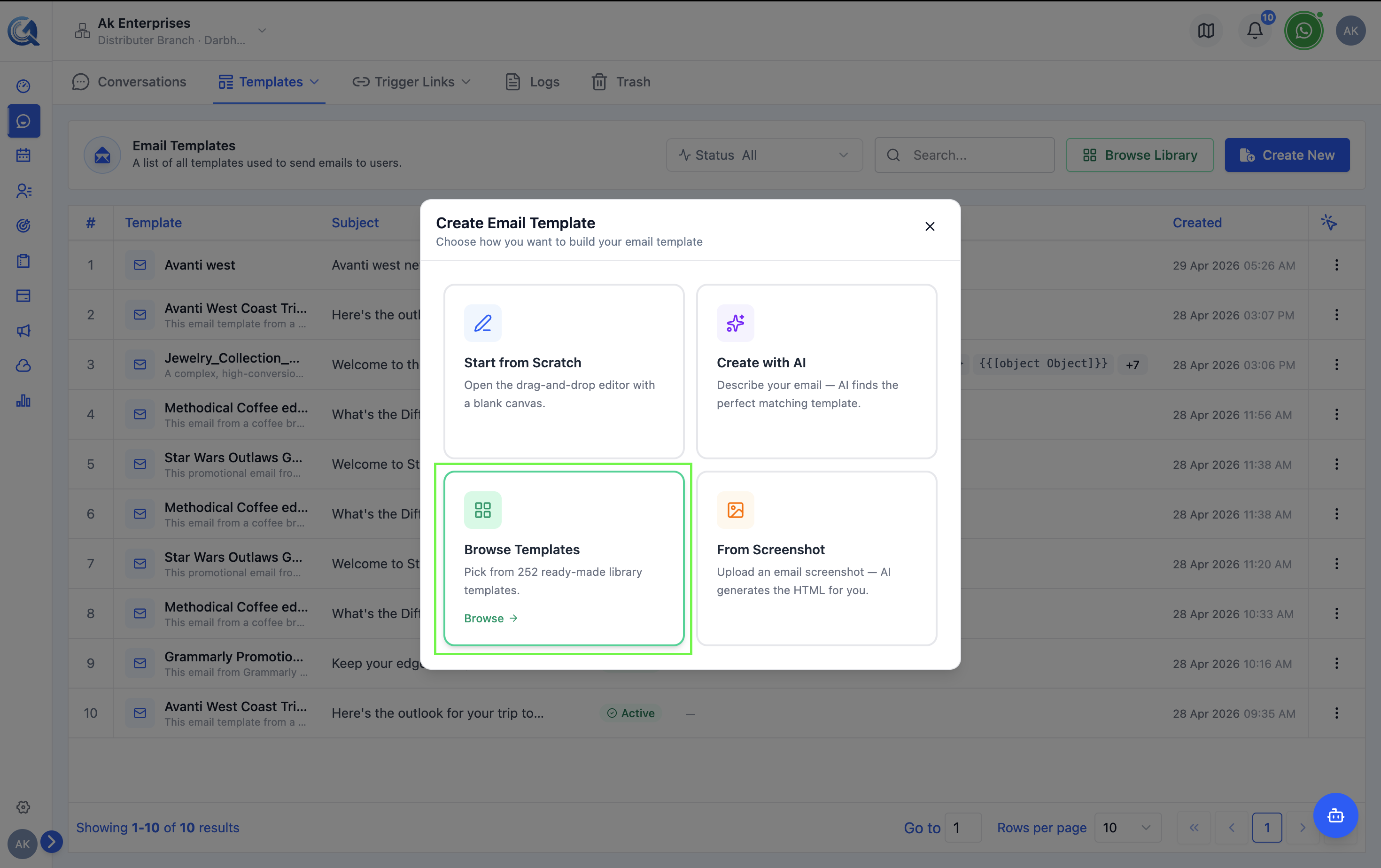 Select "Browse Templates" to browse the collection.
Browsing the Library
The library grid shows template thumbnails, with a Categories panel on the left to filter by. The category list isn't a fixed set — it's built from the tags on the templates actually in the library, so what you see may vary and grow over time.
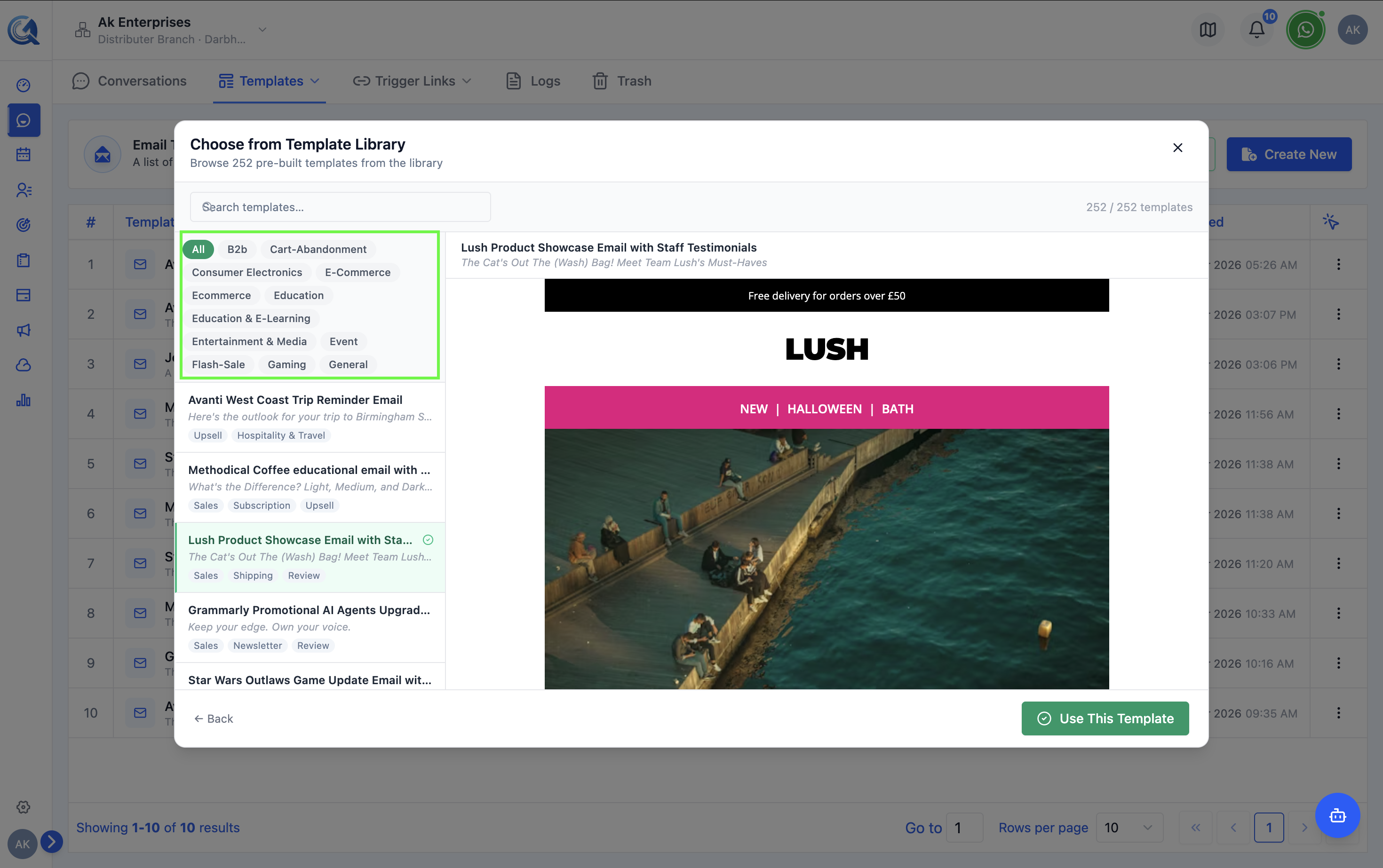 Browse templates by category or scroll through all available designs.
Previewing a Template
Click any template thumbnail to open a full-size preview.
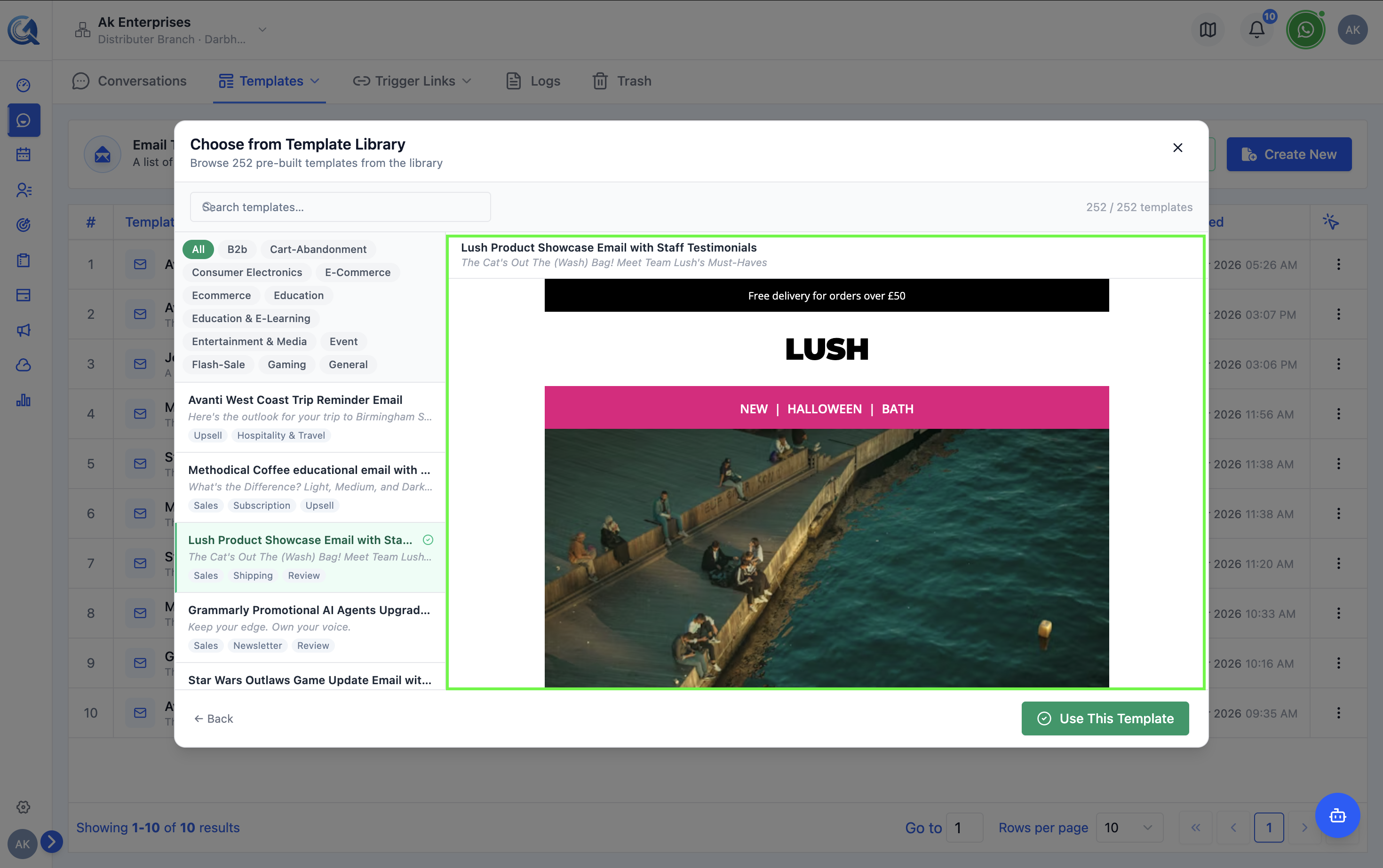 Preview the full template before selecting it.
Using a Library Template
- Open the preview of the template you want.
- Click Use This Template.
- The template builder opens with a copy of the library design pre-loaded on the canvas.
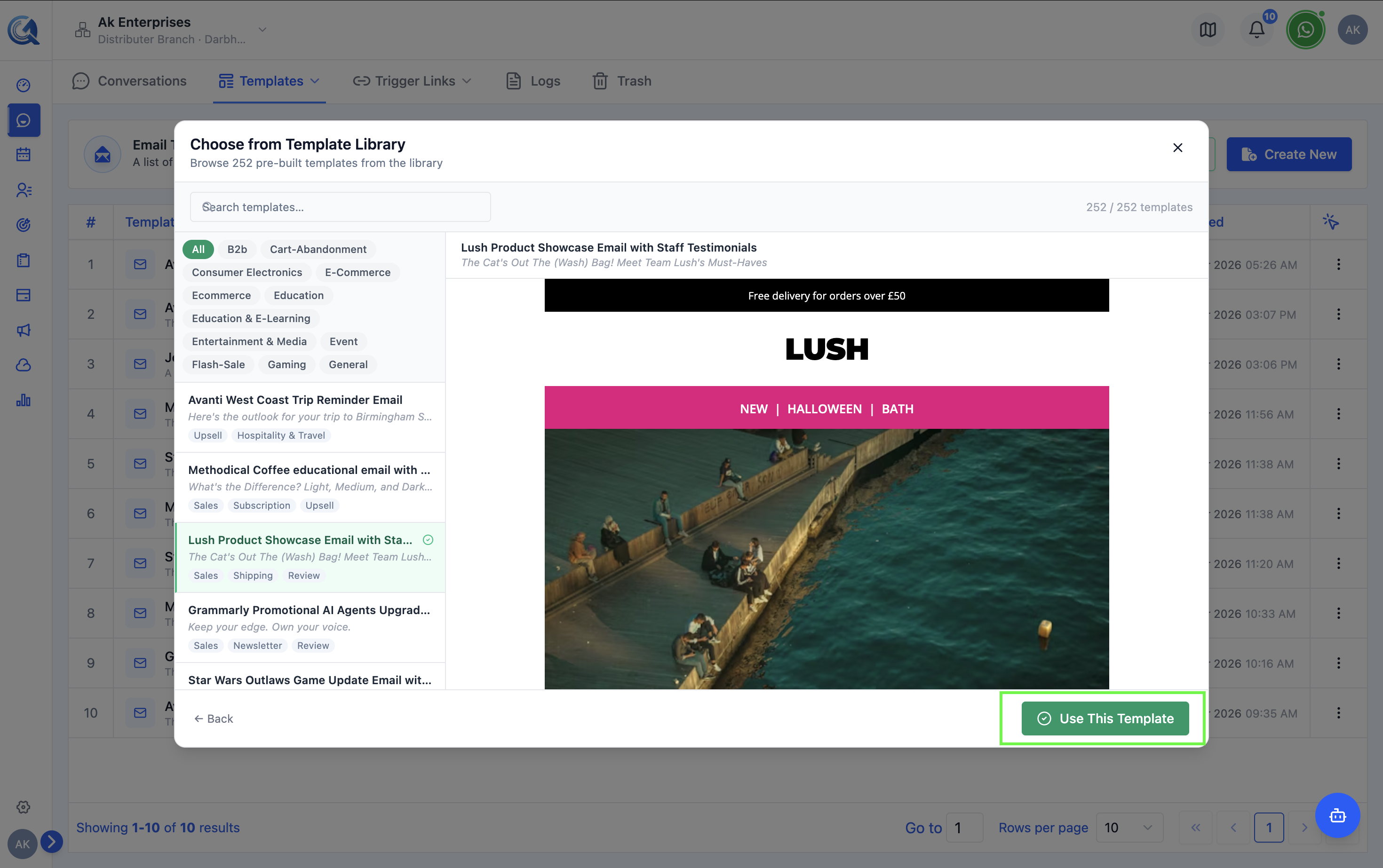 The library template is loaded and ready to customize.
- Edit any text, images, colors, or layout to match your brand.
- Make sure the template's status is Active when ready (see Managing Templates).
Library templates use placeholder text and generic images. Replace every piece of sample content — especially logos, colors, and footer links — before activating, to avoid sending unbranded emails to contacts.