Mail Overview
The Mail feature in QuantixOne CRM gives your team a full-featured email communication channel — right alongside WhatsApp and SMS. You can compose and send emails to contacts, manage rich HTML templates, run bulk email campaigns, receive inbound replies, and configure your sending domain, all from one place.
What You Can Do with Mail
| Capability | Description |
|---|---|
| Compose & Send | Write one-off emails to any contact with a rich text editor, attachments, and scheduling. |
| Email Templates | Build reusable HTML email templates with a drag-and-drop builder and personalization variables. |
| Bulk Email | Send a single email to many contacts at once, with campaign tracking and run scheduling. |
| Inbound Email | Receive replies from contacts and view them directly inside the conversation timeline. |
| Configuration | Register your sending domain, verify DNS records, manage sender identities, and maintain a suppression list. |
How Mail Fits into QuantixOne
Mail works within the Conversations module. Every email you send or receive with a contact appears in that contact's conversation thread alongside any WhatsApp or SMS messages. This keeps all communication history in one place.
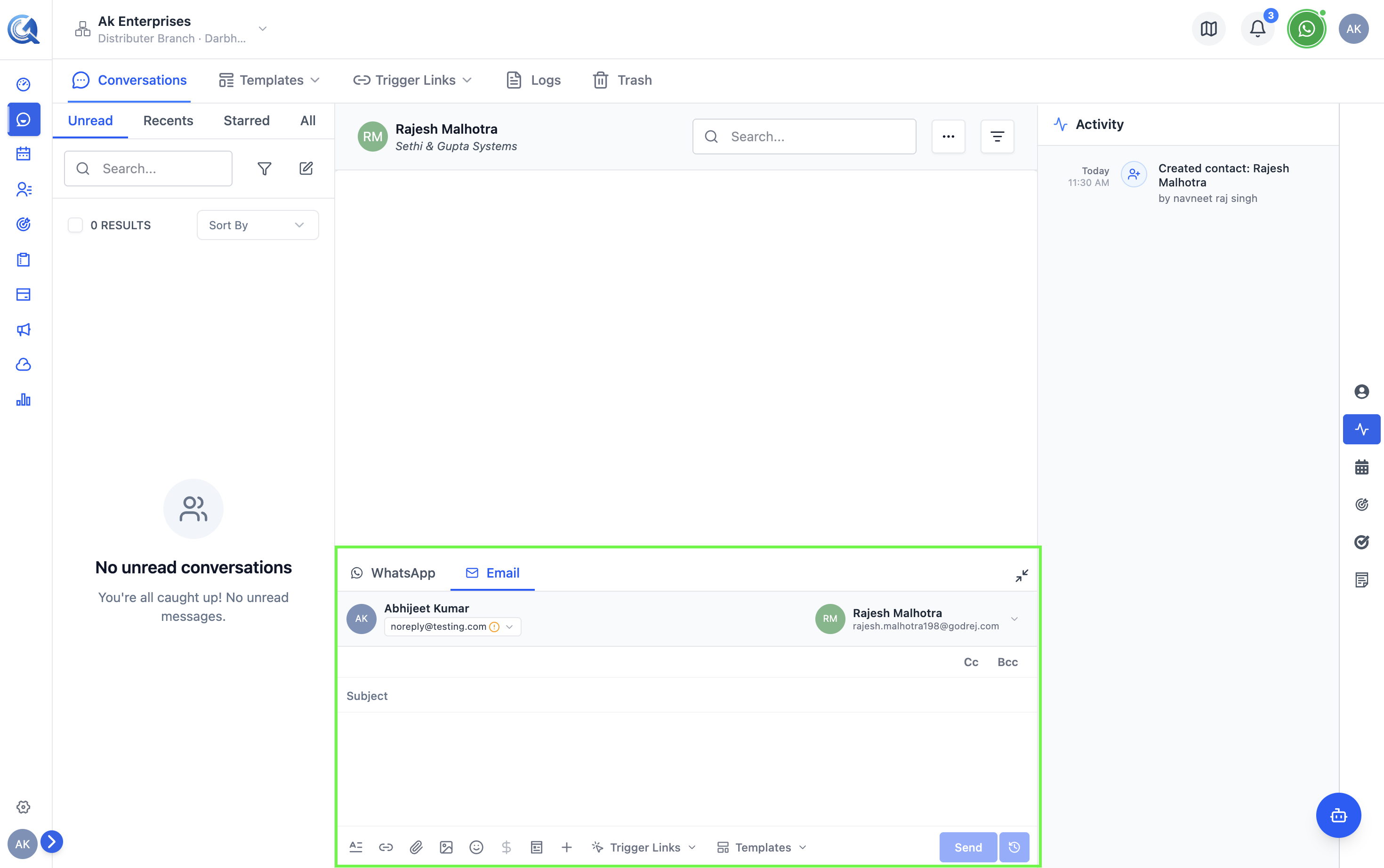 Emails appear in the same conversation timeline as other channels.
Navigating to Mail Features
- Sending an email — Open a contact's conversation and click the Email tab in the message composer at the bottom.
- Email templates — Go to Conversations → Templates → Email in the left sidebar.
- Bulk email — Open a contact list or use the bulk action menu in Contacts, or go to Conversations → Campaigns. Both are the same underlying Campaign feature.
- Mail configuration — Go to Settings → Channels → Email.
Prerequisites
Emails cannot be sent until a domain is verified and your account has an assigned sender identity. Skipping either step will prevent delivery entirely.
Before sending your first email, make sure:
- At least one sending domain has been registered and verified in Settings → Channels → Email → Configure.
- Your staff account has been granted access to at least one sender identity (email address) in Settings → Channels → Email → Settings.
If your domain is not verified, emails will not be delivered. See Domain Setup for step-by-step instructions.