Activity Logs
The Activity Logs section provides a complete audit trail of every action taken in Media Storage — uploads, deletions, renames, moves, and more. Use it to track who did what and when.
Navigating to Activity Logs
From the Media Storage dashboard, click the quick navigation menu in the top-right and select Activity Logs.
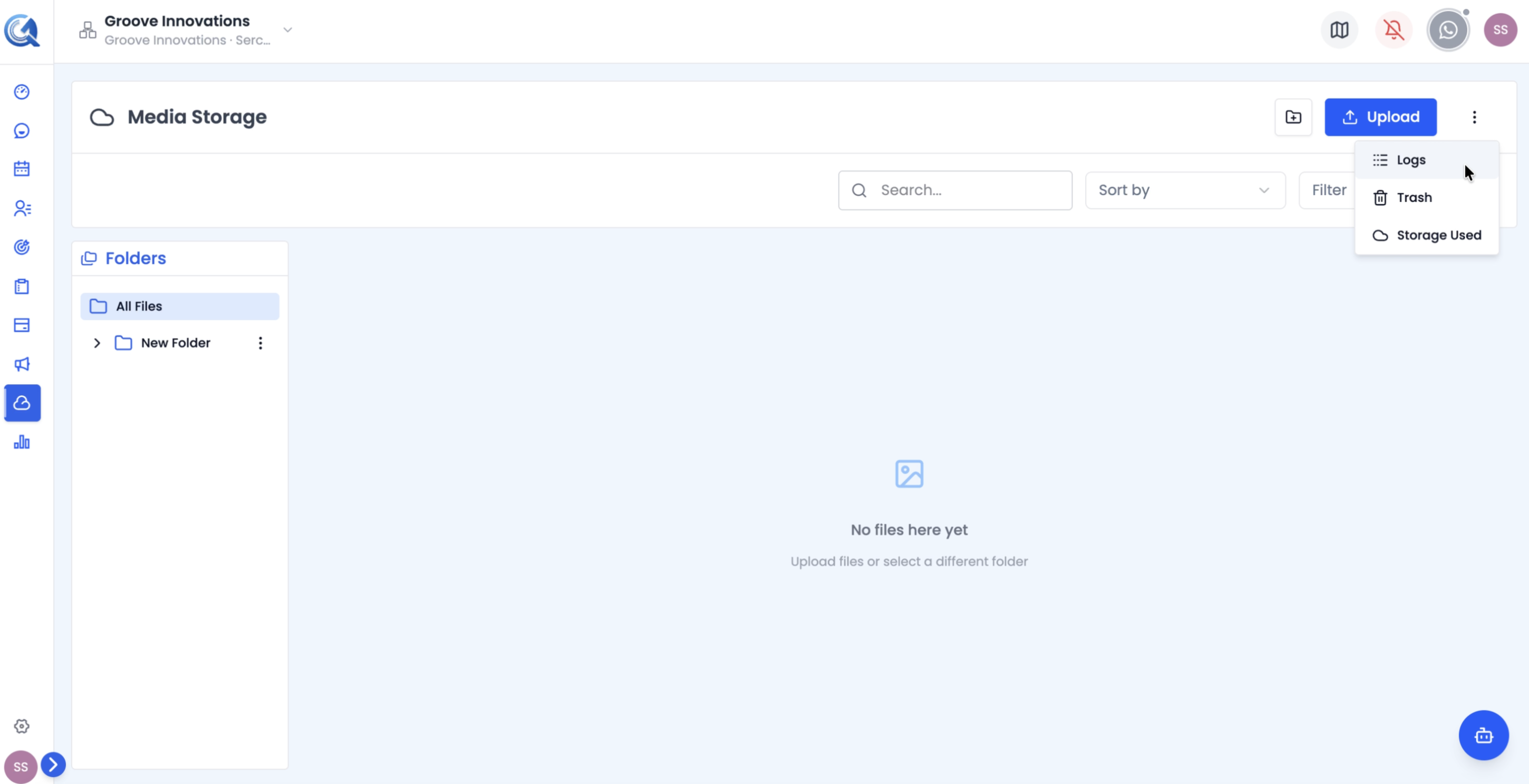 Open Activity Logs from the quick navigation menu.
Reading the Logs Table
Each row in the table represents a single action and shows:
| Column | Description |
|---|---|
| Action | An icon indicating the type of action (Upload, Delete, Rename, Move, etc.), alongside a description of what happened |
| Entity | The module or service the action originated from |
| User | The team member who performed the action |
| Created At | When the action occurred |
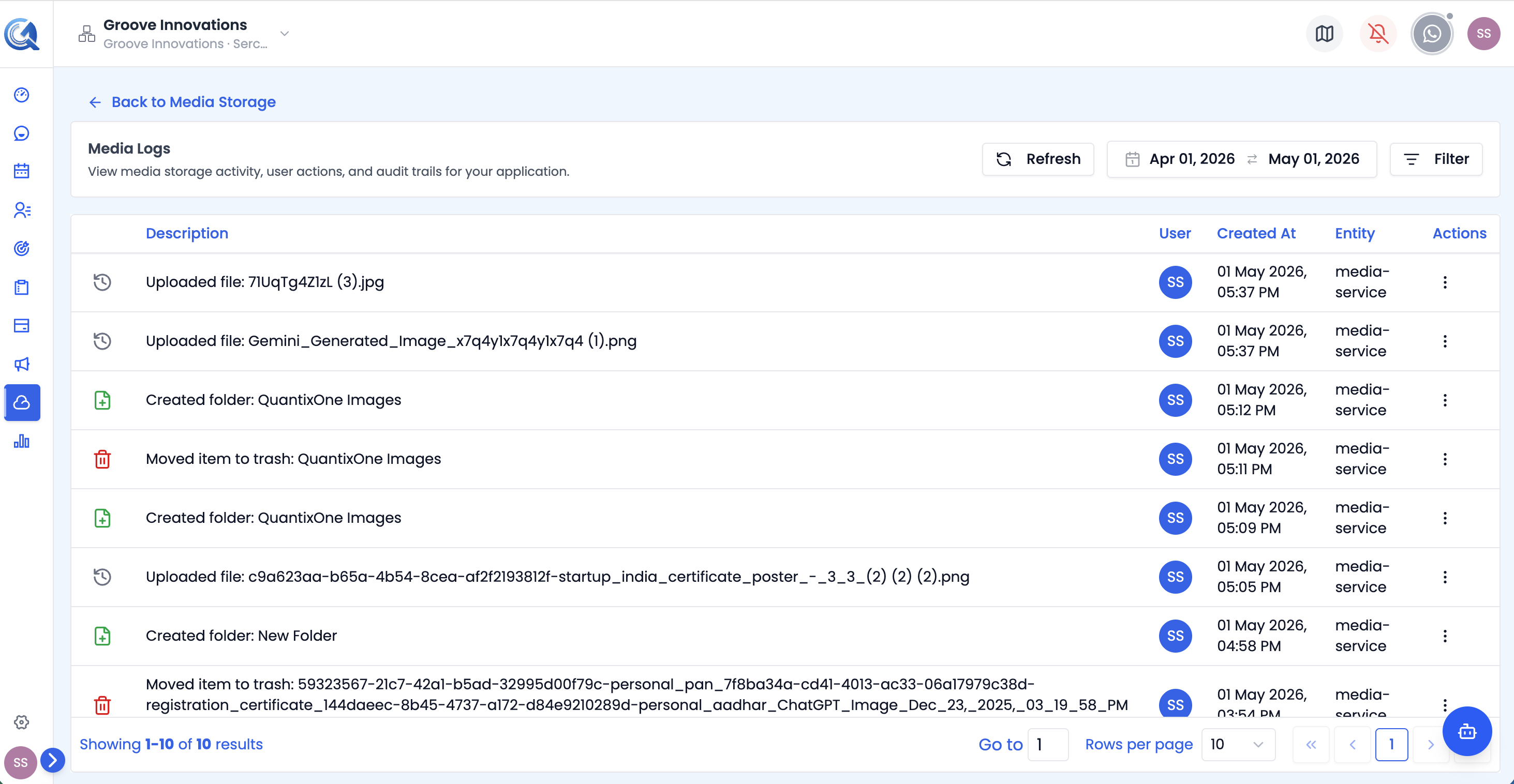 Each row records one action. The table is paginated and sortable.
Filtering Logs
Use the Refresh button to reload the table, and the filter controls above it to narrow the log view:
- Date range — Defaults to the last 30 days. Use the date picker to set a custom range.
- Action type — Filter by Upload, Delete, Rename, Move, or other action types.
- Entity — Filter by the source module (e.g., Media Storage, Contacts).
- User — Filter by a specific team member.
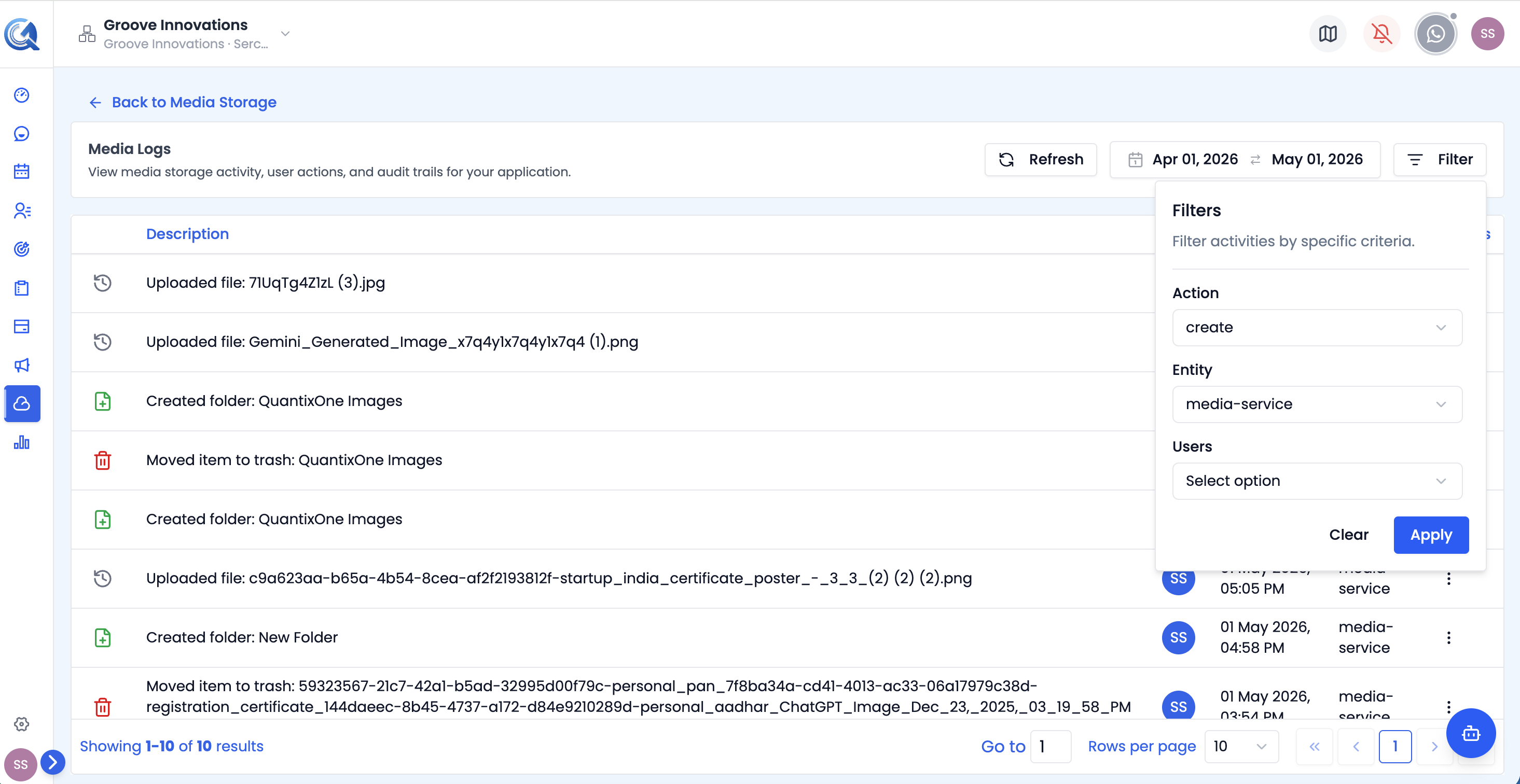 Use filters to pinpoint specific events — useful for auditing or troubleshooting. Use Clear to reset them or Apply to run them.
Video Walkthrough
Watch the complete walkthrough below.