Media Storage Overview
Media Storage is a centralised file management system where you can upload, organise, preview, and share files across your workspace. All media assets — images, documents, videos, audio, and more — are stored in one place with folder hierarchy support, bulk actions, and a full activity audit trail.
Navigating to Media Storage
From the main navigation, click Media Storage. The main dashboard opens showing your files and folders in a card grid view, with the folder tree on the left sidebar.
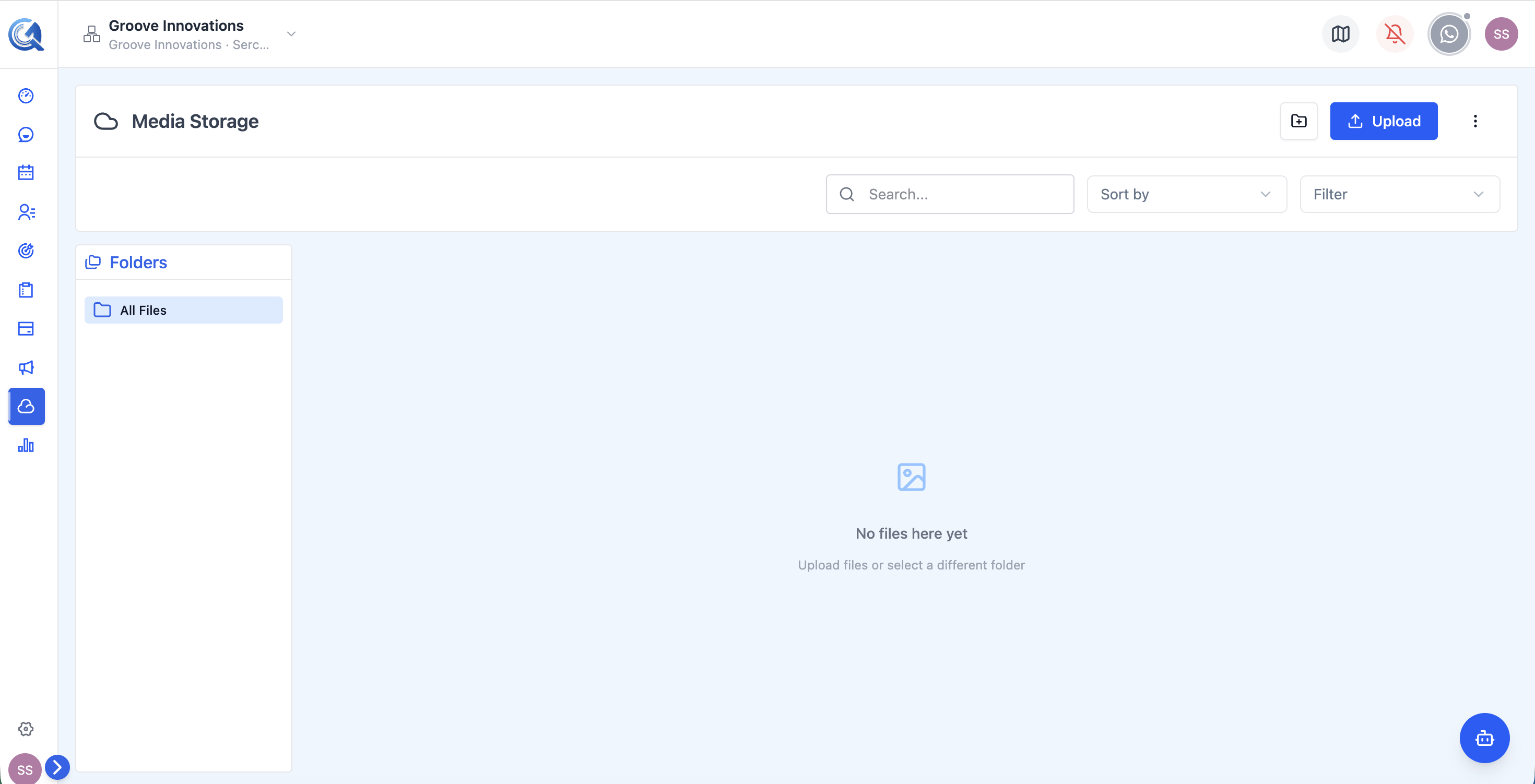 The Media Storage dashboard displays files as cards. The left sidebar shows your folder hierarchy.
Dashboard Layout
The media dashboard has three main areas:
- Left sidebar — Folder Tree: Navigate between folders by clicking on them. Folders expand to reveal sub-folders. The root level shows all top-level folders.
- Main grid — Files and Folders: Files and folders are displayed as cards with thumbnails, file names, sizes, and quick action menus.
- Top bar — Actions: Contains the Upload button, New Folder button, search input, sort controls, filter options, and a Grid/Table view toggle to switch how files are displayed.
 Three-panel layout: folder tree (left), file grid (centre), action bar (top).
Supported File Types
Media Storage accepts the following file types:
| Category | Formats |
|---|---|
| Images | JPG, PNG, GIF, SVG, WebP |
| Documents | PDF, Word (.doc/.docx), Excel (.xls/.xlsx), CSV, TXT |
| Video | MP4 and other common video formats |
| Audio | MP3 and other common audio formats |
| Other | Any file type not listed above |
Quick Navigation
From the top-right menu on the dashboard you can jump directly to related sections:
- Activity Logs — Full history of all file actions
- Trash — Deleted files pending permanent removal
- Storage Used — Analytics and usage breakdown
Video Walkthrough
Watch the complete walkthrough below.