Search & Filters
Media Storage provides a search bar, a file type filter, and sort controls to help you locate files quickly — even across large libraries with nested folders.
Searching for Files
Type in the Search input at the top of the dashboard. Results update as you type, matching file and folder names.
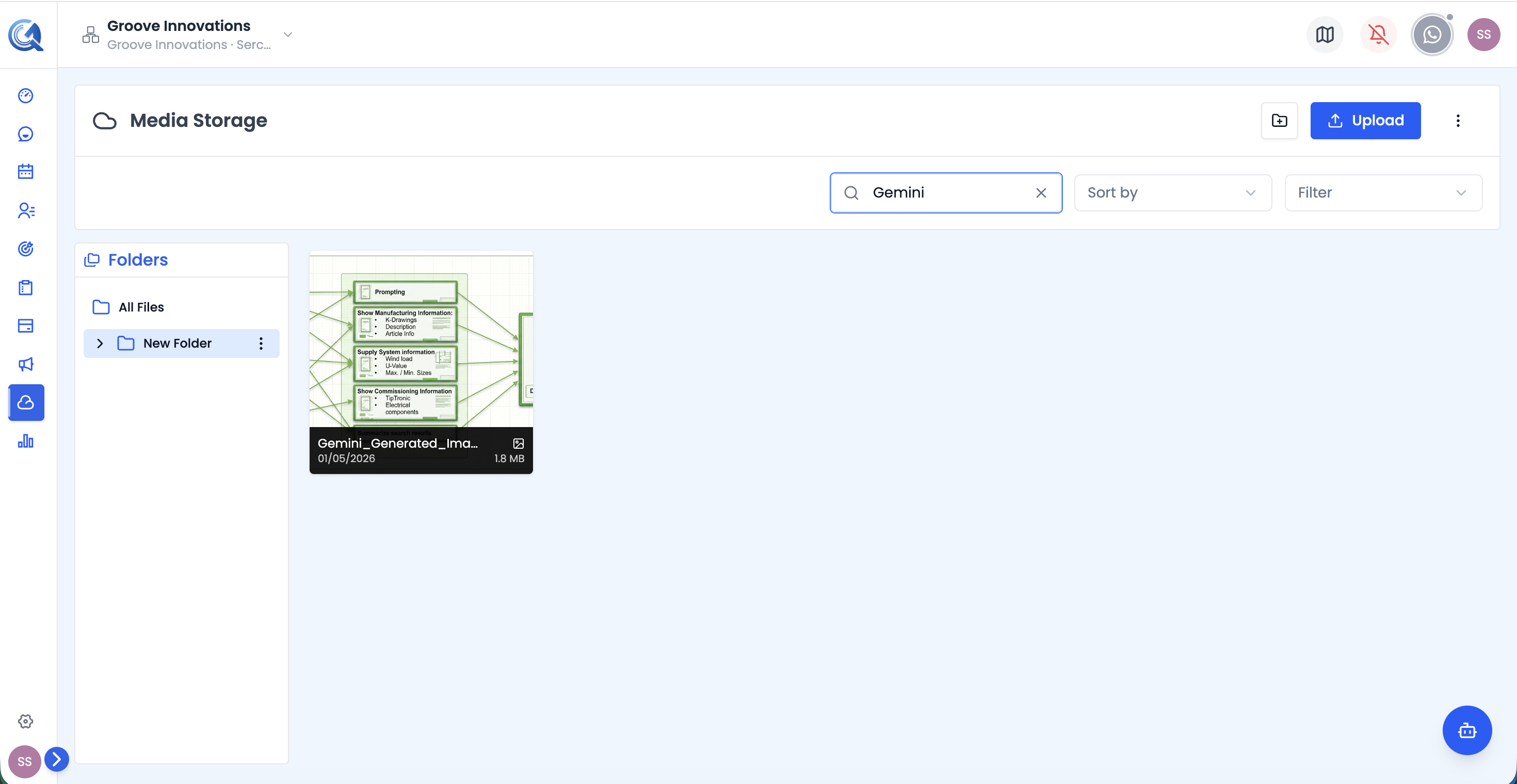 The search bar filters the grid in real time as you type.
Filtering by File Type
Use the Filter dropdown next to the search bar to narrow the grid to one file category: All, Photo, Video, Audio, Docs, or Other.
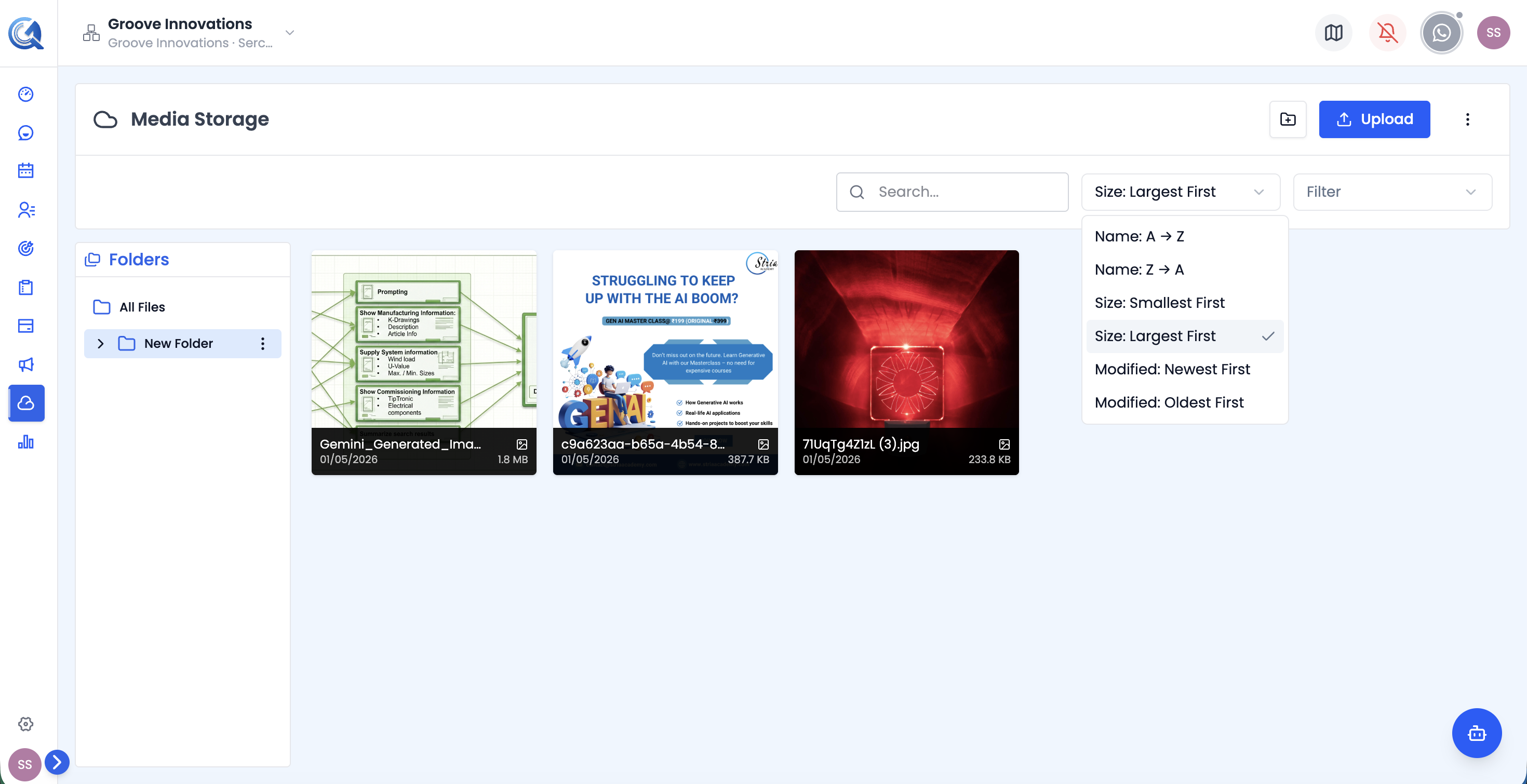 Choose a file type to narrow your results.
The grid updates immediately to show only files matching the selected type.
Sorting Files
Click the Sort control in the top bar to change the sort order. Available sort options:
| Sort Option | Description |
|---|---|
| Name (A–Z) | Alphabetical ascending |
| Name (Z–A) | Alphabetical descending |
| Size (Smallest) | Smallest files first |
| Size (Largest) | Largest files first |
| Date Modified (Newest) | Most recently modified first |
| Date Modified (Oldest) | Oldest modifications first |
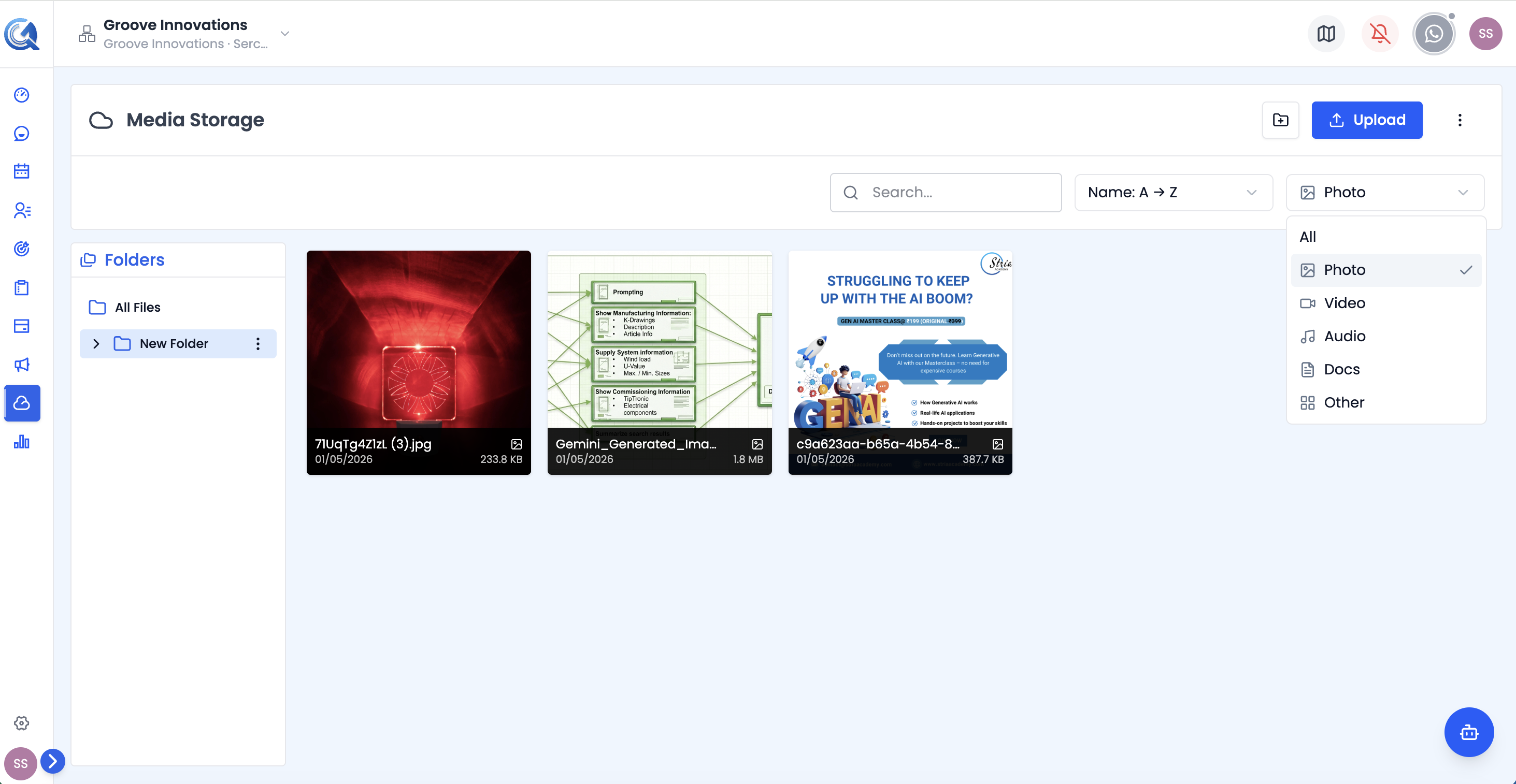 Select a sort option to reorder the file grid.
Navigating Folders While Filtering
Search and filter results can be scoped to the current folder or the entire library. When you are inside a folder, the search defaults to that folder. To search globally across all folders, clear the folder selection in the sidebar before searching.
Clearing Filters
There's no separate "Clear Filters" button on this page — reset the Filter dropdown back to All and clear the search input to return to the full file list.
Video Walkthrough
Watch the complete walkthrough below.