Storage Analytics
The Storage Analytics page gives you a visual breakdown of how your storage quota is being used — by file type, over time, and by individual uploads. Use it to identify large files, understand usage trends, and plan for capacity.
Navigating to Storage Analytics
From the Media Storage dashboard, click the quick navigation menu in the top-right and select Storage Used.
 Open Storage Analytics from the quick navigation menu.
Storage Activity Chart
The stacked bar chart shows storage usage over time, broken down by file type. Each bar represents a time period, and each colour represents a file category.
- Use the All / Photos / Videos / Audio / Docs / Others tabs above the chart to focus on a single file category.
- Use the range selector to switch between the last 7, 14, or 30 days.
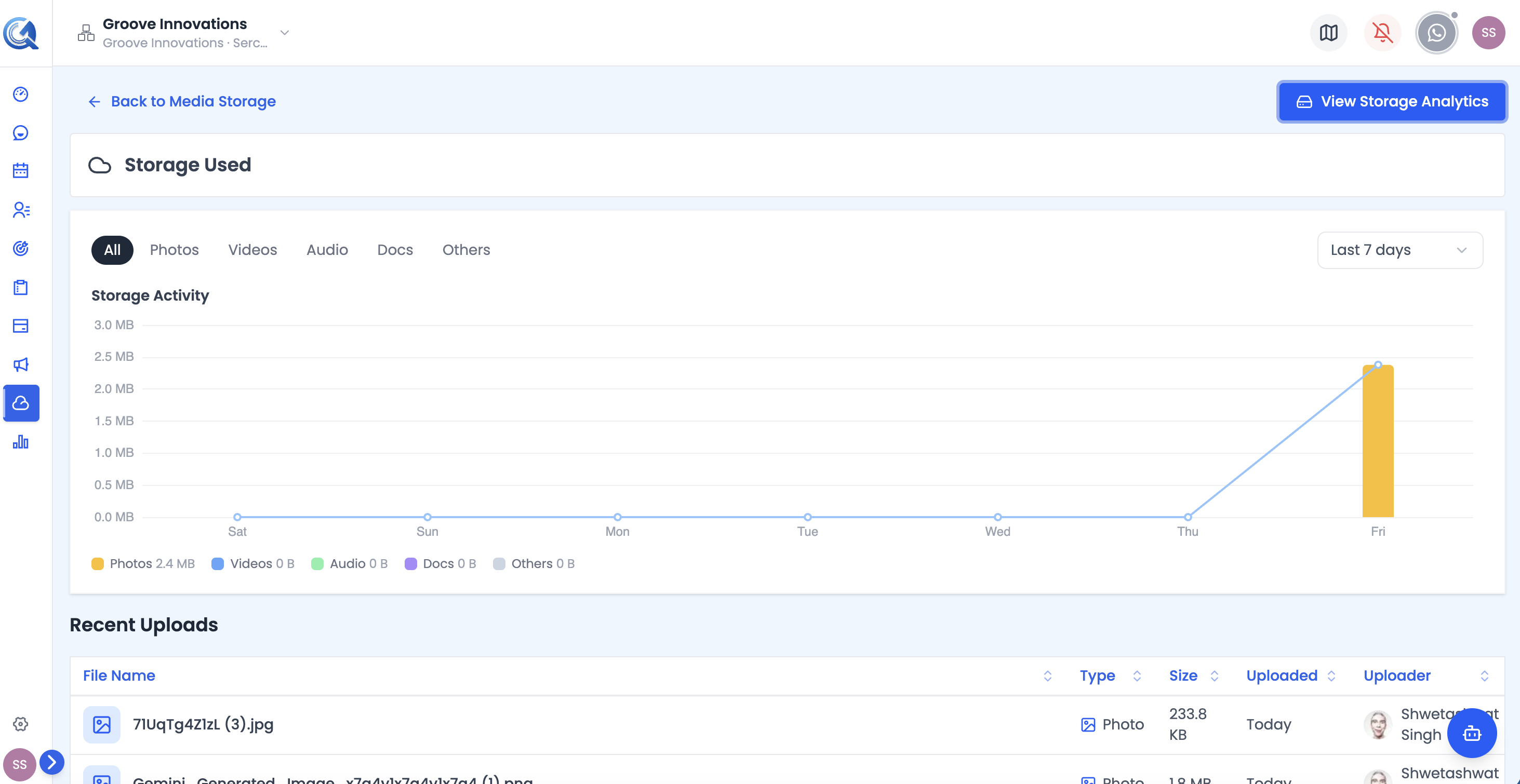 Hover over a bar segment to see exact usage figures for that file type in that period.
Use the chart to spot trends — for example, a sudden spike in video storage after a campaign launch.
Recent Uploads Table
Below the chart, a table lists your most recently uploaded files with:
| Column | Description |
|---|---|
| File name | Name and file type icon |
| Type | File type |
| Size | File size |
| Uploaded | Relative time since upload (Today, Yesterday, N days ago, etc.) |
| Uploader | Team member avatar and name |
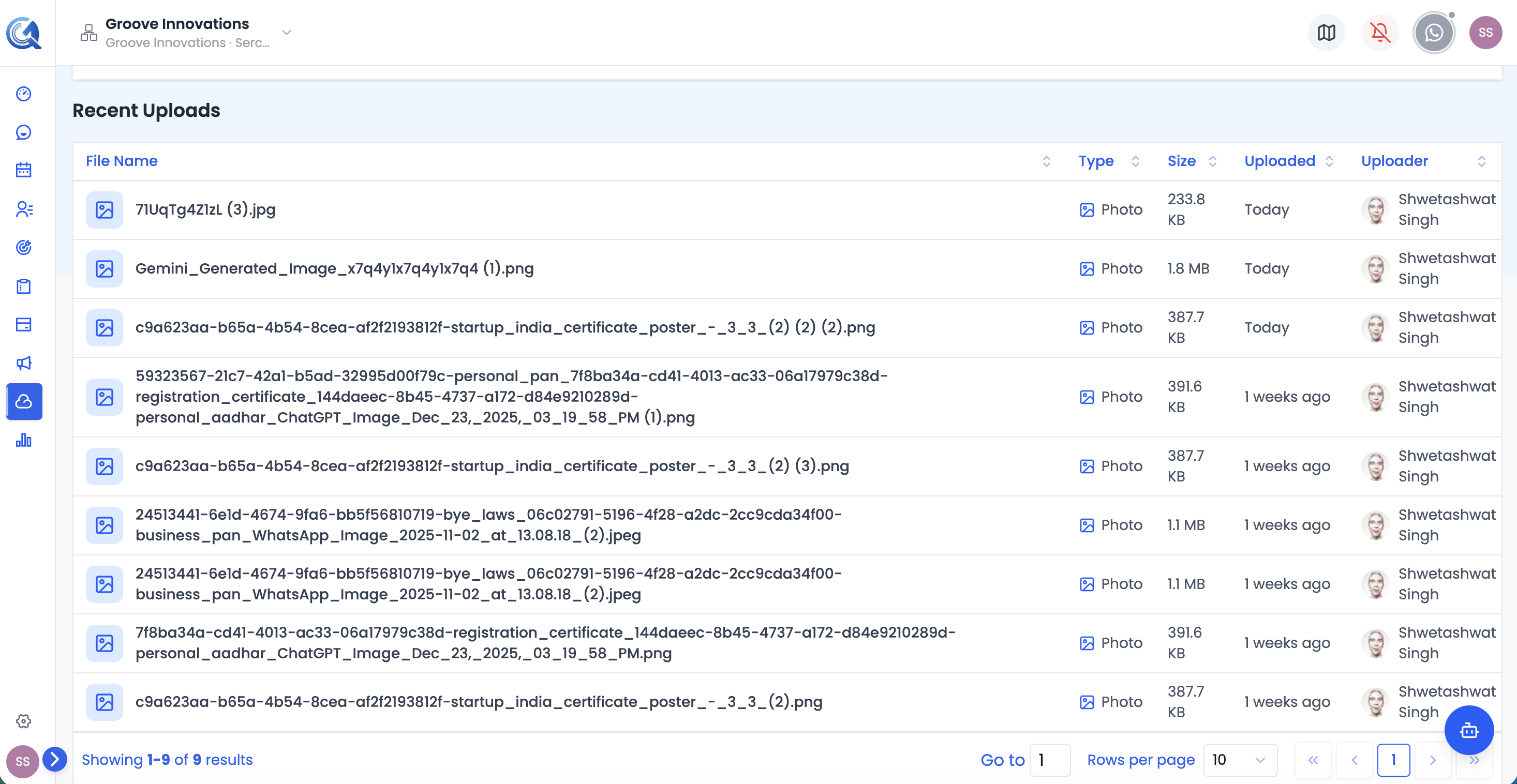 The recent uploads table helps you track the latest additions to your storage.
Note: This table always covers the last 30 days, independent of the range you've selected on the Storage Activity Chart above.
Storage Analytics Panel
Click View Storage Analytics on this page to open a slide-out panel with a closer look at your storage quota:
- A used of total summary (e.g. "2.3 GB of 10 GB used") with a progress bar and the remaining storage.
- A Storage Breakdown box listing your total limit, used, remaining, and usage percentage.
- A Current Usage donut chart, broken down by file type (images, videos, audio, docs, other), with a legend showing each category's size.
Video Walkthrough
Watch the complete walkthrough below.