Trash
When you delete a file or folder in Media Storage, it is moved to Trash rather than permanently deleted. Items in Trash are retained for 30 days, after which they are automatically and permanently removed. You can restore items or permanently delete them at any time before that window expires.
Navigating to Trash
From the Media Storage dashboard, click the quick navigation menu in the top-right corner and select Trash.
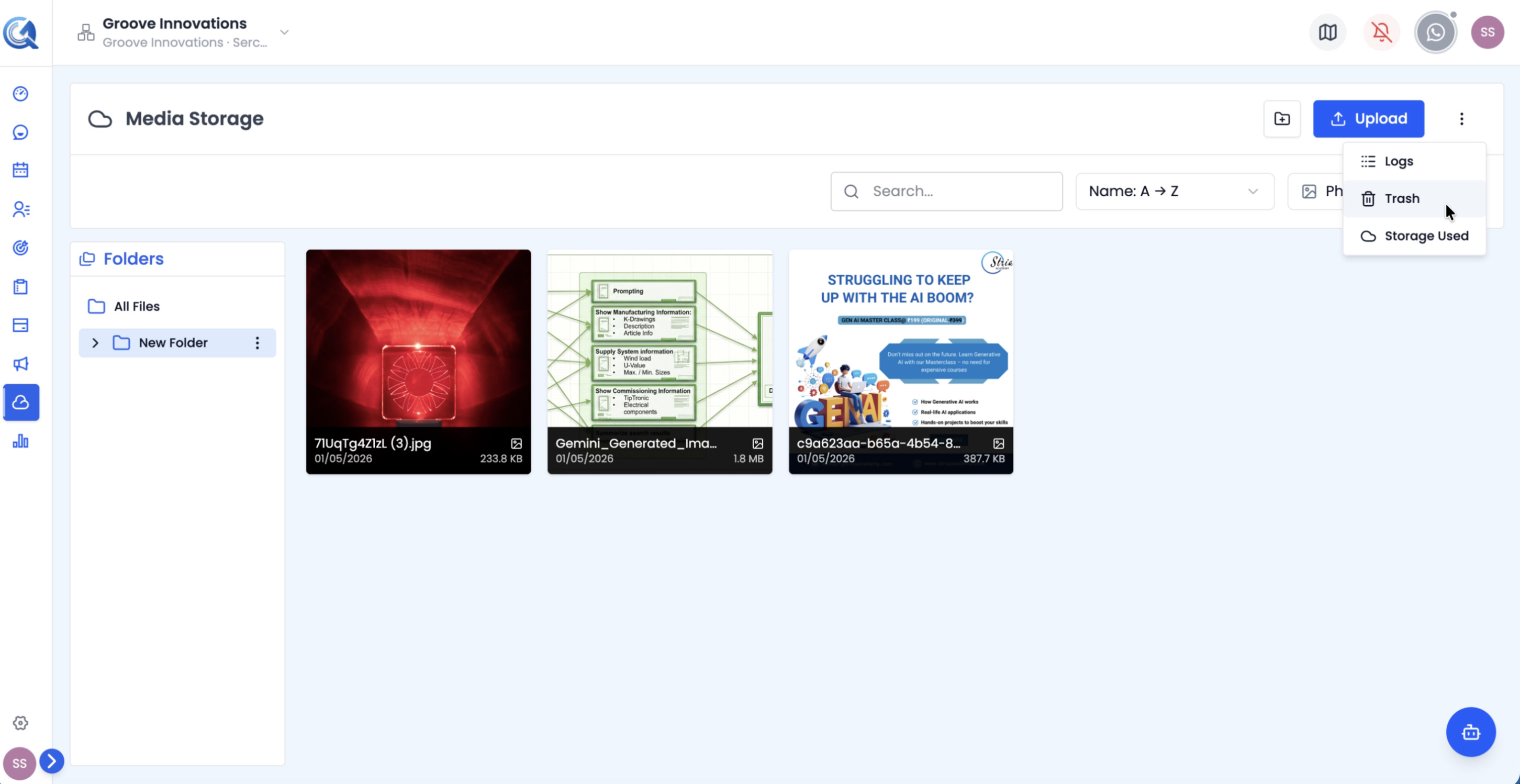 Access Trash from the quick navigation menu on the Media Storage dashboard.
Viewing Deleted Items
Trash displays deleted files and folders in a table view. Each row shows:
- Item name and icon
- File type
- MIME type
- Size
- Days remaining before permanent deletion
- Deleted date
- Deleted by — the team member's avatar and name
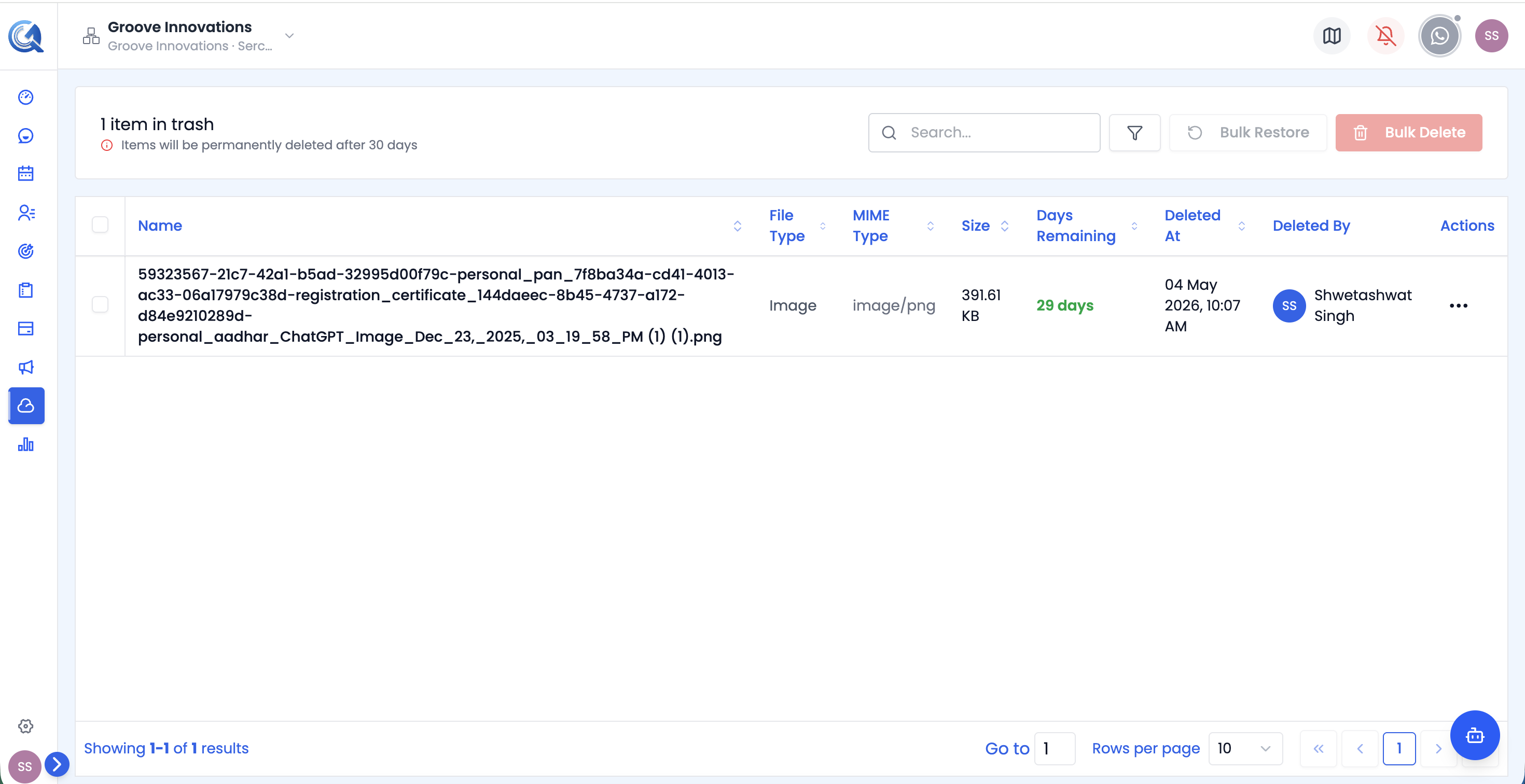 The Trash table lists all deleted items with their retention countdown.
Filtering Trash
Use the filter controls above the table to narrow results:
- Item type — Files or Folders
- File type — Images, Documents, Videos, Audio, Other
- Search by name
Restoring an Item
To restore a single item, click the ⋮ more actions icon on its row and select Restore. The item is moved back to its original location.
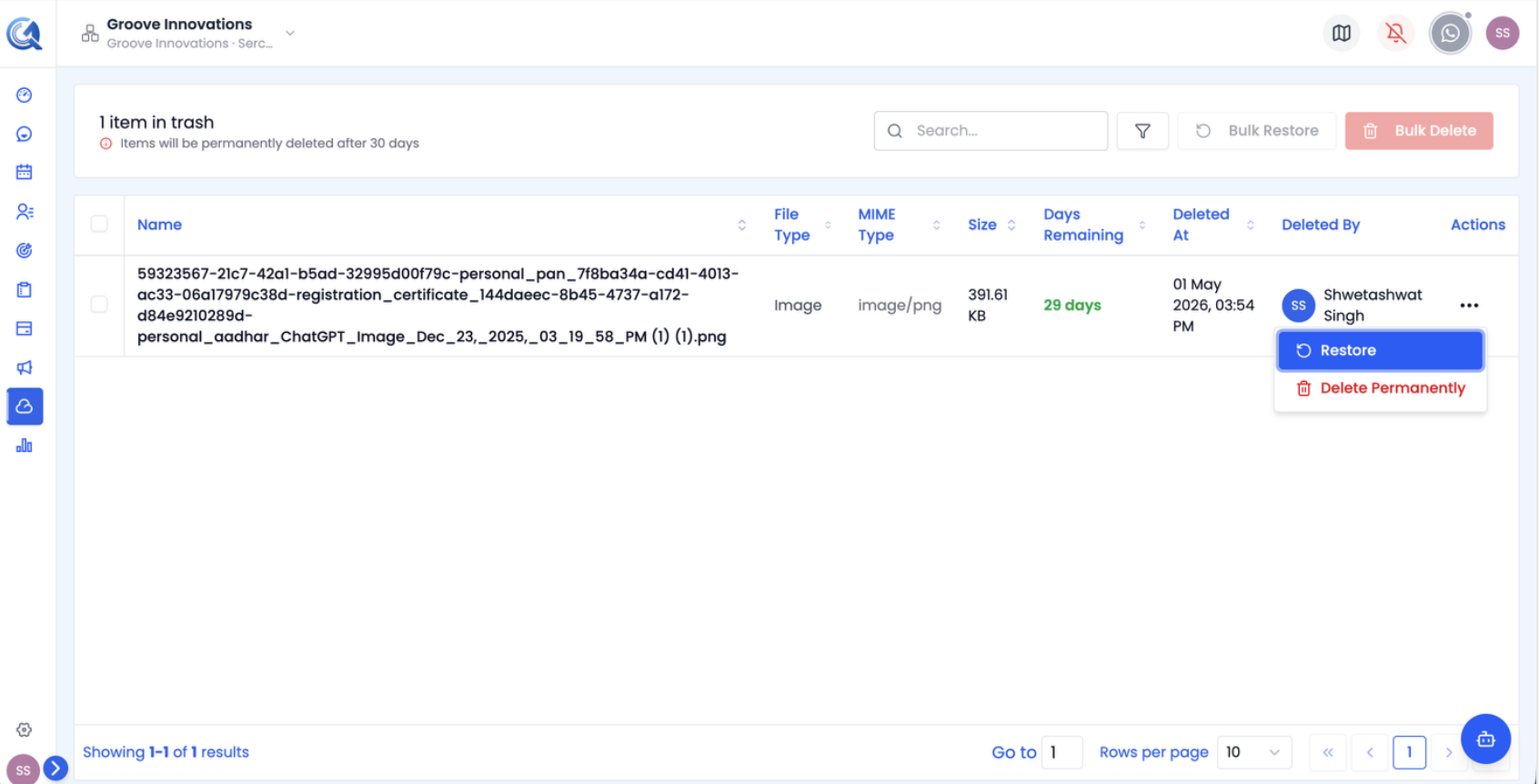 Select Restore to move the item back to its original folder.
To restore multiple items at once, check their checkboxes and click Restore in the bulk action bar.
Permanently Deleting an Item
To permanently delete a single item, click the ⋮ menu and select Delete Permanently. A confirmation dialog appears — click Confirm to proceed.
Warning: Permanent deletion cannot be undone. The file will be gone forever.
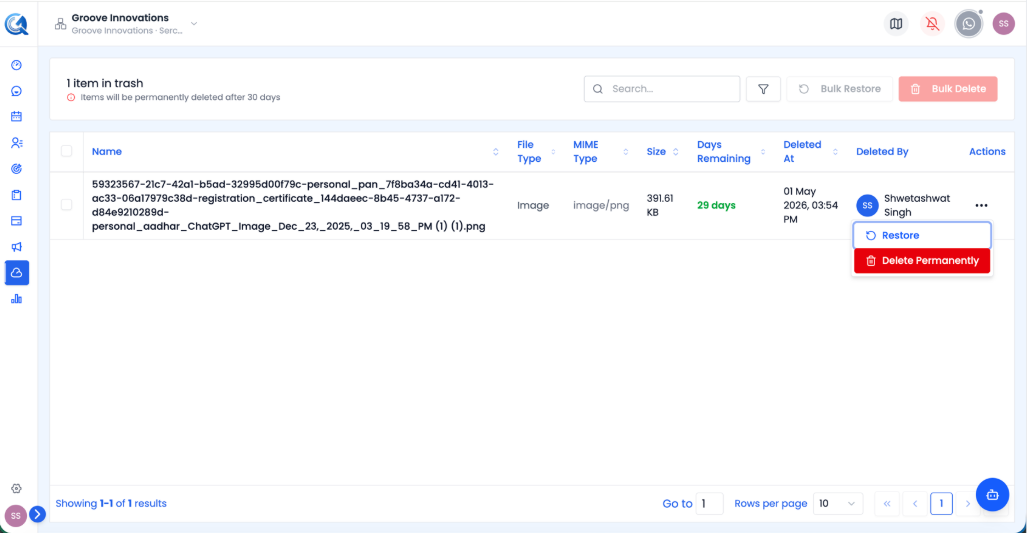 Confirm permanent deletion carefully — this action cannot be reversed.
To permanently delete multiple items, select them and click Delete Permanently in the bulk action bar.
Automatic Deletion
Items in Trash that have been there for more than 30 days are automatically and permanently deleted. The Days remaining column shows how much time is left before each item is auto-deleted.
Video Walkthrough
Watch the complete walkthrough below.