Notification Inbox
The bell icon opens a panel with two tabs — System and Alerts — listing every notification with an unread indicator, a preview, and a timestamp.
Opening the Panel
Click the bell icon in the top navigation. A badge on the bell shows your total unread count (capped at "99+"); hovering the bell (before you open it) shows a tooltip summarizing how many are unread, or your push-notification status if none are.
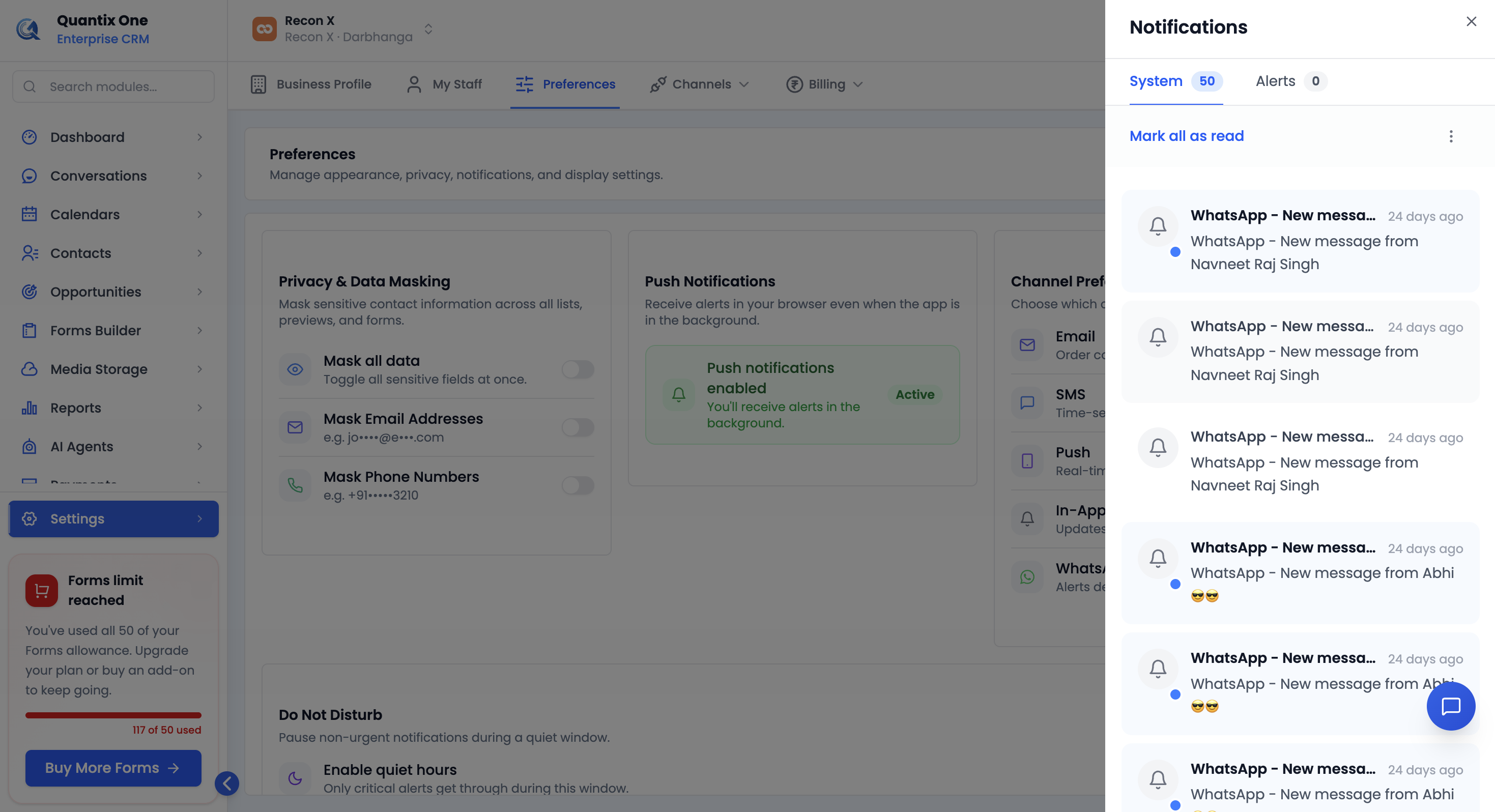 The bell icon with an unread-count badge, and the panel open showing the System and Alerts tabs.
System vs. Alerts
- System — general notifications: WhatsApp messages, capacity warnings (e.g. approaching your users limit), and other account activity.
- Alerts — higher-severity items, styled in red, for things that need more urgent attention.
Each tab's label shows a count badge for how many notifications it holds.
Reading a Notification
Click any notification card to open a details preview — its type, full title and description, the exact timestamp, and a confirmation that it's now marked read. This also marks it read in the list immediately; already-read notifications don't trigger another mark-as-read call.
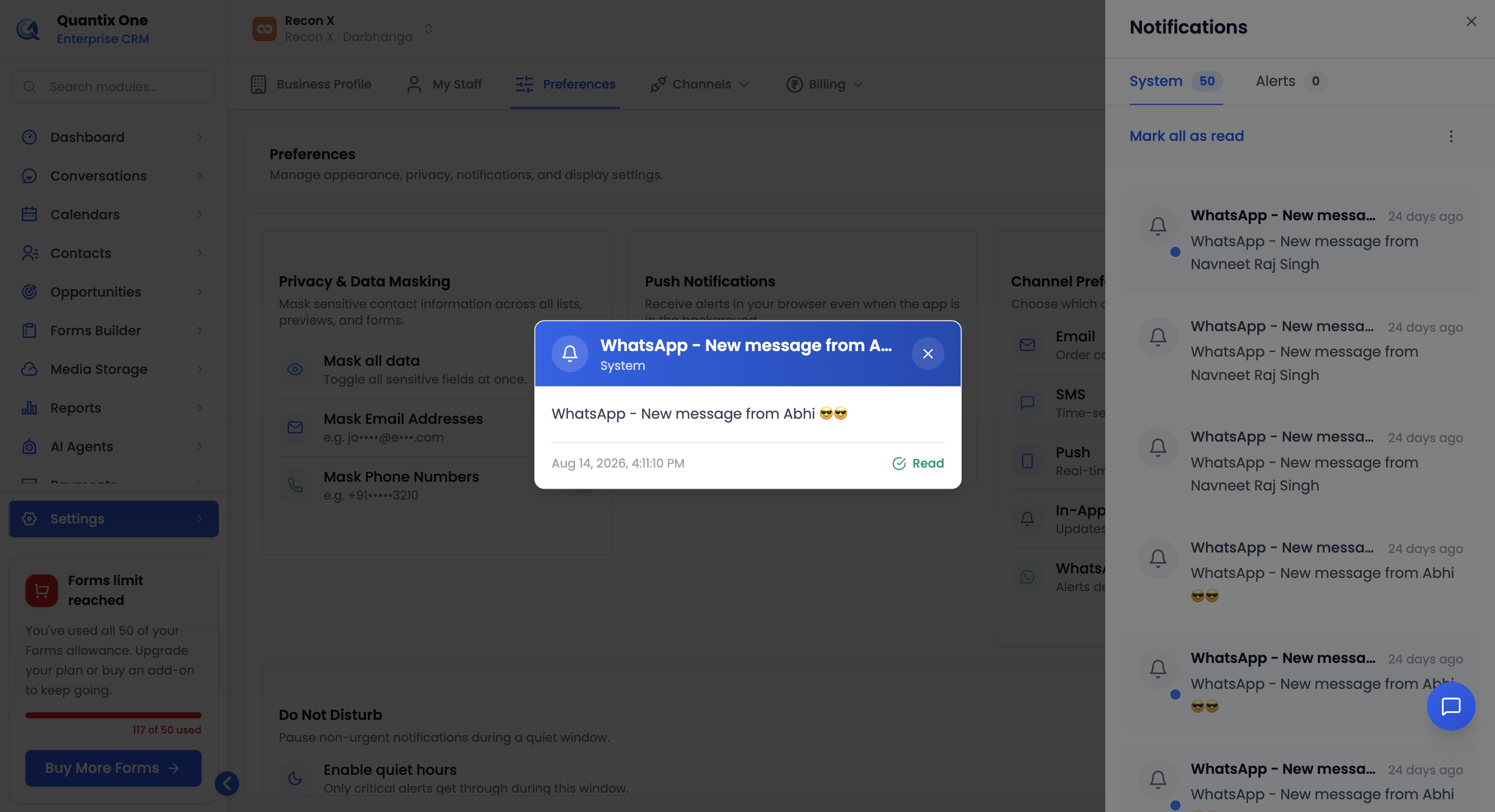 Clicking a card opens this preview — type badge, full description, and timestamp.
Mark All as Read
On the System tab, click Mark all as read (above the list) to mark every unread notification in that tab read in one action.
Clear All Notifications
Open the overflow menu (the icon next to Mark all as read) and click Clear all notifications to remove the current System-tab items from view. This clears them on this device only — there's no way yet to delete a notification from the server, so if you open the inbox on another device or browser, cleared items will still show there.
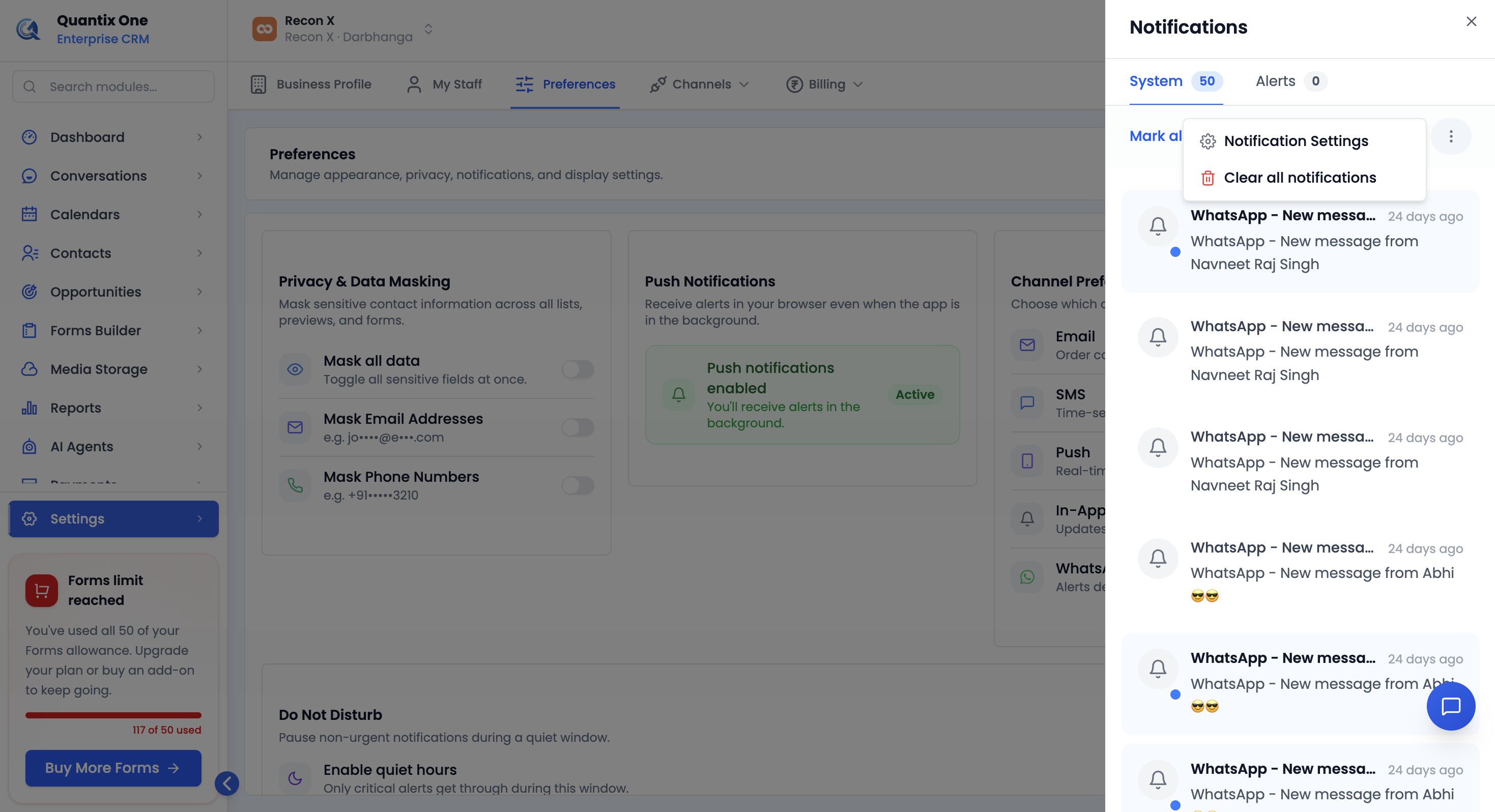 The overflow menu next to Mark all as read — Notification Settings and Clear all notifications.
No Notifications Yet
When a tab has nothing to show, it displays an empty state: "All caught up!"
Video Walkthrough
Watch the complete walkthrough below.