Notification Preferences
Choose which channels can deliver you notifications, and set quiet hours during which only critical alerts get through.
Navigating to Preferences
Go to Settings → Preferences, or click the gear icon in the notification bell's overflow menu (Notification Settings) to jump straight there.
Push Notifications
The same enable/blocked/unsupported states shown in the bell's tooltip appear here as a card, with an Enable button when push hasn't been turned on yet. See Push Notifications for details on each state.
Channel Preferences
Toggle which channels are allowed to deliver you notifications:
| Channel | Covers |
|---|---|
| Order confirmations, summaries, and updates by email. | |
| SMS | Time-sensitive alerts sent as text messages. |
| Push | Real-time alerts on this device's browser. |
| In-App | Updates shown in the notification bell inside the CRM. |
| Alerts delivered to your connected WhatsApp number. |
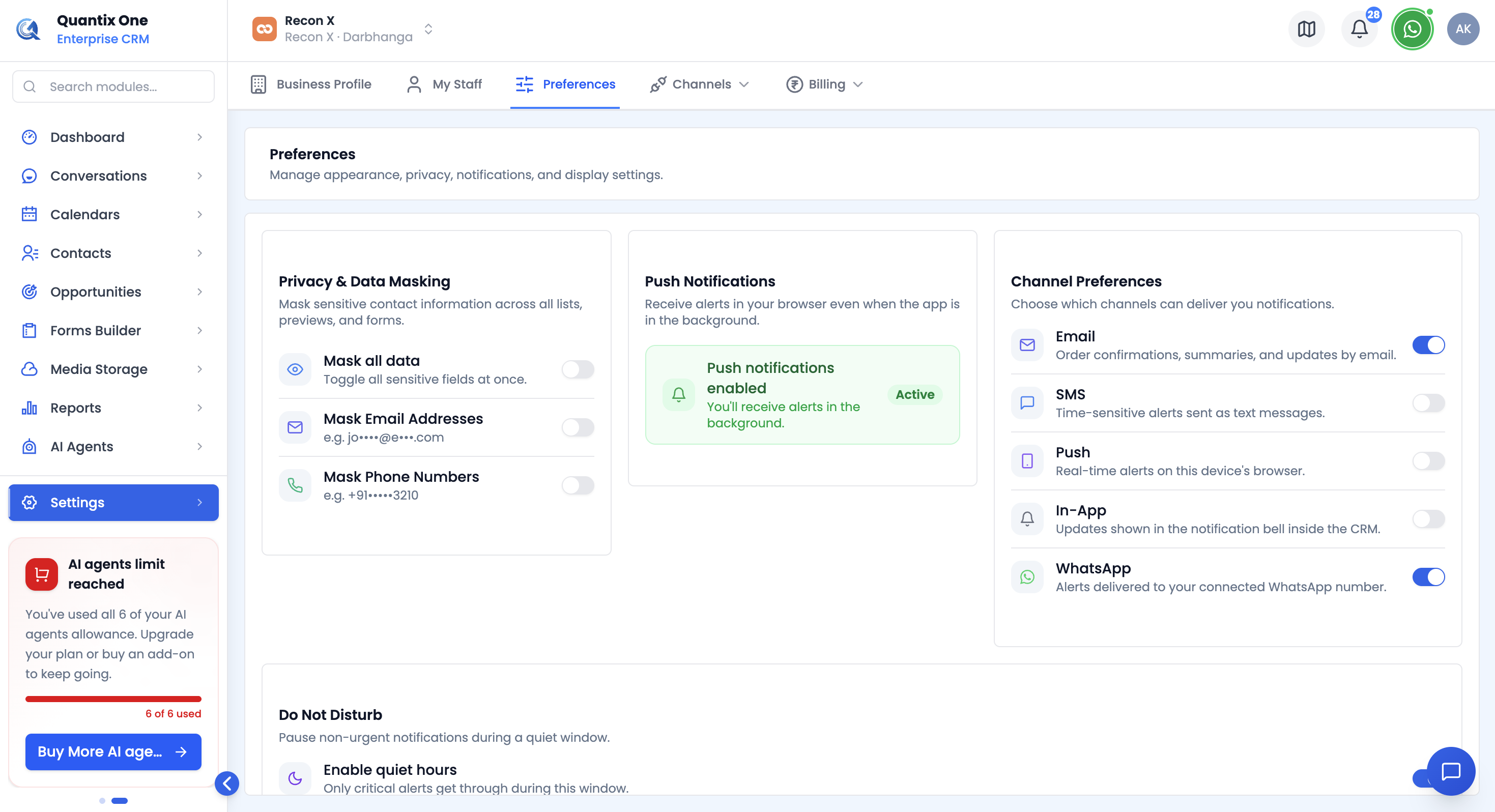 Five channel toggles — Email, SMS, Push, In-App, and WhatsApp.
Do Not Disturb
Turn on Enable quiet hours to pause non-urgent notifications during a window you set — only critical alerts still get through. Once enabled, set a Starts at and Ends at time.
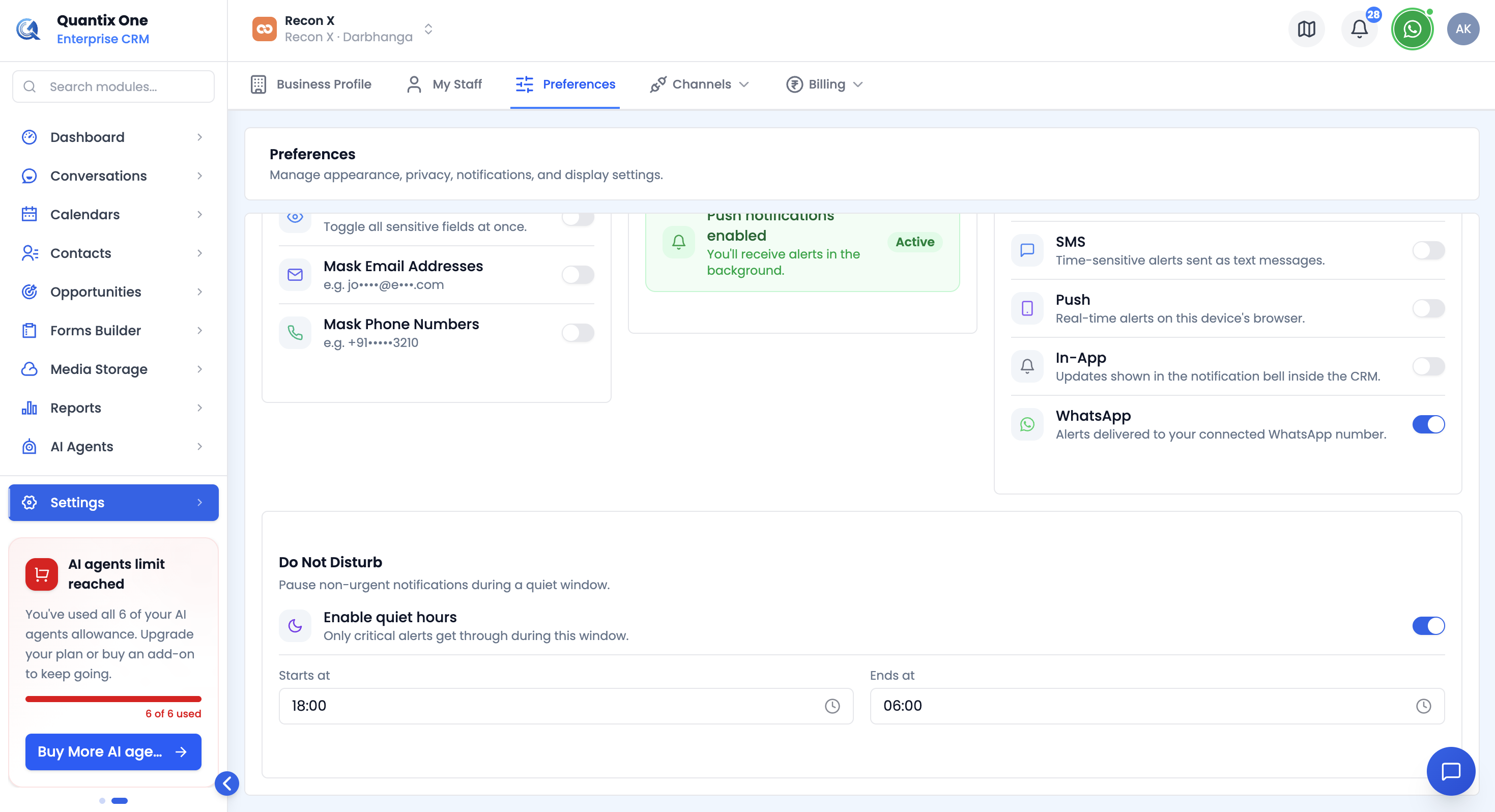 Quiet hours toggle, with Starts at / Ends at time pickers shown once enabled.
Saving Changes
A Save notification preferences button appears once you've changed a channel toggle or quiet-hours setting — click it to save. You'll see a confirmation toast on success.
Video Walkthrough
Watch the complete walkthrough below.