Push Notifications
Enable browser push to get alerted to new notifications with a native OS notification and a sound, even when the CRM tab isn't focused.
Permission States
The bell icon's color and the tooltip you see when hovering it reflect your current browser permission:
| State | Bell appearance | Meaning |
|---|---|---|
| Granted | Gray bell | Push is enabled — you'll get native notifications and a sound for new items. |
| Default (not yet asked) | Red bell-off icon | Push hasn't been enabled yet. |
| Denied | Red bell-off icon | You (or your browser) blocked notifications for this site. |
| Unsupported | Red bell-off icon | Your browser doesn't support the Notification API. |
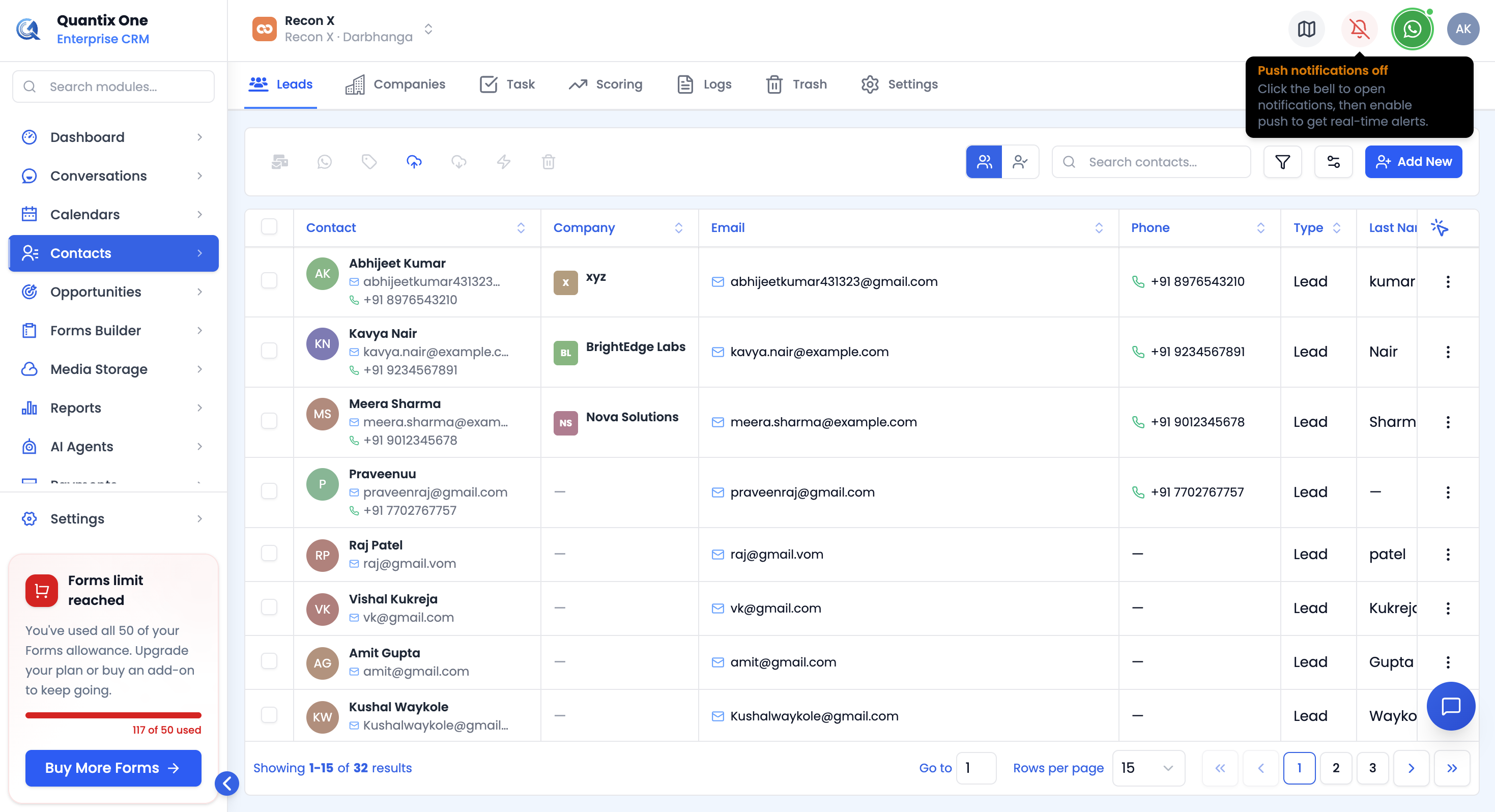 The bell icon changes color and icon depending on your push-permission state.
Enabling Push
Open the bell. If push isn't enabled yet, a blue banner at the top of the panel prompts you to enable it — click Enable and accept your browser's permission prompt.
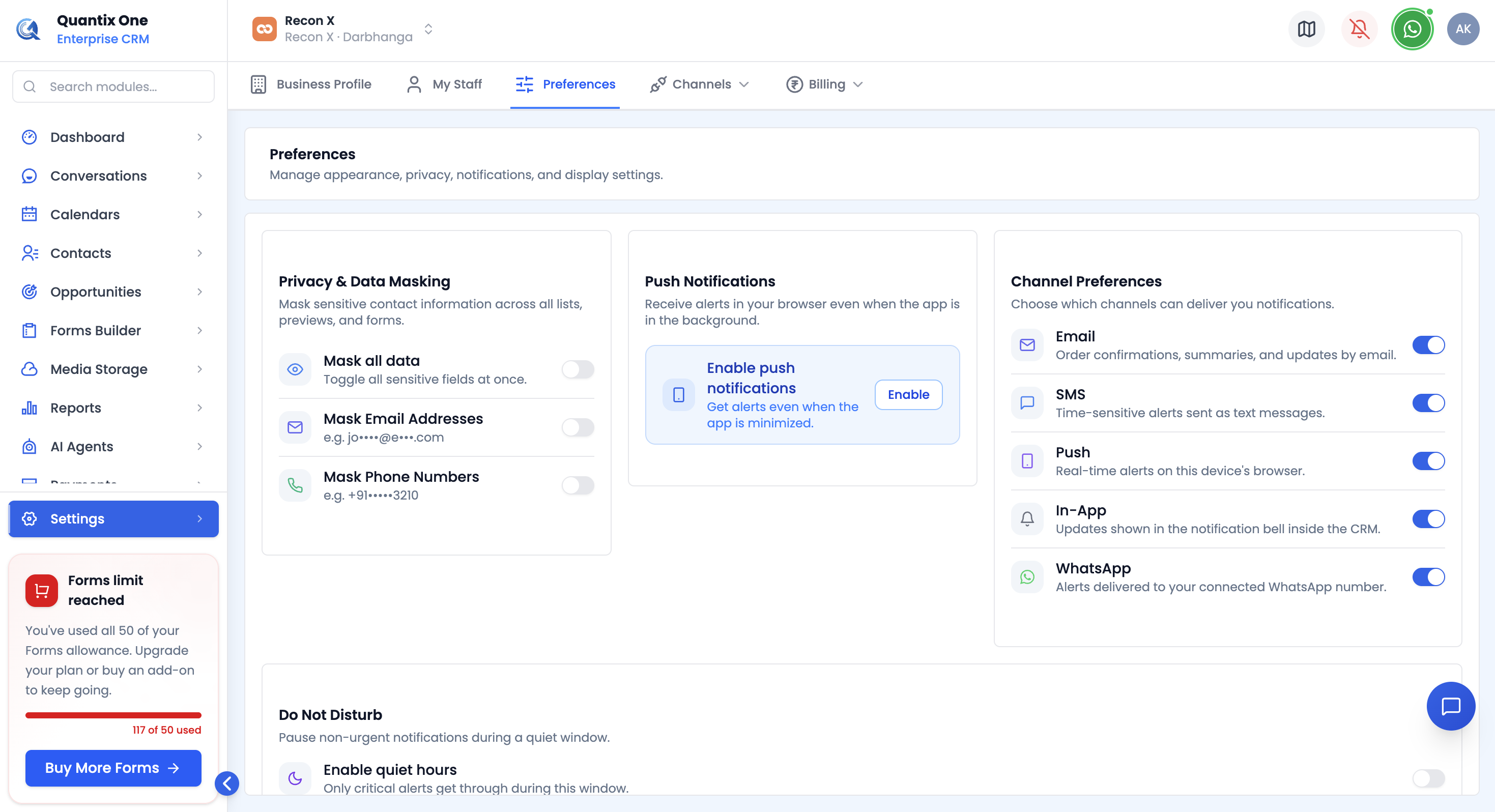 The banner shown inside the notifications panel when push hasn't been enabled yet.
If notifications are blocked at the browser level, an amber banner explains that you'll need to allow them in your browser's own site settings — this can't be re-prompted from inside the app once denied.
What You'll See for a New Notification
While the panel is closed, a genuinely new notification plays a short sound and shows a toast in the corner of the screen with the notification's type, title, and description — click it to jump straight into the panel. If push is granted, you'll also get a native OS-level notification alongside the toast.
Video Walkthrough
Watch the complete walkthrough below.