Creating a Deal
In QuantixOne CRM, a Deal (also called an Opportunity) represents a potential sale or business opportunity. Each deal lives in a pipeline stage and tracks its value, status, and ownership.
How Do I Create a New Deal?
From the Opportunities section, click + Create in the toolbar.
Fill in the deal details in the form that appears:
- Contact — Link an existing contact by searching their name, email, or phone number.
- Opportunity Name — Required. A clear, descriptive name for the deal (e.g., "Acme Corp — Enterprise Plan").
- Business Name — Auto-filled and locked if the linked contact already has a company; otherwise pick an existing company or type a new one.
- Pipeline — Required. Which sales funnel this deal belongs to.
- Stage — Required. Which step of that pipeline the deal starts in. Changes to the pipeline reset the available stage options.
- Status — Open, Won, Lost, or Abandoned. Defaults to Open.
- Opportunity Value — The projected contract value, used for pipeline forecasting.
- Owner — Searchable list of team members. Defaults to you.
- Source — Where the deal came from (e.g., WhatsApp, Form, Manual, Phone Call).
- Any custom fields your team has configured for Opportunities.
Click Save to create the deal. It appears immediately in the selected pipeline and stage.
How Do I View a Deal?
Click on any deal card on the Pipeline Board, or open a row from the Opportunities table, to open the deal detail panel.
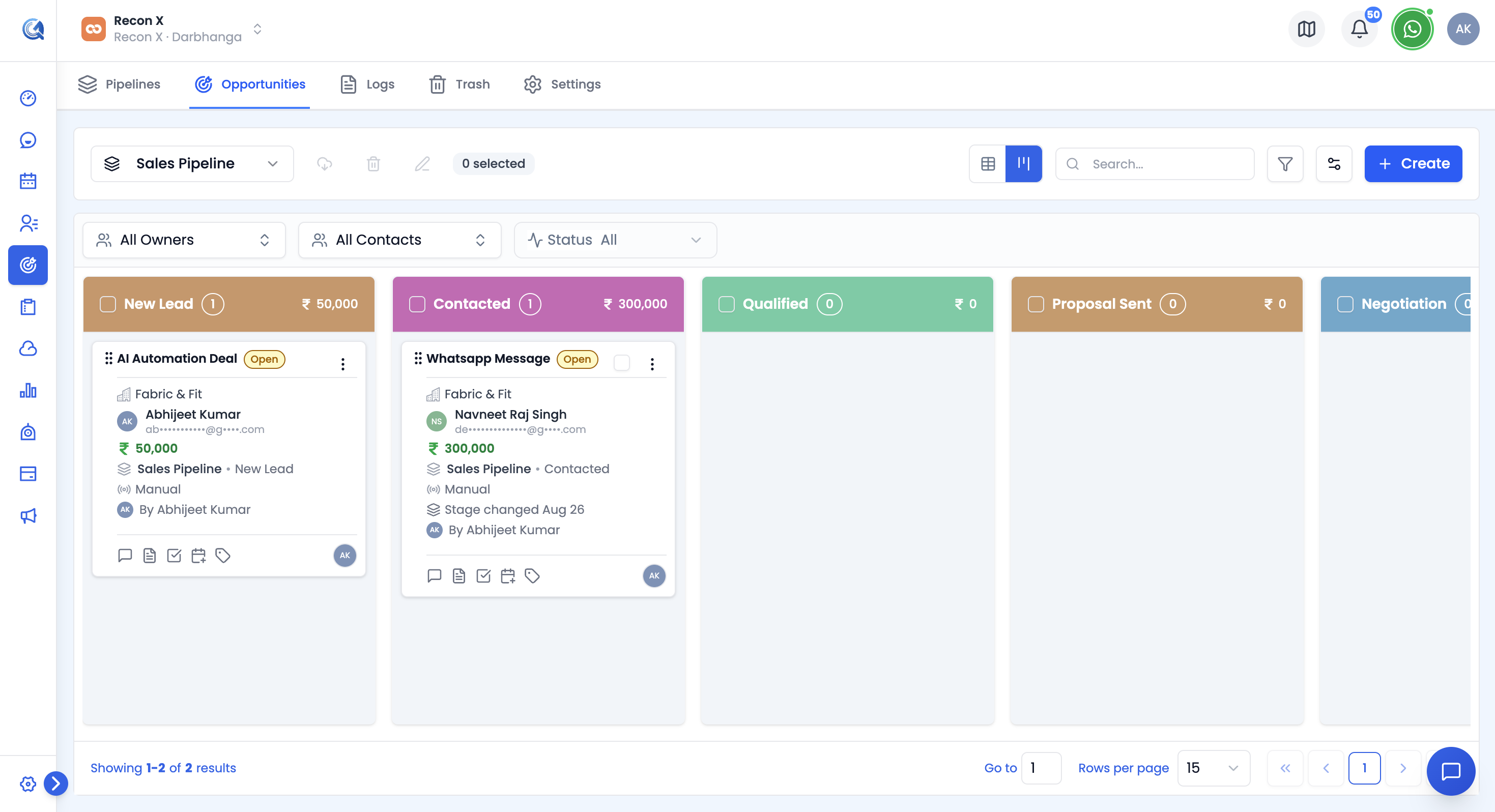 The deal detail panel shows all information about the opportunity.
The panel shows the deal's status and priority badges, value, contact, pipeline and stage, owner, source, tags, custom fields, and an activity/audit trail (created/updated by and when, last stage and status change).
How Do I Edit a Deal?
Open the row's ⋮ menu (in the table view) or the card's ⋮ menu (on the Pipeline Board) and select Edit. This reopens the same form used to create the deal, pre-filled with its current values — change any field, including Pipeline, Stage, Status, Value, or Owner, and click Save.
Note: Priority and Tags aren't set from this form — priority is assigned by the system, and tags are managed separately (see Tags & Filtering).
To edit several deals at once instead, see Bulk Operations.
How Do I Track Notes, Tasks, and Appointments for a Deal?
Every deal (with a linked contact) has its own Notes, Tasks, and Appointments — open its ⋮ menu and select any of the three to log context, plan follow-ups, or book a meeting without leaving Opportunities. See Deal Activities: Notes, Tasks & Appointments for the full walkthrough.