Custom Fields
Custom Fields let you add extra data fields to your deals beyond the built-in ones. Every business has unique information it needs to track — such as "Decision Date", "Budget Approved", "Contract Length", or "Procurement Contact". Custom fields let you capture exactly what your sales process needs.
Custom fields you create appear on every deal's create/edit form and detail panel for your location.
How Do I Access Custom Fields Settings?
Click Settings in the top navigation of the Opportunities section. The Custom Fields view is selected by default — toggle to System Fields to see the read-only built-in fields instead.
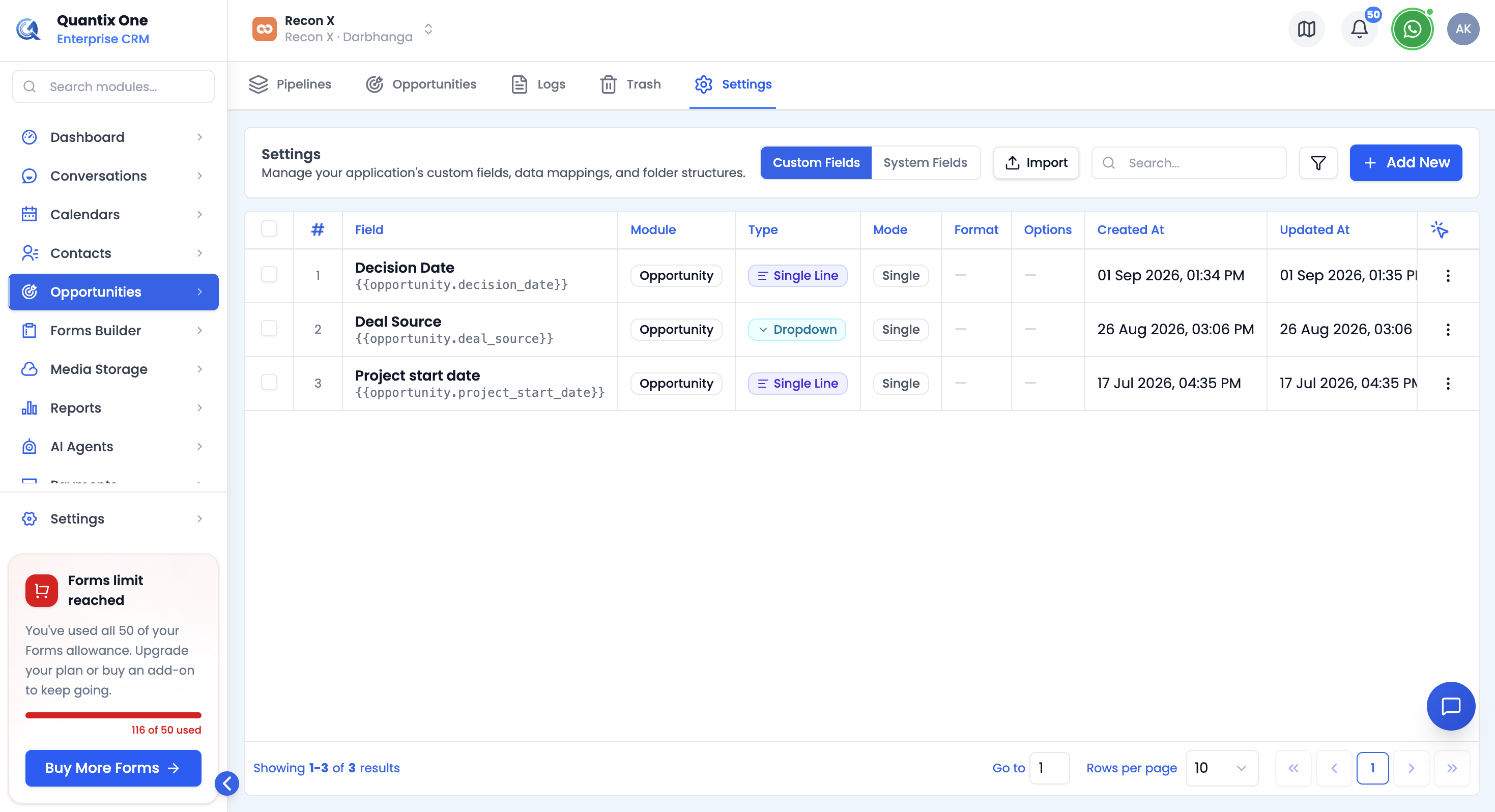 The Custom Fields settings page lists every field configured for your location.
You can search by name, or click the Filter icon to narrow the list by Field Name, Field Key, Data Type, whether it's Required, Created/Updated date, or who created/updated it. Search and the advanced filter are mutually exclusive — using one clears the other.
What Are System Fields?
System Fields are the built-in fields every opportunity already has — Name, Value, Status, Owner, and so on. Toggle to the System Fields view from the same Settings page to see the full list, including each field's data type.
System Fields are read-only: they exist for reference (for example, when building an advanced filter or checking a field's exact key) and can't be created, edited, or deleted — only your own Custom Fields can.
How Do I Create a Custom Field?
Click Add New to open the custom field creation form — a three-pane layout: pick a field type on the left, configure it in the middle, and see a live preview on the right.
Common Settings (every field type)
- Field Name — required. QuantixOne checks name availability as you type and warns you if it conflicts with a system field or an existing custom field.
- Placeholder — optional hint text shown in the empty field.
- Description — optional helper text shown under the field.
- Required Field — toggle to make the field mandatory before saving a deal.
Field Types Available
| Field Type | Description | Extra configuration |
|---|---|---|
| Single Line | Short text entry | Text Format: Text, Number, Percentage, Currency, Email, URL, or Phone |
| Multi Line | Multi-line text area | Same Text Format options as Single Line |
| Text Box List | A list of short text entries | Picklist options editor |
| Dropdown (Single) | Single selection from a list | Style: Default or Searchable; picklist options |
| Dropdown (Multi) | Multiple selections from a list | Same options as Dropdown (Single) |
| Radio Buttons | Single choice shown as radio buttons | Picklist options |
| Checkbox | Yes/No, or pick-any-of-several in Multiple mode | Mode: Single or Multiple; picklist options (Multiple mode) |
| Date Picker | Date selection | Date Format (5 options); optionally show time (24h or 12h) |
Click Create Field to save.
How Do I View Custom Fields on a Deal?
Once created, the custom field appears on the deal's create/edit form and on its detail panel.
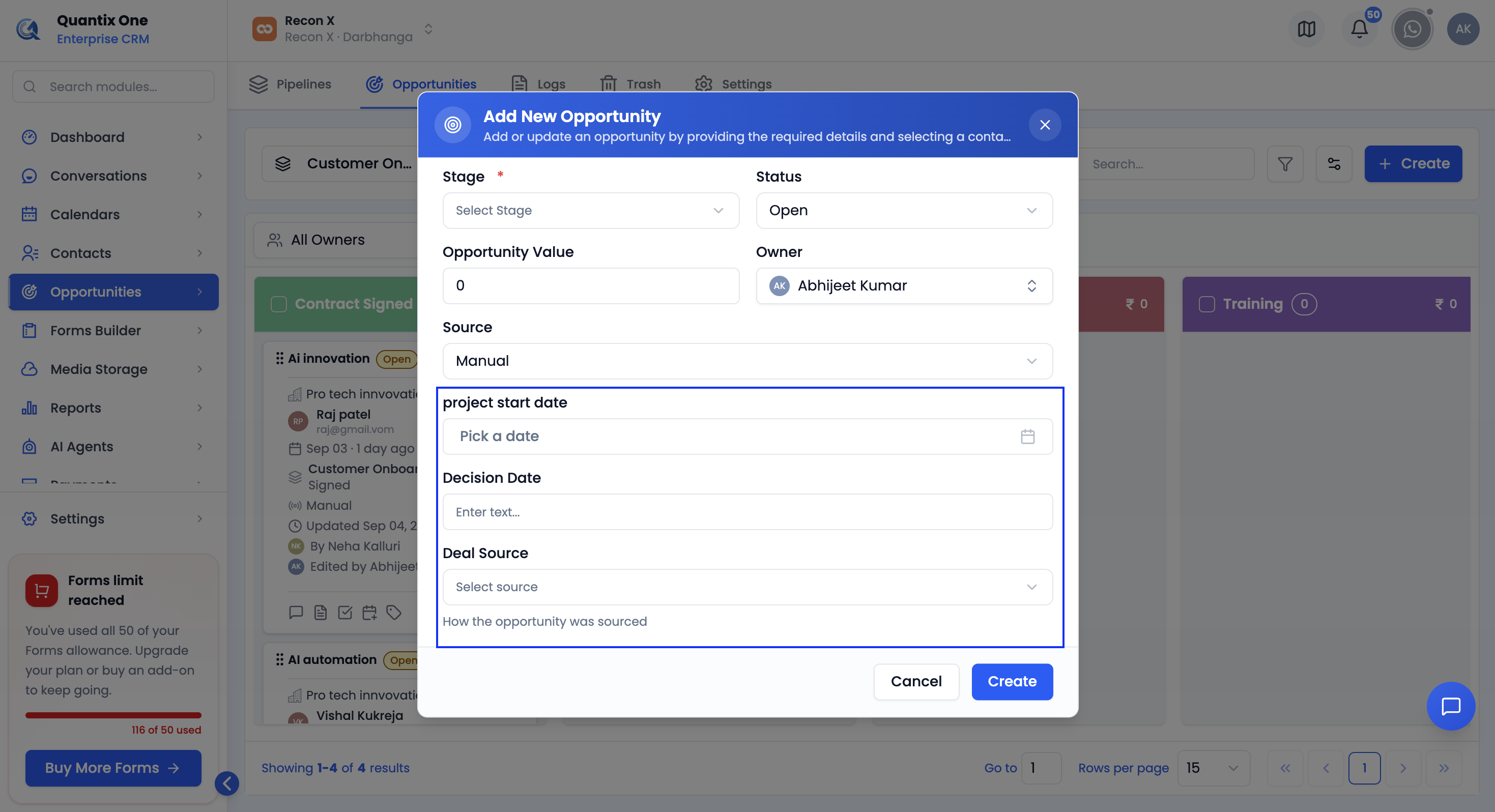 Custom field values appear alongside the deal's other details.
To fill in a custom field, open the deal's ⋮ menu, select Edit, enter the value, and click Save.
How Do I Edit a Custom Field?
Go to Settings → Custom Fields, open the field's ⋮ menu, select Edit, make your changes, and click Save Changes.
Note: Changing the field type of an existing custom field may affect existing data stored in that field. Check your existing deal records after making type changes.
How Do I Delete a Custom Field?
Go to Settings → Custom Fields, open the field's ⋮ menu, and select Delete.
Note: Deleting a custom field permanently removes it and all data stored in it from every deal in your location. This cannot be undone.