Import & Export
QuantixOne CRM lets you import deals in bulk from a CSV file and export your existing deals for external analysis. This is useful for migrating data from another CRM, onboarding a new pipeline with existing prospects, or sharing deal data with stakeholders.
Exporting Deals
When to Export
Export is useful when you want to:
- Analyze your pipeline data in a spreadsheet.
- Share deal status reports with stakeholders who don't use QuantixOne.
- Back up your deal data for record-keeping.
How to Export
Navigate to the Opportunities section and apply any filters you want (for example, filter by pipeline, status, date range, or owner). Then click the Export button in the toolbar.
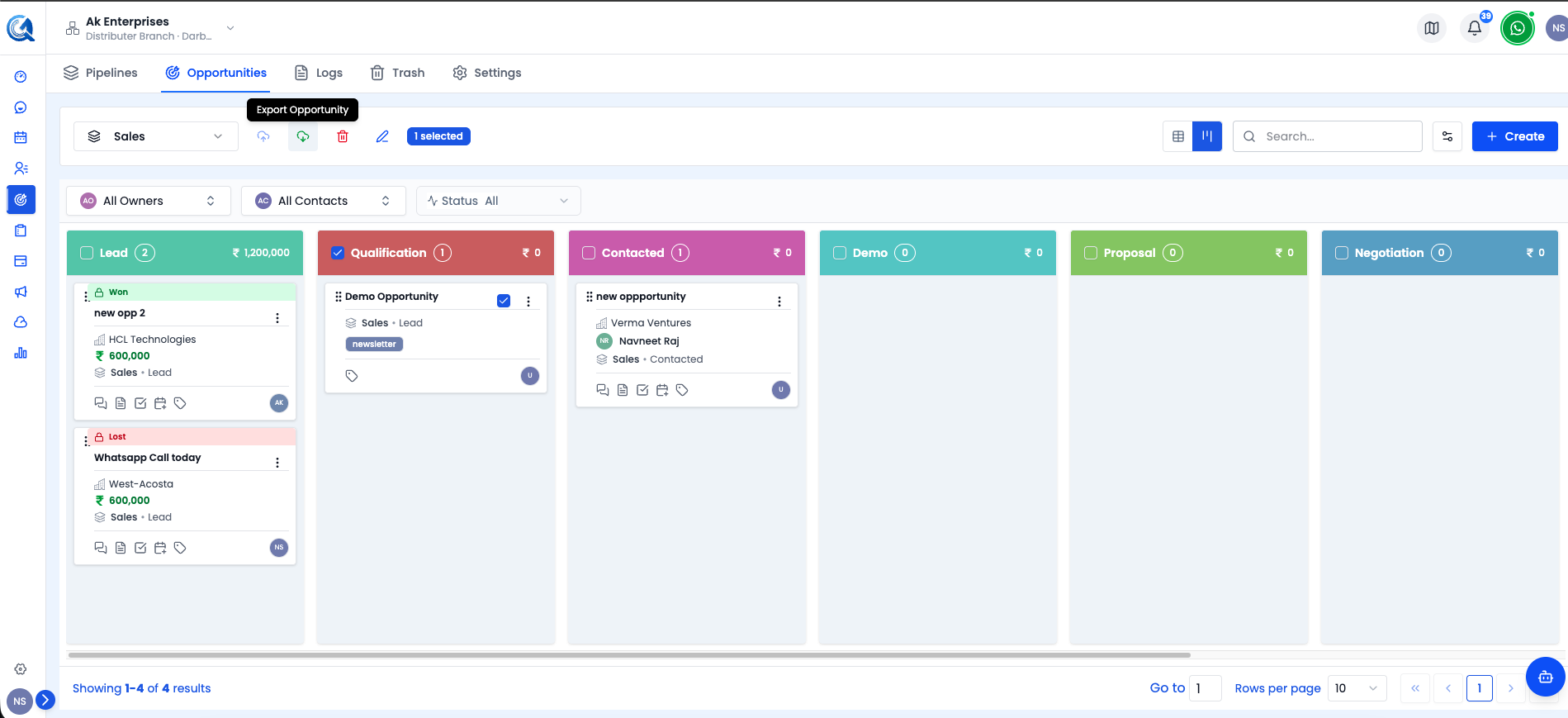 Click Export to download your current filtered deal list as a CSV.
QuantixOne will generate and download a CSV file containing all the deals that match your current filters. The file includes columns such as:
- Deal Name
- Pipeline Name and Stage
- Deal Value
- Contact Name, Email, and Phone
- Owner
- Status (Open, Won, Lost, Abandoned)
- Priority
- Source
- Tags
- Created Date and Last Updated Date
Note: The export includes all deals matching your active filters — not just the deals visible on the current page. If you want to export all deals, clear all filters before exporting.
Importing Deals
Before You Start
Prepare your CSV file with the deals you want to import. Your file should include at minimum:
- Deal Name — Required.
- Pipeline Name — The name of an existing pipeline to place the deal in.
- Stage Name — The name of an existing stage within that pipeline.
Optional columns include deal value, contact email, owner, source, priority, and any custom fields your location has configured.
Step 1 — Upload Your CSV
Click Import in the Opportunities toolbar to open the import wizard.
Click Choose File and select your CSV file. Click Upload to proceed.
Step 2 — Map Your Columns
QuantixOne will display the columns from your CSV and ask you to map each one to the corresponding field in the CRM.
For each column in your CSV, select the matching QuantixOne field from the dropdown.
Click Validate when your mapping is complete. QuantixOne will perform a dry run of the import and show you a preview of what will be created.
Step 3 — Review and Confirm
Review the validation results:
- Valid rows — Deals that are ready to be imported.
- Skipped rows — Rows that have issues (e.g., invalid pipeline name or missing required fields). The reason for each skip is shown.
If you are happy with the results, click Confirm Import to create the deals.
The import runs in the background. For large imports, you can track progress in the Bulk Actions section.
After the Import
Once the import is complete, the new deals will appear in their assigned pipelines and stages on the board. Navigate to the Pipeline Board to confirm.
Note: If a deal's pipeline or stage name in the CSV does not exactly match an existing pipeline or stage in QuantixOne, that row will be skipped. Double-check your pipeline and stage names before importing.
Video Walkthrough
Watch the complete walkthrough below to see how to import and export deals in QuantixOne CRM.