Pipeline Board (Kanban View)
The Pipeline Board is the visual heart of the Opportunities section in QuantixOne CRM. It displays all your deals as cards organized in columns — one column per stage. Your team can see the entire sales funnel at a glance, and move deals forward simply by dragging and dropping.
How Do I Open the Pipeline Board?
Click Opportunities in the left sidebar to open the Opportunities section. The default view is the Pipeline Board (Kanban view).
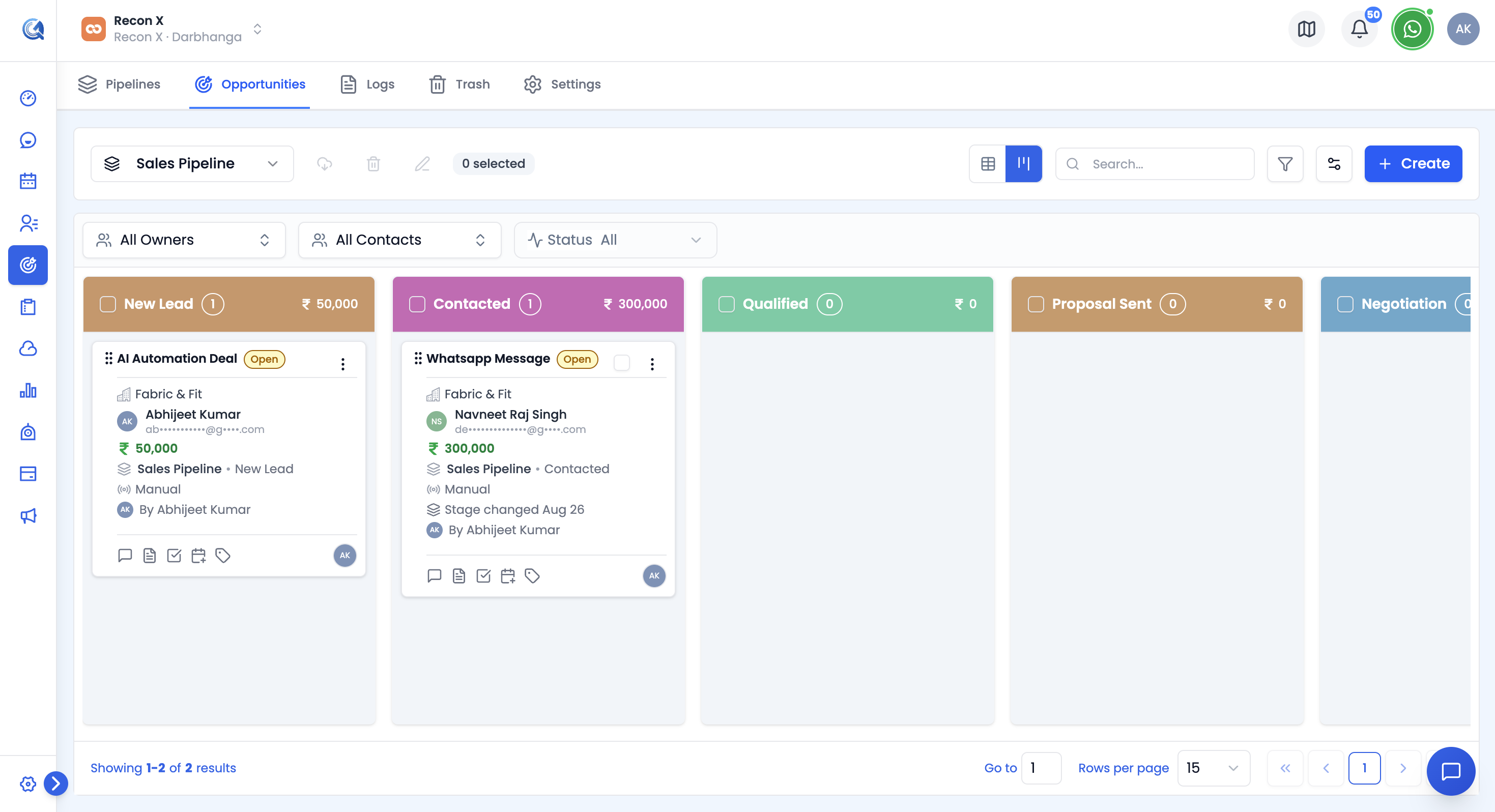 Click Opportunities in the sidebar to open the Pipeline Board.
How Do I Switch Between Table and Kanban View?
Opportunities has two ways to view the same data. Use the view-toggle icons next to the pipeline picker to switch:
- Kanban — the default drag-and-drop board described below.
- Table — a sortable, paginated list of deals with one row per opportunity. Table view is what you need for bulk actions (select multiple rows to bulk-edit, export, or delete — see Bulk Operations) and for sorting by a specific column.
Both views share the same search box, filters, and Manage Fields settings — switching views doesn't reset what you've already filtered or searched for.
What Does a Deal Card Show?
The board displays your currently selected pipeline. Each column represents a stage in your sales funnel (e.g., Qualification, Proposal, Negotiation, Closed). Each card represents a deal.
Each deal card shows:
- Deal Name — The name of the opportunity.
- Contact Name — The linked contact or prospect.
- Deal Value — The projected contract amount.
- Owner — The sales rep assigned to this deal.
- Priority Badge — A colour-coded indicator (Low, Medium, High) set by the system.
- Tags — Labels applied to this deal.
Which fields actually show can be customized — click the Manage Fields icon in the toolbar to choose which fields appear on the card (Kanban) or as columns (Table). Your choices, and the order you arrange them in, are saved to your account, so the same layout is there the next time you open Opportunities.
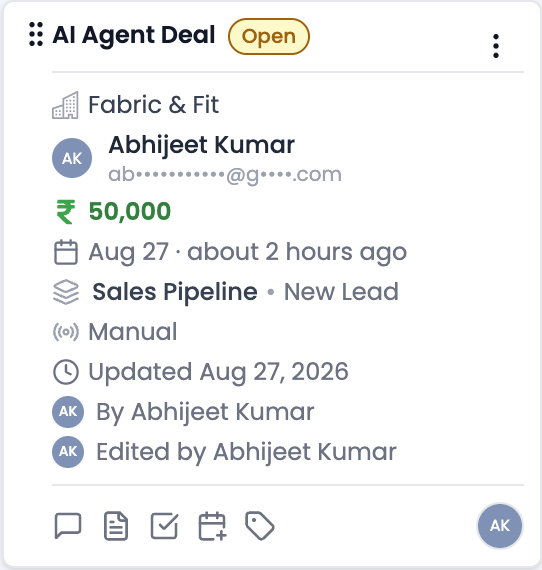 Each card summarizes the key fields of a deal at a glance.
How Do I Switch Between Pipelines?
If your location has multiple pipelines (e.g., Enterprise Sales, SMB Pipeline), use the Pipeline picker at the top of the board to switch between them. Type into its search box to filter the list down by name if you have many pipelines — matching happens as you type.
A fixed View Abandoned option always sits at the bottom of the picker, below a divider. Selecting it swaps the board to a single-column view of every deal that has fallen out of every active pipeline (see How Do I View Won, Lost, or Abandoned Deals?) — the picker and the rest of the toolbar turn orange while you're in this view, so it's obvious you've left your regular pipelines.
How Do I Filter the Board?
The quick filter bar above the board lets you narrow down which deals are shown by:
- Owner — Show only deals assigned to a specific team member.
- Contact — Show only deals linked to a specific contact.
- Status — Show Open, Won, or Lost deals (use the pipeline picker's View Abandoned option for abandoned deals).
For more specific conditions — filtering by Source, Tags, custom fields, or combining multiple conditions with AND/OR logic — click the Filter icon to open the advanced filter builder. See How Do I Build Advanced Filters? for the full breakdown. Advanced filters apply to both the Kanban board (still scoped to the selected pipeline's stages) and the Table view.
- Search — Find a deal by name, contact email, or contact phone number using the search box in the toolbar.
How Do I Move a Deal Through Stages?
As a deal progresses through your sales process, drag the deal card from its current column to the next stage.
Click and hold a deal card, drag it to the target stage column, and release.
The deal is instantly updated. QuantixOne records the time of the stage change so you can track how long deals spend in each stage.
Note: You can move a deal backward or forward to any stage — not just the next one in sequence. This is useful when a deal regresses or needs to be repositioned.
How Do I Move a Deal Without the Board?
You can also change a deal's pipeline and stage together from its ⋮ menu — see How Do I Edit a Deal? for the general edit flow. To move several deals to a new pipeline or stage at once, use Bulk Operations instead.
How Do I View a Deal's Stage History?
Each time a deal moves to a new stage, the change is recorded. Open the deal to see its Last Stage Change and Last Status Change timestamps.
For the full history of every action taken on a deal — not just its most recent move — see Activity Logs.
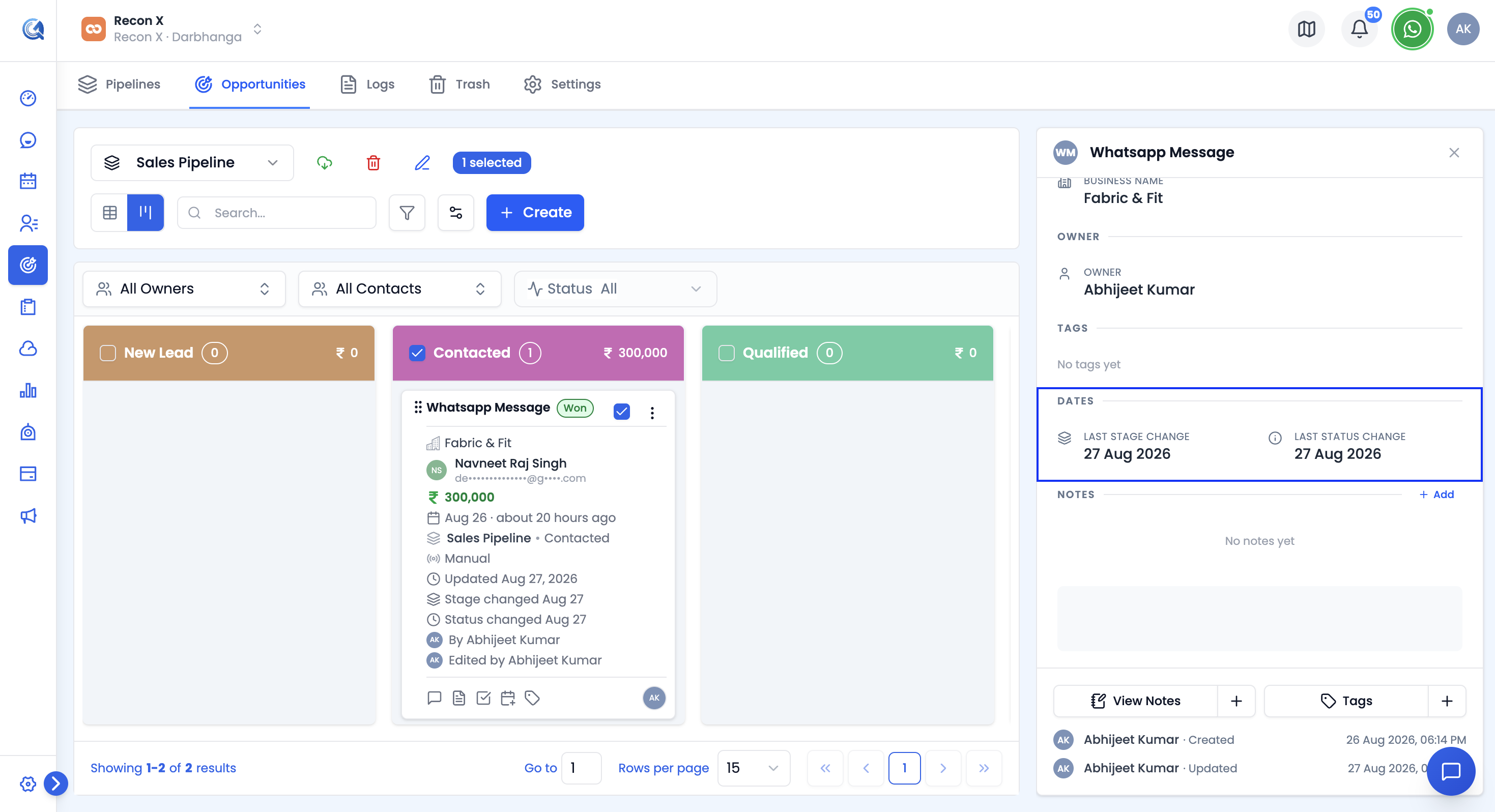 The deal panel shows when it last changed stage or status.