Pipelines & Stages Setup
A Pipeline is a structured sales funnel that defines the journey a deal takes from initial contact to close. Each pipeline is made up of Stages — the individual steps in your process (e.g., Qualification, Proposal, Negotiation, Closed Won).
You can create multiple pipelines to match different sales processes — for example, one for Enterprise deals and another for SMB deals.
How Do I Access Pipeline Settings?
Click Pipelines in the top navigation of the Opportunities section.
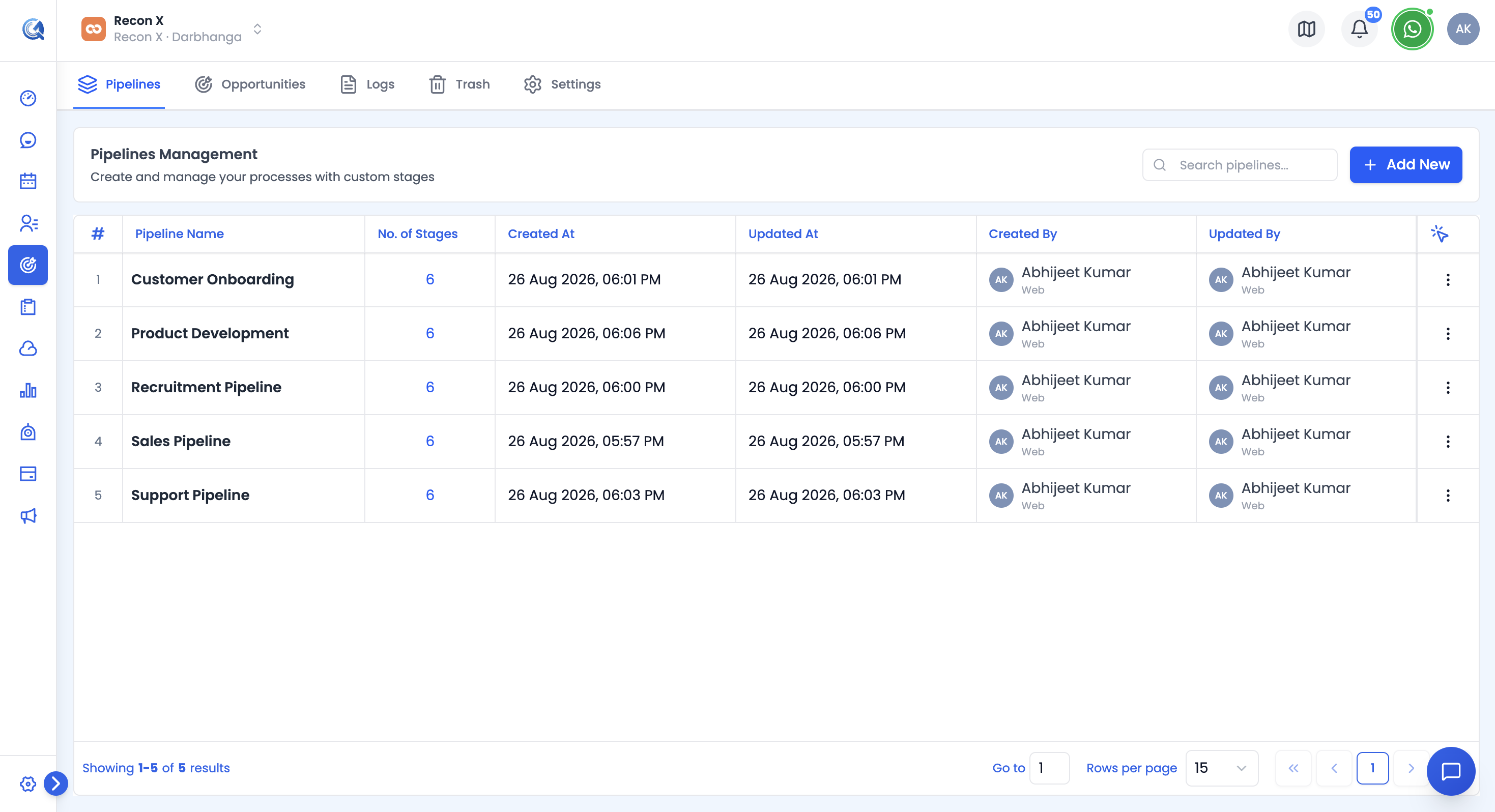 The Pipelines page lists all your sales pipelines.
How Do I Create or Edit a Pipeline and Its Stages?
Click + New Pipeline to create one, or open a pipeline's ⋮ menu and select Edit to change an existing one. Both open the same form:
- Pipeline Name — required.
- Stages — each stage row has a Name and a drag handle. Click + Add Stage to add a row, click the remove icon to delete one (at least one stage must remain), and drag rows by their handle to reorder them.
Click Save (or Update) to apply your changes.
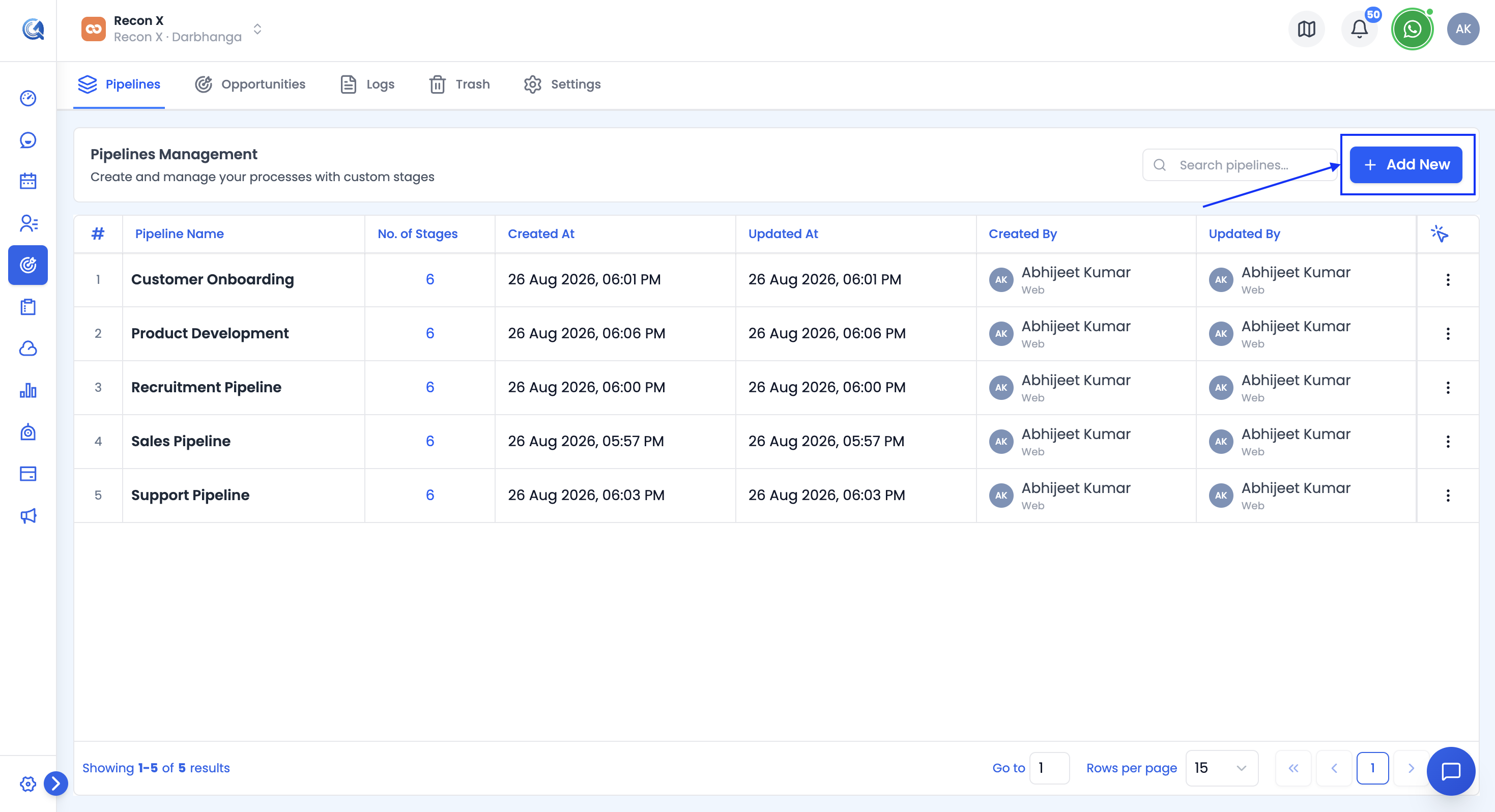 Name the pipeline and manage its stages — add, remove, or drag to reorder — all in one form.
How Do I Delete a Pipeline?
Open the pipeline's ⋮ menu and select Delete.
A confirmation dialog shows how many active opportunities are currently in the pipeline, and a checkbox: Also move all opportunities under this pipeline to Trash.
- Checked — the pipeline and all its opportunities are moved to Trash together.
- Unchecked — the pipeline moves to Trash, but its opportunities are kept and marked Abandoned instead.
Note: The deleted pipeline moves to Trash and can be restored within your retention period — see Deleted Items.