Coupons
Coupons let you create discount codes that contacts can apply at checkout to reduce the amount they pay. You can offer a percentage off the total or a fixed cash reduction, restrict which products the coupon applies to, limit how many times it can be used, and schedule exactly when it is active.
Navigating to Coupons
From the main navigation, click Payments → Coupons tab.
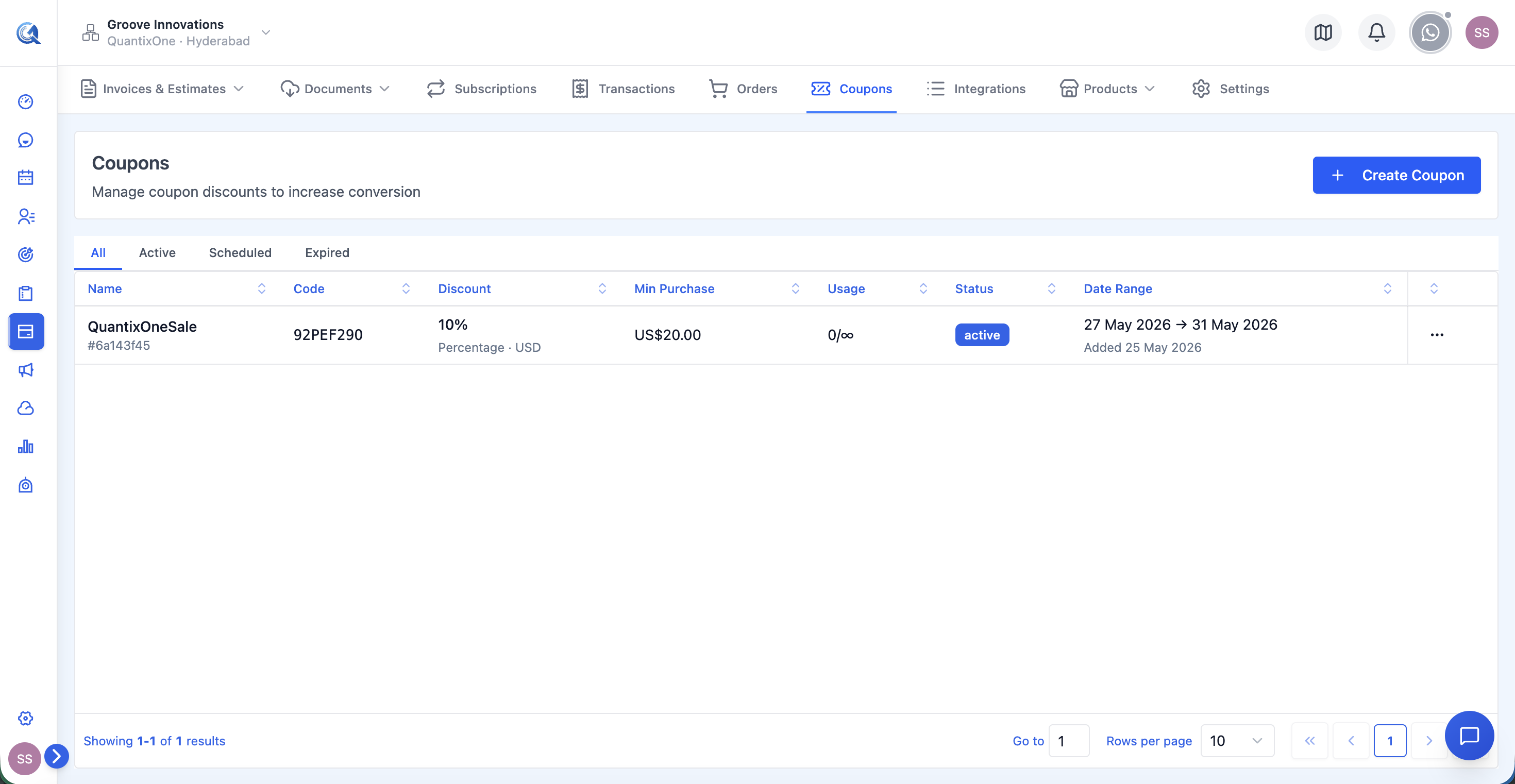 The Coupons list with All / Active / Scheduled / Expired filter tabs. Each row shows the coupon code, discount value, usage count, and validity dates.
Coupon Statuses
Coupons move through a lifecycle based on their date settings and usage.
| Status | What it means |
|---|---|
| Active | The coupon is currently valid. Today's date falls between the start and end date, and the usage limit has not been reached. Contacts can apply this code right now. |
| Scheduled | The coupon's start date is in the future. It is set up and ready but not yet redeemable. |
| Expired | The coupon's end date has passed, or the usage limit has been reached. It can no longer be applied. |
Use the filter tabs at the top of the list to switch between All, Active, Scheduled, and Expired coupons.
Coupon List Columns
| Column | What it shows |
|---|---|
| Name | The internal name you gave this coupon (e.g. "Summer Sale 2025") |
| Code | The code contacts type at checkout (displayed in monospace font) |
| Discount | The discount value and type (e.g. "20%" or "$25") |
| Min Purchase | The minimum order value required to apply this coupon (if set) |
| Usage | How many times the coupon has been used vs the total limit (e.g. "14 / 50") |
| Status | Active, Scheduled, or Expired badge |
| Date Range | The start and end dates the coupon is valid |
Creating a Coupon
Click + New Coupon to open the creation form.
Step 1 — Coupon Name
Enter an internal name for this coupon — this is for your reference only and is not shown to customers. Use something descriptive like "Black Friday 20% Off" or "New Customer Welcome Discount".
Step 2 — Coupon Code
Enter the code that customers will type at checkout to apply the discount.
Coupon codes are case-insensitive. Use letters and numbers only — no spaces or special characters. Keep codes short and memorable: WELCOME20, SUMMER10, LAUNCH50. You can also click Auto-generate to have Quantixone create a random unique code for you.
Step 3 — Discount Type and Value
Choose how the discount is calculated:
| Type | How it works | Best for |
|---|---|---|
| Percentage | Deducts a percentage of the order total. Enter 20 to give 20% off. | Proportional discounts that scale with order size |
| Fixed Amount | Deducts a specific currency amount. Enter 25 to give $25 off. | Fixed promotional credits, welcome offers, referral rewards |
Discount Value — Enter the numeric discount value. For Percentage, enter the number without the % sign (e.g. 20 for 20% off). For Fixed Amount, enter the cash amount (e.g. 25 for $25 off).
Currency — Select the currency the fixed amount is denominated in (USD, EUR, GBP, INR, etc.). This field is only relevant for Fixed Amount discount type.
Step 4 — Minimum Purchase Amount (optional)
Optionally set a minimum order value the contact must reach before the coupon can be applied. For example, set $50 to require a minimum $50 purchase. Leave blank if there is no minimum.
Step 5 — Date & Time
Set when the coupon is valid:
- Start Date & Time — the exact moment the coupon becomes active. Leave blank or set to today/now to activate it immediately on save.
- End Date & Time — the exact moment the coupon expires. After this point, the code can no longer be entered. Leave blank for a coupon with no expiry date (it stays active until manually deactivated or usage limit is reached).
Step 6 — Limit Redemptions (optional)
Toggle on to cap the total number of times this coupon can be used across all customers.
- Enter the maximum number of redemptions (e.g.
100to allow 100 uses total). - Use the increment/decrement buttons to adjust the number.
- Once the limit is reached, the coupon automatically transitions to Expired status — no manual action needed.
- Leave the toggle off for unlimited uses.
Step 7 — Limit to Specific Products (optional)
Toggle Limit to Products on to restrict this coupon to apply only to specific products rather than the entire order.
- A product selector appears. Search for and select the products this coupon should apply to.
- When a customer uses this code, the discount only applies to the qualifying product(s) in their order. Other items are unaffected.
- Leave this toggle off if the coupon should apply to the full order total.
Step 8 — One Use Per Customer (optional)
Toggle on to restrict each individual customer to using this coupon only once. If the same customer tries to use the same code a second time, it will be rejected at checkout.
Leave off to allow each customer to use the coupon multiple times.
Step 9 — Apply to Recurring Payments (optional)
Toggle on to extend this coupon's discount to future recurring billing cycles, not just the first payment.
When enabled, choose the duration:
| Option | What it does |
|---|---|
| Forever | The discount applies on every recurring charge for the lifetime of the subscription |
| Multiple Months | The discount applies for a set number of months. Enter the number in the input field that appears. After that period, the full price resumes automatically. |
Leave this toggle off if the discount should only apply to the initial purchase.
Save
Click Save to create the coupon. It becomes Active immediately if today's date is within the start/end range, or Scheduled if the start date is in the future.
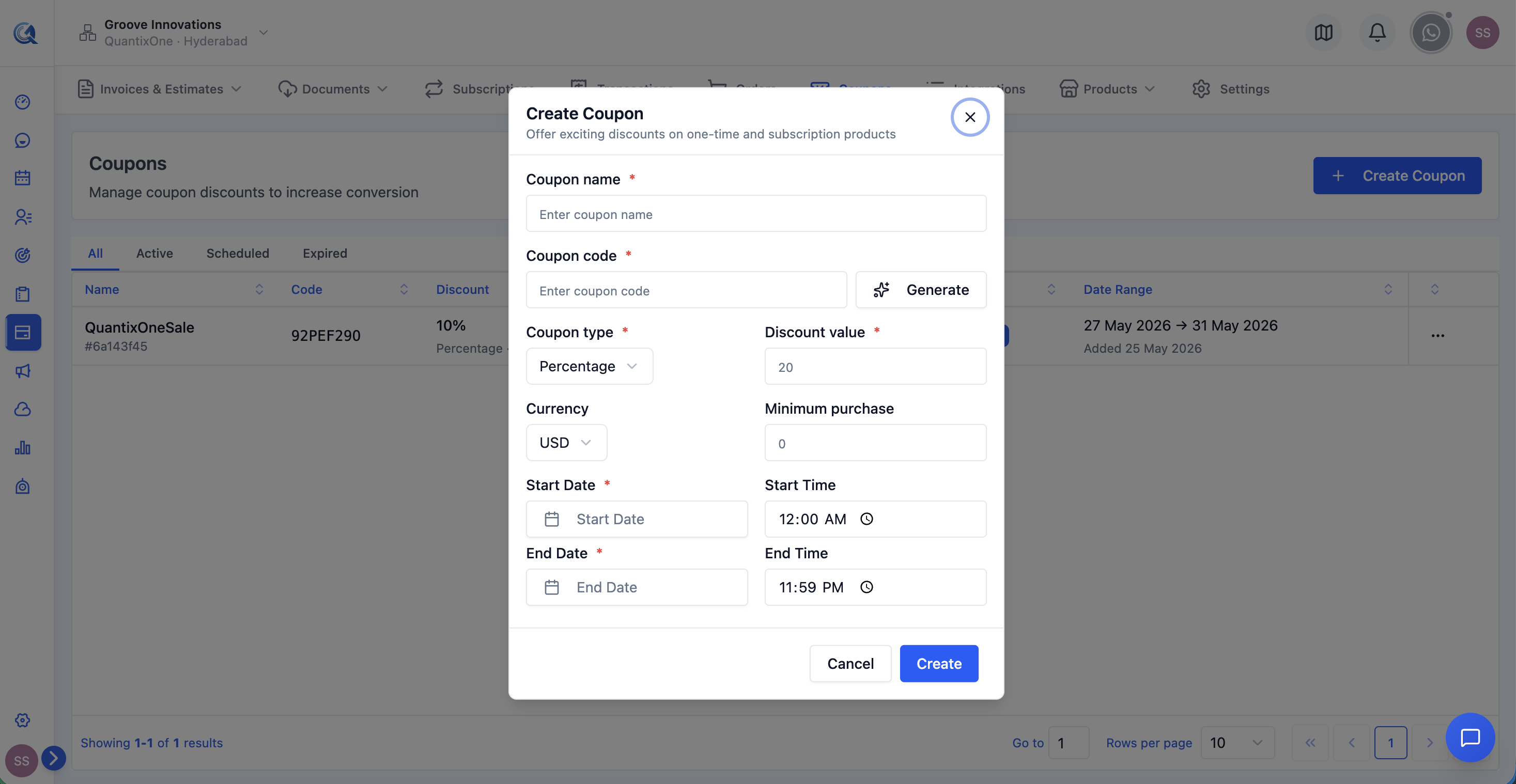 The completed coupon creation form showing discount type, validity dates, redemption limit, and product restriction settings.
Managing Coupons
From the coupons list, use the action menu (⋯) on any coupon row:
| Action | Description |
|---|---|
| Edit | Opens the coupon form to update any field — discount value, dates, usage limit, product restrictions. Changes take effect immediately. |
| Deactivate | Immediately expires an Active coupon. The end date is set to now and the coupon can no longer be applied. |
| Delete | Permanently removes the coupon. This cannot be undone. |
By default, coupons discount the entire order total, not a specific product. If you want to offer a reduced price on a single product only (rather than as a coupon code), use the Compare-at Price field on that product instead.
Video Walkthrough
Watch the complete walkthrough below.