Orders
The Orders section is a complete record of every product purchase made by your contacts — what they bought, how much they paid, whether it has been fulfilled, and how the payment was processed. Orders are created automatically by the system; you cannot create them manually.
Navigating to Orders
From the main navigation, click Payments → Orders tab.
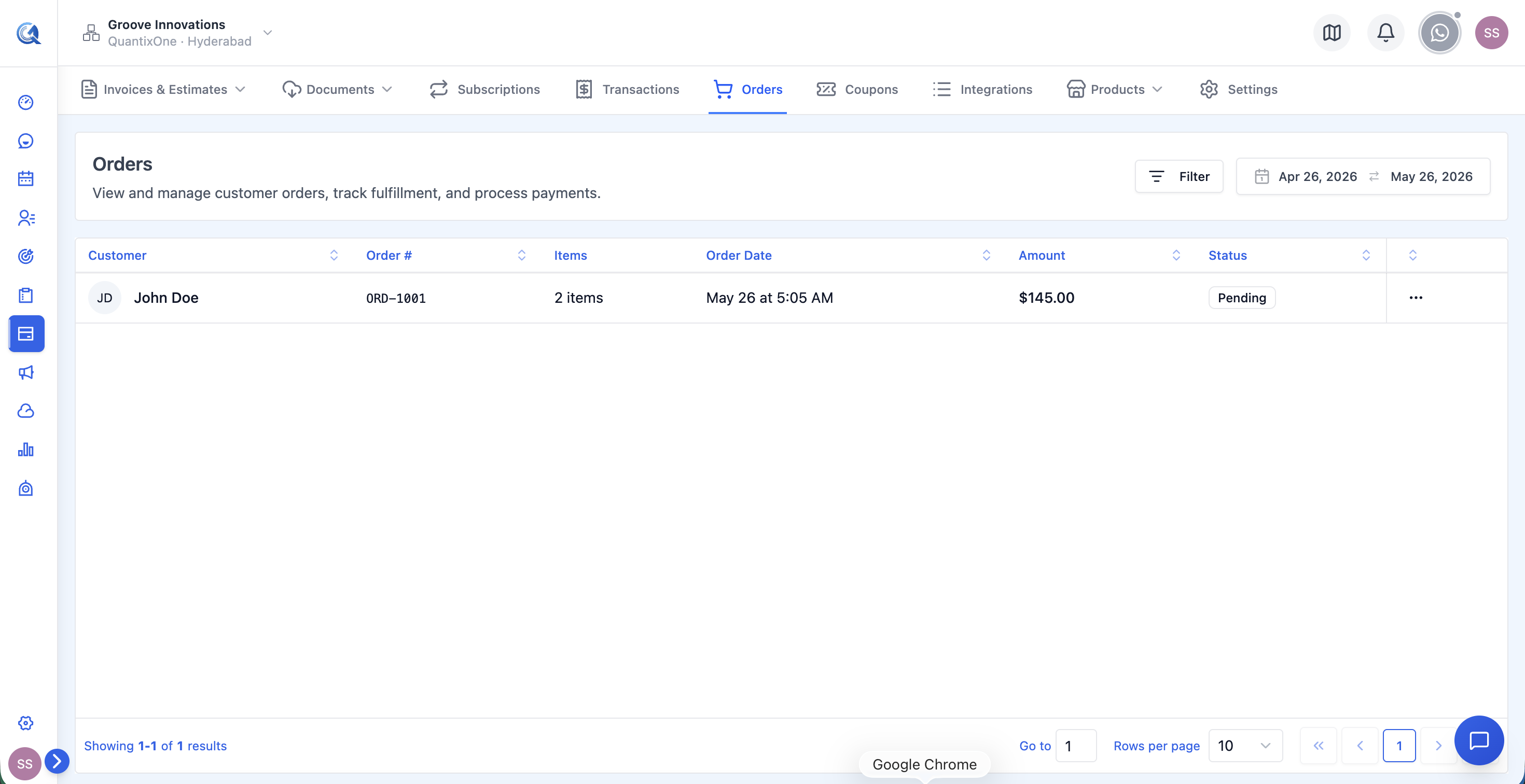 The Orders list. Each row shows the customer, order number, item count, order date, total amount, and current status.
Where Orders Come From
Orders are created automatically when a contact completes a product purchase. You do not create them manually.
An order is generated when:
- A contact pays via a payment link attached to a document that contains a Product List component
- A contact purchases through a product checkout page
Each order is automatically linked to:
- The contact who made the purchase
- The products and variants they bought
- The transaction record for the payment
Orders cannot be created manually. If a sale happened in person, via bank transfer, or through any channel outside Quantixone, create an Invoice for those products and mark it as paid. This keeps your billing records accurate without requiring an order to exist.
Order List Columns
| Column | What it shows |
|---|---|
| Customer | Contact avatar (initials) plus full name |
| Order # | The unique order reference number, displayed in monospace font |
| Items | The number of distinct line items in the order (e.g. "2 items") |
| Order Date | The date and time the order was placed |
| Amount | The grand total of the order, formatted in the order's currency |
| Status | A colour-coded badge showing the current order status |
Order Statuses
Orders have three separate status dimensions, each tracking a different aspect of the order lifecycle.
Order Status
The overall state of the order.
| Status | What it means |
|---|---|
| Pending | The order has been received but is awaiting payment confirmation or fulfilment action |
| Processing | Payment has been confirmed; the order is being prepared for fulfilment |
| Completed | The order has been fully paid and all items fulfilled |
| Cancelled | The order was cancelled before fulfilment was completed |
| Refunded | Payment was returned to the customer after the order was fulfilled |
| On Hold | The order has been manually placed on hold pending review or further action |
Payment Status
The state of the payment for this order.
| Status | What it means |
|---|---|
| Unpaid | No payment has been received yet |
| Pending | A payment has been initiated but not yet confirmed by the provider |
| Paid | Payment has been successfully collected in full |
| Partially Refunded | A portion of the payment was returned to the customer |
| Refunded | The full payment amount was returned to the customer |
| Failed | The payment attempt was declined; the order remains unpaid |
Fulfillment Status
Whether the items in the order have been delivered.
| Status | What it means |
|---|---|
| Unfulfilled | No items have been shipped or delivered yet |
| Partial | Some items in the order have been fulfilled; others are still pending |
| Fulfilled | All items in the order have been shipped or delivered |
Viewing Order Details
Click any order row to open the order detail dialog.
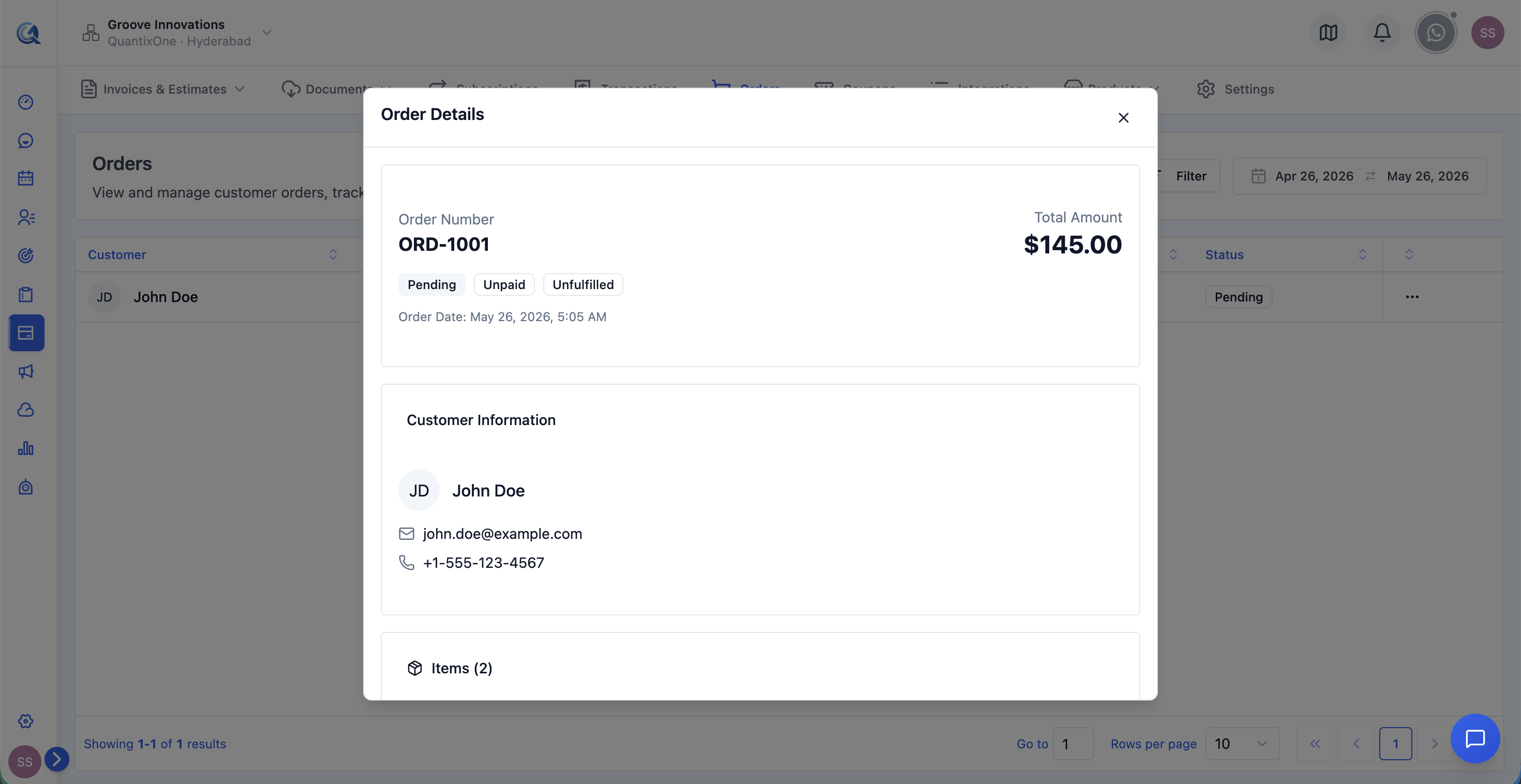 The order detail dialog. The top section shows the order number, creation date, and all three status badges — Order Status, Payment Status, and Fulfillment Status.
The dialog is divided into the following sections:
Order Summary
At the top of the dialog:
- Order number and creation date
- Three status badges: Order Status, Payment Status, Fulfillment Status
Customer Information
- Contact avatar with initials
- Full name
- Email address
- Phone number (if on file)
Line Items
A table of every product in the order:
| Column | What it shows |
|---|---|
| Product Name | The name of the product purchased |
| SKU | The product's stock-keeping unit code |
| Quantity | How many units were ordered |
| Unit Price | The price per unit at the time of purchase |
| Total | Quantity × Unit Price for this line |
Order Totals
Shown below the line items:
| Line | Description |
|---|---|
| Subtotal | Sum of all line item totals before adjustments |
| Discount | The total discount applied. If a coupon was used, the coupon code is shown here. |
| Tax | Total tax across all line items |
| Shipping | The shipping cost charged for this order |
| Grand Total | The final amount charged to the customer (subtotal − discount + tax + shipping) |
Addresses
Shipping Address — where the order is being delivered:
- Street address line 1
- Street address line 2 (if provided)
- City, State/Province, Postcode, Country
Billing Address — the address associated with the payment method (may differ from shipping):
- Same fields as shipping address
Shipping Information
Shown when a shipping method was selected at checkout:
| Field | What it shows |
|---|---|
| Shipping Method | The name of the shipping option selected (e.g. "Standard Shipping", "Express") |
| Carrier | The shipping carrier (e.g. "Australia Post", "FedEx") |
| Tracking Number | The carrier tracking reference, if available |
| Estimated Delivery | The expected delivery date, if provided |
| Cost | The shipping charge included in the order total |
Notes, Tags, and Refunds
- Notes — any internal notes attached to the order, shown in highlighted boxes
- Tags — any tags on the order, displayed as badges
- Refunds — if refunds have been processed, each is listed with the refund amount, the reason provided, and the date it was issued
Filtering and Search
Use the filter controls at the top of the Orders list to narrow the results.
 The Orders filter panel. Apply any combination of Order Status, Payment Status, and Fulfillment Status filters together with a date range to find exactly the orders you need.
| Filter | Options |
|---|---|
| Search | Free-text search by order ID, product name, or contact name |
| Status | All, Pending, Processing, Completed, Cancelled, Refunded, On Hold |
| Payment | All, Unpaid, Pending, Paid, Partially Refunded, Refunded, Failed |
| Fulfillment | All, Unfulfilled, Partial, Fulfilled |
| Date Range | Filter by order creation date. Default is the last 30 days. Use the calendar picker to set a custom range. |
Click Apply to run the filters, or Clear to reset all filters.
Set Payment to "Paid" and Fulfillment to "Unfulfilled" to see all orders where payment was collected but items haven't been dispatched yet. This is the most useful daily view for managing your fulfilment queue.
Video Walkthrough
Watch the complete walkthrough below.