Subscriptions
The Subscriptions section shows you every recurring subscription record linked to your contacts — their current billing status, when they next get charged, how much they pay, and which payment provider is processing the charge. This is a monitoring and lookup view; subscriptions are created automatically, not manually.
Navigating to Subscriptions
From the main navigation, click Payments → Subscriptions tab.
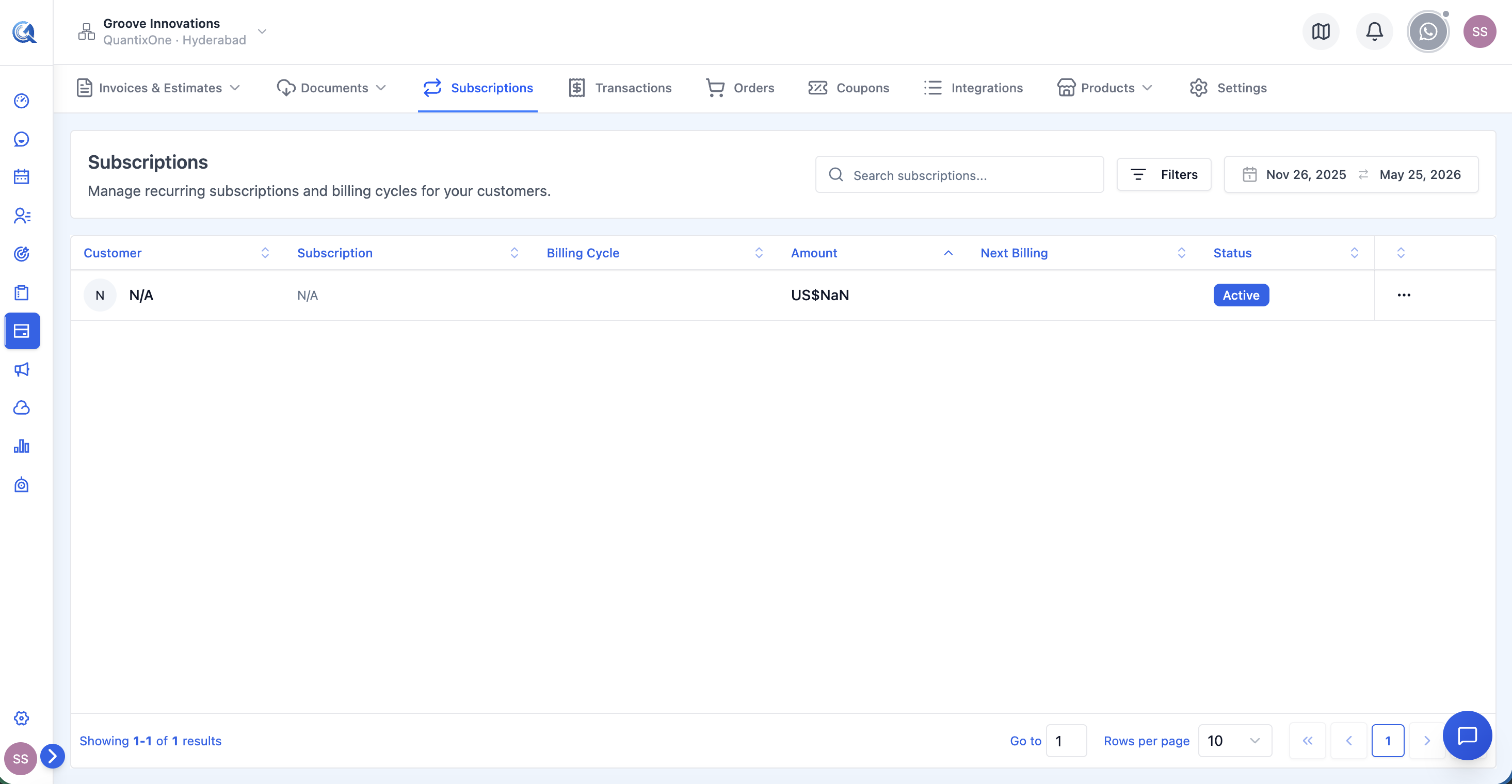 The Subscriptions list. Each row shows the customer, plan, billing cycle, amount, next billing date, and status.
Where Subscriptions Come From
You do not create subscriptions manually. They appear here in two ways:
-
Product purchase — when a contact pays for a product with a recurring price type (via a payment link or a document with payment settings enabled), Quantixone automatically creates a subscription record for that contact. The subscription tracks ongoing billing for that recurring product.
-
Payment provider sync — if you manage subscriptions directly in your connected payment gateway (e.g. Stripe), those subscriptions are automatically synced into this section. Any subscription that exists in your provider's dashboard will appear here.
You cannot create, edit, or cancel subscriptions from this screen. This section is purely for monitoring. To create a new subscription, set up a recurring product and share its payment link with a contact. To cancel one, manage it through your payment provider or through the subscription record in Stripe/PayPal.
Subscription List Columns
| Column | What it shows |
|---|---|
| Customer | The contact's avatar (initials), full name, and email address |
| Subscription | The subscription reference number and the product name being billed |
| Billing Cycle | How frequently the contact is charged — e.g. "Monthly", "Annually", "Every 2 weeks" |
| Amount | The amount charged per billing cycle, formatted in the subscription's currency |
| Next Billing | The date of the next scheduled charge |
| Status | The current subscription status (see below) |
Subscription Statuses
| Status | What it means |
|---|---|
| Active | The subscription is live. The contact is being charged normally on their billing cycle. |
| Trial | The contact is in their free trial period. Billing has not started yet. The trial ends on the next billing date, at which point the subscription transitions to Active. |
| Paused | Billing has been temporarily suspended. The subscription is not cancelled — it can be resumed. No charges are processed while paused. |
| Scheduled | The subscription has been created but the first billing date is in the future. It will become Active automatically on the start date. |
| Overdue | A payment attempt was made but failed. The subscription remains technically active but the last charge did not succeed. Typically resolves when the customer updates their payment method. |
| Unpaid | Payment has been attempted and failed multiple times. The subscription is in a suspended state awaiting payment. |
| Incomplete | The subscription was created but the initial payment has not been completed or confirmed yet. |
| Incomplete Expired | The initial payment was never completed within the allowed time window and the subscription attempt has expired. The subscription never became active. |
| Canceled | The subscription has been cancelled. No further charges will be processed. This is a terminal state. |
| Expired | The subscription reached its defined end date and has ended naturally. This is different from cancellation — it ended as scheduled. |
Filtering Subscriptions
Use the filter controls at the top of the list to narrow results.
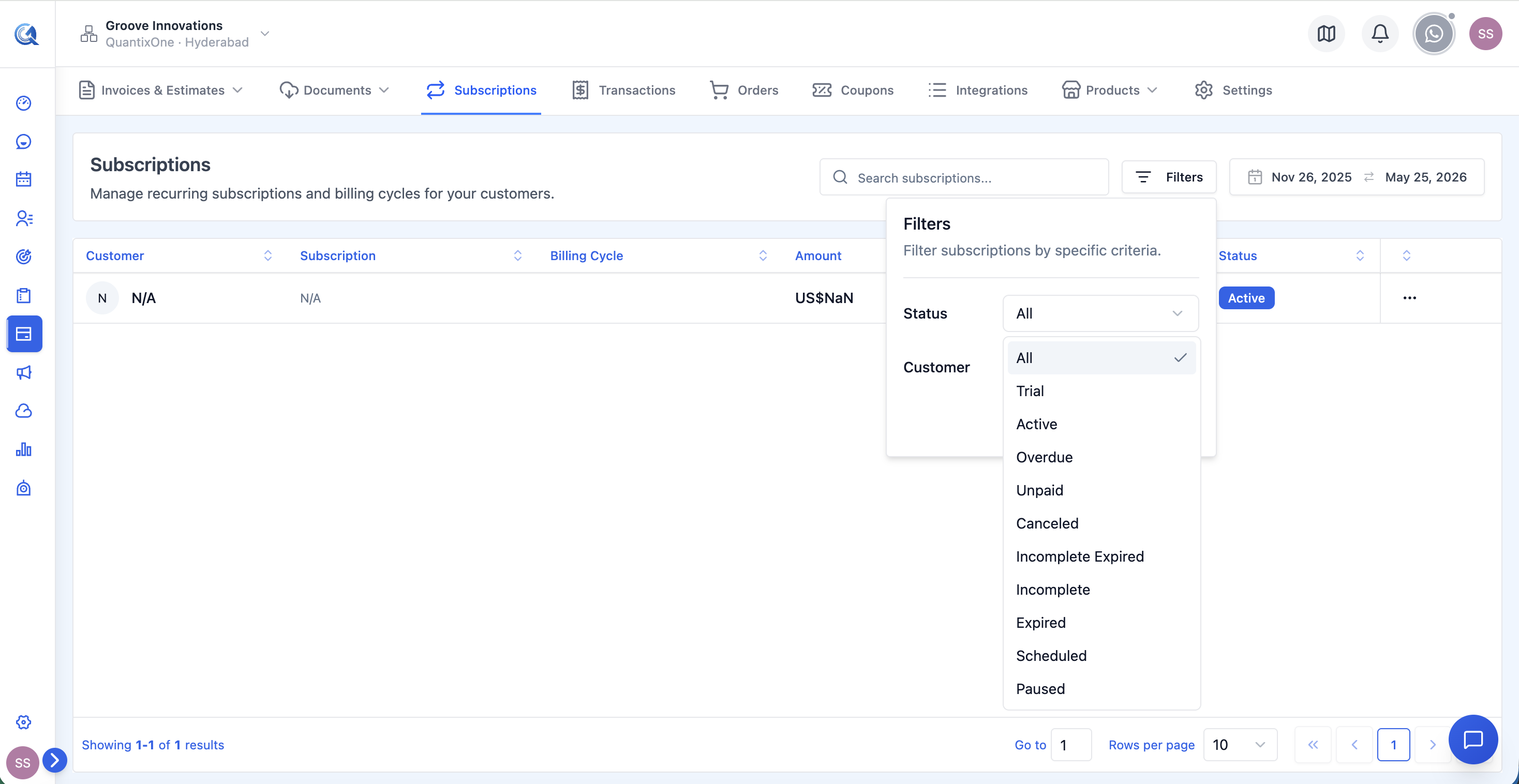 The Subscriptions filter panel. Filter by status, a specific customer, and a date range to find the exact subscriptions you need.
| Filter | Options |
|---|---|
| Search | Free-text search across customer names, email addresses, and subscription references |
| Status | Filter by any of the statuses above: All, Trial, Active, Overdue, Unpaid, Canceled, Incomplete Expired, Incomplete, Expired, Scheduled, Paused |
| Customer | Select a specific contact from a dropdown of all contacts who have subscriptions |
| Date Range | Filter by subscription start date or next billing date. The default range is the last 180 days. Use the calendar picker to select a custom range. |
Set the Date Range filter to cover the next 30 days to see all subscriptions renewing soon. This is useful for proactive account management — you can reach out to contacts before their renewal date to discuss upgrades, address payment issues, or flag any potential cancellations.
Viewing Subscription Details
Click any subscription row to open the View Subscription dialog.
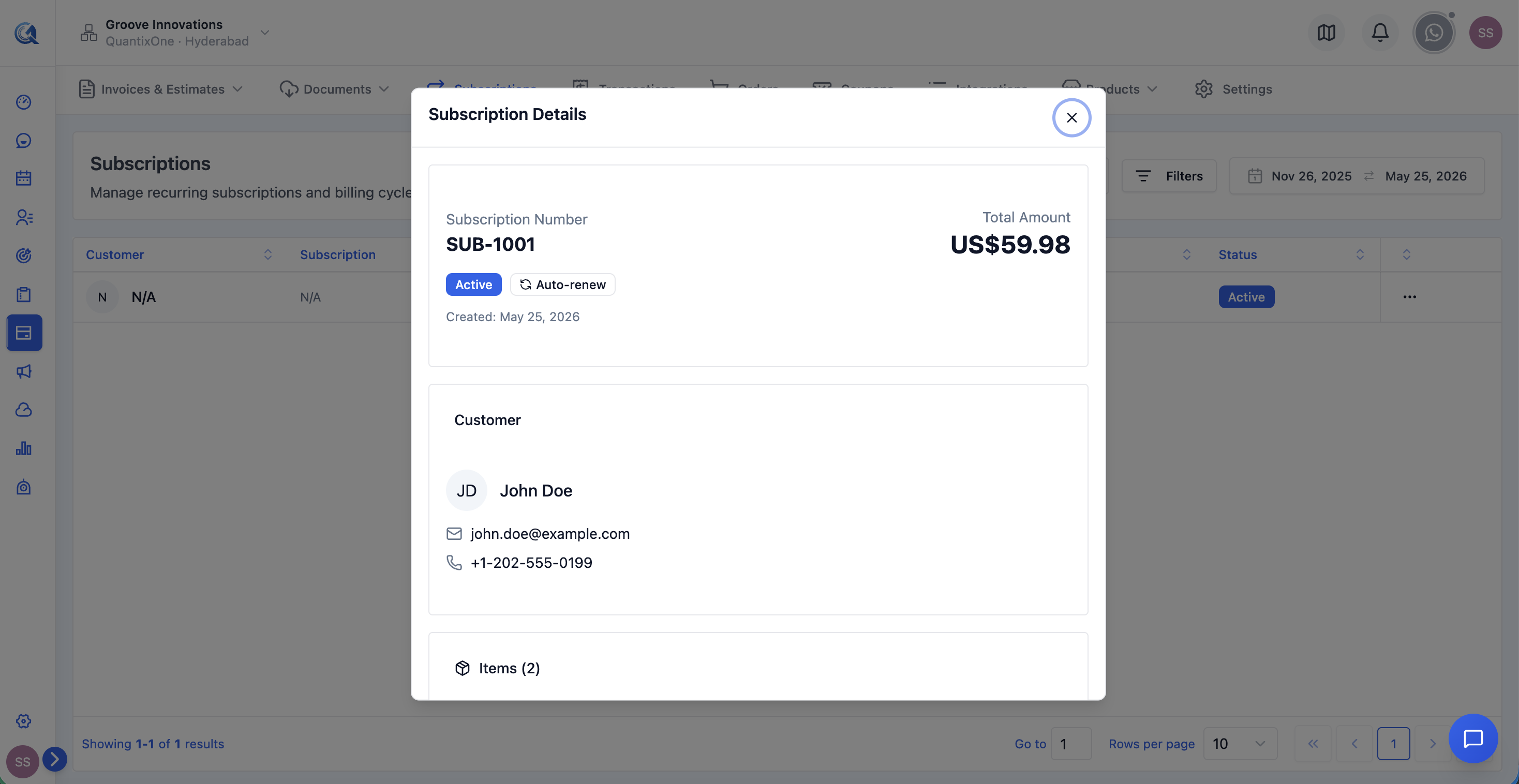 The View Subscription dialog. Shows the full subscription record — contact, product, billing cycle, next charge date, payment provider, payment method on file, start date, and current status.
This shows the full detail for that subscription:
- Contact name and email
- Product being billed
- Subscription reference number
- Billing cycle (e.g. Monthly)
- Amount per cycle
- Next billing date
- Payment provider (which integration is processing the charges)
- Payment method on file (card type and last 4 digits, if available)
- Subscription start date
- Current status with colour-coded badge
Video Walkthrough
Watch the complete walkthrough below.