Transactions
The Transactions section is the complete audit log of every payment event in your Payments module — every successful charge, every failed attempt, every refund, and every pending payment — across all contacts and all connected payment providers. It is read-only; transactions are created automatically when payments are processed.
Navigating to Transactions
From the main navigation, click Payments → Transactions tab.
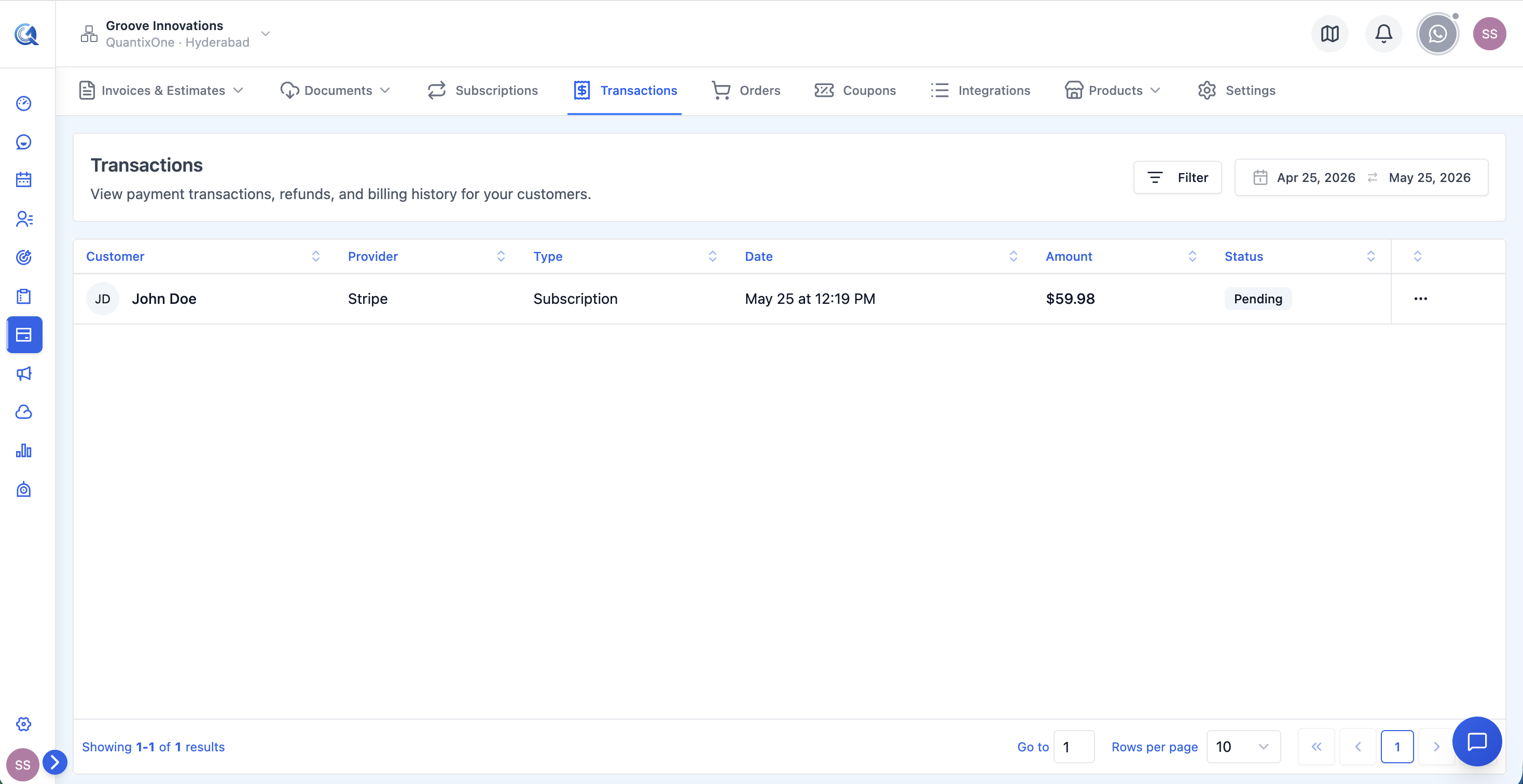 The Transactions list. Each row shows the contact, amount, payment method, date, and status.
Transaction List Columns
| Column | What it shows |
|---|---|
| Contact | The name and email of the person who made (or attempted) the payment |
| Amount | The payment amount, formatted with the transaction currency |
| Payment Method | How the payment was made — card type and last 4 digits, or provider name (e.g. "Visa ••••4242") |
| Date | The date and time the transaction was initiated |
| Status | The outcome of the payment attempt (see statuses below) |
Transaction Statuses
| Status | What it means |
|---|---|
| Succeeded | The payment was successfully processed and the funds have been collected. The associated invoice or order is now marked as Paid. |
| Pending | The payment has been initiated but the provider has not yet confirmed it. This is normal for certain payment methods (e.g. bank transfers, SEPA) where confirmation takes time. |
| Failed | The payment attempt was declined by the provider. The funds were not collected. The invoice remains unpaid. |
| Refunded | The full payment amount was reversed back to the customer's original payment method. |
| Partially Refunded | A portion of the payment was returned to the customer. The remaining amount was retained. |
Understanding Failed Transactions
A Failed transaction means the provider attempted to charge the customer but the charge was declined. The most common reasons are:
- Insufficient funds — the card didn't have enough balance.
- Expired card — the card's expiry date has passed.
- Incorrect card details — the card number, CVV, or billing address was entered incorrectly.
- Card blocked or fraud flag — the customer's bank blocked the charge.
- Temporary network or gateway error — a one-off technical failure that may resolve on retry.
What happens to the invoice: The associated invoice remains in Sent status (not Paid). Only the payment attempt fails — the invoice itself is unchanged and the customer can still pay via the same link.
How to help the customer retry:
- Go to the Invoices section.
- Find the invoice and open the action menu (⋯).
- Select Copy Link and share the payment link directly with the customer via email or message.
- The customer retries the payment using a different card or updated details.
For persistent failures: Open the transaction detail to get the Provider Transaction ID and check your payment gateway's dashboard for the specific decline reason code. The provider's dashboard will tell you exactly why the charge failed (e.g. "do_not_honor", "card_expired", "insufficient_funds").
Viewing Transaction Details
Click any transaction row to open the detail panel.
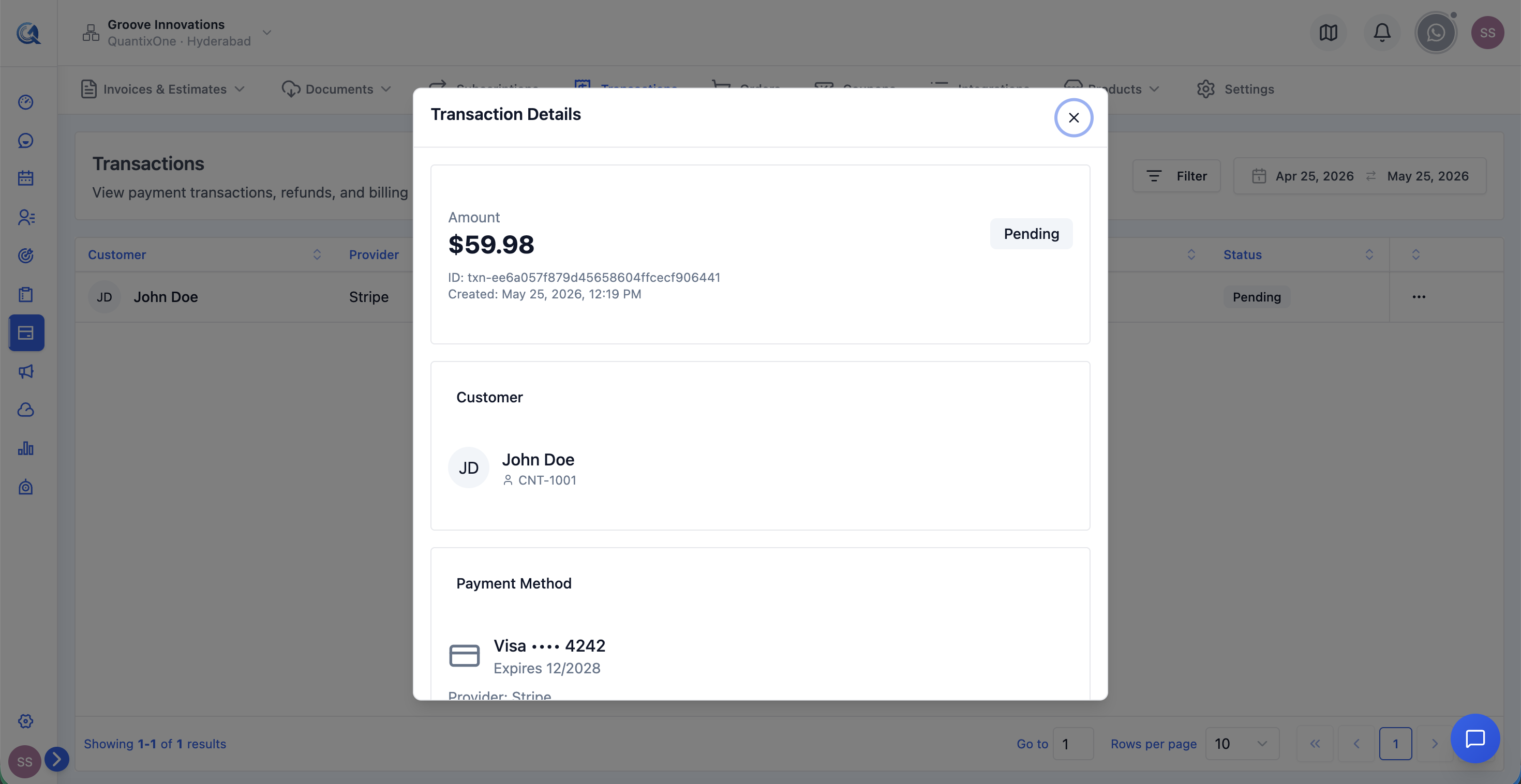 The transaction detail panel. The Provider Transaction ID at the bottom is the reference number to use when contacting your payment gateway's support team.
The panel shows the complete record for that payment event:
| Field | What it shows |
|---|---|
| Amount | The exact payment amount and currency |
| Status | Current status with colour-coded badge |
| Payment Method | Card type, last 4 digits, and card brand — or the provider name for non-card payments |
| Transaction Date & Time | The exact timestamp of the payment attempt |
| Contact | The customer linked to this transaction |
| Invoice / Order Reference | The Quantixone invoice or order number this payment is associated with (if applicable) |
| Provider Transaction ID | The unique ID assigned by the payment gateway. This is the reference number to use when contacting your payment provider's support team. |
When cross-referencing Quantixone records with your Stripe, PayPal, or other provider dashboard, always use the Provider Transaction ID. The Quantixone internal reference number is not visible to the provider's support team — they need the provider-side transaction ID to locate the charge.
Filtering and Search
Use the filter controls at the top of the list to find specific transactions.
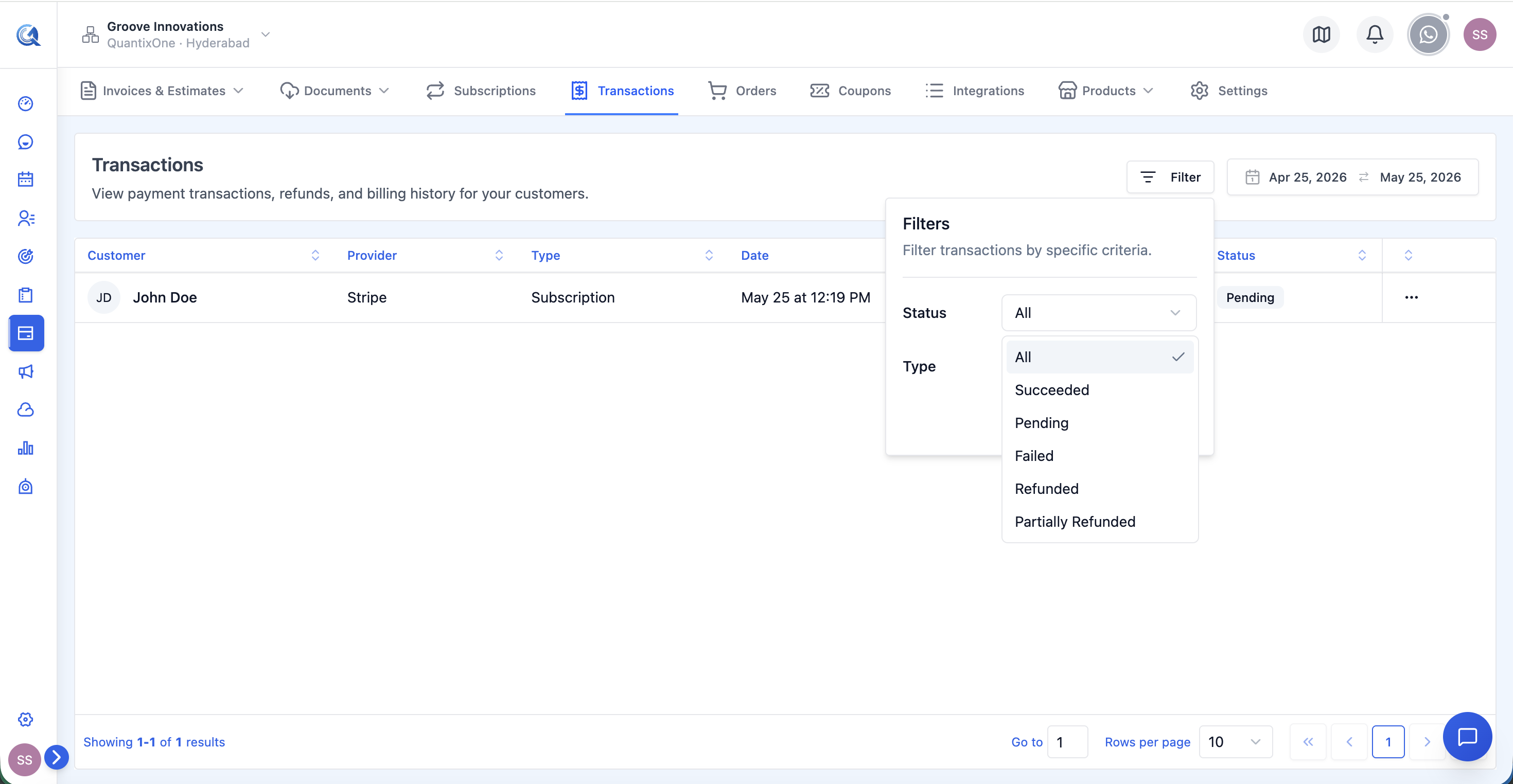 The Transactions filter panel. Filter by status, date range, or a specific contact to narrow the list to the transactions you need.
| Filter | Options |
|---|---|
| Search | Free-text search by contact name, amount, or transaction reference |
| Status | All, Succeeded, Pending, Failed, Refunded, Partially Refunded |
| Date Range | Filter by transaction date. Use the calendar picker to set a custom range. |
| Contact | Select a specific contact to view only their transactions |
Video Walkthrough
Watch the complete walkthrough below.